Travel connectivity guide
Apple iPad Pro 13-inch M4 cellular 128GB 5G eSIM
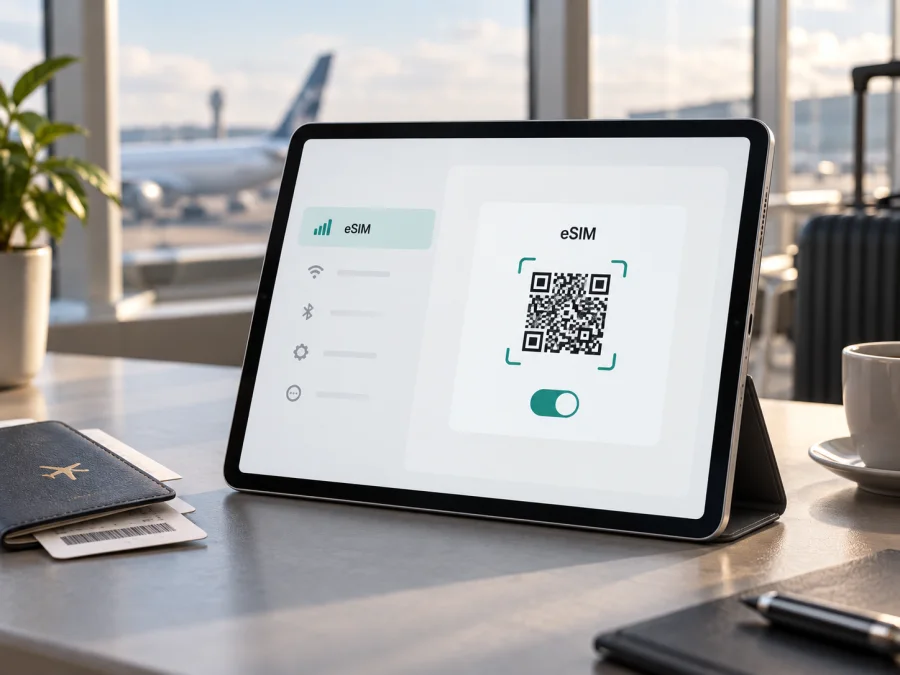
Apple iPad Pro 13-inch M4 cellular 128GB 5G eSIM
If you have an Apple iPad Pro 13-inch M4 cellular 128GB 5G, the short answer is yes: the genuine Wi‑Fi + Cellular M4 version supports eSIM for mobile data. Apple’s current documentation lists this family among eSIM-capable iPads and describes the cellular configuration as 5G-capable, data-only and eSIM-based. The exact tablet still needs a model, region, carrier and settings check before purchase.
The word cellular is important here. A Wi‑Fi-only iPad Pro has no mobile modem and cannot install a mobile-data eSIM. The supplied 128GB descriptor identifies the variant, but storage does not decide eSIM support; cellular hardware, region, iPadOS settings and carrier conditions do. Before buying, look for an EID or an option to add a cellular plan.
What the name tells you
| Detail | What it means for eSIM use |
|---|---|
| Apple iPad Pro | Check this family; do not substitute an iPad Air, iPad or another Pro generation. |
| 13-inch | Display-size variant; it does not prove that the model is cellular. |
| M4 | The 2024 Pro generation covered by Apple’s eSIM support information. |
| cellular | The required mobile-connectivity configuration; Wi‑Fi-only is not equivalent. |
| 128GB | The supplied storage descriptor; storage does not affect eSIM capability. |
| 5G | Cellular radio capability; service depends on bands, plan and location. |
| eSIM | A built-in digital SIM profile used to authenticate a data plan. |
Does Apple iPad Pro 13-inch M4 cellular 128GB 5G support eSIM?
Apple’s official support information identifies the iPad Pro 13-inch (M4) Wi‑Fi + Cellular as eSIM-capable and says M4 cellular models purchased worldwide use eSIM rather than a physical SIM. The qualification is important: Apple also notes that eSIM is not available from every carrier or in every country or region. The hardware must be cellular, the market version eligible, and the provider must support iPad activation. Storage, including 128GB, does not change that answer. For an imported, refurbished or third-party listing, verify the model, region and activation status before paying.
Check the tablet before buying a plan
Use this checklist while you have the iPad in hand. If buying remotely, ask for the model number or a photo of relevant Settings screens with personal data hidden.
- Confirm that the back of the listing and the Settings app identify an iPad Pro 13-inch (M4), not a Wi‑Fi-only model or a different generation.
- Open Settings and look for Cellular Data or Mobile Data. The wording can vary by language and iPadOS version.
- In the cellular information or About screen, look for an EID. An EID is the identifier for the embedded SIM component; seeing it is strong evidence that the device has eSIM hardware.
- Look for Add eSIM, Add Cellular Plan, Set Up Cellular or a similar control under the cellular-data section. The exact label can change after an iPadOS update or according to the region.
- Make sure the iPad can connect to Wi‑Fi before installation. The QR code or activation link normally needs an internet connection to download the profile.
- Verify that the plan supports iPad or tablet activation, not only a phone, and read whether it provides data only.
- Check the destination, network coverage, validity period, data allowance, activation trigger and roaming requirement in the plan conditions.
If the device is still with a seller, ask for the exact model number rather than relying on a product title. A photo of Settings → General → About can show the generation, while Settings → Cellular Data can show plan controls. The seller should hide serial number, EID and account details. If a listing claims 5G but settings show only Wi‑Fi controls, treat it as a different product until confirmed.
Also check activation state. An organisation, carrier account or management profile may expose hardware support but block plan changes. Confirm who can remove the restriction and whether activation is allowed in your destination.
Do this before selecting a plan, not after the QR code arrives. Hardware capability, account eligibility and destination coverage are separate gates. Passing one does not silently pass the other, so keep the model number, region and provider conditions together when making the decision.
If you are checking a used or imported tablet, compare the physical device with the software screens rather than with photographs from another review. The storage label may be copied correctly while the connectivity version is wrong. The model number, EID and visible cellular menu provide a more reliable three-part check. If any one is inconsistent, ask the seller or provider for clarification before proceeding. This is especially useful when the product description says “cellular” but does not state the market, or when a refurbished unit has been reset and its previous plan is no longer visible.
Check your device before you choose a travel eSIM. If the EID or the add-plan control is missing, pause the purchase and ask the seller or provider to identify the exact model. Do not try to force a QR code onto a Wi‑Fi-only iPad or assume that a 5G icon alone proves eSIM support.
EID and settings verification
The EID is different from the serial number, IMEI and Apple Account. Find it in Settings → General → About, then check Settings → Cellular Data for Add eSIM. An EID is evidence of eSIM hardware, not a guarantee that a carrier or destination will activate.
What to confirm about region and carrier
The name Apple iPad Pro 13-inch M4 cellular 128GB 5G is the target variant, but retail names are not always model identifiers. Regional versions may use different bands, plan options or activation rules.
Mainland China deserves special care: Apple states that local eSIM activation is available only on iPad models that support eSIM there, with additional carrier conditions. For a unit bought for or imported from that market, check the regional model and local provider. Do not infer compatibility from an overseas review.
Providers may use a QR code, app, carrier activation or account transfer, and can limit hotspot use, require data roaming or support selected tablets. Confirm these service conditions before paying, especially if you will land without Wi‑Fi.
Once the EID, Add eSIM control, destination and provider conditions all match, you can choose an eSIM plan for the trip in Kaspersky eSIM Store. The app and website help you select, arrange and activate an eSIM with a suitable mobile-data plan for an overseas journey. They do not turn the iPad into a mobile operator, own the destination network or guarantee coverage. The network connection is delivered under the selected plan’s terms.
How to install an eSIM on the iPad Pro
This sequence covers a QR code or activation profile. Keep the code on another screen or use a supported Add eSIM action from email or a webpage.
1. Prepare the iPad
Connect to stable Wi‑Fi, charge the iPad and keep the plan details open. Do not delete an existing working plan yet.
2. Open cellular settings
Open Settings → Cellular Data and tap Add eSIM, Add Cellular Plan or the closest label. If carrier activation is offered, follow its prompts.
3. Scan or load the profile
Choose the QR option and scan the code from the plan email or account. Approve an activation link when offered and enter a confirmation code only when supplied. Keep the QR code private because it may contain plan credentials.
4. Label the line
After installation, give it a clear label such as Travel data or the destination name. A label is local only and does not change coverage or billing.
5. Select mobile data
In Settings → Cellular Data, select the travel eSIM for mobile data. Turn off cellular-data switching if you want to avoid moving data to another line and unexpected charges.
6. Turn on the required roaming setting
Some travel plans need Data Roaming enabled for the travel eSIM to register on a partner network. Enable it only for that profile and when the plan requires it; this does not mean that your home line must be used.
7. Test the connection
Turn off Wi‑Fi briefly and open a simple webpage or map. Check the signal and selected data line, then restore Wi‑Fi until needed. Activation can take several minutes; restart if necessary.
For platform-specific guidance, see the Android installation instructions or iOS installation instructions. The iPad follows iPadOS menus, so give priority to the labels shown on the tablet.
Using the eSIM on a trip
Install before departure on dependable Wi‑Fi when the provider allows it, but check when validity starts: purchase, installation, first connection or a stated activation time.
After landing, select the travel eSIM in Settings → Cellular Data and enable Data Roaming for that profile when required. Keep the home line only if you understand its roaming charges; switching the data line is usually enough.
Scenario: a short city break
For a few days, maps, translation, ride booking, tickets and messaging can use more data when photos or video upload. Check the destination and validity, download offline maps where practical, and switch back to the home plan at the end.
Scenario: a multi-country route
For a multi-country route, confirm every country, speed limit and fair-use rule. At a border, allow time for registration; if needed, toggle the travel line and review automatic network selection and roaming.
Common problems and fixes
There is no Add eSIM option
Check that the iPad is the cellular M4 configuration. Look for an EID in Settings → General → About and plan controls in Settings → Cellular Data. If absent, verify the model; if present but unavailable, ask the carrier about restrictions.
The QR code will not scan
Increase the code’s brightness, keep the camera steady and do not crop or compress it. Use an Add eSIM action in the provider’s email or webpage, or display the code elsewhere. Enter a supplied confirmation code. Request a replacement only after checking whether the first profile was installed.
The eSIM is installed but there is no signal
Select the travel profile under Cellular Data, confirm it is on and enable Data Roaming if required. Toggle Airplane Mode, restart if needed, allow time for registration and check the destination. Use automatic network selection unless instructed otherwise.
The iPad shows signal but apps have no internet
Confirm that the travel eSIM is selected and Wi‑Fi is off for the test. Check that the plan has begun, has data and covers the country. Review app permissions and any VPN configuration. An exhausted or expired allowance needs a top-up or new plan, not a settings change.
A home line is using data unexpectedly
Return to Settings → Cellular Data, select the travel eSIM and turn off cellular-data switching if needed. Review app usage and the home operator’s roaming terms.
The provider says the device is unsupported
Send the provider the model number, EID and region securely. Ask whether the plan supports an iPad Pro M4 cellular model in the destination. A phone-only or different regional plan may not be interchangeable.
FAQ
Is the Apple iPad Pro 13-inch M4 cellular 128GB 5G eSIM compatible?
Yes, genuine cellular M4 hardware is listed by Apple as eSIM-capable. The final decision depends on the regional unit, iPadOS controls, carrier policy and plan support. Verify EID and Add eSIM before buying.
Does 128GB change eSIM compatibility?
No. 128GB is storage; cellular hardware and model identity determine eSIM support. Preserve the full name in the listing, but verify the tablet with EID and cellular settings.
Can I use a 5G eSIM everywhere?
No. 5G capability does not guarantee 5G service everywhere. Speed depends on the plan, bands, partner network, coverage and regional rules; the eSIM may connect through LTE.
Can the travel eSIM make ordinary calls?
Usually not when the plan is sold for data. Kaspersky eSIM Store is an app and website for choosing, arranging and activating a travel eSIM plan for mobile internet, not a mobile operator or voice-number provider. Check the plan terms.
Can I keep several eSIM profiles?
Apple states that an iPad can store multiple eSIMs, while only one is used for mobile data at a time. Limits and provider restrictions vary, so label profiles clearly.
Final device check before your trip
Use this final sequence for Apple iPad Pro 13-inch M4 cellular 128GB 5G:
- Confirm the exact product is the M4 13-inch cellular model, not a Wi‑Fi-only iPad or another Pro generation.
- Open Settings → General → About and verify that an EID is present.
- Open Settings → Cellular Data and confirm that an Add eSIM or Add Cellular Plan control is available.
- Check that the device is not carrier-restricted or managed by an organisation that blocks plan changes.
- Match the travel plan to the country or region, validity period, data allowance and iPad support requirements.
- Install through the provider’s QR code, link or supported activation flow while connected to Wi‑Fi.
- On arrival, select the travel eSIM for mobile data and enable Data Roaming for that profile only when the plan requires it.
- Test a simple webpage, monitor usage and switch back to your home data line after the trip.
If every item passes, Kaspersky eSIM Store can help you choose and activate a suitable eSIM plan for mobile internet through its app or website. Coverage and network terms remain decisive: check the device first, then choose the eSIM for the trip.


