Travel connectivity guide
Apple iPad Pro 13-inch M4 cellular 128GB eSIM
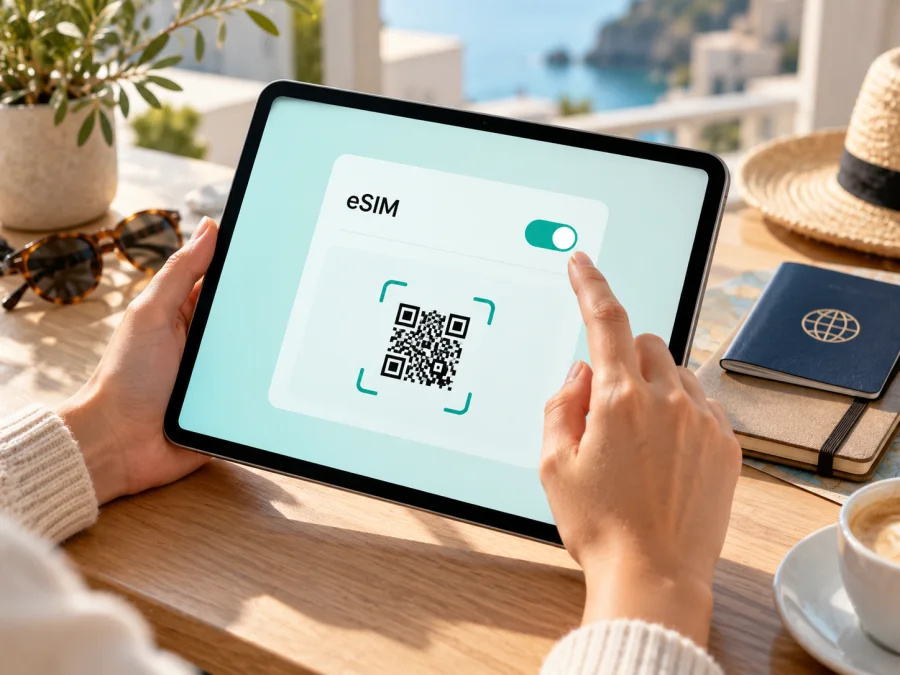
Apple iPad Pro 13-inch M4 cellular 128GB eSIM: compatibility and setup
If your listing says Apple iPad Pro 13-inch M4 cellular 128GB, verify the model number before buying or installing a travel eSIM. Apple confirms eSIM support for the iPad Pro 13-inch (M4) Wi‑Fi + Cellular family, but its official capacity list for this generation starts at 256GB. Apple does not list a 128GB 13-inch M4 configuration.
The practical answer is conditional: a genuine 13-inch M4 Wi‑Fi + Cellular iPad can use eSIM, while a Wi‑Fi-only iPad cannot connect to mobile networks. Confirm the exact device and the market it was made for before choosing a plan. Apple’s current iPad Pro technical specifications, model identification and eSIM setup guidance were checked on 1 November 2026.
Quick specifications and compatibility
| Item | What is confirmed | What to check on your unit |
|---|---|---|
| Exact task name | Apple iPad Pro 13-inch M4 cellular 128GB | Preserve this name when searching, but do not assume it is an Apple retail configuration |
| Product family | iPad Pro 13-inch (M4), introduced in 2024 | Confirm the model number in Settings or on the packaging |
| Listed storage | 128GB in the supplied device name | Apple lists 256GB, 512GB, 1TB and 2TB for the 13-inch M4; 128GB is not on its official list |
| Cellular capability | Wi‑Fi + Cellular models support mobile data and eSIM | A Wi‑Fi-only model cannot take an eSIM, even if a shop listing uses “cellular” loosely |
| eSIM format | The M4 Wi‑Fi + Cellular generation uses eSIM and has no physical SIM tray | Look for EID and the mobile-data eSIM controls; do not expect a nano-SIM slot |
| Common model identifiers | A2926 is the international Wi‑Fi + Cellular model; A3007 is the China mainland Wi‑Fi + Cellular model | Check the identifier rather than relying only on the product name or seller description |
| Main restriction | Market-specific carrier rules apply, especially for China mainland | Confirm that the eSIM provider supports the device and the country where you will activate it |
Apple’s model guide identifies A2925 as the Wi‑Fi model, A2926 as Wi‑Fi + Cellular, and A3007 as the Wi‑Fi + Cellular model for China mainland. It lists 256GB as the starting capacity for this generation. Apple’s iPad eSIM guide includes the M4 Wi‑Fi + Cellular models and states that these models use eSIM rather than a physical SIM. That makes eSIM support a feature of the cellular hardware, not something guaranteed by the words “M4” or “128GB” alone.
Does this exact 128GB listing support eSIM?
There is no verified Apple configuration matching all parts of the supplied name. Apple’s documentation supports eSIM on the 13-inch M4 cellular family, but does not establish that an official 128GB edition exists. Treat “128GB” as an unresolved listing detail until the seller provides the iPad’s model number and the device itself confirms its identity. Do not substitute an older 12.9-inch iPad Pro or another storage option just because it seems similar.
If the actual model number is A2926, it is the regular Wi‑Fi + Cellular version identified by Apple for markets outside mainland China. It supports eSIM, subject to the provider’s compatibility, local rules and any device restriction. If it is A3007, Apple identifies it as the China mainland Wi‑Fi + Cellular model. It also supports eSIM, but its local use in mainland China follows a specific carrier rule: Apple lists China Unicom as the only supported iPad eSIM provider there. A3007 can install a non-mainland eSIM while travelling outside mainland China; Apple says Location Services must be enabled for that installation.
These are distinct facts. The device variant is the model number and market version. The geographic location is where you are physically trying to activate or use a plan. The operator market is the provider whose profile you are adding. A China mainland device being outside China does not make it a different hardware variant, and a global A2926 being in China does not make it eligible for a mainland carrier’s iPad eSIM profile. In China mainland, the approved iPad eSIM service is restricted to the specified model family and China Unicom. For an international trip elsewhere, check the destination provider and the plan terms instead of applying that local rule worldwide.
The storage discrepancy does not by itself prove whether the item in a shop is cellular or Wi‑Fi-only. It does mean you should resolve the discrepancy before paying for an eSIM plan. Ask the seller for a photo of Settings → General → About showing the model number, and compare it with the product packaging and invoice. If the seller cannot identify the model, wait to buy a plan until you can inspect the iPad.
Check EID and eSIM controls before purchase
Use the iPad itself when possible. A seller’s web page, box label or screenshot can be inaccurate or can refer to another unit.
- Connect the iPad to Wi‑Fi and open Settings.
- Tap General, then About.
- Find Model Number. The value shown at first may be a part number; tap it to reveal the hardware model identifier, such as A2926 or A3007.
- On the same About screen, scroll for EID. An EID is the identifier for the embedded SIM hardware. It is not the eSIM QR code, an activation code or the plan itself.
- Return to Settings and open Mobile Data (called Cellular Data in some localizations). Look for Add eSIM, Add Mobile Plan, or an equivalent option.
- Check the hardware and the settings together. A cellular model number, an EID and an eSIM-add control are stronger evidence than any one item in isolation.
- Confirm that the iPad is not locked or restricted by an organization or carrier and that the intended provider accepts this model in your destination.
The Settings labels can differ slightly with iPadOS version and language. If EID is not visible, install any available iPadOS update, restart, and check About again. If the model identifier is A2925, that is the Wi‑Fi-only model in Apple’s identification guide: an eSIM plan cannot add cellular hardware. If the seller’s “128GB” description conflicts with what About shows, rely on the device’s identifier and storage display and ask the seller to correct the listing.
Check your device compatibility before purchasing a plan. Verify the model number, EID, eSIM menu, device restrictions and provider support for your destination. A plan purchase cannot turn a Wi‑Fi-only model into a cellular iPad.
Regional models and operator restrictions
Apple’s international model and China mainland model should not be treated as interchangeable for every local eSIM. The international A2926 is listed as Wi‑Fi + Cellular and supports eSIM. The China mainland A3007 is also an eSIM-capable cellular model, but Apple’s mainland guidance specifies the models that can install mainland carrier eSIM profiles and names China Unicom as the supported iPad eSIM carrier. For current mainland activation steps and eligibility, follow Apple’s regional guidance and ask China Unicom about the plan.
If you travel from mainland China to another country with an A3007 iPad, Apple says the supported China model can install an eSIM cellular data plan from a provider outside mainland China; Location Services must be on during the installation. This is a region-specific allowance, not a promise that every overseas provider or plan will work. Check the destination, supported bands, activation method and any restrictions with the provider. Mobile coverage and service depend on that provider’s networks and terms.
An iPad is also not a phone. Cellular iPad plans are for mobile data; they do not create a regular mobile telephone number for standard calls and SMS. Apps that use the internet can still make calls or send messages when their own service supports it. Keep your phone’s existing line for normal voice and text service if needed.
Install and activate a travel eSIM
Before starting, confirm that the exact iPad is a supported Cellular model, that the provider accepts iPad eSIM, that the device is unrestricted, and that the plan covers your destination. Use a stable Wi‑Fi connection to download the profile. Check the plan’s activation timing: some eSIMs begin their validity when installed, while others start when they first connect in the destination. Follow the provider’s stated rule.
QR-code installation
- Open the eSIM details from the app or website where you arranged the plan. Keep the QR code visible on another screen or print it. If the provider supplies a manual activation method instead, use its instructions.
- On the iPad, open Settings → Mobile Data or Cellular Data and choose Add eSIM or Add Mobile Plan.
- Select the QR-code option and scan the code. If you received a QR code by email or on a web page and use iPadOS 17.4 or later, Apple also documents touching and holding the displayed code and choosing Add eSIM.
- Follow the on-screen prompts. If the provider asks for a confirmation code, enter the code it supplied through its secure channel.
- Give the plan a clear label, such as “Travel data” or the destination name. This makes it easier to identify if the iPad stores more than one eSIM profile.
- Wait for the profile to install. Leave the iPad connected to Wi‑Fi and do not close the setup screen while it is processing.
- In Mobile Data settings, select the travel eSIM for mobile data when you are ready to use it. Keep your usual plan selected until departure if you want the travel profile installed but inactive.
- At the destination, enable the travel eSIM and mobile data. Turn on Data Roaming for that eSIM only when the plan’s instructions require it. The roaming switch can be necessary for a travel profile to connect; check the plan information rather than enabling it on every line by default.
- Turn off Wi‑Fi briefly and load a page to confirm that mobile data works. Then reconnect to Wi‑Fi if you prefer to limit data use.
For screenshots and platform-specific guidance, see the iOS eSIM installation instructions. The Android installation instructions apply to Android phones and tablets, not to the iPad’s menus; they can help if you are setting up a separate Android device for the same trip. Apple’s iPadOS steps take precedence for this iPad.
Use the iPad for mobile data during a trip
A travel eSIM can be useful when a large tablet needs data away from Wi‑Fi: checking maps, opening work files, joining a video call, or using cloud services at a station or airport. First select a plan for the actual countries or regions on your itinerary. A country-specific plan may not include a neighboring stop, and a regional plan may have different coverage or data rules from a local one. Read the listed destinations, data allowance, validity period, supported network access and activation conditions before purchase.
Kaspersky eSIM Store is an app and website where you can choose, arrange and activate an eSIM with a mobile-data plan for an overseas trip. After confirming device compatibility, you can browse available travel plans and compare the destination, data amount and validity shown for the plan you select. The homepage is a general entry point for checking current options; it is not a claim that a particular country tariff is available or that the 128GB listing has been verified.
Think through when the tablet will actually use cellular data. If you mainly need a connection for maps and messages while walking between places, a modest data amount may be enough; video calls, cloud backups, streaming and large downloads use more. Set app updates, photo syncing and operating-system downloads to Wi‑Fi where practical. Check data usage in Settings during the trip, and download offline maps or documents before leaving a reliable connection.
Keep the existing line and the travel line clearly labelled if both are present. Choose the intended line under Mobile Data before using cellular service. Disable automatic mobile-data switching if you want to reduce the chance that the iPad changes to another eligible line. The iPad may not have a separate voice line to preserve, but other Apple devices or a linked iPhone plan can affect which plan appears in Settings. Follow the provider’s terms for activation, roaming and data use.
Common problems and what to check
There is no Add eSIM option. Confirm that the device is the Wi‑Fi + Cellular model, not A2925 Wi‑Fi-only. Check the model identifier in About, update iPadOS, restart, and look again under Mobile Data. If an organization manages the iPad, its administrator may restrict cellular changes. If the 128GB listing cannot be reconciled with the device information, ask the seller before buying a plan.
EID is missing. Check that you are viewing the actual device’s About screen and scroll through the complete page. Confirm the hardware identifier. An EID is expected on an eSIM-capable cellular model; the Wi‑Fi-only model has no cellular eSIM hardware. If a model identified by Apple as cellular shows no EID or Add eSIM after an update and restart, contact Apple or the seller with the model and serial information. Do not publish or send the full EID in a public post.
The QR code will not scan. Increase screen brightness on the device displaying the QR code, clean the iPad camera, and make sure the code is not cropped or blurred. Use another display if needed. Check that the QR was issued for this plan and that it has not already been used. Some profiles are single-install; do not delete a partly installed eSIM or repeatedly scan the same code until the provider confirms how to recover it.
Installation completes but there is no connection. Confirm that the travel profile is enabled and selected for mobile data. Check that mobile data is on, that you are in a destination covered by the plan, and that the activation time has arrived. If the provider requires Data Roaming, turn it on for the travel profile. Allow a few minutes for registration, then toggle Airplane Mode off and on or restart. Test away from Wi‑Fi so you know the iPad is using the cellular connection.
A local plan cannot be added in mainland China. Verify the iPad model against Apple’s current mainland list and confirm that the provider is China Unicom. The international A2926 should not be assumed to accept a mainland operator eSIM. For A3007, follow Apple’s local activation guidance and contact China Unicom about account and plan eligibility. When travelling outside mainland China with A3007, enable Location Services for installing an overseas provider profile, as Apple instructs.
When contacting support, have the model number, iPadOS version, destination, plan name and a description of the error ready. Share the QR code only through the provider’s secure support process if requested. The EID helps identify hardware but does not replace the activation code.
Compatibility checklist before you pay
- [ ] The iPad’s own Settings page identifies it as a Wi‑Fi + Cellular device.
- [ ] The model identifier is visible and has been checked against Apple’s model guide.
- [ ] The About screen shows an EID and Settings offers an eSIM/mobile-plan option.
- [ ] The seller has explained why the supplied “128GB” description differs from Apple’s published 13-inch M4 capacities.
- [ ] The iPad is not locked or managed in a way that prevents adding a cellular plan.
- [ ] The eSIM provider confirms support for iPad and this regional model.
- [ ] The plan includes each destination on your itinerary, with suitable data, validity and activation rules.
- [ ] You know whether the plan needs Data Roaming and whether hotspot use is allowed.
- [ ] For mainland China, the model and China Unicom requirements have been checked; for an A3007 trip abroad, Location Services are available during installation.
FAQ
Does Apple iPad Pro 13-inch M4 cellular 128GB support eSIM?
Apple confirms eSIM for the iPad Pro 13-inch (M4) Wi‑Fi + Cellular models. However, Apple does not list a 128GB configuration for this generation. Confirm the real model number and storage on the device. If it is a genuine Cellular M4 model, eSIM support is expected, subject to regional and provider restrictions.
Can I install an eSIM on the Wi‑Fi-only M4 iPad Pro?
No. A Wi‑Fi-only iPad has no cellular modem or eSIM hardware. A software update or travel eSIM cannot add that hardware.
Can I use the A3007 China mainland model while travelling abroad?
Apple says a mainland-supported iPad model can install an eSIM data plan from a provider outside mainland China while travelling, and Location Services must be enabled for that installation. The overseas provider must still support the device and plan.
Final check: device first, plan second
The official answer for the Apple iPad Pro 13-inch M4 cellular 128GB name is not a blanket yes: Apple documents eSIM on the M4 13-inch Wi‑Fi + Cellular family, but it does not list a 128GB configuration. Verify the actual model number, storage, EID and Add eSIM control on the iPad. For A2926, check the destination provider’s compatibility. For A3007, keep Apple’s mainland China carrier limitation and its overseas-installation instruction in mind.
Once the exact device and destination are confirmed, compare a travel eSIM by included locations, data allowance, validity and activation rules. Kaspersky eSIM Store’s app and website let you review available options and arrange an eSIM plan for mobile data during an overseas trip. Confirm compatibility before you choose a plan, then install the profile over Wi‑Fi and select it for data when you are ready to travel.


