Travel connectivity guide
Apple iPad Pro 13-inch M4 cellular 1TB 5G eSIM
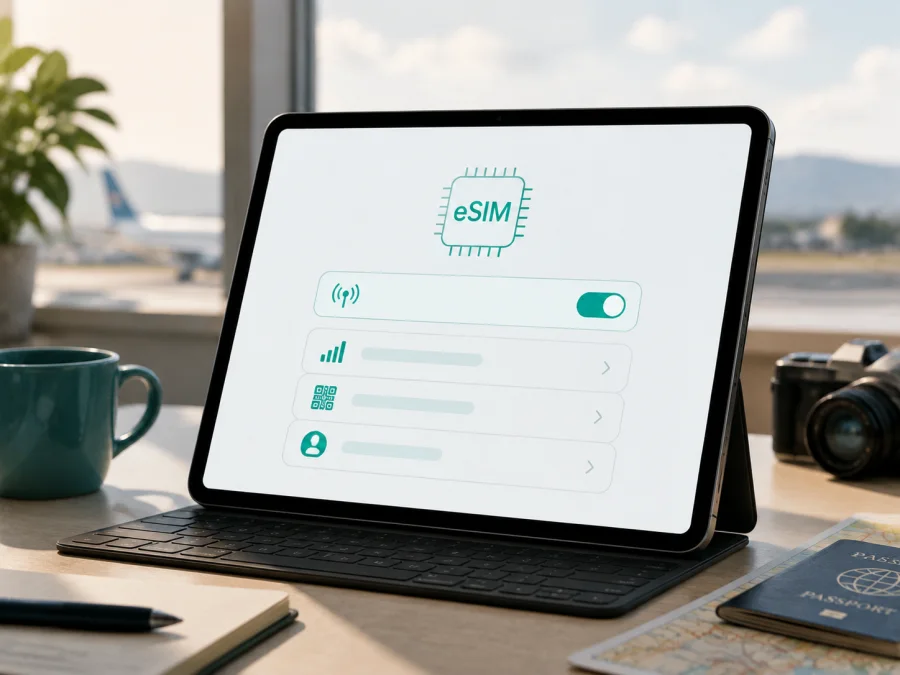
Apple iPad Pro 13-inch M4 cellular 1TB 5G eSIM
If you have an Apple iPad Pro 13-inch M4 cellular 1TB 5G, eSIM is supported: this is the Wi‑Fi + Cellular version, and Apple’s current specifications for iPad Pro (M4) list eSIM instead of a physical SIM card. However, support for the technology and availability of a specific plan are not the same thing. The sales market, carrier, iPadOS version, and plan conditions can affect activation. Check the settings on your own iPad before purchasing.
An eSIM is useful for mobile data abroad without replacing a physical card. You choose a country or route, arrange a suitable data package, install the profile with a QR code, and set it as the line for cellular data. If Settings does not show an EID or an option to add a cellular plan, do not rely on the listing name alone: confirm the exact model and market first.
Short compatibility answer
Apple iPad Pro 13-inch M4 cellular 1TB 5G is compatible with eSIM at the hardware level. The cellular designation matters for eSIM, not the storage capacity: 1TB does not change network capability, while a Wi‑Fi-only version without Cellular is not suitable. The 5G label indicates support for compatible 5G networks, but it does not guarantee 5G access with every carrier in every country.
Apple also states that iPad Pro (M4) cellular uses eSIM and is not compatible with physical SIM cards. At the same time, eSIM is not available in every country or region, and not every carrier supports activation on iPad. The practical answer is therefore: the specific model family supports eSIM, but regional and carrier compatibility must be confirmed before payment.
Specifications that matter for eSIM
| Parameter | What to consider |
|---|---|
| Full device name | Apple iPad Pro 13-inch M4 cellular 1TB 5G |
| Network version | Wi‑Fi + Cellular, mobile data |
| eSIM | Supported in the iPad Pro (M4) cellular line |
| Physical SIM card | Not included for iPad Pro (M4) cellular |
| Storage | 1TB; it does not replace checking the Cellular version |
| Networks | 5G/LTE where the network and plan are compatible |
| Profiles | Several eSIMs can be stored, but one data line is used at a time |
| Main check | Settings → Cellular Data and the EID in device information |
Keep the full name intact when checking a listing or asking a carrier about compatibility, especially if the tablet was purchased abroad or refurbished.
Why use an eSIM while traveling
The main scenario is mobile internet abroad without looking for a physical SIM card after landing. The large display is useful for maps, bookings, transport, documents, and messengers. Prepare maps and routes in advance, then turn on the eSIM before the trip or after arrival, depending on the plan rules.
An eSIM for mobile data does not normally mean a separate phone number. Standard calls and SMS are not included unless the plan specifically says so. For communication, use messenger apps over the internet. Tethering and personal hotspot use also depend on the plan and carrier, so do not assume that they are automatically allowed.
Choose a plan for one country, a region, or a multi-country route. Compare data allowance, validity, destination, and activation rules, not just price. Maps, video calls, and syncing can consume data quickly; 1TB storage does not increase the plan’s allowance.
What to check before purchasing an eSIM plan
First confirm that you have an Apple iPad Pro 13-inch M4 cellular 1TB 5G, rather than a Wi‑Fi-only model with a similar appearance. Open Settings → General → About and check the model information. Then open Settings → Cellular Data: you should see an option to set up mobile service or add an eSIM. The labels can vary slightly with the interface language and iPadOS version.
Find the EID in the device information. The EID is the identifier of the built-in eSIM module, not the number of a plan. Its presence together with the Cellular Data section is a strong practical sign that the iPad is ready to download an eSIM profile. If the EID or cellular settings are missing, stop and ask the seller or carrier for the exact model number.
Compatibility checklist
- Confirm that the device is the Cellular version, not Wi‑Fi only.
- Find the EID in Settings → General → About.
- Open Settings → Cellular Data and look for the option to add a new plan.
- Make sure the iPad is not carrier-locked or restricted by a corporate management profile.
- Update iPadOS if a compatible update is available.
- Prepare Wi‑Fi for profile download and activation confirmation.
- Check that the plan supports iPad or tablets, not only smartphones.
- Confirm the destination, validity period, data allowance, and activation rules.
- Ask whether Data Roaming is required for the travel eSIM.
- Keep the QR code and activation details until installation is complete.
Check your device against this list before ordering the plan. This reduces the risk of purchasing a profile that cannot be activated on a particular regional variant.
Regional and carrier limitations
The iPad Pro (M4) cellular hardware supports eSIM, but the service does not have to be available in the same way in every market. A carrier may not activate eSIM on iPad, may require a special type of plan, or may support only its own activation app. 5G and LTE bands, activation methods, and rules for devices purchased in another country can also differ.
Check markets with special conditions separately, including mainland China. Do not transfer an eSIM conclusion from one country to another based only on the product name. For an imported iPad, request the exact model number from the seller, check the EID, and ask the local carrier whether it activates eSIM plans on iPad. A 5G mark in a listing does not prove that a particular plan will work.
Carrier locking, a corporate configuration profile, or an outdated iPadOS version can prevent installation. If the EID is visible but a plan cannot be added, the cause may be a carrier or profile restriction rather than hardware incompatibility. Resolve these questions before arranging a plan.
How to install an eSIM on Apple iPad Pro 13-inch M4 cellular 1TB 5G
Before starting, connect the iPad to Wi‑Fi, charge it, and prepare the QR code or profile details. Do not remove a working line unless necessary. Check when validity begins: depending on the plan, the countdown may start at installation or at the first network connection.
1. Check device compatibility
Confirm that EID and Settings → Cellular Data are available and that the iPad is not carrier-locked.
2. Open cellular settings
Go to Settings → Cellular Data and choose the option to add a new plan or eSIM.
3. Choose an activation method
Follow the carrier’s automatic notification or choose the QR-code option. If the plan offers activation through an app, use the method specified in its conditions.
4. Scan the QR code
Point the camera at the QR code from the email or your Kaspersky eSIM Store profile. Confirm the detected plan and enter a confirmation code if the carrier requests one. Do not publish or forward the QR code: it is used to download the profile.
5. Add the cellular plan
Tap to continue and wait for the eSIM profile to download. Keep Wi‑Fi connected and do not close Settings until the operation is complete.
6. Assign the data line
Select the added profile in Settings → Cellular Data and set it as the line for mobile data. If several profiles are saved, check the name carefully so that you do not select the home plan by mistake.
7. Configure roaming
If the plan conditions require Data Roaming, enable it for the travel eSIM specifically. Avoid enabling roaming on the home line accidentally.
8. Test the connection
Temporarily turn off Wi‑Fi and open a website or application. Network registration may take several minutes. Turn Wi‑Fi back on after the test if you do not need cellular data yet.
You can compare the sequence with the iOS installation instructions. If an Android device will be used alongside the iPad during the trip, the Android installation instructions may help. These materials do not replace checking the plan and market.
How to use the eSIM during a trip
Install the profile at home over Wi‑Fi if the plan allows delayed activation, or install it after arrival. A practical option is to add the eSIM in advance and switch it on before first use if installation does not start the validity period. Before departure, make sure the QR code and confirmation details are available without searching for a connection.
After arrival:
- Open Settings → Cellular Data and turn on mobile data.
- Select the travel eSIM as the line for Cellular Data.
- Enable Data Roaming on that line if the conditions require it.
- Disable the home line for data if you do not want to use it accidentally.
- Limit background updates and backups if you need to conserve data.
- Turn off Wi‑Fi and test a map or website.
5G appears only where the network, coverage, and plan are compatible. Seeing LTE instead of 5G does not necessarily mean that the eSIM has failed: bands, network load, and local carrier conditions can affect the result. For travel, a stable data connection and a suitable plan matter more than a particular network icon.
Kaspersky eSIM Store helps you choose a destination, arrange an eSIM, and activate a plan for mobile internet during an international trip. It is an app and website for choosing and activating the travel eSIM scenario, not a carrier, network owner, or mobile internet provider.
Common problems
The QR code will not scan
Increase the brightness of the screen showing the code, clean the camera, and make sure the entire code is visible. Check whether the profile has already been activated: repeat installation may be prohibited. If the code is open on the iPad itself, use the supported add-from-email or webpage method if it is available in your iPadOS version.
There is no option to add an eSIM
Check that the device is the Cellular version. Find the EID in General → About. If EID and Cellular Data are both absent, confirm the model with the seller. The word “5G” in a listing without proof of Cellular capability is not enough to establish compatibility.
The profile installed but there is no network
Open Cellular Data, enable the correct profile, and select it for data. Check Airplane Mode, restart the iPad, and allow time for registration. Enable Data Roaming on the travel eSIM if required. Recheck the destination, validity period, and remaining data.
Only Wi‑Fi works
Turn off Wi‑Fi for the test, make sure mobile data is enabled, and check that the profile is not waiting for activation. Do not change the APN at random: enter it only when the plan provider gives specific values. Registration can take longer indoors or immediately after crossing a border.
Data is used faster than expected
Review data statistics in Settings. Video, photo syncing, updates, and hotspot use can consume a package quickly. Disable unnecessary background transfers and use Wi‑Fi for large files. Top-up and refund rules depend on the selected plan.
The profile stops working after changing countries
Check that the new country is included in the destination, that the plan has not expired, and that the correct profile is selected. Do not delete the eSIM immediately: reinstalling it may be impossible. Save the error text and contact support.
FAQ
Does Apple iPad Pro 13-inch M4 cellular 1TB 5G support eSIM?
Yes. The Wi‑Fi + Cellular iPad Pro (M4) supports eSIM, and Apple specifies eSIM instead of a physical SIM card for this line. Check EID, Cellular Data, the market, and support for the particular plan.
Does 1TB affect compatibility?
No. 1TB is the storage capacity. eSIM compatibility depends on the Cellular version, hardware support, market, iPadOS, and carrier conditions.
Can I insert a regular SIM card?
No. iPad Pro (M4) cellular uses eSIM instead of a physical SIM card. If a seller shows a SIM tray, recheck the exact model.
Can I store several profiles?
Yes. Several eSIM profiles can be saved, but mobile data uses one selected line at a time. Switch it in Settings → Cellular Data.
Will any travel eSIM plan work?
No. Check iPad support, the destination, validity period, data allowance, activation method, and Data Roaming requirement before payment.
What is Kaspersky eSIM Store?
It is an app and website where you can choose, arrange, and activate an eSIM with a suitable plan for mobile internet during an international trip. It is not a carrier and does not provide its own mobile network.
Can I use the eSIM for regular calls and SMS?
Usually not, unless the plan says so. This type of plan is intended for mobile data; calls and messages can be sent through messenger apps over the internet.
Conclusion
Apple iPad Pro 13-inch M4 cellular 1TB 5G is suitable for eSIM: Apple confirms eSIM for the Wi‑Fi + Cellular version and the absence of a physical SIM card. Final compatibility still depends on the market, carrier, iPadOS, and plan conditions. Before purchasing, find the EID, check Settings → Cellular Data, confirm that the device is not locked, and verify that the plan supports iPad.
Check the device and choose an eSIM for the trip
Open the settings on Apple iPad Pro 13-inch M4 cellular 1TB 5G, find the EID and the option to add a cellular plan, and then compare the destination, validity, and data allowance. After that, choose an eSIM for the trip in Kaspersky eSIM Store, arrange the profile, install it using the instructions, and assign it to mobile data. This order helps you account for regional limits and prepare internet abroad without a physical SIM card.


