Travel connectivity guide
Apple iPad Pro 13-inch M4 cellular 1TB eSIM
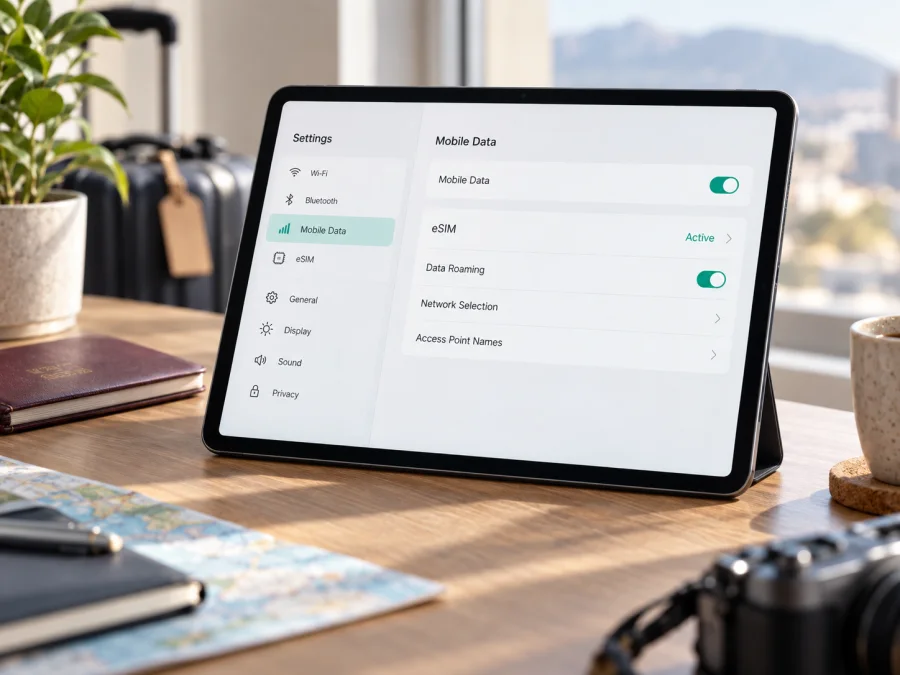
Apple iPad Pro 13-inch M4 cellular 1TB eSIM compatibility
The Apple iPad Pro 13-inch M4 cellular 1TB supports eSIM for mobile data when it is the Wi‑Fi + Cellular configuration. Apple lists the 13-inch iPad Pro with M4 and Wi‑Fi + Cellular as eSIM-capable; M4-generation cellular iPad Pro models activate with eSIM and have no physical SIM card. The 1TB storage capacity does not change cellular or eSIM capability. The key distinction is the radio configuration: a Wi‑Fi-only iPad cannot connect to a mobile network, while the Cellular version can.
Apple’s current support pages, “Set up eSIM on iPad” and “iPad Pro 13-inch (M4) Tech Specs,” confirm the model family and eSIM-only cellular setup (checked September 26, 2026). This confirms device capability, not the availability of every plan. Provider support, local rules, the destination and the origin of a specific unit can affect activation. Apple specifically notes that eSIM activation in mainland China is limited to iPad models supported there and directs customers to China Unicom for details.
Quick specifications
| Item | Apple iPad Pro 13-inch M4 cellular 1TB |
|---|---|
| Device type | 13-inch iPad Pro tablet |
| Generation / chip | M4 generation |
| Storage / memory | 1TB storage; Apple lists 16GB RAM for 1TB configurations |
| Connectivity | Wi‑Fi + Cellular; 5G support depends on market and carrier |
| eSIM | Supported on the M4 Wi‑Fi + Cellular model |
| Physical SIM | Not used by this generation; cellular activation uses eSIM |
| Cellular service | Data only; plan availability varies by provider and destination |
| Travel use | Mobile data for maps, messaging, browsing and work |
Retail listings may say “Cellular,” “Wi‑Fi + Cellular” or “5G” inconsistently. “iPad Pro 13-inch M4” alone may describe either model, so verify the configuration in Settings or seller details. Storage does not identify the modem.
What eSIM support means
An eSIM is a digital SIM profile stored in the device, downloaded without a plastic card. On this iPad generation, it activates cellular service and can provide data away from Wi‑Fi for maps, email, bookings and cloud documents.
eSIM hardware does not automatically provide a working plan. The provider must support eSIM activation on iPad, and its plan must cover your destination. Some providers support eSIM on smartphones but limit a particular plan or activation method to phones. Ask explicitly whether the plan can be installed and used on an iPad. Many travel plans are data-only and do not include a regular phone number, voice calls or SMS unless their terms say otherwise. Internet calling and messaging apps can work over mobile data.
Apple says supported iPads can store eight or more eSIM profiles, though only the selected data profile connects at a time. Transfer and reinstallation rules vary by provider. Keep plan details available and do not delete an installed profile unless the provider confirms it can be restored.
<a id="kesim-device-compatibility"></a>
Compatibility checklist
Compatibility depends on the following device and plan checks:
- [ ] The device is the Apple iPad Pro 13-inch M4 cellular 1TB, or Settings identifies it as a Wi‑Fi + Cellular model. Wi‑Fi-only models cannot use eSIM for mobile data.
- [ ] Settings shows an EID or an option to add an eSIM. This confirms device-side capability; the plan provider must still support the iPad.
- [ ] The provider confirms that its eSIM works on iPad, not only smartphones, and explains the installation method.
- [ ] The plan covers each country or region on your itinerary and its data and validity conditions suit your trip.
- [ ] You have Wi‑Fi for installation, know when validity begins, and understand whether the plan is data-only.
Find the EID and eSIM controls
Open Settings → General → About and scroll through the device information for EID (embedded SIM identifier). Cellular controls may appear under Settings → Cellular Data or Mobile Data, depending on language, region and iPadOS version. Look for Add eSIM, Add Cellular Plan or Set Up Cellular Data. Labels and available actions can vary by software and carrier configuration.
An EID is a useful sign that the device has eSIM hardware. If no EID or add-plan option appears, first confirm that the model is actually the Cellular configuration. Restart the iPad, install available iPadOS updates over Wi‑Fi, and look again. If settings are still missing, ask Apple Support or the seller to identify the model. Cover serial numbers and other personal details if you share a screenshot of the About screen.
Tap the model number in Settings → General → About to reveal additional model information. Do not infer eSIM support from screen size, M4 chip or 1TB capacity alone; imported or managed devices merit an extra check for restrictions.
Check your device before purchasing. Names on receipts and listings may omit the Wi‑Fi + Cellular distinction, so use the Settings checks as well.
Market, carrier and plan differences
Apple’s model guidance confirms that iPad Pro 13-inch (M4) Wi‑Fi + Cellular supports eSIM and that M4-generation cellular iPad Pro models do not use a physical SIM. This does not guarantee that every carrier can activate every plan in every country. Local regulation, carrier provisioning, plan eligibility and the origin of a unit can affect availability. Mainland China has a specific activation limitation: Apple says only iPad models supported for eSIM there can activate a plan, and advises contacting China Unicom for details.
Check separately that the iPad has eSIM, the provider supports this model and the plan covers your destination. Providers may use a QR code, app or manual details. Codes may be single-use, so ask about compatibility and reinstallation before scanning.
For an employer- or school-managed iPad, check whether an administrator restricts adding a mobile plan.
Install and activate an eSIM
Read the plan’s installation instructions first. Connect the iPad to stable Wi‑Fi, charge it and keep your order confirmation available on another screen if you will scan a QR code. Treat that code as private: it may contain credentials for your mobile plan.
- Confirm compatibility. Check the EID and cellular menu, then ask the provider whether this iPad and your destination are supported. Verify how and when plan validity starts.
- Prepare the iPad. Update iPadOS if practical, connect to Wi‑Fi and open Settings → Cellular Data (or Mobile Data).
- Choose the provider’s setup method. For a QR code, tap Add eSIM or Add Cellular Plan and scan it. If the code is displayed on the iPad, use the provider’s stated alternative, such as another screen, an app or manual entry.
- Download the profile. Follow the prompts and give the plan a clear label, such as “Travel.” Enter a confirmation code only if the provider supplied it.
- Select the data plan. Choose the new profile for cellular data. Keep your usual service available if needed, and follow the provider’s instructions about data roaming for the travel profile.
- Activate at the right time. Some plans connect as soon as installed; others start on first connection or another event. Follow the plan terms. If activation should wait until arrival, leave the profile installed and follow the provider’s timing instructions.
- Test the connection. When service should be active, briefly turn off Wi‑Fi, confirm the travel profile is selected and load a simple webpage. Reconnect to Wi‑Fi afterward if cellular data is not needed.
For illustrated setup steps, see the iOS eSIM installation instructions or the Android eSIM installation instructions. iPadOS uses Apple’s iPad settings, whose wording can differ from an iPhone. Follow provider-specific iPad notes if available and keep activation details private.
Use the iPad for mobile data while travelling
Before departure, decide what you need online. A travel data eSIM can connect the iPad for route planning, translation, email, meetings and cloud documents. Download maps, tickets and essential files in advance.
For a multi-country itinerary, check included destinations rather than relying on a broad label such as “regional.” Confirm every stop is covered. Coverage and speed depend on partner networks, signal, congestion, location and plan terms; an eSIM does not guarantee uninterrupted service.
If you want to share the connection, confirm that the provider and plan allow Personal Hotspot. The iPad may support work and navigation, but it does not replace a phone for ordinary calls or SMS unless the plan explicitly includes them. Internet calls and messages use data.
To manage usage, limit automatic downloads, photo syncing and background refresh over cellular. Check data use in Settings or the provider’s account tools. If you keep a home service and travel eSIM profile, select the intended data line and avoid home-line roaming unless you have checked its charges.
Kaspersky eSIM Store is an app and website where you can choose, arrange and activate an eSIM with a mobile-data plan for an international trip. Review the destination, data allowance, validity, supported device type and activation terms. For iPad use, verify that the specific offer and its installation method support tablets. Choose an eSIM plan for your trip after confirming compatibility and reviewing the plan details.
Troubleshooting
There is no Add eSIM option. Confirm Wi‑Fi + Cellular and look for EID in Settings → General → About. Update iPadOS and restart. If EID and cellular settings are missing, ask Apple or the seller to identify the model; “1TB” does not mean Cellular.
The QR code will not scan or download. Check Wi‑Fi, code legibility and iPad eligibility. Try another provider-approved method if offered. A used code may not work again; ask before removing a profile or repeating setup.
The profile installed, but there is no service. Check that the eSIM is enabled and selected for cellular data and that the plan is active in the destination. Enable data roaming only for the travel profile if the provider requires it. Toggle Airplane Mode, restart and allow time for network registration. Keep network selection automatic unless the provider gives a specific instruction.
There is a signal but pages do not load. Turn Wi‑Fi off, check the selected data profile and plan validity. Change APN settings only with values from the provider, and test a basic webpage first.
Service is inconsistent between locations. Check destination coverage and try an area with a clearer signal. Buildings and remote areas can limit reception. Give the provider your location, time and Settings status when asking for help.
The provider says its plan is phone-only. eSIM support on the iPad does not make every phone plan compatible. Ask for a tablet-compatible plan or installation method before payment. If you have already paid, contact the provider about changing or cancelling the plan rather than deleting profiles.
Frequently asked questions
Does 1TB affect eSIM support?
No. Storage capacity does not determine cellular hardware. The important detail is that this is the Cellular version. Verify Wi‑Fi + Cellular in the model details and look for EID in Settings.
Does this iPad use a physical SIM card?
Apple says M4-generation Wi‑Fi + Cellular iPad Pro models activate with eSIM and have no physical SIM card. The eSIM profile is the method for activating mobile data on this generation.
Can I use a phone eSIM plan?
Only if the provider supports that plan and its setup on iPad. A phone-only eSIM may not install or be eligible. Confirm tablet compatibility before purchasing.
Can I install the plan before travelling?
Often yes, but installation and activation are distinct. A plan may begin on installation, first connection or another event. Follow its terms and check the start condition before proceeding.
Will it work in mainland China?
Do not assume it will. Apple says eSIM activation in mainland China is limited to supported iPad models and advises contacting China Unicom. Confirm the exact model, location and provider before relying on service.
Does a travel eSIM include a phone number?
Many travel data plans do not include ordinary voice calls, SMS or a regular phone number unless their terms explicitly say so. Internet calling and messaging apps work over data.
What if EID is missing?
Recheck Settings → General → About, confirm the Cellular configuration and restart after installing any available update. If EID remains unavailable, ask Apple Support or the seller to identify the iPad before buying a plan.
Final device and trip check
The Apple iPad Pro 13-inch M4 cellular 1TB is eSIM-compatible when it is the Wi‑Fi + Cellular model. Apple identifies eSIM as the cellular activation method for this M4 generation; regional rules and provider support still affect whether a plan can be activated. Confirm the model, find the EID or eSIM controls, and make sure your provider accepts iPad before paying.
For a trip, match the plan’s supported destinations, data terms and activation timing to your itinerary. Install it over Wi‑Fi using iPad-compatible instructions, select the correct data profile, and test the connection when it should be active. Kaspersky eSIM Store can help you choose, arrange and activate an eSIM plan for mobile data on an international trip. Check the plan’s device and destination requirements before continuing to trip eSIM options.


