Travel connectivity guide
Apple iPad Pro 13-inch M4 cellular 512GB eSIM
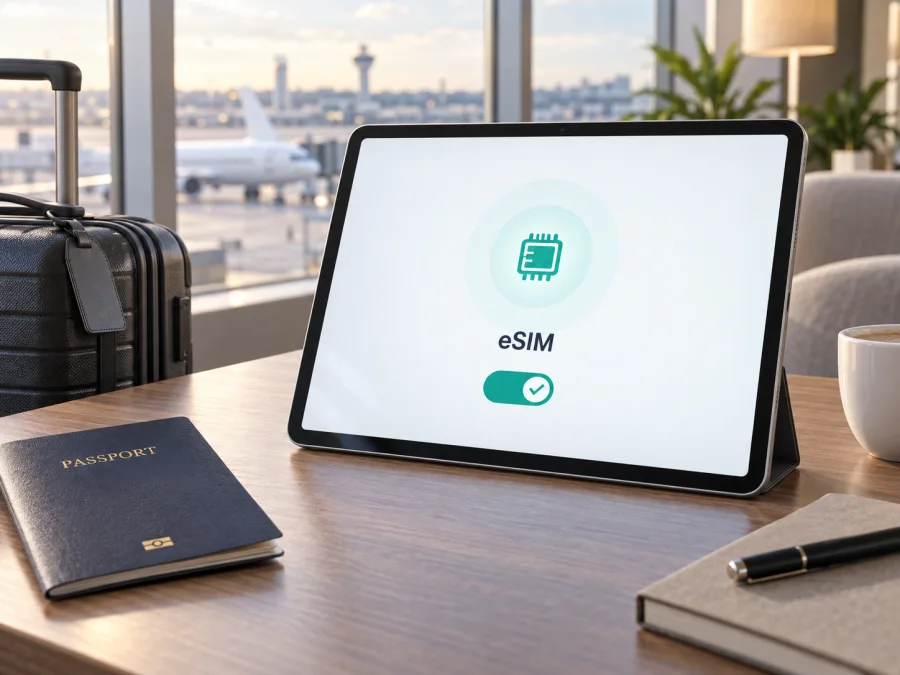
Apple iPad Pro 13-inch M4 cellular 512GB eSIM
If you are preparing an international trip and want mobile data without finding a physical SIM card, the Apple iPad Pro 13-inch M4 cellular 512GB is a strong candidate for an eSIM plan. The short answer is yes: the cellular version supports eSIM. Apple’s current technical specifications identify iPad Pro (M4) Wi‑Fi + Cellular models as eSIM devices, with 512GB among the listed capacities.
This applies to the cellular configuration, not the Wi‑Fi-only iPad Pro 13-inch M4. Confirm cellular hardware, model number, iPadOS and provider support on the device you have.
Quick answer and key specifications
The Apple iPad Pro 13-inch M4 cellular 512GB can use eSIM for mobile data when the device has the required cellular settings and the provider supports iPad activation. It is a data-focused tablet: an eSIM plan is intended for internet access, not automatically for a conventional phone number, voice service, or SMS. If a plan includes only mobile data, messages and calls should be made through internet-based apps or through another line that supports those services.
| Item | What it means for eSIM use |
|---|---|
| Device | Apple iPad Pro 13-inch M4 cellular 512GB |
| Hardware type | iPad Pro with Wi‑Fi + Cellular hardware; the Wi‑Fi-only version is different |
| Storage | 512GB; storage does not change the cellular eligibility |
| Mobile networks | Apple lists 5G and LTE capabilities for supported cellular models; usable bands depend on the model and network |
| SIM technology | eSIM; Apple’s specifications for this generation do not describe a physical SIM card slot |
| Main use | Mobile data for browsing, maps, messages, work, media and hotspot use where the plan allows it |
| Plan requirement | An eSIM profile and a compatible mobile-data plan for the destination |
| Important limitation | eSIM and carrier availability vary by country, region, model number and provider |
Does the Apple iPad Pro 13-inch M4 cellular 512GB support eSIM?
Yes, the cellular version supports eSIM. Apple’s current support documentation lists iPad Pro 13-inch (M4) Wi‑Fi + Cellular among the models that can be activated with eSIM. Apple also states that iPad Pro (M4) Wi‑Fi + Cellular models and later models purchased worldwide use eSIM for mobile data and do not have a physical SIM card. The technical specifications list eSIM and include 512GB among the capacities.
Hardware support does not make every provider or destination compatible. Apple notes that eSIM is not available from every carrier or in every country and region. Treat this as “hardware support confirmed, service availability to be checked”; confirm EID, the add-plan option and provider rules before purchase.
Regional and carrier differences
The cellular radio and eSIM framework are not a promise that every plan will activate. The model number identifies regional hardware more precisely than the storage label. Open Settings > General > About and look at Model Number; tapping the part number can reveal the A-number identifier. Keep it with the exact Device name when asking a seller or provider about support.
China mainland deserves a separate check. Apple publishes a list of iPad models that support eSIM activation with a China mainland provider. That list includes iPad Pro 13-inch (M4) Wi‑Fi + Cellular model A3007, while Apple says other models, including iPads purchased outside mainland China, cannot install a mainland carrier’s eSIM profile. Apple also identifies China Unicom as the supported iPad eSIM provider there. This does not mean that an imported tablet cannot use an eSIM plan elsewhere; it means the destination and provider rules must be evaluated separately. If China mainland is part of your route, verify the A-number and the local activation requirement before payment.
Elsewhere, a carrier can restrict iPad activation, require its own app or account type, or limit roaming. A travel eSIM’s terms control countries, timing and tethering; do not infer these details from “5G,” “cellular” or “512GB.”
<a id="kesim-device-compatibility"></a>
What to check before buying an eSIM tariff
Complete the checks below while you have Wi‑Fi access.
- Confirm the exact hardware. In Settings > General > About, verify the Apple iPad Pro 13-inch M4 cellular 512GB and compare the model number with the packaging.
- Find the EID. In the same About screen, look for EID. It is a device identifier used in eSIM provisioning. Never publish it in a review, chat or public post; share it only through a trusted activation process when required.
- Check the mobile-data menu. Open Settings > Cellular Data or Mobile Data and look for Add eSIM, Add a New Plan or Set Up Cellular Data.
- Check for a carrier lock or management profile. A carrier, school or employer may control the tablet. Restrictions can prevent a new plan from being added even if the hardware includes eSIM.
- Update iPadOS before installation. Use Wi‑Fi, sufficient battery and current system software. An update can resolve a provisioning issue, but cannot add cellular hardware.
- Read the tariff conditions. Confirm destinations, data volume, validity, activation timing, iPad support, tethering rules and what happens when data is used up.
- Plan the activation connection. Downloading a profile normally needs Wi‑Fi. Check whether validity starts on installation or first network use.
Use the device check before selecting a plan: Check your device. If EID or the add-plan option is absent, pause and get confirmation rather than relying on a short product title.
How to verify EID and the Add eSIM option
The check is more reliable than looking for a SIM tray. On the Apple iPad Pro 13-inch M4 cellular 512GB:
- Open Settings.
- Tap General.
- Tap About.
- Scroll until you see EID. Make sure the value is present, but do not copy it into a public message.
- Return to Settings.
- Open Cellular Data or Mobile Data.
- Look for Add eSIM, Add a New Plan, Set Up Cellular Data or an equivalent option.
The wording depends on iPadOS language and version. A visible EID confirms an eSIM identifier, but not provider activation. If the menu is unavailable, restart, connect to Wi‑Fi, update iPadOS and check again. If EID is still absent, compare the model number with regional documentation.
Do not use the absence of a SIM tray as the only test. The useful combination is cellular hardware, EID and an available cellular-plan workflow. Obscure the EID before sharing any screenshot.
How to install and activate an eSIM
Prepare the iPad, eSIM QR code or activation details, and reliable Wi‑Fi. Kaspersky eSIM Store is an app and website where you can choose, arrange and activate an eSIM with a tariff for mobile internet during an overseas trip. The selected plan’s instructions and conditions remain important.
For general device guidance, see the Android installation instructions and the iOS installation instructions. The iPad steps below are the relevant path here.
1. Confirm readiness
Connect the iPad to Wi‑Fi, check EID, confirm that the tablet is not locked or managed, and keep the QR code on another screen.
2. Open cellular settings
Go to Settings > Cellular Data or Mobile Data and select Add eSIM, Add a New Plan, Other, or the closest option shown. If a provider notification says a plan is ready, open it instead.
3. Scan or enter the profile
Choose the QR-code method when supplied, point the camera at the code and wait for the notification. A QR code in email or on a web page may be pressed and held to choose Add eSIM on supported versions. Enter manual details exactly as provided.
4. Add the cellular plan
Review the plan label and tap Continue or Add Cellular Plan. Keep Wi‑Fi connected during the download, which can take several minutes.
5. Select the data line
After activation, open Settings > Cellular Data and choose the new eSIM for mobile data. Only the selected plan is active; give it a clear label.
6. Set the travel data options
When required, enable Data Roaming for the travel eSIM. Keep roaming disabled on your usual line if appropriate and turn off automatic switching if it could choose the wrong plan.
7. Test before relying on it
Turn off Wi‑Fi briefly and open a simple web page or map. Confirm the expected line and check when validity starts.
Using eSIM for mobile data during a trip
Prepare at home, install over Wi‑Fi if permitted, label the profile and keep its details available offline.
On arrival, open Settings > Cellular Data, select the travel eSIM and verify that cellular data is enabled. Follow the roaming instruction. If there is a signal but no data, check the selected line and activation window, then allow time for network registration.
Practical scenarios
A short city break. Match validity and data allowance to navigation, messages, reservations and browsing. Install over Wi‑Fi, but confirm when validity begins.
A multi-country route. Compare the destination list with every stop. A regional plan may be more suitable than a country-specific one, but local network conditions still apply.
A China mainland stop. Confirm the exact model number and local rules before purchase. Apple identifies a limited set of iPad models for mainland activation; do not assume that a foreign-market device will install a mainland profile.
An eSIM data plan normally provides mobile internet, not a standard phone number. Calls and messages may work through internet services. A new plan must meet the device and destination rules before it can be added.
Common problems and checks
The QR code does not scan
Increase screen brightness, clean the camera and show the whole code. If it is displayed on the same iPad, use the provider’s manual or in-device method. A one-time code may already be used or expired; ask the provider for the next step.
Add eSIM is missing
Confirm the cellular variant, check EID under Settings > General > About, connect to Wi‑Fi and restart. Review any management profile. If EID is missing, compare model number and purchase region; storage alone cannot prove readiness. Contact the seller or provider before payment.
The profile will not download
Check Wi‑Fi, date and time, iPadOS updates and activation details. Some plans need a confirmation code or provider app. Do not delete a partially installed profile unless the provider explains how it can be reissued.
The eSIM is installed but there is no data
Open Settings > Cellular Data and select the travel eSIM. Check destination coverage, mobile data and required data roaming. Toggle Airplane Mode once and allow time for registration. If there is still no connection, test elsewhere and contact support with the model and plan details, not a public EID.
The iPad connects to the wrong line
Review which profile is selected under Cellular Data and disable automatic switching if it chooses another line. Rename profiles for clarity and check the home line’s roaming conditions.
FAQ
Can the Apple iPad Pro 13-inch M4 cellular 512GB use eSIM?
Yes. Apple lists the iPad Pro 13-inch (M4) Wi‑Fi + Cellular model as eSIM-capable, and the cellular 512GB configuration belongs to that family. Confirm EID, the add-plan menu and the provider’s iPad support on your individual device before purchase.
Does this iPad need a physical SIM card?
No physical SIM should be required for this generation’s cellular activation. Apple’s specifications describe eSIM technology and no physical SIM compatibility. A missing SIM tray is therefore expected, not proof that the tablet is Wi‑Fi-only.
Can I use a phone eSIM plan on the iPad?
Not automatically. The provider must support the iPad and the plan must allow the intended data use. Check device eligibility, destination, activation method and tethering conditions before payment.
Will eSIM give the iPad a normal phone number?
Usually not. A travel eSIM plan is commonly intended for mobile data. Voice calls, SMS and a standard phone number are separate services unless the exact plan says they are included.
What if the tablet was bought in another country?
The tablet may still support international eSIM plans, but the model and destination can change activation rules. China mainland has specific model and provider requirements. Check the A-number, EID and provider terms before buying.
What is Kaspersky eSIM Store in this process?
Kaspersky eSIM Store is an app and website that helps you choose, arrange and activate an eSIM tariff for mobile internet during an overseas trip. Service remains subject to the selected tariff, local network and provider conditions; Kaspersky eSIM Store is not the mobile operator or network owner.
Conclusion: final device check and trip eSIM choice
The Apple iPad Pro 13-inch M4 cellular 512GB supports eSIM for mobile data. Before payment, complete this final check for your tablet and destination:
- verify the exact Device name and cellular model;
- confirm EID and Add eSIM under Settings;
- check the A-number and regional rules, especially for China mainland;
- confirm that the tablet is not locked or restricted by management software;
- match the plan with every country, data need, validity and activation method;
- prepare Wi‑Fi, activation details and correct data-line settings;
- test the travel eSIM before relying on it.
When those checks pass, use Kaspersky eSIM Store to choose and arrange an eSIM tariff, then activate it according to the plan instructions. If compatibility is uncertain, pause before payment and ask the provider or seller for confirmation using the model number and settings.


