Travel connectivity guide
Apple iPhone 11 128GB eSIM: compatibility guide
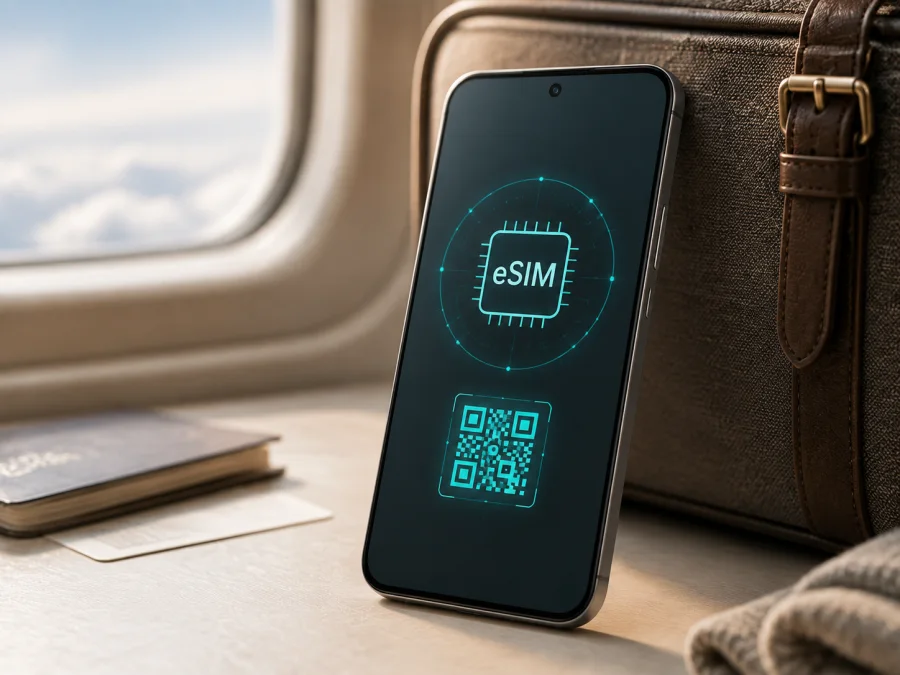
Apple iPhone 11 128GB eSIM: compatibility and setup
If you are checking whether Apple iPhone 11 128GB can use an eSIM for mobile internet during a trip, the short answer is yes for supported international versions, if the phone is unlocked and the chosen plan supports it. Apple lists iPhone 11 with Dual SIM using one physical nano-SIM and one eSIM. The 128GB storage option does not change the cellular hardware, but the sales region, model number, carrier lock, iOS state and destination still matter.
There is an important regional exception. Apple documents iPhone 11 units sold in mainland China, Hong Kong and Macao as using Dual SIM with two physical nano-SIM cards. Such a phone may not contain an eSIM profile even though another Apple iPhone 11 128GB does. Check the handset itself before paying for a travel eSIM.
Quick answer for Apple iPhone 11 128GB
On a standard international version, an eSIM is a digital SIM profile stored in the phone. It can add a data line while your regular SIM remains available for calls or messages. An eSIM used through Kaspersky eSIM Store is intended for mobile internet in a foreign country or region. It is not automatically a second phone number, and a particular tariff may not include ordinary calls or SMS.
| Item | What it means for this variant |
|---|---|
| Exact device | Apple iPhone 11 128GB |
| eSIM support | Yes on supported market versions; Apple specifies nano-SIM plus eSIM for iPhone 11 |
| Physical SIM | One nano-SIM on the standard international configuration |
| Storage | 128GB; this does not decide eSIM support |
| Network generation | 4G/LTE generation, not a 5G model |
| Regional caution | Mainland China, Hong Kong and Macao versions can use two nano-SIM cards instead |
| Decisive checks | EID, Add eSIM or Add Cellular Plan, and unlocked status |
Does Apple iPhone 11 128GB support eSIM?
Apple’s current technical specifications for iPhone 11 state Dual SIM support with nano-SIM and eSIM and note that eSIM is not supported in all regions. That supports a positive answer for a normal international Apple iPhone 11 128GB. The iPhone can use a physical SIM and an eSIM profile, but only one cellular data network is used at a time. This makes it possible to keep a home line for important messages and select the travel eSIM for data.
The answer can be no for particular regional units. Apple’s regional guidance identifies iPhone 11 models sold in mainland China, Hong Kong and Macao among those that use two nano-SIM cards. If that is your version, the phone may show no EID and no command to add an eSIM. This is a hardware and market distinction; a newer iOS release can change wording or carrier support, but it cannot add eSIM hardware that is not present.
Carrier policy is a separate condition. An iPhone can have eSIM hardware and still reject a second carrier when it is locked to the original operator. Apple’s Dual SIM guidance says the phone must be unlocked to use two different carriers, unless both plans are from the same carrier. The selected travel tariff must also be valid in the destination. Device compatibility, tariff availability and local network access are different checks.
Check compatibility before buying an eSIM tariff
Inspect the iPhone first, then check the plan. This can prevent an eSIM profile from being purchased for a phone that cannot install it.
Check for an EID
- Open Settings.
- Tap General.
- Tap About.
- Scroll through the hardware and network details.
- Look for EID, the identifier associated with the embedded SIM.
An EID is a strong sign that eSIM hardware is present. It is not an activation code or a tariff. Do not publish it or send it to an unknown person; share it only through an official support or account process when necessary.
Check the eSIM command
- Open Settings.
- Tap Cellular or Mobile Data.
- Look for Add eSIM, Add Cellular Plan or similar wording.
- Open the setup screen only far enough to confirm that eSIM installation is offered.
If the command is absent, restart the phone and check again after confirming that iOS is up to date. If there is still no EID and no eSIM option, treat the phone as not eSIM-compatible. With an imported device, confirm the model number and market with the seller. Do not scan a profile just to test an uncertain device.
Check the carrier lock
In Settings > General > About, look for Carrier Lock or Network Provider Lock. The wording may vary. No SIM restrictions indicates an unlocked phone for compatible networks. A locked phone can reject a travel eSIM even when it has an EID and an Add eSIM menu. Contact the original operator if the status is unclear.
Check the tariff and itinerary
Before payment, compare the plan with:
- the destination country, region or multi-country route;
- the included data volume and validity period;
- the activation start condition and installation deadline;
- whether it is data-only;
- whether data roaming is required on the travel line;
- whether hotspot use is permitted;
- the refund, transfer and reinstallation conditions;
- the internet connection available for downloading the profile.
Kaspersky eSIM Store helps you choose and complete an eSIM order for a suitable travel data plan through its app or website. It does not remove an operator lock, make a non-compatible phone compatible or guarantee coverage in every location. The selected tariff and the networks available in the destination determine the service.
For a compact compatibility checklist, use Check your device.
How to install and activate eSIM on Apple iPhone 11 128GB
Button names can vary between iOS versions. You can also consult the Android installation instructions and the iOS installation instructions. The iPhone steps are:
1. Confirm the prerequisites
Check for an EID or eSIM-addition command. Confirm that the phone is unlocked, connected to Wi‑Fi or another working data connection, charged and ready for the QR code or profile.
2. Open mobile settings
Open Settings, select Cellular or Mobile Data, then tap Add eSIM or Add Cellular Plan. If the option does not exist, stop and repeat the compatibility checks.
3. Scan or use the supplied method
Choose the QR-code option when offered. Point the camera at the complete code and follow the prompts. If the order provides manual details or direct installation, use that method exactly as supplied. Do not edit an activation code.
4. Label the profile
Use a clear label such as Travel data or the destination name. A distinct label helps you select the right line when several profiles are stored.
5. Choose the voice line
When asked which line to use for voice calls, select the primary line if you want its number for ordinary calls. A data-only travel eSIM should not be expected to receive regular calls.
6. Select the data line
Choose the travel profile for Cellular Data or Mobile Data. Turn off Allow Cellular Data Switching if you do not want the iPhone to change lines automatically.
7. Check data roaming
Open the travel line’s settings and enable Data Roaming only when the tariff instructions require it. This setting may be needed for a travel profile to use a partner network abroad. It does not mean you must enable roaming on the primary line.
8. Wait and test
Allow a few minutes for the profile to download and register. With Wi‑Fi off, open a simple webpage and confirm that the travel line is selected for mobile data. Activation time depends on the device, tariff, local network and activation conditions. If the plan starts only at the destination, the profile can remain installed while it waits for a supported network.
Using eSIM for mobile internet while travelling
The predictable setup is to keep the home SIM available for essential calls or messages and route data through the travel eSIM. Install it over Wi‑Fi, then confirm the selected line after arrival. Enable data roaming on the travel line only when required, and turn off Allow Cellular Data Switching when you want to control the package used.
Short city break
Use the travel line for maps, transport, translation, reservations and messaging. Download important bookings and offline maps before leaving, and limit automatic photo backup, video and application updates when the package is small.
Work trip
Keep the primary number enabled for expected calls only if its roaming conditions are acceptable. Select the travel eSIM for data and confirm that tethering is allowed if you need a laptop hotspot. A data-only eSIM does not create an ordinary phone number.
Multi-country route
Confirm that every country on the route is covered. A regional plan can differ from a single-country plan; after crossing a border, allow time for registration and follow the tariff’s network-selection instructions if the line does not connect.
Returning home
Select the primary line for mobile data and turn off the travel line when it is no longer needed. Review whether the profile can be reused before deleting it, because some eSIMs cannot be transferred or reinstalled after activation.
Common problems and checks
“Add eSIM” is missing
Check the EID and confirm the model’s market. If the phone was sold in mainland China, Hong Kong or Macao, it may be a two-nano-SIM version. If an EID exists, update iOS if available, restart the phone and recheck Cellular settings. A carrier restriction can also affect the menu, so contact the original operator or support before purchasing another profile.
The QR code will not scan
Make the screen showing the code bright, show the complete code, clean the lens and hold the iPhone steady. Confirm that the code belongs to this order and has not already been used. If it is on the same iPhone, use another screen or the supported direct method. Do not share it publicly.
The profile will not download
Use reliable Wi‑Fi, check that the phone is not waiting for a captive-portal sign-in, and confirm automatic date and time. Make sure the profile is not already added and that any installation window is still open.
The profile is installed but there is no service
Turn on the travel line, select it for mobile data and enable data roaming if required. Toggle Airplane Mode on briefly, turn it off and wait for registration. Confirm that the destination is included and follow the plan’s supported-network instructions. Do not choose an unrelated network at random.
Data is coming from the wrong line
Go to Settings > Cellular/Mobile Data > Cellular Data, select the travel label and turn off Allow Cellular Data Switching. Review background refresh, automatic downloads and photo synchronization if the package is limited. iPhone can have two active lines but uses one cellular data connection at a time.
A lock or activation error appears
Check the carrier-lock status, especially on a financed, refurbished or second-hand phone. Record the exact message, selected line, destination and time of the attempt. Do not erase the iPhone or delete the eSIM as a first response; contact the original operator or the relevant support channel.
Frequently asked questions
Is Apple iPhone 11 128GB eSIM-compatible?
Yes, when it is a supported international market version. Apple lists iPhone 11 with nano-SIM plus eSIM. A unit sold in mainland China, Hong Kong or Macao may instead use two nano-SIM cards, so verify its EID and eSIM menu.
Can I use the physical SIM and travel eSIM together?
Yes, on a compatible and unlocked iPhone 11. Keep each line assigned to its purpose, remembering that iPhone uses one cellular data line at a time.
Can a travel eSIM replace my phone number?
Usually no. The travel eSIM described here is for mobile internet. Calls and SMS are not included unless the exact tariff says so.
Should I enable roaming?
Sometimes. Enable data roaming on the travel line only when the plan requires it. Keep it off on the primary line if you want to reduce the chance of paid home-line roaming, and verify the selected data line.
What is Kaspersky eSIM Store?
Kaspersky eSIM Store is an app and website where you can choose, order and activate an eSIM with a suitable tariff for mobile internet during a foreign trip. It is not a mobile operator, network owner or mobile-internet provider. The selected tariff and its available partner networks determine access and coverage.
Final device check before choosing a travel eSIM
Before choosing a plan, confirm that the handset in your possession is Apple iPhone 11 128GB, not another iPhone 11 configuration or a regional two-physical-SIM unit. Open Settings > General > About and look for an EID. Open Settings > Cellular/Mobile Data and look for Add eSIM or Add Cellular Plan. Check the carrier-lock status and confirm that the phone is unlocked for a different network. Then compare the destination, route, validity, data allowance, activation condition, roaming requirement and hotspot rules with your trip.
If all checks are positive, choose an eSIM tariff for the country, region or route, install it over a reliable connection, label it clearly, select it for mobile data after arrival and test it before relying on it for navigation or work. If the EID or eSIM menu is missing, pause the purchase and confirm the regional version with the seller or operator. Kaspersky eSIM Store helps you review available travel options, complete the chosen order and activate the eSIM through its app or website; it does not replace the compatibility check.


