Travel connectivity guide
Apple iPhone 11 256GB eSIM: compatibility and setup
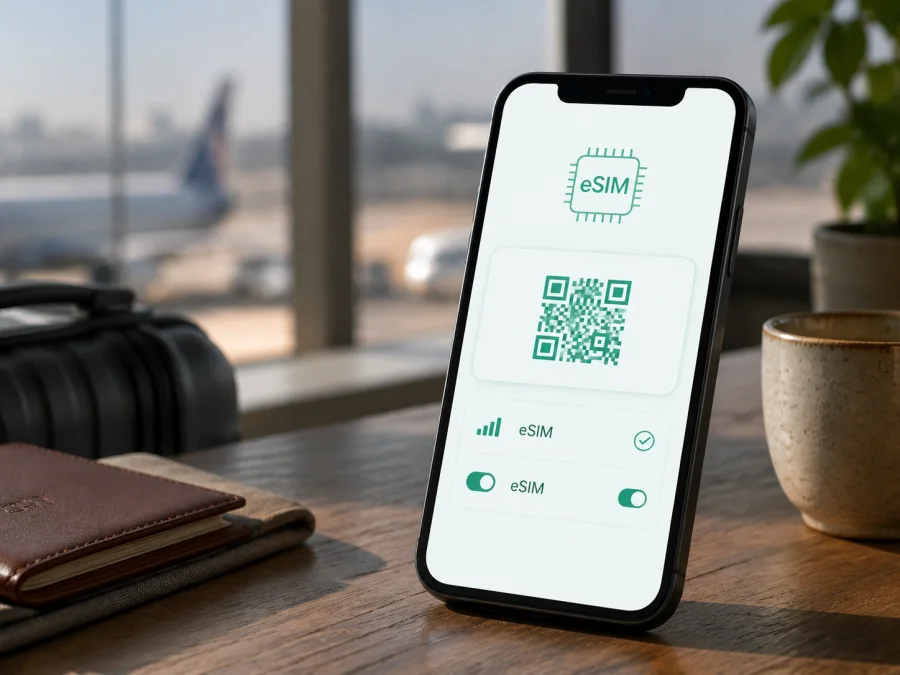
Apple iPhone 11 256GB eSIM: compatibility and setup
Can an Apple iPhone 11 256GB use an eSIM for mobile internet abroad? Usually, yes—if it is the standard international version, is unlocked, and can use Wi-Fi during setup. The 256GB capacity does not change cellular support. A mainland China, Hong Kong, or Macao unit may instead use two physical nano-SIM cards.
This page is about the exact variant Apple iPhone 11 256GB. Keep the full name when checking a listing; the storage modifier should not be replaced with a shorter model name. An eSIM is a digital SIM profile downloaded to the phone and can provide a travel data line while your regular SIM remains available, subject to carrier rules.
Quick answer
Apple’s current iPhone 11 specifications list Dual SIM as one nano-SIM and one eSIM, and current iPhone guidance includes iPhone 11 among models supporting that combination. This confirms eSIM capability for a standard supported Apple iPhone 11 256GB, but not every regional handset because eSIM is not available in all countries or regions.
In brief:
- A standard international Apple iPhone 11 256GB can support eSIM.
- A mainland China, Hong Kong, or Macao unit may use two nano-SIM cards and have no eSIM function.
- An operator-locked phone can reject a plan from another provider even when the eSIM menu exists.
- Before buying a travel plan, look for an EID and an Add eSIM option on the exact phone.
<a id="kesim-device-compatibility"></a>
Apple iPhone 11 256GB eSIM compatibility
Storage and SIM configuration are separate. Two Apple iPhone 11 256GB phones can target different markets. Check the handset configuration and whether the carrier permits activation.
| Check | Apple iPhone 11 256GB | Why it matters |
|---|---|---|
| eSIM support | Yes on the standard international configuration | A compatible carrier can download a plan. |
| Physical SIM | One nano-SIM on the usual international version | Your home line can remain. |
| Regional exception | Some mainland China, Hong Kong, and Macao units use two nano-SIMs | A physical dual-SIM tray does not prove eSIM support. |
| Storage | 256GB | Capacity alone does not determine SIM hardware. |
| Carrier lock | The phone should be unlocked for two different carriers | A lock can stop a travel plan from registering. |
| Data selection | One cellular data line is active at a time | Select the travel line to use its allowance. |
| Typical plan | Mobile internet, often data-only | Voice, SMS, and a number are not automatic. |
Before purchasing, check your device using the menus below. This is more dependable than a marketplace title or generic compatibility list. If the seller cannot confirm the market, treat eSIM support as unconfirmed until you inspect the phone.
Regional and operator versions
Apple’s specifications describe the standard iPhone 11 as nano-SIM plus eSIM, while Apple documents iPhone 11 units sold in mainland China, Hong Kong, and Macao with two nano-SIM cards. This is regional hardware, not an iOS feature. Ask for the phone’s model number and original market; two physical SIM positions and no EID usually indicate that configuration.
There is also an operator check. Apple’s guidance says that two different carriers require an unlocked iPhone; two plans from one carrier may work under its rules. The travel plan and network partner must support eSIM in the destination. “Unlocked” and “eSIM-compatible” are separate requirements.
How to check the EID and eSIM menu
Check before buying a plan. Keep the phone connected to Wi-Fi, and do not delete an existing cellular plan merely to test compatibility.
- Open Settings.
- Tap General, then About.
- Scroll through the identification fields and look for EID. It is the identifier associated with the embedded SIM component.
- Return to Settings and open Cellular or Mobile Data.
- Look for Add eSIM, Add Cellular Plan, or similar wording. The label can vary with the iOS version and language.
- Open the add-eSIM flow only far enough to confirm that it is available. You do not need to scan a QR code during a pre-purchase check.
- In Settings > General > About, check Carrier Lock. No SIM restrictions means the phone is not restricted to one carrier. If the status is unclear, ask the original carrier or seller.
An EID and add-eSIM option together are strong evidence of the right hardware, but a carrier can still restrict eligibility, a plan may not cover the destination, or a lock may block another provider. Two nano-SIM slots with no EID should be treated as a non-eSIM regional version.
Compatibility checklist before purchase
Use this checklist for Apple iPhone 11 256GB, not for a different capacity or generation.
- [ ] An EID appears under Settings > General > About.
- [ ] Cellular or Mobile Data includes Add eSIM.
- [ ] The seller confirms the original sales region.
- [ ] Carrier Lock shows No SIM restrictions, or the plan uses the same carrier.
- [ ] The phone can connect to Wi-Fi and has a suitable iOS version.
- [ ] The plan covers every country, region, or route on your trip.
- [ ] You have checked allowance, validity, activation timing, hotspot rules, and data-roaming requirements.
- [ ] You understand whether the plan is data-only and when usage begins.
If any of the first four checks is unresolved, pause the purchase. A plan cannot add eSIM hardware, change a two-nano-SIM model, or remove a carrier lock.
Prepare the phone and plan
Installation is easiest when the home line works and the phone has stable Wi-Fi. Have the QR code or manual activation details on another screen; the iPhone camera cannot scan a code from its own display. Charge the phone, keep the physical SIM in place if needed, and do not share activation details. Check whether the plan allows reinstallation, because some profiles are limited to one device or one installation.
Kaspersky eSIM Store is an app and website where you can choose a destination, review conditions, arrange an eSIM plan for mobile internet, and activate it on a compatible device. It is not a mobile operator, network owner, or direct network provider. Service depends on the plan, partner network, coverage, and phone settings.
How to install an eSIM on Apple iPhone 11 256GB
Menu labels can vary slightly between iOS releases. Use the QR code or manual information supplied for your plan.
- Connect the Apple iPhone 11 256GB to reliable Wi-Fi.
- Open Settings > Cellular or Settings > Mobile Data.
- Tap Add eSIM or Add Cellular Plan.
- Choose the QR-code option and point the camera at the supplied code. If manual details were provided, use manual entry and copy them exactly.
- Wait while iPhone downloads and registers the profile. Keep Wi-Fi on and do not interrupt the setup.
- When prompted, label the lines Home and Travel. Clear labels prevent accidental data selection.
- Keep the home line as the default voice line if you still need calls or messages. Select the travel eSIM for cellular data when you are ready to use it.
- Open the travel line and confirm Turn On This Line is enabled.
- Enable Data Roaming for the travel line if the plan requires it. Do not enable roaming on the home line unless you accept its charges.
- Turn off Allow Cellular Data Switching if you want to keep data on the travel line.
- Turn off Wi-Fi briefly and load a small webpage to test the connection.
For guidance, see the Android eSIM installation instructions and the iOS eSIM installation instructions.
Activation and first connection
Installation downloads the profile; activation makes it ready on a partner network. Follow the plan’s rule: validity may begin at first connection, installation, or another stated event. Scanning the QR code does not always start the validity period.
After installation, open Settings > Cellular, tap the travel line, and confirm it is on. Under Cellular Data, select Travel. If it is data-only, you can leave the home line on for calls, but review roaming data. Disable automatic switching for predictable usage.
Allow a minute for registration, then test a small webpage. Check balance and validity in the Kaspersky eSIM Store app or website and compare usage with the phone’s cellular statistics. A successful test proves data is flowing, not how much remains.
Using the eSIM on a trip
Keep the home nano-SIM for your number and use the travel eSIM for data. Install over Wi-Fi. After landing, select Travel under Cellular Data, enable roaming if required, and leave home-line data roaming off unless you accept its charges.
At an airport, the travel line can handle maps, rides, messages, translation, and reservations. Offline maps and tickets reduce first-arrival use. For work, check whether Personal Hotspot is allowed before sharing with a laptop; iPhone uses the selected data line for hotspot traffic.
On a multi-country route, verify every destination rather than assuming a country plan works across a border. Regional or global plans may be more suitable, but their networks and conditions need checking. Coverage varies with location and congestion. A travel data eSIM is not automatically a home number: voice, SMS, and roaming fees remain subject to the home carrier and plan. On return, select the home line for data and keep the travel profile until its conditions allow deletion.
Common problems and checks
“Add eSIM” is missing
Check About for an EID and restart. If both EID and add-eSIM are absent, verify the sales region: a mainland China, Hong Kong, or Macao iPhone 11 may be the two-nano-SIM version. The 256GB capacity does not change that. Ask the seller about any mismatch.
The QR code will not scan
Increase the display brightness, clean the lens, and hold the phone steady. Confirm that the code belongs to this order and is unused. Display it on another screen or use manual details. An expired or used code requires provider support.
The profile will not download
Reconnect to Wi-Fi, check storage, and set Date & Time automatically. A weak network, outage, billing block, or existing profile can interrupt setup. Do not erase a working profile first; reinstallation may not be allowed.
The line shows “No Service”
Open Settings > Cellular, select the travel line, and confirm Turn On This Line. Check data selection and roaming, toggle Airplane Mode briefly, and restart. Check coverage, activation timing, and data. Use automatic network selection unless instructed otherwise.
Data uses the wrong line
Go to Settings > Cellular > Cellular Data and choose Travel. Turn off Allow Cellular Data Switching to prevent an automatic change, and review home-line roaming so background apps do not create charges.
The connection is slow or stops
Test outdoors and check signal, balance, and validity. Buildings, underground transport, rural roads, and congestion can affect service. Enter an APN only when the provider supplied it; never invent one. Restarting can refresh registration but cannot create coverage. Contact support if data remains.
Calls and messages do not work
A travel eSIM may be data-only and may not include a number, voice, or SMS. Keep the home line for your usual number if appropriate, remembering that roaming fees can apply. iPhone uses one cellular data network at a time.
FAQ
Does Apple iPhone 11 256GB support eSIM?
The standard international version supports nano-SIM plus eSIM according to Apple’s current specifications. Some mainland China, Hong Kong, and Macao versions use two nano-SIM cards. Check EID, the add-eSIM menu, and the original sales region.
Does 256GB change compatibility?
No. It identifies storage, not the market configuration or eSIM hardware.
Can I keep my physical SIM and add a travel eSIM?
Yes, on a supported and unlocked configuration. The usual arrangement is one nano-SIM and one eSIM, with one line selected for data.
Can a locked iPhone use a travel eSIM?
Do not assume it can. Two different carriers generally require an unlocked iPhone. Check Carrier Lock and plan conditions first.
Does the eSIM provide a local number?
Not necessarily. A travel eSIM arranged through Kaspersky eSIM Store is commonly for mobile internet. Voice and SMS are included only when the plan says so.
When should I install it?
Usually before departure over Wi-Fi. Activation and validity can begin at a different point, so follow the conditions and turn on travel data when ready.
Final device check and trip eSIM choice
For Apple iPhone 11 256GB, the safe sequence is: confirm EID, find Add eSIM, identify the sales region, verify No SIM restrictions, and compare the plan’s destination and conditions. If it is a mainland China, Hong Kong, or Macao two-nano-SIM version, use a physical-SIM solution.
Once the checks pass, review the travel eSIM options and select a plan for every destination. Compare allowance, validity, activation timing, hotspot rules, and support. Install over Wi-Fi, label the lines, choose Travel for data, and test a little traffic. Kaspersky eSIM Store’s app and website help you choose, arrange, and activate an eSIM plan for mobile internet abroad; the phone, plan, and partner network determine availability.
<a id="trip-esim-check"></a>
Before leaving, repeat the check after a repair, reset, or SIM change. Keep activation information private and note expiry conditions. If the line fails, start with the eSIM menu, data line, roaming switch, coverage, and allowance. Compatibility checking before purchase helps ensure that your Apple iPhone 11 256GB is ready for the trip.


