Travel connectivity guide
Apple iPhone 11 64GB eSIM: setup guide
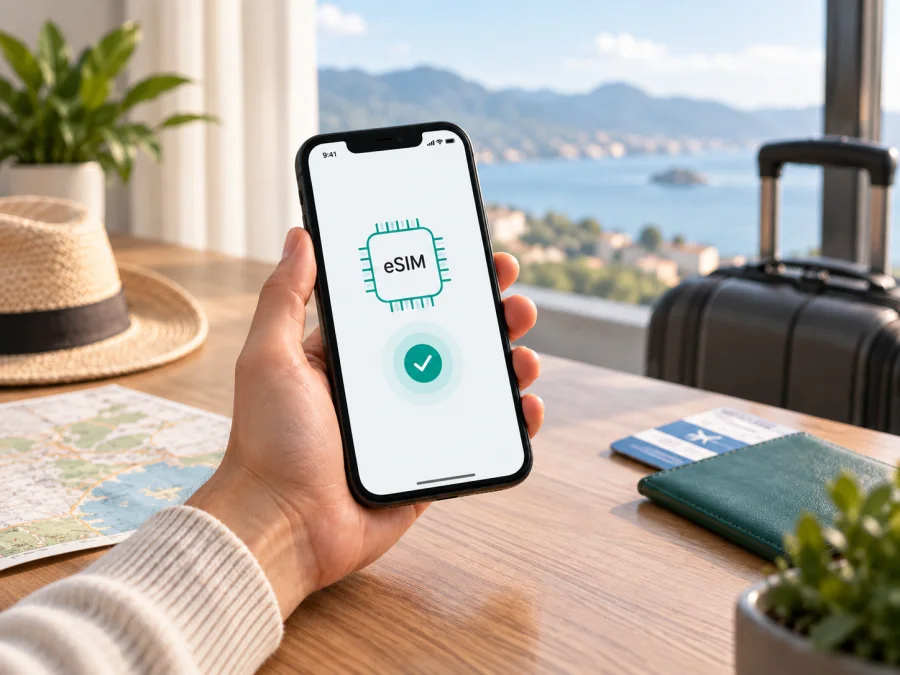
Apple iPhone 11 64GB eSIM: compatibility, setup and travel use
Quick answer
Yes, the standard Apple iPhone 11 64GB supports eSIM. Apple’s current technical specifications list Dual SIM with one nano-SIM and one eSIM for iPhone 11. The 64GB capacity is a storage variant and does not remove eSIM support. Availability still depends on the regional hardware version, the carrier and whether the phone is unlocked.
There is an important qualification: Apple says that eSIM is not supported in all regions. A device purchased for mainland China, Hong Kong or Macao can use two physical nano-SIM slots instead of nano-SIM plus eSIM. A carrier-supplied phone can also be restricted. For a used or imported Apple iPhone 11 64GB, verify the exact phone in Settings before buying.
For a trip, an eSIM can add a mobile-data line without removing your usual physical SIM. You can keep your main number available, select the travel profile for cellular data and switch back after the trip. A travel eSIM is normally for mobile internet; it does not automatically include a regular phone number, voice calls or SMS unless the selected tariff says so.
Apple iPhone 11 64GB eSIM specifications
| Item | What to expect |
|---|---|
| Device variant | Apple iPhone 11 64GB |
| eSIM | Supported on the standard version, subject to region and carrier conditions |
| SIM combination | Usually one physical nano-SIM and one eSIM |
| Dual SIM use | A physical SIM and eSIM can be available together; only one line carries mobile data at a time |
| Storage | 64GB; capacity does not determine eSIM availability |
| Main limits | Regional variants, carrier lock, provider support, coverage and activation requirements |
Does Apple iPhone 11 64GB support eSIM?
For a normally distributed, unlocked Apple iPhone 11 64GB, the answer is yes. You should usually find an EID in the device information and an option such as Add eSIM, Add Cellular Plan or Set Up Cellular in mobile-service settings. Exact wording depends on the iOS version and interface language.
The 64GB version is not a reduced communications edition. Apple lists storage choices separately from SIM capability, so there is no general rule that 64GB lacks eSIM while a larger capacity has it. The relevant exceptions are regional and commercial: some markets use two nano-SIM cards, some carrier-supplied phones may have eSIM restricted, and the network providing the plan must support eSIM activation.
Regional and carrier differences
Regional hardware
Apple’s official specifications include a warning that eSIM is not available everywhere. Apple’s current eSIM setup guidance also identifies mainland China restrictions and says that certain iPhone models sold in Hong Kong and Macao use Dual SIM with two nano-SIM cards. Older iPhone 11 units from these sales regions may therefore have two physical SIM slots rather than an eSIM menu.
The phrase “Apple iPhone 11 64GB” alone does not identify an imported phone’s SIM layout. Ask where it was purchased and inspect Settings yourself.
Carrier support and lock status
An eSIM profile is activated by a mobile network provider or travel eSIM service. The provider must support eSIM for the destination and for this iPhone. Apple explains that QR-code activation, a carrier app, a provider link and other methods depend on the provider, and availability changes by country or region.
The phone should be unlocked if you will use a different provider from your normal SIM. Open Settings > General > About and look for Carrier Lock. The useful result is No SIM restrictions. If a restriction is shown, ask the original carrier about unlocking before buying.
How to check eSIM compatibility on the device {#kesim-device-compatibility}
Use the phone’s own menus as the final check. For a quick route to the checklist, use Check your device.
1. Find the EID
- Open Settings.
- Tap General.
- Tap About.
- Look for EID.
An EID is the identifier associated with the embedded SIM component. Its presence is a strong sign of eSIM hardware.
2. Look for the add-eSIM control
- Return to Settings.
- Open Cellular or Mobile Data.
- Look for Add eSIM, Add Cellular Plan or Set Up Cellular.
If the control is visible, the phone presents an eSIM setup path; you do not need to install a plan just to check. If it is absent, update iOS, restart the phone and look again. If it remains absent, treat the device as unconfirmed. Possible reasons include a regional version, carrier restriction, management profile or software problem.
3. Check the model, lock and software
In Settings > General > About, note the model name and number, and ask where the phone was purchased. A model number can help identify a regional version, but it should not replace the live Settings check. Confirm Carrier Lock: No SIM restrictions, update iOS and connect to stable Wi-Fi.
Compatibility checklist
- [ ] The device is Apple iPhone 11 64GB, not another iPhone 11 family model.
- [ ] An EID appears under Settings > General > About.
- [ ] Add eSIM, Add Cellular Plan or a comparable control appears in cellular settings.
- [ ] Carrier Lock says No SIM restrictions if another provider will be used.
- [ ] The phone is not a two-nano-SIM regional version.
- [ ] iOS is updated and the phone can connect to Wi-Fi.
- [ ] The chosen plan covers the destination and activation method.
- [ ] Data allowance, validity, start condition and return rules fit the trip.
If an essential item is uncertain, pause before checkout.
What to check before buying an eSIM tariff
Start with the device, then review the travel plan. Kaspersky eSIM Store is an app and website that helps you choose, arrange and activate an eSIM with a suitable mobile-data tariff for an overseas trip; it is not a mobile operator or network owner.
Before confirming a plan, check:
- Destination. Make sure the country, region or route is included.
- Validity. Read when the period begins; installation, activation and first use can be separate conditions.
- Data allowance. Estimate maps, translation, work calls, uploads and video use.
- Features. Check hotspot rules, voice/SMS inclusion and whether the profile can be reinstalled or transferred.
- Activation. Keep the QR code or app access available; installation usually needs Wi-Fi.
Keep the working primary line until Travel has connected, and check that its data roaming will not cause unwanted charges.
How to install and activate an eSIM on Apple iPhone 11 64GB
Menu names can vary with iOS language and version. The sequence is to add the profile, complete the provider’s method, label the lines and select the travel line for data. For broader guidance, see the iOS eSIM installation instructions. The Android eSIM installation instructions are for a different phone and use a different menu path.
Method 1: scan a QR code
- Connect Apple iPhone 11 64GB to Wi-Fi.
- Open Settings.
- Tap Cellular or Mobile Data.
- Tap Add eSIM or Add Cellular Plan.
- Choose the QR-code option.
- Scan the code supplied after your order.
- Tap Continue or Add Cellular Plan.
- Enter a confirmation code if one was supplied.
- Wait for the profile to download and activate.
- Label the new line Travel.
You can also scan with Camera and tap the mobile-plan notification. Do not repeatedly scan a one-time code while the first attempt is processing; if it is invalid or used, contact support.
Method 2: use a provider app, link or manual details
If the provider sends an activation link or offers activation in an app, use that official flow. For manual setup, open Settings > Cellular/Mobile Data > Add eSIM, choose manual entry and copy the SM-DP+ address and activation code exactly. One missing character can prevent the download.
Select the active data line
After installation, open cellular settings and select the new Travel line under Cellular Data or Mobile Data. Decide whether Allow Cellular Data Switching should be enabled. Leaving it off is often clearer for a travel-only plan because the phone will not unexpectedly use the primary line. Keep Default Voice Line on your normal line if you want ordinary calls there.
If the plan requires roaming on a partner network, open the Travel line and enable Data Roaming as directed. Disable data roaming on the primary line to avoid using its allowance. Activation can take several minutes; a profile can appear in Settings before it registers.
Using eSIM for mobile internet during a trip
Before departure, install the profile over Wi-Fi and leave it off if you do not want the tariff’s validity or first-use condition to begin early. The correct timing depends on the plan terms. If you install after landing, arrange airport Wi-Fi or another connection for the download.
After arrival:
- Open Settings > Cellular/Mobile Data.
- Turn on the Travel line.
- Set Travel as the cellular-data line.
- Enable data roaming for Travel only when required.
- Turn off cellular data for the primary line or its data roaming.
- Check for a network name or data connection.
- Open a simple webpage or messaging app to test the connection.
The iPhone can keep a physical SIM and eSIM available together, but uses one cellular-data network at a time. This lets you receive messages on the primary number while using Travel for maps, translation and messaging. A data eSIM may not include calls or SMS. Confirm every stop is covered.
Common problems and practical checks
“Add eSIM” is missing
Check the EID, restart the iPhone, update iOS and return to Settings > Cellular/Mobile Data. If the EID is also missing, the phone may be a two-nano-SIM regional version or have a hardware issue. If an EID is present but the control is unavailable, check the carrier restriction and any management profile. Do not buy another plan until the device is confirmed.
The QR code does not scan
Increase the screen brightness of the device showing the code, clean the camera lens and hold the phone steady. Confirm that the code belongs to the same order and has not already been consumed. Use a provider link, app or manual entry if available.
The profile will not download
Connect to stable Wi-Fi, set Date & Time to automatic, update iOS and review every character of a confirmation code. If the system says the profile is already installed, contact support before deleting anything.
The eSIM appears but there is no service
Turn on the Travel line, select it for data, confirm destination coverage and enable data roaming for that line when required. Toggle Airplane Mode briefly, restart the iPhone and leave automatic network selection on unless the provider gave a manual instruction.
Data is coming from the wrong SIM
Check Cellular Data/Mobile Data, set Travel as the data line and consider disabling Allow Cellular Data Switching. Turn off data roaming on the primary line. The iPhone can show both lines while using only one for data.
The phone is locked or the plan stops working
If Carrier Lock does not say No SIM restrictions, another provider may not activate. Contact the original carrier about unlocking. If a plan stops, review data balance, validity and covered destinations. Kaspersky eSIM Store can help with selection and activation for a compatible travel eSIM, but it cannot remove a carrier lock or change regional hardware.
FAQ
Does the 64GB Apple iPhone 11 support eSIM?
Yes, the standard Apple iPhone 11 64GB supports eSIM and Dual SIM with nano-SIM plus eSIM. Regional hardware, carrier lock and provider support can change the practical result, so verify the EID and Add eSIM control on the actual phone.
Is eSIM support tied to 64GB storage?
No. The 64GB label identifies storage capacity. It does not by itself enable or disable eSIM; the sales region, carrier configuration and software state are the relevant checks.
Does a travel eSIM replace my phone number?
Not usually. A data-focused travel eSIM normally supplies mobile internet rather than a regular number, voice calls or SMS. Confirm the plan’s conditions; compatible messaging apps can use the active data connection.
Can an Apple iPhone 11 64GB from mainland China use eSIM?
Do not assume it can. Apple states that eSIM availability varies by region and identifies mainland China restrictions. Some iPhone 11 units from mainland China, Hong Kong or Macao use two physical nano-SIMs. Check the EID, Add eSIM menu and model information before buying.
Final device check and travel eSIM choice
Before paying, check the exact Apple iPhone 11 64GB in your hands: find the EID, confirm Add eSIM under cellular settings, verify Carrier Lock: No SIM restrictions, and make sure the phone is not a two-nano-SIM regional version. Then confirm that the selected eSIM tariff covers every destination, has suitable data and validity, and supports the activation method available to you.
Once those points are clear, Kaspersky eSIM Store can help you choose, arrange and activate an eSIM with a suitable mobile-data tariff for an overseas trip through its app or website. Install it on Wi-Fi, label it Travel, select it for data after arrival and control primary-line roaming.
The safest result is not simply seeing “eSIM” in a product listing. It is matching the exact Apple iPhone 11 64GB hardware and region with an unlocked device, a supported activation method and a plan that fits the journey. If any part remains unclear, verify it before purchase and ask support about the specific device and order.


