Travel connectivity guide
Apple iPhone 11 Pro 256GB eSIM
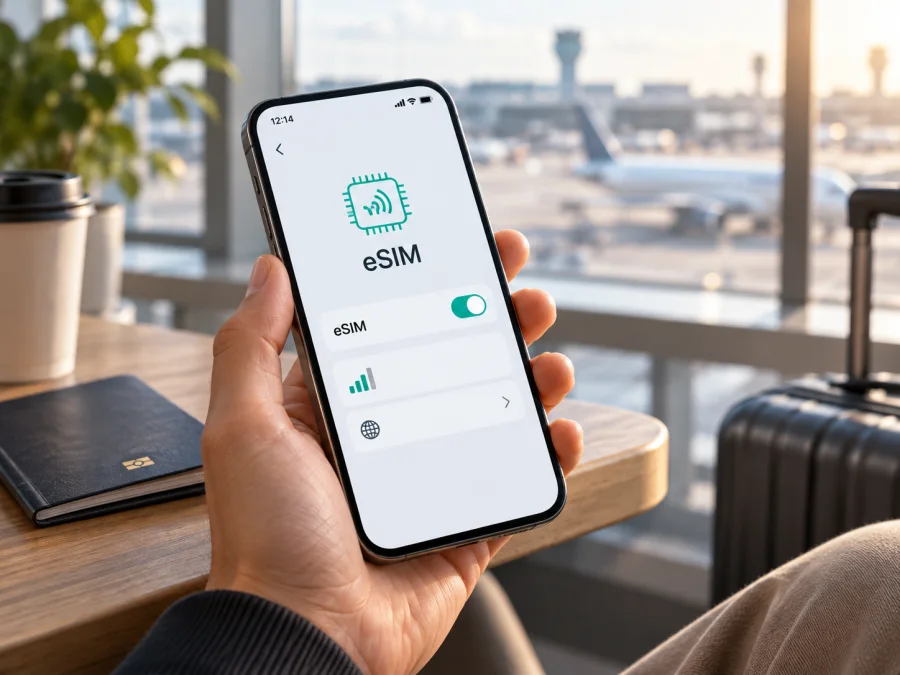
Apple iPhone 11 Pro 256GB eSIM: compatibility, setup and travel guide
The Apple iPhone 11 Pro 256GB can use eSIM, but the answer should be checked against the particular phone in your hands. Apple lists the iPhone 11 Pro family as supporting Dual SIM with one nano-SIM and one eSIM. That describes the model family, not every sales region or every carrier configuration. A phone bought through a carrier, imported from another market, or modified by a regional rule can show different options.
The 256GB label identifies storage capacity and does not, by itself, change eSIM functionality. Check the model and region, EID or Add eSIM command, carrier lock and plan destination.
Quick answer for this exact variant
For Apple iPhone 11 Pro 256GB, the practical answer is: eSIM is supported in the standard version, subject to market, carrier and device-status restrictions. Apple describes Dual SIM as nano-SIM plus eSIM for iPhone 11 Pro, while noting that eSIM is not available in every region and can be disabled on some carrier-sold phones.
The 256GB storage variant does not by itself change SIM architecture. Still, use the actual model, Settings app and identifiers on your phone before buying a plan.
| Item | What it means for Apple iPhone 11 Pro 256GB |
|---|---|
| Device variant | Apple iPhone 11 Pro 256GB; the full storage modifier is retained |
| eSIM capability | Supported by the iPhone 11 Pro model family in Apple’s specifications |
| Physical SIM | Nano-SIM is supported on the standard dual-SIM configuration |
| Dual SIM pattern | One nano-SIM and one eSIM, subject to carrier and region |
| EID | A visible EID is a strong on-device sign that eSIM hardware is present |
| Carrier lock | A locked phone may reject a plan from another provider |
| Regional note | eSIM availability and activation rules vary by market |
| Storage | 256GB affects storage space, not the eSIM profile |
| Best next step | Confirm EID, Add eSIM and Carrier Lock before purchase |
The phone can have the right hardware and still reject a profile because it is locked, the plan is unavailable, or regional SIM rules differ.
Why the market and carrier version matters
The name Apple iPhone 11 Pro 256GB does not reveal every detail of the unit. Apple sells related phones for multiple markets, and local rules can affect SIM functionality. An imported phone keeps its original hardware configuration even if you change its language or use it elsewhere.
Apple also states that eSIM may be disabled on iPhones purchased from certain operators. A carrier lock is separate from eSIM support: a phone may show an EID and still reject another provider until unlocked. The provider and plan must also support the destination.
China mainland, Hong Kong and Macao deserve extra care because Apple documents regional differences in Dual SIM and eSIM availability. Use the actual model, EID and Cellular settings, and ask the seller or carrier when the result is unclear. A software update cannot guarantee that a regional hardware limitation is removed.
Compatibility check before you pay
Use this sequence before paying. Check both the phone and travel eSIM, not only the word “eSIM” in a listing.
- Confirm the exact device. In Settings > General > About, compare the model name and model number with the phone you will use. Keep the complete name Apple iPhone 11 Pro 256GB; do not replace it with a generic “iPhone 11” label.
- Look for an EID. In Settings > General > About, find the identifiers. If iOS shows an EID, the phone is reporting an eSIM-capable subsystem. Share it only with legitimate support.
- Look for the eSIM command. Open Settings > Cellular or Mobile Data. A compatible iPhone normally shows Add eSIM, Add Cellular Plan or similar wording.
- Check the lock. In Settings > General > About, find Carrier Lock. “No SIM restrictions” indicates an unlocked iPhone. Any other message should be resolved with the original carrier.
- Check the plan. Confirm the destination, validity, data allowance and activation rules. Some plans start when installed; others start when the phone first connects in the destination.
- Prepare a connection. Have reliable Wi-Fi or another working data connection for installation, with the QR code or manual details on a second screen if possible.
- Check the phone. Make sure it can update iOS, has battery, and has no management profile blocking mobile-plan changes.
For a compact summary, Check your device before selecting a plan. If EID or Add eSIM is missing, verify the regional model instead of assuming a reset or new QR code will solve the restriction.
How to find the EID and confirm the menu
An EID identifies the embedded SIM component. It is not the IMEI, serial number or phone number, and should not be posted publicly.
- Open Settings.
- Tap General, then About.
- Scroll to the identifiers and look for EID.
- Return to Settings and open Cellular or Mobile Data.
- Look for Add eSIM, Add Cellular Plan or an equivalent option.
- Tap it only when you are ready to install the intended profile. Do not scan a QR code as a casual test because some profiles have one-time activation rules.
If the EID is present but Add eSIM is unavailable, check iOS, management restrictions and the regional or carrier version. If both are absent, contact the seller or carrier before buying; the missing menu needs verification.
Choose a travel eSIM after the device passes
Once the checks are positive, Kaspersky eSIM Store can help you choose and arrange an eSIM tariff for mobile internet during an international trip. Use the app or website to review the destination, data allowance, validity and price. It is a place to choose, complete and activate an eSIM tariff, not a mobile operator, network owner or mobile-internet provider.
When the phone is confirmed, prepare your travel eSIM with Kaspersky eSIM Store and keep the plan information available. Choose by actual use: maps and messages need less capacity than video uploads, cloud backups or a laptop hotspot. A multi-country itinerary may require a regional plan. Check destinations and validity instead of assuming every border crossing is covered.
Remember what a travel data eSIM does and does not do. It is intended for mobile internet, not a regular phone number, ordinary calls or SMS unless the plan says so. You can keep your primary line for calls and messages while using the travel line for data; internet-based apps can work over that connection.
Install and activate the eSIM on iPhone
Install with stable Wi-Fi, enough battery and the activation details from your plan. Keep the primary SIM active until you know what the travel line is for.
QR-code installation
- Open Settings > Cellular or Settings > Mobile Data.
- Tap Add eSIM or Add Cellular Plan.
- Choose Use QR Code and scan the supplied code. If it is on the same iPhone, display it on another screen or use the provider’s alternative method.
- Enter a supplied confirmation code, then wait while the plan is added. Keep the phone connected and setup open.
- Label the line Travel data and select which line should carry mobile data.
- Decide whether Allow Cellular Data Switching should be on; leaving it off provides tighter control.
- Open the new line, enable Turn On This Line, and follow the plan’s Data Roaming instructions.
- Test when the plan says it becomes active: turn Wi-Fi off and check a simple web page or map.
Screen names can differ between iOS releases and countries. Apple supports QR-code activation, carrier activation, an approved carrier app and manual entry, but the available methods depend on the provider. For a broader walkthrough, use the Android eSIM installation instructions or the iOS eSIM installation instructions; choose the iOS path here.
Activation timing and first connection
Installing a profile and using its data are not always identical events. Some plans begin validity at installation; others begin at the first supported connection. Read the plan conditions if you want the travel period to start after landing.
If allowed, leave the profile installed and the line off until needed. After landing, turn on the travel line, select it for Cellular Data, enable Data Roaming if instructed, and give the phone time to register. A short delay in an airport is not proof that the profile is defective.
Practical travel scenarios
Keeping your home number while using travel data
With Dual SIM, you can often leave the primary line for calls or SMS and select the travel eSIM for data. Ask the primary carrier about roaming charges; two active lines do not cancel either carrier’s terms.
Set the travel eSIM as Cellular Data, disable primary-line roaming when appropriate, and turn off automatic data switching for tighter control.
A short city break
For a short city break, match destination, validity and data allowance, save installation details offline, and verify a page load after arrival before relying on navigation.
A multi-country route
For a multi-country route, confirm every stop, validity rules, excluded territories and tethering limits. At a border, give the phone a minute to select a network; if needed, toggle Airplane Mode once before deleting anything.
Navigation and hotspot use
Maps, translation, ride-hailing and messaging are common uses. A hotspot can consume data quickly or be restricted, so use it only when permitted and protect it with a strong password.
Troubleshooting checklist
If mobile internet does not work, change one setting at a time.
- Confirm the line is on. In Settings > Cellular, open the travel eSIM and enable Turn On This Line.
- Confirm the data line. In Cellular Data, select the travel eSIM so the primary line is not used by mistake.
- Check Data Roaming. Enable it for the travel line if required; check charges before enabling it on the primary line.
- Check signal and destination. Verify coverage for your country or region and test where reception is better.
- Refresh the connection. Toggle Airplane Mode once, then restart the iPhone if necessary.
- Check carrier settings. Open Settings > General > About and install an offered update if appropriate.
- Check the lock. Confirm that Carrier Lock says No SIM restrictions when using a different provider.
- Check activation details. Confirm the QR code belongs to this purchase, has not been used, and any code is exact.
- Do not delete first. Some profiles need a new activation to download again; contact support before removing one.
If the line appears but shows no service, the cause may be network availability, a plan restriction, expired validity or carrier-side activation. Record the error, country, selected data line and EID before contacting support. Never post device identifiers publicly.
FAQ
Does the 256GB capacity change eSIM compatibility?
No. 256GB is storage. eSIM support is determined by the model and regional or carrier configuration. Use the actual EID and Cellular menu.
Can Apple iPhone 11 Pro 256GB use a physical SIM and eSIM together?
The standard configuration is designed for Dual SIM with one nano-SIM and one eSIM. Whether two lines work together depends on region, carriers and activation rules.
Why do I see an EID but no Add eSIM option?
An EID is evidence that an embedded-SIM component exists, but region, carrier settings, supervision or iOS state can affect controls. Update iOS, check Carrier Lock, restart and ask the seller or carrier to confirm the model.
Can I install a travel eSIM before the flight?
Often yes, if the plan supports it. Validity differs by plan, so read the activation condition. Install over Wi-Fi, label the line and select it for data when ready.
Will a travel eSIM give me a phone number?
Not usually. A data-focused travel eSIM is for mobile internet; voice calls or SMS are excluded unless the plan says otherwise. Keep the primary line for number-based services if practical.
Is eSIM always cheaper than roaming?
No. It may be an alternative, but the result depends on destination, data needs, validity and home-carrier terms.
What if I cannot scan the QR code?
Use another screen or manual entry if supplied. If the code was used or tied to another device, request help before retrying.
Conclusion: check first, then prepare the trip
Apple iPhone 11 Pro 256GB is generally eSIM-compatible in the standard configuration, with Dual SIM built around a nano-SIM and an eSIM. Check your own phone because regional hardware, carrier restrictions, iOS settings and the destination plan can affect the result.
Before buying, verify the model, EID, Add eSIM and No SIM restrictions. Then review the destination, data allowance and validity in Kaspersky eSIM Store, install with a reliable connection, control primary-line roaming and test after arrival.
Final device and trip eSIM check
Device: Apple iPhone 11 Pro 256GB
Before purchase: EID visible, Add eSIM available, carrier status checked, destination covered
Before installation: plan conditions read, Wi-Fi available, QR code or manual details ready
At the destination: travel line on, Cellular Data assigned, Data Roaming set as instructed
Before going online: load a page, confirm the correct line, keep support details accessible
Once complete, choose the eSIM for your country, region or route and use Kaspersky eSIM Store as the app or website for selecting, completing and activating the mobile-data plan for your trip.


