Travel connectivity guide
Apple iPhone 11 Pro 64GB eSIM: Compatibility & Setup
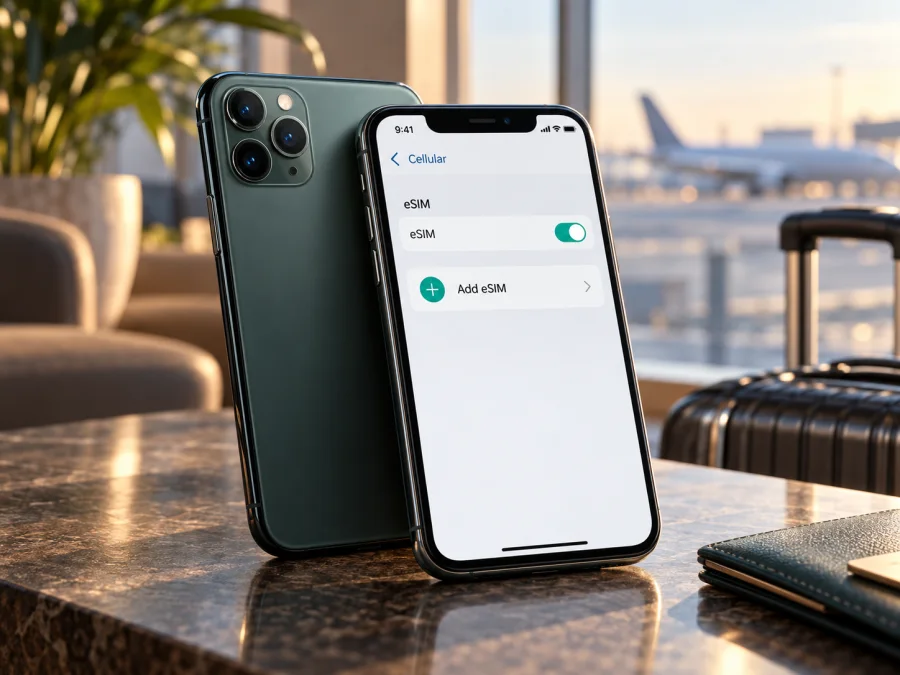
Apple iPhone 11 Pro 64GB eSIM: compatibility, setup and travel guide
The Apple iPhone 11 Pro 64GB can use an eSIM in many regional versions, but the name and storage capacity alone do not prove that a particular handset has eSIM hardware. The decisive check is its model number. Apple lists model A2160 for Canada and the United States, A2215 for other countries and regions, and A2217 for China mainland, Hong Kong and Macao. The A2217 regional version uses two physical nano-SIM cards and does not provide the eSIM option. Check the model number and the phone’s Settings before choosing a travel plan.
For an eSIM-capable iPhone 11 Pro, an additional digital SIM can be useful for mobile data abroad while your usual line remains available for calls or messages. The exact setup depends on your iOS version and the plan provider’s instructions. Your carrier must also allow the phone to use another network; an eSIM-capable phone that is carrier-locked may not accept a travel profile.
Quick compatibility answer
Does Apple iPhone 11 Pro 64GB support eSIM? Usually yes for the A2160 and A2215 versions, subject to carrier and country restrictions. No for model A2217, the China mainland/Hong Kong/Macao dual-nano-SIM version. Because “Apple iPhone 11 Pro 64GB” does not identify the regional model, treat compatibility as unconfirmed until you check the handset itself.
| Item | What to know |
|---|---|
| Exact device in this guide | Apple iPhone 11 Pro 64GB |
| eSIM answer | Supported on many regional versions; not supported on A2217 |
| eSIM-capable model numbers listed by Apple | A2160 (Canada and United States); A2215 (other countries and regions) |
| Regional version to avoid assuming is eSIM-capable | A2217 (China mainland, Hong Kong and Macao); dual physical nano-SIM configuration |
| Storage | 64GB is a storage variant; it does not determine eSIM capability |
| Network requirement | The iPhone must be unlocked or otherwise eligible to use the chosen provider’s service |
| Before purchase | Confirm model number, EID or Add eSIM setting, destination, and plan conditions |
The storage size is useful for identifying the product listing, but it does not change the eSIM radio or digital-SIM hardware. Two phones described as Apple iPhone 11 Pro 64GB can therefore behave differently if they were made for different regional markets. Likewise, a working physical SIM tray does not prove that eSIM is available: eSIM-capable iPhone 11 Pro versions also have a nano-SIM tray, while A2217 has two physical SIM slots instead.
Regional versions and operator restrictions
The model number is more reliable than the seller’s country, phone language, or SIM tray. Apple identifies iPhone 11 Pro model A2160 for Canada and the United States, A2215 for other countries and regions, and A2217 for China mainland, Hong Kong and Macao. Apple’s technical specifications list nano-SIM and eSIM for the family but warn that eSIM is not supported in all regions. The regional model matters.
Travel use involves two separate checks: the phone’s regional hardware must support eSIM, and the selected provider must allow activation for that phone and destination. A carrier lock or plan restriction can still prevent service; a destination plan cannot add eSIM hardware to an incompatible phone.
“China version” here describes the hardware market. A2217 has dual physical nano-SIM slots, not eSIM. The place where a phone was bought, the place where you are travelling, and the countries covered by a travel plan are separate facts. Check plan coverage for the full itinerary. For used or refurbished devices, ask for the A-number shown in Settings > General > About and confirm it on the handset; a reset or software update cannot convert A2217 into an eSIM version.
Check compatibility on the phone
Use the following checklist before you buy an eSIM plan:
- [ ] Open Settings > General > About and locate Model Number. If it initially shows a part number, tap it to reveal the A-number.
- [ ] Compare the A-number with the regional information above. A2160 and A2215 are the eSIM-capable variants; A2217 is the dual-physical-SIM regional version.
- [ ] In the same About screen, look for an EID. An EID is the identifier associated with the embedded SIM hardware. If present, it is a strong sign that the device can provision an eSIM, though the provider and carrier-lock checks still apply.
- [ ] Open Settings > Cellular (called Mobile Data in some regions). Look for Add eSIM or Add Cellular Plan. Wording can vary with iOS and region.
- [ ] Check Carrier Lock in About. “No SIM restrictions” indicates the phone is unlocked; if another message appears, ask the carrier whether the phone can accept a travel eSIM.
- [ ] Make sure iOS is working normally and connect to Wi-Fi before installation. A profile download generally needs an internet connection.
- [ ] Confirm that the plan covers the country or region on your itinerary and that its duration, data allowance, activation conditions, and supported device requirements suit your trip.
Check your device before you choose a plan. If there is no EID and no option to add an eSIM, do not buy a digital plan on the assumption that it will work. Recheck the A-number and ask Apple Support or the seller to confirm the configuration. For A2217, use a physical SIM option where available or another unlocked device that supports eSIM.
A menu can be hidden by a restriction, carrier configuration, or an older software setup, so check more than one indicator. The A-number identifies the hardware variant; EID and Add eSIM show whether iOS exposes the digital SIM feature; Carrier Lock tells you whether network restrictions may interfere. These checks answer different questions. If they disagree, pause before purchasing and contact Apple or the carrier with the A-number and iOS details.
Why use a travel eSIM?
An eSIM is a digital SIM profile added through iPhone settings or a provider’s activation flow. For travel, it may let you arrange mobile data before departure and switch the data line on arrival. A data-only plan does not replace your usual number or include ordinary calls and SMS unless its terms say so.
Kaspersky eSIM Store is an app and website where you can choose, arrange, and activate an eSIM with a suitable mobile-data plan for an international trip. The network service and coverage depend on the selected plan and its local mobile network arrangements. Review the destination, price, data amount, validity, activation timing, and restrictions shown for the plan; current terms can change.
When compatibility is confirmed, browse the Kaspersky eSIM Store for current destinations and plan details. This is a general starting point, not a country-specific tariff page.
Install and activate an eSIM
Before starting, verify that the iPhone is an eSIM-capable variant and unlocked, keep it connected to Wi-Fi, and have the provider’s QR code or in-app activation instructions ready. Install only when you can complete the process without losing access to the confirmation details. A QR code may be single-use or tied to one installation, depending on the provider, so do not scan it casually or delete the profile if activation fails.
Add the eSIM on iPhone
- Open Settings. Tap Cellular or Mobile Data, depending on the region and iOS wording.
- Choose Add eSIM. If the menu offers more than one method, select the one provided for your plan, such as using a QR code or an app-based activation.
- Scan or follow the activation prompt. If using a QR code, display it on another screen or print it, then scan it with the iPhone. Follow any confirmation messages shown by iOS.
- Wait for the profile to install. Keep Wi-Fi available and do not close the setup flow prematurely. The iPhone may ask you to label the new line; choose a clear label such as “Travel data”.
- Choose how to use each line. Keep your usual line selected for voice calls and messages if that is what you want. Select the travel eSIM for cellular data when you are ready to use it.
- Review data switching. If you want to avoid accidental data use on your regular line, turn off cellular-data switching and check that the travel eSIM is the selected data line.
- Enable roaming only as required. Some travel plans require Data Roaming to be enabled on the travel eSIM. Follow the provider’s instructions and make sure the setting applies to the intended line. Check your regular carrier’s roaming terms before leaving its data roaming enabled.
- Test the connection. When the plan is meant to start, turn on the travel line, allow network selection to complete, and open a simple webpage. If it does not connect, use the troubleshooting checks below before reinstalling anything.
For screenshots and the current iOS flow, see the iOS eSIM installation instructions. Android users travelling with a separate device can refer to the Android eSIM installation instructions. The steps above describe the general iPhone flow; labels and available activation methods can change between iOS releases and providers.
Decide when activation should happen
“Install”, “activate”, and “start using data” do not always mean the same thing. Installing adds a profile to the phone. The provider may activate the profile during installation, on first connection to a supported network, or under another plan-specific rule. The plan’s validity period may begin at a different point. Read the activation and validity terms before you scan a QR code, especially if you are preparing the phone well before departure.
If the provider permits installation in advance, you can often add the profile while you have reliable Wi-Fi and leave its line turned off until you need it. Do not assume that every plan supports this timing. If the instructions say to install after arrival, or explain that validity starts when installed, follow those terms. Keep the QR code and account details available until you have confirmed successful setup.
Use the iPhone 11 Pro 64GB for mobile data abroad
A common travel setup keeps your usual line available for calls or messages and uses the eSIM for mobile data. On arrival, enable the travel line and select it under Cellular Data. Enable Data Roaming on that line only if the plan’s instructions require it. Check your home carrier’s roaming terms, and turn off cellular-data switching if you want to avoid the iPhone changing data lines automatically.
A practical arrival sequence:
- Connect to Wi-Fi if you still need to complete setup.
- Turn on the travel eSIM and wait for it to register.
- Select it for cellular data.
- Enable Data Roaming on that line if required.
- Test a webpage and check your plan balance or validity.
For maps, messaging, translation, and ride-hailing, data can be useful on arrival. Save key booking details and offline maps as a backup. A data eSIM normally does not provide a phone number, voice minutes, or SMS unless stated. For multi-country trips, check every included destination and any hotspot or fair-use restrictions. Large downloads and video can use data quickly.
Troubleshooting: when eSIM does not appear or connect
There is no Add eSIM option
Check the A-number and EID in Settings > General > About, and look under Cellular or Mobile Data. If the phone is A2217, this matches its dual-physical-SIM configuration. For A2160 or A2215, restart the phone, update iOS when practical, and check carrier or device-management restrictions. Ask Apple or the carrier to confirm the exact model before buying a plan.
The QR code will not scan or installation stops
Make sure the QR code is clear, the iPhone has internet access, and the code belongs to the intended plan. Some codes cannot be reused after installation. If iOS says it is invalid or already used, contact the provider instead of repeatedly deleting and reinstalling the profile.
The eSIM appears but there is no signal or data
Confirm that the travel line is enabled and selected for data, and that activation conditions are met. Check whether Data Roaming is required, wait for registration, then toggle Airplane Mode or restart. Confirm that the plan covers your current country and remains valid. If webpages work but one app does not, the issue may be app-specific.
The phone is locked or uses the wrong line
Check Carrier Lock in About and contact the original carrier if restrictions remain. In Cellular settings, verify the selected data line and turn off cellular-data switching if needed. Check roaming separately for each line. When asking support, provide the A-number, iOS version, error message, destination, and whether an EID appears. Do not post your full EID, IMEI, QR code, or account credentials publicly.
Common travel scenarios
Keep your usual number
Leave the home line available for the calls or texts you need and choose the travel eSIM for data. Check your home carrier’s fees for roaming and incoming calls or texts.
Install before flying
Check when plan validity begins and whether advance installation is allowed. If it is, add the eSIM over Wi-Fi and leave it off until the stated start point. Otherwise, install it on arrival as instructed.
The phone is A2217
Do not buy an eSIM plan for this handset based on its iPhone 11 Pro name alone. Check whether a compatible physical SIM can meet your needs, use another unlocked eSIM device, or ask the seller about a different regional version. Dual physical SIM is not digital eSIM support.
You need calls or SMS
Read the plan details. A data eSIM does not automatically provide a phone number or conventional voice and text service. Keep your regular line if you need those services and understand its charges.
FAQ
Does every Apple iPhone 11 Pro 64GB support eSIM?
No. Many A2160 and A2215 regional versions support eSIM, but A2217, sold for China mainland, Hong Kong and Macao, uses two physical nano-SIM cards and does not have eSIM support. Check the A-number on the phone.
Is the 64GB version different for eSIM?
The storage capacity does not determine eSIM capability. Regional model number, carrier restrictions, software, and provider compatibility are the relevant checks.
Where can I find the EID?
Open Settings > General > About and scroll through the device information. If an EID is shown, the phone exposes an embedded-SIM identifier. Also check for Add eSIM under Cellular or Mobile Data, and confirm the A-number.
Can I use an eSIM while keeping a physical SIM in the iPhone?
On eSIM-capable versions, iPhone 11 Pro supports a nano-SIM and eSIM configuration, subject to the carrier and regional conditions. A2217 instead has two physical nano-SIM slots and is not the eSIM version. Check the exact phone and the way your providers support dual SIM before travel.
Does a travel eSIM replace my normal phone plan?
Usually not. A travel data eSIM can provide mobile internet for the selected destination, while your home line may remain available for calls or messages. A data plan does not include regular voice or SMS unless that is stated in its terms.
Should I turn on Data Roaming?
Follow the plan’s setup instructions. Some travel eSIMs require Data Roaming on the travel line. Check the selected data line and your home carrier’s roaming rules so you understand which service could incur charges.
Can I move the eSIM to another phone later?
That depends on the eSIM provider and the plan’s profile rules. Some profiles cannot be transferred or reused after installation. Check the provider’s terms before deleting the eSIM or changing phones.
What should I do if there is no EID?
Verify the A-number and look for Add eSIM in Cellular settings. If the phone is A2217, eSIM is not supported on that variant. For another model number, ask Apple Support or the carrier to confirm the device configuration before purchasing a plan.
Final check before your trip
For Apple iPhone 11 Pro 64GB, the reliable answer begins with the model number: A2160 and A2215 are eSIM-capable regional versions, while A2217 is the China mainland/Hong Kong/Macao dual-nano-SIM version without eSIM. Confirm the EID or Add eSIM option, make sure the phone is not carrier-locked, and check that your chosen plan supports the destination and activation timing you need.
Once compatibility is confirmed, choose a travel eSIM based on your route, expected data use, validity period, and the plan’s own restrictions. Kaspersky eSIM Store’s app and website let you choose, arrange, and activate an eSIM with a mobile-data plan for an international trip. Review current plan details, install over a reliable connection, and keep the travel line selected for data when you are ready to use it. A few minutes spent checking the exact phone variant can prevent a failed installation at the airport.


