Travel connectivity guide
Apple iPhone 11 Pro eSIM: compatibility and setup
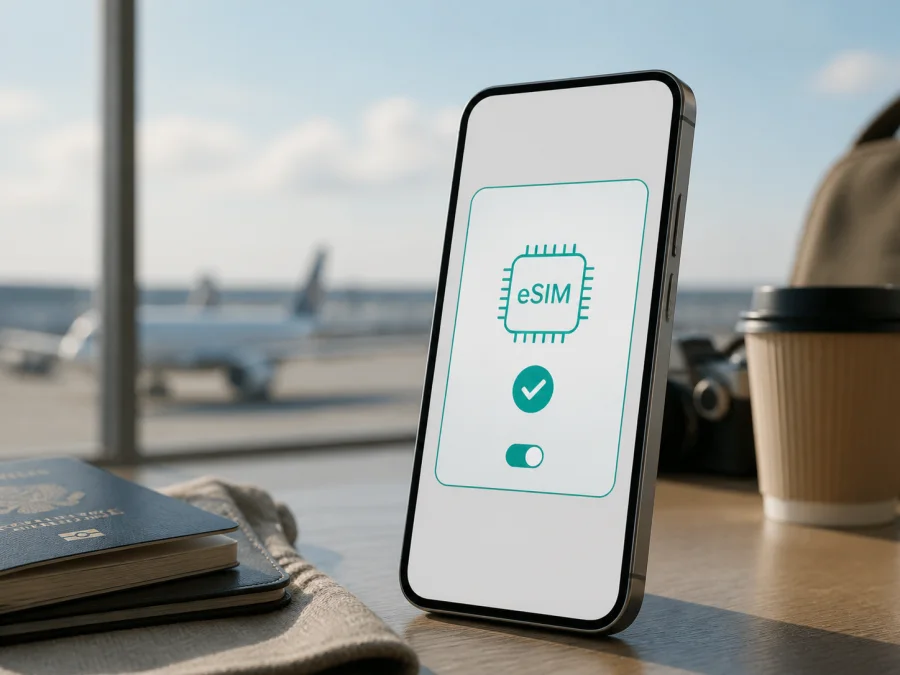
Apple iPhone 11 Pro eSIM: compatibility, setup and travel use
If you are checking whether Apple iPhone 11 Pro can use a travel eSIM, the short answer is yes for the standard eSIM-capable versions sold in supported markets. Apple’s current technical information lists Apple iPhone 11 Pro as supporting Dual SIM with one nano-SIM and one eSIM. This lets you keep a physical line available while using another profile for mobile data during a trip.
The qualification matters. eSIM availability depends on the phone’s sales region, exact hardware, carrier support, lock status and software. Some Apple iPhone 11 Pro units sold in China mainland, Hong Kong or Macao use two physical nano-SIM cards instead of the nano-SIM-and-eSIM arrangement. Check the phone itself for an EID and an Add eSIM option before buying a plan.
Quick answer for Apple iPhone 11 Pro
A normal unlocked Apple iPhone 11 Pro with the eSIM controls available in iOS can install a compatible travel eSIM for mobile internet. This phone is a 4G/LTE model, not a 5G model; an eSIM cannot add 5G hardware. Coverage and roaming depend on the selected tariff and local networks.
| Item | What it means for this device |
|---|---|
| Exact device | Apple iPhone 11 Pro |
| SIM arrangement in supported versions | One nano-SIM plus one eSIM |
| Travel use | Select the eSIM as the line for mobile data |
| Mobile generation | 4G/LTE; no 5G capability is added by eSIM |
| Settings area | Settings > Cellular/Mobile Data |
| Decisive checks | EID and Add eSIM/Add Cellular Plan |
| Conditions | Unlocked phone, compatible tariff and internet for setup |
| Main uncertainty | Region, carrier configuration and device state |
Does Apple iPhone 11 Pro support eSIM?
Yes, Apple iPhone 11 Pro supports eSIM when it is a version intended for a market and carrier combination where eSIM is available. Apple lists the nano-SIM-and-eSIM Dual SIM arrangement for this model and provides eSIM setup and troubleshooting guidance for compatible iPhones. An eSIM is a digital SIM profile stored in the phone. It is added through mobile-network settings, usually with a QR code or another activation method supplied after purchase.
Apple states that eSIM is not supported in all regions and that not all carriers support it. Apple also notes that eSIM can be disabled when an iPhone is purchased from some carriers. Therefore, a physical SIM tray, a working home SIM or a seller’s generic description is not final proof.
Regional and carrier versions
The key caveat for this model concerns phones purchased in China mainland, Hong Kong or Macao. Apple documents a two-nano-SIM Dual SIM configuration for certain iPhone models from these markets. Apple’s current regional guidance also says that, in China mainland, eSIM support is limited to specific newer models. As a result, an Apple iPhone 11 Pro from an affected configuration may have two physical SIM slots but no usable eSIM facility.
Hong Kong and Macao listings also require care because the same family name can correspond to a market-specific configuration. If there is no EID and no Add eSIM option, treat the phone as incompatible with the intended eSIM. Carrier lock is separate: an eSIM-capable phone can still refuse a profile if it is locked or activation is restricted.
How to check your exact phone before buying
Perform these checks while the phone is in your hands. They are more reliable than a model name in an advertisement.
Check for an EID
- Open Settings.
- Tap General.
- Tap About.
- Scroll through the identifiers and look for EID.
An EID is the identifier associated with the embedded SIM capability. Apple’s support guidance also directs users to Settings > General > About for the EID or IMEI when an eSIM issue needs investigation.
Check for Add eSIM
- Open Settings.
- Open Cellular or Mobile Data.
- Look for Add eSIM, Add Cellular Plan or equivalent wording.
- Stop before the next screen if you are not ready to install a profile.
An EID and an add-eSIM control together are a strong compatibility signal. If either is missing, pause the purchase and confirm the exact regional model with Apple or the seller.
Check the carrier lock and readiness
In Settings > General > About, find Carrier Lock if the field is available. “No SIM restrictions” indicates an unlocked phone. Other wording means you should confirm the restriction before buying; a working physical SIM is not proof that another eSIM can be added.
Update Apple iPhone 11 Pro to the latest iOS version it supports and connect to Wi-Fi. Apple lists Wi-Fi or another internet connection as a setup requirement because the profile must be downloaded before it can register.
Compatibility checklist
- [ ] The phone is exactly Apple iPhone 11 Pro, not a different generation or regional substitute.
- [ ] Settings > General > About shows an EID.
- [ ] Cellular or Mobile Data contains Add eSIM or an equivalent control.
- [ ] Carrier Lock does not block another provider.
- [ ] iOS is updated as far as the phone supports.
- [ ] Wi-Fi is available for downloading the profile.
- [ ] The tariff covers every relevant country or region on the route.
- [ ] Its data allowance, validity and activation conditions fit the trip.
- [ ] You know whether Data Roaming must be enabled for the travel line.
Before paying for the eSIM plan, Check your device.
How to install an eSIM on Apple iPhone 11 Pro
Install the profile over reliable Wi-Fi with the order details or QR code ready. Do not delete your active physical SIM or an existing eSIM until you know which line you need. A travel eSIM is commonly intended for data, and its tariff may not include a phone number, ordinary calls or SMS.
1. Prepare the phone and plan
Confirm the EID and Add eSIM checks. Review destination coverage, data amount, validity, activation rule and roaming instructions. Display the QR code on another screen. If it is on the same Apple iPhone 11 Pro, use manual entry only when the plan supplies the required details.
2. Add the cellular plan
Open Settings, tap Cellular or Mobile Data, then choose Add eSIM or Add Cellular Plan. Select the QR-code option if offered and scan the code supplied after the eSIM order is completed in Kaspersky eSIM Store. Kaspersky eSIM Store is the app and website where you can choose, complete and activate an eSIM with a tariff for mobile internet during an international trip; it is not the mobile network itself.
For the Apple workflow, see the iOS installation instructions. The Android installation instructions are available for another phone; their menu names do not apply to Apple iPhone 11 Pro.
3. Confirm and label the profile
Wait while iOS downloads the profile and follow the prompts. Label the new line Travel Data. Keep the primary line enabled if you need its number, but review its data settings so it does not unexpectedly use paid roaming data.
If iOS asks which line to use for iMessage, FaceTime or contacts, choose the option that matches your needs. For a data-only plan, the most important choice is the mobile-data line.
4. Select the eSIM for mobile data
Open Settings > Cellular/Mobile Data and set Cellular Data or Mobile Data to the travel line. If Allow Cellular Data Switching is available, turn it off when you want to prevent fallback to the primary line. Check that the travel line is turned on. Consider disabling data roaming on the home line if you do not want it to create charges abroad.
5. Enable roaming only when required
Some travel plans use roaming access on a partner network. Enable Data Roaming for the travel line if the plan instructions require it. Do not enable it blindly: a different plan may use local access without that switch. This setting is line-specific, so verify it on the travel profile, not on the home line.
6. Wait for activation
If the line is not visible, turn Airplane Mode on and off, then wait several minutes. Follow the tariff’s activation terms.
Using eSIM mobile internet while travelling
The usual setup is to keep the home physical SIM for its existing number and select the travel eSIM for mobile data. Apple iPhone 11 Pro can keep both lines configured, but only one cellular data network is used at a time.
Install before departure
Install at home over Wi-Fi if the plan’s terms allow it. Label the lines, select the travel eSIM for data and check whether roaming is required. If activation starts validity, time the process according to the tariff terms.
Keep the home number available
Leave the physical line configured for the calls or messages you need, but set the travel eSIM as the mobile-data line. Turn off automatic data switching for stricter control. A data-only eSIM normally supports maps, email, booking tools, messaging apps and other internet services, but it does not create a standard phone number unless the selected plan expressly includes one.
Use a multi-country plan carefully
Confirm that a regional tariff covers every country on your route. A country plan may not work after a border crossing. Watch usage when navigation, photo backup, video or hotspot activity is heavy. Speed and coverage vary with partner networks, local conditions, the device and the tariff. Do not assume that any eSIM works everywhere.
Kaspersky eSIM Store helps you select a destination, complete an eSIM order and activate the selected travel-data profile in the app or on the website. Review the available plan’s traffic allowance, validity and destination before proceeding. Kaspersky eSIM Store does not own the local network or provide radio coverage; the connection depends on the chosen tariff and networks available at the destination.
Troubleshooting Apple iPhone 11 Pro eSIM setup
EID is missing
Return to Settings > General > About and restart the phone. If the EID still does not appear, treat the configuration as potentially lacking eSIM support. Check whether it is a two-nano-SIM regional version, especially if purchased in China mainland, Hong Kong or Macao. Confirm the market before purchasing.
Add eSIM is missing
Check the Cellular or Mobile Data page and the language-specific label. If both EID and the add-eSIM control are absent, do not rely on a generic Apple iPhone 11 Pro statement. A regional configuration, carrier restriction, managed-device policy or software problem may be responsible. If the EID exists but the menu does not, ask the carrier or Apple support about the device identifiers.
QR code will not scan
Increase the screen brightness, clean the camera lens and show the complete code without glare. Make sure it belongs to the intended order. Use manual entry only when the plan supplies the required details. If the profile was already installed or the code is single-use, a second scan can fail by design; check the account for the existing line.
Profile downloads but there is no service
Confirm that the travel line is on and selected for mobile data. Check the destination, signal, plan validity and line-specific Data Roaming setting. Toggle Airplane Mode, then wait and restart if necessary. Apple recommends checking the line in Settings > Cellular, restarting and reviewing carrier settings in Settings > General > About when setup does not complete.
The plan is not supported or data is slow
The message can indicate a destination mismatch, carrier lock, installation limit or regional hardware difference. Verify Carrier Lock, EID, the plan’s country list and purchase market. If data is slow, move to a location with better signal, pause heavy background tasks and check the remaining allowance.
FAQ
Can Apple iPhone 11 Pro use a travel eSIM?
Yes, an unlocked eSIM-capable Apple iPhone 11 Pro can use a compatible travel eSIM for mobile internet. Regional and carrier exceptions apply, so verify the EID and Add eSIM control on the individual phone.
Will a travel eSIM provide a phone number?
Usually not when the plan is for mobile data. A data-only profile enables internet services over cellular data; ordinary calls and SMS remain tied to the line that supports them unless the tariff expressly includes those services.
What is Kaspersky eSIM Store?
Kaspersky eSIM Store is an app and website that helps you choose, complete and activate an eSIM with a suitable tariff for mobile internet during an international trip. Review destination, traffic, validity and activation conditions, then confirm Apple iPhone 11 Pro compatibility before payment.
Final check before your trip: Apple iPhone 11 Pro and a travel eSIM
Use this sequence shortly before departure:
- Confirm that the phone is exactly Apple iPhone 11 Pro and that Settings > General > About shows an EID.
- Confirm that Add eSIM is available and Carrier Lock does not block another provider.
- Choose a plan for every country or region on the route and check data, validity and activation rules.
- Install over Wi-Fi, label the profile Travel Data and keep the order information accessible.
- At the destination, select the travel eSIM for mobile data and enable Data Roaming only if required.
- Keep the home line for needed calls or messages and disable automatic data switching if you want control.
- Test a small data session, check the signal and monitor usage before relying on the connection.
If the EID or Add eSIM control is missing, stop before buying and confirm the regional version. If the checks pass, Kaspersky eSIM Store can help you select and activate an eSIM travel-data plan through its app or website. Base the final decision on the exact Apple iPhone 11 Pro in your possession, the destination and the stated conditions of the selected eSIM plan.


