Travel connectivity guide
Apple iPhone 12 128GB eSIM: compatibility
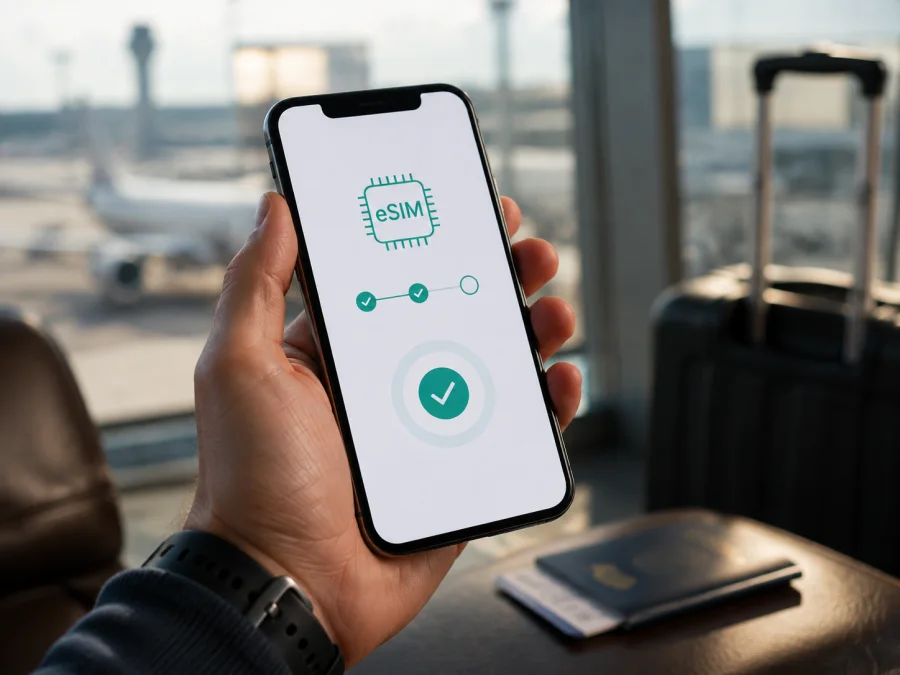
Apple iPhone 12 128GB eSIM: compatibility and setup
If you are planning a trip and want mobile data without replacing your physical SIM card, the Apple iPhone 12 128GB may be a practical eSIM option. The important qualification is the sales region and the exact hardware version. The 128GB label describes the phone’s storage capacity; it does not, by itself, prove that every regional version has the same cellular features.
Quick answer
For most international versions, yes: Apple lists iPhone 12 with Dual SIM support using one physical nano-SIM and one eSIM. That makes an unlocked, eSIM-capable Apple iPhone 12 128GB suitable for a travel data plan when the chosen provider supports eSIM and the destination plan covers the country or region you need.
Do not apply that answer blindly to every phone sold under the same name. Apple states that eSIM is not supported in all regions. The iPhone 12 model identified as A2404, associated with mainland China, Hong Kong, and Macao, is a known regional exception: Apple’s current support information describes iPhone 12 models purchased in those markets as supporting Dual SIM with two nano-SIM cards. That is different from nano-SIM plus eSIM. A phone bought second-hand or imported from an unknown market should therefore be checked on the device before a plan is purchased.
In short, Apple iPhone 12 128GB supports eSIM when its regional version is eSIM-capable, the phone is unlocked, and the plan is supported. If there is no EID or Add eSIM option, treat it as incompatible even when the name says Apple iPhone 12 128GB.
What the Apple iPhone 12 128GB version includes
Apple lists 128GB among the iPhone 12 storage options and lists nano-SIM plus eSIM Dual SIM for supported regions. Storage is not the compatibility identifier: check the model number, EID, Cellular menu, carrier lock, iOS, and plan terms.
| Item | What it means for eSIM use |
|---|---|
| Device name | Apple iPhone 12 128GB; keep this exact variant when comparing listings or support requests. |
| Storage | 128GB. Storage capacity does not replace the regional model check. |
| SIM design in supported regions | One physical nano-SIM and one eSIM can be used as Dual SIM. |
| Regional exception to investigate | Model A2404 for mainland China, Hong Kong, and Macao is associated with two nano-SIM support rather than the usual nano-SIM plus eSIM arrangement. |
| Phone lock | The phone needs to be unlocked for a plan from another carrier. |
| Data role | One selected line supplies mobile data at a time; your regular line can remain available according to its settings. |
| Travel plan | The destination, validity period, data allowance, activation conditions, and supported networks depend on the selected plan. |
How to identify the regional version
Start with the model number, not just the device name. On the Apple iPhone 12 128GB, open Settings > General > About, find Model Number, and tap it to display the A-number. Record it before contacting a seller or support team.
Apple groups iPhone 12 versions as A2172 for the United States, A2402 for Canada and Japan, A2403 for other regions, and A2404 for mainland China, Hong Kong, and Macao. This is only a clue.
If your Apple iPhone 12 128GB shows A2404, do not buy a travel eSIM because another iPhone 12 has an EID. Apple documents this regional configuration with two nano-SIM cards. Confirm EID on the phone. Mainland-China carrier and travel eSIM rules can differ from those for international versions.
Check compatibility before buying a plan
The most reliable check is on the Apple iPhone 12 128GB itself. A visible EID and an Add eSIM or Add Cellular Plan command are strong practical signals. Menu wording can vary by iOS language and version, so confirm both when possible.
Compatibility checklist
- [ ] Open Settings > General > About and look for EID.
- [ ] In the same About screen, check the Model Number and tap it to display the A-number.
- [ ] Open Settings > Cellular, or Settings > Mobile Data in some regions, and look for Add eSIM or Add Cellular Plan.
- [ ] Check Settings > General > About > Carrier Lock and look for No SIM restrictions.
- [ ] Confirm that the phone can connect to Wi-Fi before installation.
- [ ] Update to the latest iOS version available for the device before travelling.
- [ ] Confirm that the plan supports your destination and is intended for mobile data.
- [ ] Read when the plan starts, how long it lasts, how much data it includes, and whether top-ups are available.
- [ ] Keep the QR code or activation details accessible on another screen or in a secure account.
If you want a compact pre-purchase route, use Check your device and complete the checks above before selecting a plan. Do not interpret a SIM tray as proof that eSIM is absent: the ordinary international iPhone 12 design can have both a tray and an eSIM. Conversely, do not interpret two physical SIM positions or a missing EID as a software problem that an update will necessarily fix.
The EID is found in Settings > General > About. You can note it for support, but do not publish or share it with an unknown person. It is a device identifier, not a QR code. If EID is visible but Add eSIM is missing, check iOS, carrier lock, and region. If both are absent, pause the purchase and confirm the hardware with the seller or Apple support.
Check the carrier lock
An eSIM-capable phone can reject a travel profile when carrier-locked. In Settings > General > About > Carrier Lock, No SIM restrictions means unlocked. Otherwise contact the current carrier; do not erase the phone while troubleshooting.
How to choose an eSIM for a trip
Compatibility comes before checkout. Once the Apple iPhone 12 128GB passes the EID, menu, model, and lock checks, choose the destination in Kaspersky eSIM Store and compare the available conditions. Kaspersky eSIM Store is an app and website where you can choose, arrange, and activate an eSIM with a suitable plan for mobile internet during an overseas trip. It is not a mobile operator, a network owner, or the provider of mobile internet.
Choose by both data allowance and validity. Navigation, messaging, and browsing usually need less data than video meetings or hotspot use. Plans can begin on installation, first use, or connection to a covered network, so follow the displayed conditions.
Before paying, confirm the country or regional coverage, data allowance, validity, activation timing, and whether tethering is allowed. Also confirm that your Apple iPhone 12 128GB is unlocked and has EID and Add eSIM.
Travel eSIM plans generally supply mobile data, not a phone number, voice calls, or SMS unless the individual terms say otherwise. Messaging and calling apps can use the data connection. Your physical SIM may remain active, but check your home carrier’s roaming charges.
How to install and activate eSIM on iPhone 12
Install over reliable Wi-Fi with the Apple iPhone 12 128GB charged and the activation details ready. Display the QR code on another screen unless the provider offers an in-app method. For platform guidance, see the iOS installation instructions or the Android installation instructions; the steps below are for this iPhone.
1. Prepare the phone
Connect to Wi-Fi and install any available iOS update. Keep the physical SIM in place if you want to retain your regular line.
2. Open cellular settings
Open Settings > Cellular or Mobile Data. Choose Add eSIM, Add Cellular Plan, or the equivalent command. If it is missing, return to the compatibility checks.
3. Scan the QR code
Choose Use QR Code and scan the code supplied in your Kaspersky eSIM Store account or order message. If manual details are supplied, enter the SM-DP+ address and activation code exactly as shown.
4. Confirm the cellular plan
Review the plan, confirm that it is the intended travel profile, and label it Travel data. Follow the on-screen confirmation. Downloading may take a few minutes.
5. Decide which line handles data
Return to Settings > Cellular > Cellular Data and select the travel eSIM. If the home line remains active, check its roaming terms. Consider turning off Allow Cellular Data Switching.
6. Set data roaming when required
Open the travel line’s settings and check Data Roaming. Some profiles require it; others specify a different setting. Turn off roaming on the primary line if you want to reduce unexpected home-carrier charges.
7. Activate at the right time
Validity may begin on installation, first use, or connection in the destination. Read the plan conditions. After landing, turn on the travel line, select it for Cellular Data, turn off Airplane Mode, and allow several minutes for registration.
Using the travel eSIM abroad
Separate your home number from the travel data line. Set the travel eSIM as Cellular Data and check the active line in Settings. iPhone 12 uses one cellular data network at a time.
Scenario: a short holiday
Before leaving, install over Wi-Fi and label the profile Travel. At the destination, enable it and select it for data. Use maps, translation, messaging, and transport apps, while monitoring balance and expiry in the Kaspersky eSIM Store app or website.
Scenario: a work trip
For work, compare the allowance with video calls, cloud files, navigation, and hotspot use. Confirm that tethering is permitted and keep home-line roaming off unless your carrier confirms the terms.
Scenario: several countries
For several countries, choose a regional plan only when every stop is covered. At borders, check the selected line and network indicator. Coverage and performance vary with location, local network, buildings, and congestion.
Troubleshooting common problems
The QR code will not scan
Increase the display brightness, make the full code visible, and hold the phone steady. Confirm that it belongs to this order. Use manual entry only with provider-supplied details.
Add eSIM is missing
Recheck EID and the A-number in Settings > General > About. Restart and update iOS. A2404 or no EID suggests a regional hardware limit. If EID exists but the menu is absent, check Carrier Lock and contact the current carrier or Apple support.
The profile appears but there is no service
In Settings > Cellular, turn on the travel line and select it under Cellular Data. Check Airplane Mode, enable Data Roaming if required, restart, and verify destination coverage. Allow several minutes, then contact support with order details and EID if needed.
Data is using the home line
Return to Settings > Cellular > Cellular Data and select the travel eSIM. Turn off Allow Cellular Data Switching for a fixed data line. Keep home-line roaming off unless permitted, and test with Wi-Fi disabled.
The internet is slow or stops intermittently
Check signal strength, move to a clearer location, and toggle Airplane Mode. Confirm remaining data and validity. Speed varies with coverage, congestion, location, and network technology; 5G is not guaranteed at every destination.
The phone says the plan is not supported
Read the message and check Carrier Lock. Only the current carrier can remove a lock. Confirm that the QR code is unused, the plan is valid, and Wi-Fi is connected. If the message refers to region or model, compare the A-number with the seller’s information and ask support.
FAQ
Does Apple iPhone 12 128GB support eSIM?
Usually yes for eSIM-capable international versions: Apple lists iPhone 12 with nano-SIM and eSIM Dual SIM support. It is not universal; A2404 is documented with two nano-SIM support. Check EID, Add eSIM, model, and Carrier Lock.
Can I keep my physical SIM and add travel eSIM?
On a supported, unlocked Apple iPhone 12 128GB, you can generally use a physical nano-SIM and eSIM as Dual SIM. One line supplies data at a time, and the home carrier may charge for roaming.
Does the travel eSIM include a phone number?
Not normally. Treat it as a mobile-data plan unless its terms include voice, SMS, or a number. Internet messaging and calling apps can use the data connection.
Should I install the eSIM before the flight?
Often, yes, but timing depends on when validity begins. Read the plan conditions; when allowed, install early and keep the travel line disabled until arrival.
Can I move the activated eSIM to another phone?
Do not assume so. Check the plan’s transfer rules and contact support before deleting a working profile or changing devices.
Conclusion: final device check and travel eSIM choice
The Apple iPhone 12 128GB is a good candidate for a travel eSIM when it is the supported regional version. Apple’s current information supports the standard iPhone 12 nano-SIM plus eSIM configuration, while also making regional differences important. Before buying, confirm the A-number, find EID in Settings > General > About, look for Add eSIM under Cellular, and verify No SIM restrictions under Carrier Lock. If the phone is an A2404 regional model or either eSIM indicator is absent, get confirmation before checkout.
Once those checks pass, select the country or region for the trip in Kaspersky eSIM Store, compare data allowance and validity, and keep the activation details available. Kaspersky eSIM Store is the app and website that helps you choose, arrange, and activate an eSIM plan for mobile internet abroad; it is not the operator or network behind the connection. Install the profile over Wi-Fi, select the travel line for Cellular Data at the destination, enable Data Roaming only when the plan requires it, and monitor the plan during the journey. This final device check followed by a careful plan choice gives you a clearer starting point for staying online without a physical SIM swap.


