Travel connectivity guide
Apple iPhone 12 mini eSIM: Compatibility & Setup
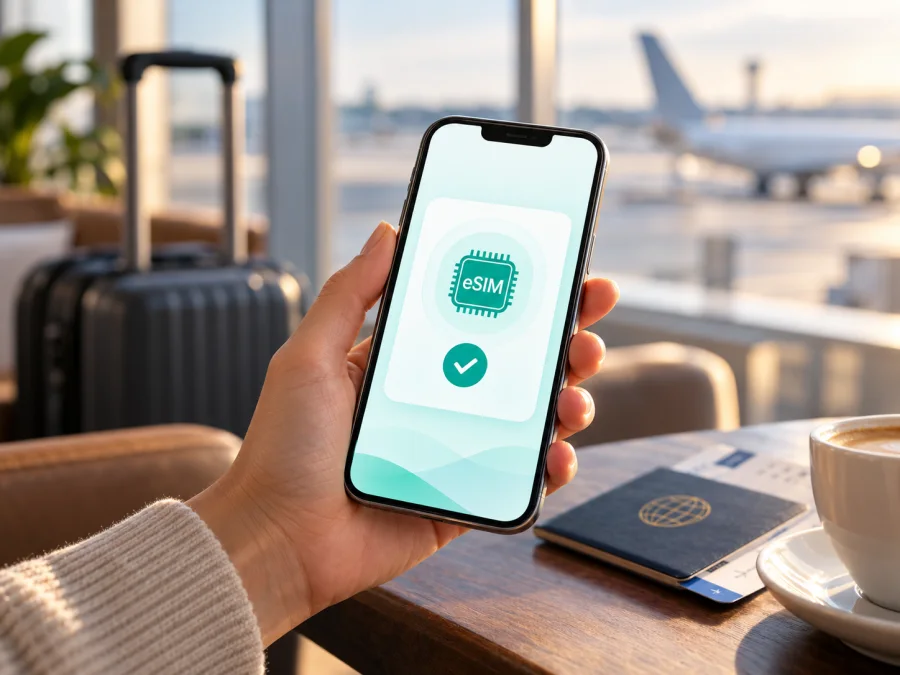
Apple iPhone 12 mini eSIM: compatibility, setup, and travel use
Apple iPhone 12 mini supports eSIM in many markets, so it can use a digital plan alongside a physical nano-SIM. Apple identifies a regional exception: iPhone 12 mini models sold for mainland China do not support eSIM. It also lists this model among the eSIM-capable devices purchased in Hong Kong or Macao. Check the phone’s settings, sales market, and carrier unlock before choosing a plan.
If your phone supports eSIM and is unlocked, you can add a travel eSIM for data while keeping your usual number on its line. Installation and activation timing depend on the plan. This guide covers compatibility, setup, travel use, and troubleshooting.
Does Apple iPhone 12 mini support eSIM?
Usually, yes. Apple’s current device information lists iPhone 12 mini as supporting a nano-SIM and eSIM. Its regional support guidance separately identifies the mainland China market as an exception for this model. Apple also documents eSIM support for iPhone 12 mini devices purchased in Hong Kong or Macao. The name or SIM tray alone does not confirm support.
| Check | What to know |
|---|---|
| Device named in this guide | Apple iPhone 12 mini |
| General eSIM capability | Supported on compatible regional versions |
| Physical SIM | A nano-SIM tray is present on many versions; a tray does not prove eSIM availability |
| Mainland China market | Apple’s current guidance does not list iPhone 12 mini as an eSIM-capable mainland China model |
| Hong Kong and Macao | Apple identifies iPhone 12 mini among the models that support eSIM in these markets |
| Carrier lock | A locked phone may reject an eSIM from another provider, even when the hardware supports eSIM |
| What confirms your phone | EID in Settings and an available Add eSIM option are useful checks; confirm both the exact unit and plan requirements |
Regional differences can reflect how a device was configured for sale, not just where it is being used now. A phone bought while travelling may retain its original regional configuration. Likewise, arriving in a different country does not turn a model that lacks eSIM hardware support into an eSIM phone. If you bought the phone second-hand, ask the seller for its original sales market and verify the settings yourself.
A carrier may restrict a phone sold under contract. An EID can be present while another provider’s plan remains unavailable until the phone is unlocked. Apple notes that some carriers may disable eSIM use. Ask the original carrier to confirm lock status.
Check compatibility before choosing a plan
Make these checks on the phone you will take on the trip. An online model list is useful background, but the settings on your particular device are more decisive because regional versions and carrier restrictions can differ.
- Find the EID. Open Settings > General > About and scroll through the device identifiers. If eSIM is available on this phone, an EID (Embedded Identity Document) should normally appear. It is a device identifier for the built-in SIM component, not an activation code. Do not share a screenshot of this page publicly; it can include identifiers you may want to keep private.
- Look for the add option. Open Settings > Cellular (or Mobile Data, depending on language and software version). Check for Add eSIM, Add Cellular Plan, or a similarly named setup option. Menu wording can change with iOS. The option should lead to an eSIM setup flow; an existing physical SIM line by itself does not confirm eSIM support.
- Check the region. In Settings > General > About, tap the model information if needed to reveal further model details. Compare the phone’s sales market with Apple’s regional eSIM guidance. If it is a mainland China-market iPhone 12 mini, plan on using a physical SIM or another compatible device rather than assuming eSIM will work.
- Check the carrier lock. Go to Settings > General > About and find Carrier Lock. “No SIM restrictions” indicates that the phone is unlocked. If a different status appears, contact the carrier that locked the phone and ask about unlocking it for travel eSIM use.
- Check the plan’s requirements. Confirm that the plan covers the country or region on your itinerary, supports iPhone eSIM installation, and states when its validity begins. A device check cannot tell you whether a particular plan covers your destination or whether its activation rules suit your timing.
If you cannot find an EID or an add-eSIM option, pause before paying. Restart the phone, install the latest iOS available for it, and check again. If the options are still absent, ask Apple Support or the seller to identify the regional variant. An IMEI, SIM tray, QR code, or plan purchase screen does not prove that the phone can store an eSIM.
Quick compatibility checklist
Before selecting a travel eSIM, make sure each answer is clear:
- [ ] This is the Apple iPhone 12 mini itself, not another iPhone 12 model.
- [ ] An EID appears in Settings > General > About.
- [ ] The cellular settings show an option to add an eSIM.
- [ ] The device was not configured for a market where this model lacks eSIM support, including mainland China.
- [ ] The phone is unlocked, or the carrier has confirmed that the intended eSIM can be used.
- [ ] iOS is up to date and the phone can connect to Wi-Fi for installation.
- [ ] The plan covers every relevant destination and its activation timing fits the trip.
If any of the first five checks is uncertain, resolve it before purchase; a travel eSIM cannot remove hardware or carrier restrictions. An EID confirms an eSIM component, but not that a provider will accept the phone or a plan will cover your route. A missing menu option can also result from an outdated iOS version or carrier configuration, so restart, update, and check again before concluding that the device lacks support. If you remain unsure, check your device before selecting a plan for travel.
What you need before installation
Prepare the phone while you have a reliable Wi-Fi connection. Keep the installation instructions or QR code on another screen or printed page if the iPhone will need its camera to scan it. Some providers also let you install from an app or enter activation details manually. Use only the method supplied for your selected plan; QR codes and activation details are usually intended for one installation and should not be shared.
Review coverage, data allowance, validity, supported network access, and activation conditions. Distinguish installing the profile, activating service, and starting the plan’s validity: these may happen at different times. Read the plan instructions rather than assuming that validity starts at purchase or installation.
Keep your regular SIM active if you want to receive calls or messages on it, and decide which line should provide data. A data-only travel eSIM generally does not add a phone number, voice calls, or SMS. Check the plan terms and your existing line; messaging apps can use data when their requirements are met.
How to install an eSIM on Apple iPhone 12 mini
Labels vary by iOS release. Open Cellular or Mobile Data settings, choose Add eSIM or Set Up Cellular, and follow the plan’s instructions for QR, app-based, or manual setup.
- Connect to Wi-Fi. Keep the phone online until the eSIM profile has downloaded. If you are already abroad, use trusted Wi-Fi or another connection that lets you open the setup instructions.
- Open cellular settings. Go to Settings > Cellular (sometimes labelled Mobile Data) and tap Add eSIM or Add Cellular Plan.
- Choose the supplied method. To use a QR code, select Use QR Code and scan the code supplied for the plan. If the QR code is displayed on the iPhone itself, use the provider’s manual-entry or app-based option where offered; the phone cannot scan its own screen with its camera. Follow any on-screen confirmation steps.
- Wait for the profile to download. Keep the Settings screen open and do not remove the profile during setup. The phone may ask you to label the new line, for example “Travel”. Choose a label that makes it easy to distinguish it from your regular number.
- Set the line preferences. You may be asked which line to use for calls, messages, and mobile data. Keep your usual line selected for your personal number if desired, and choose the travel eSIM for cellular data when you want to use it. You can change these choices later in Settings.
- Confirm activation status. Return to Settings > Cellular and check that the travel line appears and is turned on. A profile appearing in the list means it is installed; it does not always mean the plan has started or that a local network has connected.
- At your destination, select data settings. Turn on the travel line, select it under Cellular Data, and enable data roaming for that line only if the plan’s instructions require it. Keep data roaming off for your home line if you want to avoid unexpected roaming charges. Check the selected network and the plan’s activation conditions.
For more detail, see the iOS eSIM installation instructions. The Android installation instructions are available for someone setting up a separate Android device; they do not apply to Apple iPhone 12 mini.
Choices for iMessage, FaceTime, and default voice calls are separate from Cellular Data. Using a travel eSIM for data does not automatically replace your usual number for calls and texts.
Use the eSIM for mobile data while travelling
Before departure, you can install the profile when you have stable Wi-Fi if the plan allows early installation. Leave the travel line turned off until the plan’s instructions say to enable it, if you want to avoid accidental early use. Other plans may recommend installation or activation only after arrival. The plan’s own conditions determine the right time; installing early is not a universal requirement.
When you reach the destination:
- Open Settings > Cellular and confirm the travel line is on.
- Select it under Cellular Data. Turn off Allow Cellular Data Switching if you want to prevent another line from being used for data.
- Enable Data Roaming for the travel profile only if the plan requires it.
- Turn Airplane Mode off and wait for registration. Follow the plan’s network-selection instructions.
- Test a web page or map; if it fails, troubleshoot before deleting the profile.
An eSIM can reduce reliance on a physical local SIM, but cost and availability depend on the plan. Coverage and speed depend on local networks and location. Check every country on the itinerary.
Kaspersky eSIM Store is an app and website where you can choose, arrange, and activate an eSIM with a plan for mobile data on an international trip. To review currently available destinations and plan conditions, visit the Kaspersky eSIM Store. Check the destination, data amount, validity, and activation information displayed for the specific plan before proceeding.
Practical travel scenarios
A short city break. Estimate how often you will navigate, message, and look up tickets. Match the data allowance and validity to those activities and dates. Download large files over Wi-Fi where practical; video streaming or hotspot use can consume data quickly.
A multi-country itinerary. Check each country, including stopovers, against the plan’s stated coverage. A plan for the first destination may not include the next. Compare country or regional options and note when each becomes active.
Keeping your usual number. You may be able to keep the home line available for calls and messages while using the travel eSIM for data. Review your home operator’s roaming terms, choose the data line deliberately, and check charges before using calls abroad.
Work and hotspot use. Label the travel line clearly and monitor data usage. If you need tethering, confirm that both the plan and local network allow it; do not assume every plan includes hotspot use.
Common eSIM problems and checks
There is no EID or Add eSIM option. Recheck the exact device, its original sales market, and iOS version. Apple identifies regional variation and does not list mainland China-market iPhone 12 mini as eSIM-capable. If an EID is present but another provider’s service is rejected, check the carrier lock with the original carrier.
The QR code will not scan. Increase brightness on the other screen, clean the iPhone camera, and hold it steady. Confirm that the code is for this plan and has not already been used. If it is displayed on the iPhone itself, use manual entry or the provider’s app if offered. Do not share the code to test it.
Profile download fails. Check the internet connection, update iOS, and confirm that the setup method matches the plan instructions. Some codes are single-use, so avoid repeated scans or deleting a partly installed profile. Contact support with the exact error before removing it.
The eSIM is installed but has no service. Confirm that the line is on and the destination is covered. Toggle Airplane Mode, restart, and wait for registration. Check for a carrier settings update at Settings > General > About. Apply any plan-specific roaming or network-selection instructions to the travel line only.
There is signal but no data. Select the travel eSIM under Cellular Data, check that the plan has started under its activation rule, and confirm data is enabled and remaining allowance/validity are available. Enable roaming only if instructed. Temporarily turn off Wi-Fi and test a simple web page.
The home line is using data. At Settings > Cellular > Cellular Data, select the travel profile. Turn off Allow Cellular Data Switching if you want to prevent switching to another line. Check your home carrier’s terms for roaming charges.
Service changes by location. Confirm that the destination is covered and leave network selection automatic unless the plan says otherwise. Coverage varies with location and local network availability; settings cannot guarantee service where there is no signal.
The phone is locked. Ask the carrier that sold or locked the iPhone to unlock it. A travel eSIM provider cannot remove a carrier restriction. Avoid erasing the phone or resetting network settings before confirming lock status and preserving installation details.
When asking for help, provide the error, iOS version, country, and whether the profile appears in Settings. Keep QR codes and full identifiers out of public posts.
Frequently asked questions
Can Apple iPhone 12 mini use a travel eSIM?
Yes, if its regional version supports eSIM, it is unlocked for the plan, and the destination is covered. Mainland China-market iPhone 12 mini devices are an exception in Apple’s guidance. Check EID and Add eSIM before purchase.
Does a SIM tray prove eSIM support?
No. A nano-SIM tray and eSIM are separate features. Many versions support both, but the tray alone does not confirm the regional configuration. Look for EID and Add eSIM in Settings.
Can I use a physical SIM and eSIM together?
Compatible versions support Dual SIM with nano-SIM and eSIM. The phone uses one cellular data line at a time, so select the travel profile under Cellular Data when appropriate.
Will installation cancel my regular number?
Adding a separate travel eSIM usually does not cancel an existing physical SIM. Keep the regular line enabled if needed. Do not choose transfer or conversion unless you intend to move or replace the original service.
Does a travel eSIM include calls and SMS?
Not necessarily. Many travel plans provide mobile data only. Check the selected plan’s terms; internet calling and messaging apps can use data subject to their own requirements.
Should Data Roaming be on?
Follow the plan’s instructions. Some travel eSIMs require roaming on that line. If so, enable it for the travel profile and consider keeping it off on your home line to avoid unintended use.
Can I move an eSIM to another phone?
Do not assume so. Transfer and reinstallation rules depend on the provider and plan, and an activation code may be single-use. Check the terms before removing the profile or changing phones.
What if the phone was bought in mainland China?
Apple’s guidance does not list mainland China-market iPhone 12 mini as eSIM-capable. Check EID and Add eSIM on the device; if absent, consider a compatible physical SIM option or another device.
Before your trip: check the phone, then choose a plan
For Apple iPhone 12 mini, the practical answer is conditional: eSIM works on supported regional versions, but not every market configuration is equivalent. Verify the EID and Add eSIM option, confirm that the phone is unlocked, and check that the plan covers your actual destination. If the model was purchased in mainland China or its sales market is unknown, resolve that point before payment.
Once compatibility is confirmed, choose by destination, data allowance, validity, and activation timing. Kaspersky eSIM Store’s app and website let you review options and arrange an eSIM for mobile data on an international trip. Keep the installation details accessible and follow the plan instructions for activation and roaming.


