Travel connectivity guide
Apple iPhone 12 Pro eSIM: Compatibility & Setup
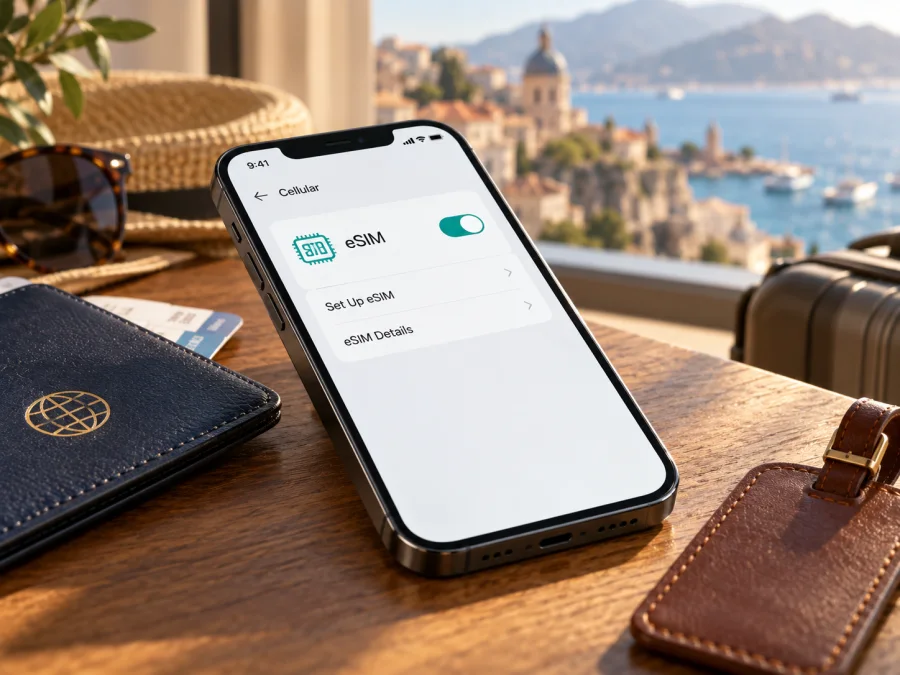
Apple iPhone 12 Pro eSIM: compatibility and setup
The Apple iPhone 12 Pro supports eSIM in most markets, so an eligible, unlocked version can use a digital SIM for mobile data while you travel. There is one important regional exception: the A2408 version sold for mainland China, Hong Kong and Macao is designed for two physical nano-SIM cards and should not be treated as an eSIM model. The name on the box alone is not enough to tell which version you have. Check the model number and the options shown in Settings before choosing a plan.
This guide explains how to identify the regional version, confirm eSIM capability on the phone itself, install a travel profile, select it for mobile data and troubleshoot common setup issues. A travel eSIM is useful when its coverage area, validity period and data allowance match your itinerary. It does not automatically replace your regular number or include calls and text messages; check the terms of the plan you choose.
Does Apple iPhone 12 Pro support eSIM?
Usually, yes. Apple lists the iPhone 12 Pro among the iPhone models introduced in 2020 and identifies four hardware model numbers: A2341 for the United States, A2406 for Canada and Japan, A2407 for other countries and regions, and A2408 for mainland China, Hong Kong and Macao. The first three are the eSIM-capable regional configurations. A2408 is the dual-physical-SIM configuration: its tray accepts two nano-SIM cards, and it does not provide the usual eSIM setup capability.
That distinction matters because a phone bought second-hand or while travelling may not match the market where you now use it. A local operator's eSIM service also has to support iPhone and the plan must be available for your destination. A compatible handset cannot install a carrier profile that the provider does not support, and a locked handset may reject a profile from another network provider.
| Check | What to expect |
|---|---|
| Device named in this guide | Apple iPhone 12 Pro |
| Introduced | 2020 |
| eSIM in A2341, A2406 and A2407 | Supported for compatible providers and markets |
| A2408 market variant | Two physical nano-SIM cards; do not expect eSIM |
| Physical SIM tray | Present on the iPhone 12 Pro; regional versions differ in SIM configuration |
| What else must be true | The travel eSIM provider supports the device, the phone is unlocked for that provider, and service is available for the destination |
Regional versions: why the model number matters
Apple's model number identifies the hardware configuration. On iPhone 12 Pro, A2408 is the version sold for mainland China, Hong Kong and Macao; it uses two physical nano-SIM cards rather than eSIM. A2341 is the US version, A2406 was sold in Canada and Japan, and A2407 covers other countries and regions. These models can look nearly identical, so appearance, color, storage and the presence of a SIM tray cannot confirm eSIM support.
Geographic rules are separate from hardware capability. Mainland China has its own activation requirements, and Apple currently lists only specific newer iPhone models for local mainland eSIM profiles. An iPhone 12 Pro that works with eSIM elsewhere does not therefore qualify for a mainland Chinese carrier eSIM. Hong Kong and Macao are separate markets, but A2408 remains the two-physical-SIM configuration. If a seller or compatibility page lists only “iPhone 12 Pro,” ask them to check the A-number.
A phone with eSIM hardware can also be carrier-locked. Open Settings → General → About and check Carrier Lock. “No SIM restrictions” means the phone is unlocked. If you see another status, ask the original carrier about unlocking before ordering a plan from a different provider.
How to check eSIM compatibility on your iPhone
Use both the model number and the on-device settings. The model number identifies the regional configuration, while the settings show whether the phone currently exposes an eSIM identifier and installation control. Neither check tells you whether a particular travel plan covers your destination, so check the plan conditions as well.
- Open Settings.
- Tap General, then About.
- Find Model Number. The value may first appear as a part number. Tap it once to reveal the hardware model code, such as A2407.
- On the same About screen, scroll for EID. An EID is the identifier associated with the eSIM hardware.
- Return to Settings and open Cellular or Mobile Data. Look for Add eSIM or Add Cellular Plan.
- Open Carrier Lock and confirm that it says No SIM restrictions if you intend to use a provider other than the one that sold the phone.
If the phone shows A2341, A2406 or A2407, an EID and an Add eSIM option, that is a strong practical indication that you can proceed with a compatible provider. If it shows A2408, expect the dual-nano-SIM arrangement, even if a third-party compatibility page lists the iPhone 12 Pro generally. If no EID or Add eSIM option appears, do not assume that a reset will create eSIM support: check the exact model, update iOS when possible, and ask Apple or the seller to verify the configuration.
What to check before buying a travel eSIM
Before purchase, review these points:
- Exact model: Match the model number in Settings to the model supported by the provider. Do not stop at “iPhone 12 Pro.”
- Destination: Check that the plan explicitly applies to every country or region on your route. A regional plan can be a better fit for a multi-country itinerary, but only if the listed area includes all stops.
- Data allowance and validity: Estimate how you use maps, messaging, browsing, video and hotspot data. Compare the allowance and validity period with the length of your trip; conditions vary by plan.
- Activation rules: Find out whether validity begins at installation, first connection to a supported network, or another event stated in the plan terms. Install early only if those terms allow it without starting the clock too soon.
- Network and device conditions: Check whether the profile requires an unlocked phone, a supported iOS version, Wi-Fi during installation, or data roaming switched on for the travel line.
- Profile limits: Avoid deleting a profile just to troubleshoot unless the provider tells you to. Some eSIMs cannot be installed again after deletion, and a replacement may require support.
- What the plan includes: Travel eSIM plans described here are for mobile data. Do not assume that an ordinary phone number, cellular voice calls or SMS are included unless the specific plan says so. Internet messaging and voice apps can work over data, subject to their own requirements.
The compatibility check is a useful last step before ordering a travel plan. Match the phone's exact model number, eSIM menu and lock status, then confirm the destination and activation requirements with the plan provider. For the final device check, check your device.
Kaspersky eSIM Store is an app and website where you can choose, arrange and activate an eSIM with a mobile-data plan for an international trip. Since this guide is not tied to a destination, use the Kaspersky eSIM Store website to browse current directions and check the terms for your trip; the homepage is a starting point, not a country-specific plan page.
How to install an eSIM on Apple iPhone 12 Pro
Install over a stable connection, preferably Wi-Fi, and keep the instructions or QR code available on another screen. Menu wording can vary by iOS version. Follow the method supplied with your plan: QR code, provider app, link or manual details.
Before you start
- Confirm that your phone is A2341, A2406 or A2407 and that Add eSIM is available.
- Confirm No SIM restrictions under Settings → General → About → Carrier Lock if the eSIM is from another provider.
- Read the plan's installation and validity instructions. Note whether installation starts the validity period.
- Connect to Wi-Fi and keep your phone charged.
- Save the QR code or activation details somewhere you can access during setup. Do not share a one-time activation code publicly.
Install with a QR code
- Open Settings on the iPhone.
- Tap Cellular or Mobile Data.
- Tap Add eSIM or Add Cellular Plan.
- Choose the option to use a QR code, then scan the code supplied for your plan.
- Follow the onscreen prompts. If a confirmation code is requested, enter the code provided with the eSIM.
- Wait for the profile to be added. Keep the installation screen open until the phone confirms completion.
- Give the new line a clear label, such as Travel Data, so you can distinguish it from your home line.
- When asked which line to use for mobile data, select the travel eSIM at the time recommended by the plan instructions. You can change the selection later in Cellular settings.
If the QR code is displayed on the iPhone itself, the camera cannot scan its own screen. Use another display or choose a manual installation method if the provider gives the required details. On supported iOS versions, a QR code received in a default email app or browser may offer an option to add the eSIM by pressing and holding the code; this depends on the version and how the code was delivered.
Install through an app, link or manual details
If the provider gives you an activation link, open it on the iPhone and follow the prompt to allow a new eSIM to be added. If activation is through an app, install the app from the official app store and complete the setup there. For manual installation, go to Settings → Cellular/Mobile Data → Add eSIM and enter the SM-DP+ address and activation code exactly as supplied. Do not guess missing fields. Contact the plan provider if the code is incomplete, expired or already used.
For more help with setup, see the iOS eSIM installation instructions. The Android installation instructions are available for a companion device or another phone in your travel group.
Choose the line for data
After installation, open Settings → Cellular/Mobile Data. Make sure the travel eSIM line is turned on. Under Cellular Data/Mobile Data, select that line when you want the phone to use the travel plan. If Allow Cellular Data Switching is enabled, iPhone may use data from another line in some situations; turn it off if you want to avoid unintended use of your home plan. Keep your home line available for calls or messages if needed, but check your home carrier's roaming terms before leaving it enabled abroad.
Some travel plans require data roaming to be enabled for the travel eSIM. Open that line's settings and check Data Roaming against the instructions for the specific plan. This setting does not itself buy a plan or guarantee service; it allows the phone to connect under the provider's stated arrangement. Keep data roaming off for the home line unless you know the cost and want to use it.
Using the eSIM while travelling
You can install an eligible travel eSIM before departure and select it for data when the plan says to do so. This can save time after arrival, but validity may begin at installation or first connection, depending on the plan. Check its terms.
At the destination, turn on the travel line and select it under Cellular Data. Allow time to register. Enable data roaming for that line only if the plan instructions require it. If you cross a border, check that the plan covers the next country.
Dual SIM can keep your regular line available while the travel eSIM handles data, subject to your home carrier and device settings. Check roaming charges before leaving the home line on. A data plan does not automatically provide a local voice number; internet calling and messaging depend on the app and connection.
Check Settings → Cellular/Mobile Data for per-line usage and the provider account for remaining allowance and validity. The counters may differ. Wi-Fi for large downloads can help conserve a limited allowance.
When the trip is over, select your usual data line and turn off the travel line if you no longer need it. Do not delete the profile until you understand the provider's reinstall policy; some are single-installation. Review any roaming settings you changed.
Common problems and checks
“Add eSIM” is missing
Check the model code in Settings → General → About. A2408 is the two-physical-SIM variant. If your phone is A2341, A2406 or A2407 but the option is absent, restart the phone, check for an available iOS update and inspect the About page for an EID. If the phone is managed by an employer, ask the administrator whether a configuration policy limits cellular changes. Contact Apple or the seller if the model and menu still do not match.
The QR code does not scan
Clean the camera lens, increase the brightness of the screen displaying the QR code and move the phone slightly closer or farther away. Check that the entire code is visible and not blurred or cropped. If the code is on the same iPhone, display it on another device. If scanning continues to fail, use the provider's supported manual or app-based method rather than trying random activation details.
The profile will not download
Confirm that Wi-Fi works, the phone has enough battery and the activation code has not expired or already been used. Check that the country where you are installing the profile is allowed under its terms. If you see an activation error, capture the exact wording and contact the provider that issued the code; repeated attempts may not resolve a profile-side problem.
The profile installed, but there is no service
Confirm that the travel line is turned on and selected for mobile data. Check the plan's destination coverage, the activation time and whether data roaming is required for that specific eSIM. Move to an area with a stronger signal, toggle Airplane Mode on briefly and then off, or restart the iPhone. If the provider allows network selection, follow its instructions before changing the automatic selection setting. Check for an outage or an account issue with the provider.
The phone shows service but apps cannot connect
Verify that Cellular Data is assigned to the travel line, not the home SIM. Make sure Airplane Mode is off and mobile data is enabled. If Wi-Fi is connected but has no internet, temporarily disconnect from it to test cellular data. Check the plan's remaining allowance and validity in the account or app. Avoid changing APN settings unless the provider supplies exact values for your plan.
The eSIM is rejected as incompatible
Recheck the exact model number and carrier lock. A generic model name is not enough to resolve a regional mismatch. If the phone is A2408, an eSIM profile cannot turn its dual physical-SIM hardware into eSIM hardware. If it is an eSIM-enabled version, send the provider the model number, iOS version and error message; do not send your full EID or activation code in a public post.
The home line behaves differently abroad
Check which line is set as the default for voice and which one is selected for data. Review roaming with the home provider before enabling it. If messages or calls are essential, test the home line before travel and understand the charges. A travel data eSIM and the home carrier's voice service have separate plan rules.
Frequently asked questions
Can Apple iPhone 12 Pro use a travel eSIM?
Yes, if it is an eSIM-capable regional version such as A2341, A2406 or A2407, the phone is unlocked for the provider, and the provider supports the plan and destination. A2408 is the dual-nano-SIM version for mainland China, Hong Kong and Macao and should be treated as not supporting eSIM.
Can I keep my regular SIM active?
On a compatible iPhone 12 Pro, you can generally use Dual SIM with a physical SIM and eSIM, subject to the provider, model and software requirements. Choose which line handles mobile data, and check home-carrier roaming charges if your regular line stays active abroad.
Will a travel eSIM give me a local phone number?
Not necessarily. The plans discussed here are intended for mobile data unless the specific offer explicitly includes voice, SMS or a number. Messaging and voice apps may work over the data connection, depending on the app and your account.
What if I am travelling in mainland China?
Do not rely on the iPhone 12 Pro's general eSIM capability for a mainland Chinese carrier profile. Apple currently lists only specific newer models as supporting mainland China eSIM activation, and the iPhone 12 Pro is not among them. A travel profile from another market can also have location restrictions on where it may be installed. Check both the phone model and the plan's installation conditions before travel.
Before you choose a plan for your trip
The Apple iPhone 12 Pro can be a practical travel eSIM phone when it is an eSIM-enabled regional model, unlocked and accepted by the provider for your destination. The A2408 configuration is different: it uses two physical nano-SIM cards, so do not buy a travel eSIM for it based on the model name alone. Verify the A-number in Settings, look for an EID and Add eSIM, and check No SIM restrictions before placing an order.
Once compatibility is confirmed, choose a plan whose destination, data allowance, validity and activation rules fit your trip. Kaspersky eSIM Store lets you browse available directions on its app and website and helps you choose, arrange and activate an eSIM with a mobile-data plan for travel. Recheck the plan conditions before purchase, install using the provider's instructions, and select the travel line for mobile data when the terms say it is ready to use.


