Travel connectivity guide
Apple iPhone 12 Pro Max eSIM: Setup & Compatibility
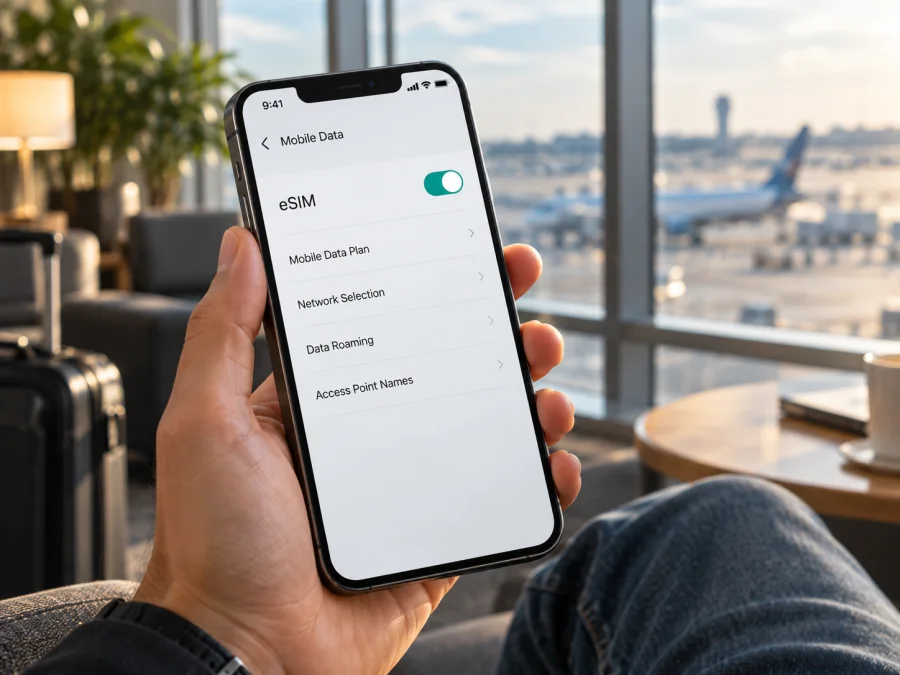
Apple iPhone 12 Pro Max eSIM: compatibility and setup
Short answer: Apple iPhone 12 Pro Max supports eSIM on most regional versions, including models sold in the United States, Canada, Japan, and many other markets. The important exception is model A2412, sold for mainland China, Hong Kong, and Macao: it uses two physical nano-SIM cards and does not support eSIM. A carrier may also disable eSIM on an otherwise compatible phone, and a carrier-locked iPhone may not accept a travel plan from another provider. Check the model number, EID, and Carrier Lock status on the device before choosing a plan.
This guide explains how to tell which version you have, install a travel eSIM, select it for mobile data, and troubleshoot common activation problems. Apple’s published specifications list Dual SIM with nano-SIM and eSIM for the iPhone 12 Pro Max, while also warning that eSIM availability can depend on the region and carrier. The model name alone is therefore not enough to confirm that a particular second-hand or imported handset can add an eSIM.
Apple iPhone 12 Pro Max at a glance
| Item | What to know |
|---|---|
| Device | Apple iPhone 12 Pro Max |
| eSIM support | Yes on most regional versions; no on model A2412 |
| Physical SIM | One nano-SIM on eSIM-capable versions; two nano-SIM cards on A2412 |
| Regional model numbers | A2342 (United States), A2410 (Canada and Japan), A2411 (other countries and regions), A2412 (mainland China, Hong Kong, Macao) |
| eSIM identifier | EID appears in Settings > General > About on a supported device |
| Network lock | Check Settings > General > About > Carrier Lock; “No SIM restrictions” means unlocked |
| Best next step | Confirm the exact model and EID, then review the travel plan’s destination, data allowance, validity, and activation instructions |
How the regional versions differ
The model number is more useful than the country where the phone is currently being used. Apple identifies four iPhone 12 Pro Max model numbers: A2342 for the United States; A2410 for Canada and Japan; A2412 for mainland China, Hong Kong, and Macao; and A2411 for other countries and regions. This is a hardware-market distinction, not a statement about where the handset will physically work today.
A2342, A2410, and A2411 are the eSIM-capable regional family. They support a physical nano-SIM together with an eSIM, subject to software, carrier, and service restrictions. Apple’s iPhone specifications call this Dual SIM (nano-SIM and eSIM). Some carrier-sold devices may have eSIM use disabled, so the model number is a strong clue rather than the only check needed.
A2412 is different. For the iPhone 12 Pro Max, Apple identifies this number with mainland China, Hong Kong, and Macao. These versions have two physical nano-SIM slots and do not have the eSIM functionality found in the other regional models. A physical SIM tray by itself does not prove that an eSIM is available: the eSIM-capable versions also have a tray, but A2412’s dual-nano-SIM design is the relevant distinction.
Keep the market separate from the destination. For example, an A2411 bought in one country and carried to another remains the A2411 hardware version; its compatibility with a travel plan depends on the phone’s eSIM capability, carrier lock, the plan’s supported destination, and local network arrangements. Conversely, being outside mainland China does not turn an A2412 into an eSIM model. Apple’s current mainland-China guidance also says that iPhone 12 Pro Max is not among the models that can install an eSIM profile from carriers in mainland China. The A2412 regional version must not be confused with a later phone that supports eSIM there.
Identify the model number on the phone
- Open Settings.
- Tap General, then About.
- Find Model Number. It may first show a part number beginning with letters. Tap that value to display the hardware model number, such as A2411 or A2412.
- Compare the A-number with the regional list above. If you are buying a used or imported phone, ask the seller to show this screen rather than relying only on the listing title or the phone’s current location.
Does Apple iPhone 12 Pro Max support eSIM?
Usually yes, but the exact answer for your handset depends on its regional model. A2342, A2410, and A2411 support the eSIM hardware feature. A2412 does not. For an eSIM-capable model, the profile can still be unavailable if the carrier has disabled eSIM, the phone is locked to a carrier that does not accept the plan, or the eSIM provider does not support that particular device or destination.
To avoid confusing three separate questions, check them in this order:
- Does this regional model have eSIM hardware? Check the A-number. A2412 is the dual-physical-SIM version; A2342, A2410, and A2411 are the versions listed with nano-SIM and eSIM.
- Can the phone currently add an eSIM? Look for an EID and an Add eSIM or Add Cellular Plan option. Their presence is a practical check, although service availability still depends on the carrier and software.
- Can it use the plan you are considering? Confirm that the phone is unlocked, the plan supports the destination and network, and any activation requirements are met.
Check EID and eSIM controls
On the handset, go to Settings > General > About and scroll through the information. A supported device should show an EID (Embedded Identity Document), a unique identifier for its eSIM hardware. You can also open Settings > Cellular (called Mobile Data in some regions or software versions) and look for Add eSIM, Add Cellular Plan, or Set Up Cellular.
If the EID is visible, that is a positive sign, but still check the model and whether the menu allows you to proceed. If neither an EID nor an add-eSIM option appears, first verify the exact A-number and update iOS if an update is available. If the phone is A2412, the missing option is expected; troubleshooting will not add eSIM hardware. If the phone is A2342, A2410, or A2411, ask the seller or carrier whether eSIM is disabled, check the device’s management restrictions if it belongs to an organization, and contact the carrier or Apple Support if the discrepancy remains.
Do not publish or send an EID in a public post. It is a device identifier and is generally only needed when a service provider or support team specifically asks for it.
Compatibility checklist before choosing a plan
- [ ] The About screen shows the model number; it is not A2412.
- [ ] An EID is present, and the phone offers an option to add an eSIM.
- [ ] Under Settings > General > About > Carrier Lock, the phone says No SIM restrictions, or the current carrier confirms the plan can be used.
- [ ] The iPhone is connected to Wi-Fi or another reliable internet connection for profile installation.
- [ ] The travel plan covers the country or region on your itinerary, has enough data for your needs, and is valid for the dates you need.
- [ ] You know when the plan’s validity begins and whether data roaming must be enabled after arrival.
- [ ] You have kept the QR code or manual activation details available on another screen or in a printed copy, if the provider uses them.
For a quick follow-up, Check your device before arranging a travel plan. A compatibility check should confirm the handset variant, not only the words “iPhone 12 Pro Max” in a product description.
Check the carrier lock before travel
A phone can support eSIM and still refuse an eSIM from a different carrier because it is network-locked. To check, open Settings > General > About and find Carrier Lock. Apple says an unlocked phone displays No SIM restrictions. If another carrier name or a restriction appears, ask the carrier that locked the device to explain the unlock process. Apple does not unlock a phone on a carrier’s behalf.
This lock check is especially important with used devices and phones originally sold through a carrier. Confirm that the status is clear before paying for a travel plan. If the phone is locked, do not assume that a second physical SIM or an eSIM from another provider will work just because the phone has an eSIM menu.
How to install an eSIM on Apple iPhone 12 Pro Max
Before installation, confirm the model is A2342, A2410, or A2411, check that an EID is shown, and connect to Wi-Fi. Read when the plan becomes valid and whether its provider specifies installation before departure or after arrival. Many QR codes are single-use or tied to one device, so do not delete a profile or retry a used code without checking with the provider. iOS labels vary slightly by version. Supported methods include QR code, carrier activation, a provider app or link, and manual entry; use the method supplied for your plan.
Install with a QR code
- Keep the iPhone online. Connect to Wi-Fi or another working internet connection. Do not remove your existing SIM.
- Open the eSIM section. Go to Settings > Cellular or Settings > Mobile Data, then tap Add eSIM or Add Cellular Plan.
- Scan the provider’s QR code. If the iPhone camera detects a cellular plan, tap the notification and continue. If the QR code is shown in the default email app or a browser on an iPhone running iOS 17.4 or later, you may be able to touch and hold it and choose Add eSIM.
- Confirm the installation. Follow the prompts and enter a confirmation code only if the provider supplied one. Wait for the profile to download and activate; this can take a few minutes.
- Label the line. Use a clear label such as “Travel” so it is easy to identify next to your home line.
- Choose the default settings carefully. Keep your usual number selected for calls and messages if that is what you want. Select the travel eSIM for mobile data when you are ready to use it.
- Check the provider’s roaming instruction. Some travel eSIMs require Data Roaming to be on for that line. Enable it only as directed by the plan instructions.
If you received a carrier activation notification or link instead of a QR code, open it and follow the on-screen steps. If the provider supplied activation details for manual entry, choose Enter Details Manually in the add-eSIM flow and enter them exactly as provided. A plan purchased through an app may install directly from that app; use only the provider’s supported setup method.
For more detail, use the iOS eSIM installation instructions or the Android eSIM installation instructions if you are helping someone with an Android device. Kaspersky eSIM Store is an app and website where you can choose, arrange, and activate an eSIM plan for mobile data on an overseas trip. It is not a mobile operator or network owner.
When to install and activate
Installation and first use may be separate. A profile can be downloaded before departure while your home line remains selected for data. Depending on the plan, validity may start at installation, first connection to a supported network, or another event in its terms. Check before scanning. If allowed, install on Wi-Fi in advance and leave the travel line off until the provider’s instructions say to use it. At the destination, turn on that line, select it for cellular data, and enable roaming only if required.
You can change line choices later in Settings > Cellular. Check which line is selected for data and review Allow Cellular Data Switching to avoid an unexpected switch to your home line.
Use the eSIM for mobile data on a trip
At the destination, open Settings > Cellular. Turn on the travel line, select it under Cellular Data, and enable Data Roaming for that line if the plan requires it. Keep roaming for your home line off unless you intend to use the home carrier’s service. Review Allow Cellular Data Switching so the iPhone does not move data to another line unexpectedly.
You may keep a home number active for calls or messages while using the travel eSIM for data, but home-carrier roaming terms still apply. Many travel plans are data-only and do not include a regular number, calls, or SMS. Internet messaging and app calls use data but may not replace a phone number needed for verification or emergency contact.
Match the plan to your actual route and usage. Check every country on the itinerary, the data allowance, validity dates, supported networks, and any speed, hotspot, or fair-use terms. Maps, translation, and messaging use less data than frequent video streaming. A regional label does not guarantee coverage in every stop; verify each destination in the plan details. Network availability follows the plan’s stated service arrangements, not the phone maker or Kaspersky eSIM Store.
Common problems and what to check
“Add eSIM” is missing
Check Settings > General > About for the A-number. A2412 is the dual-nano-SIM version and cannot add an eSIM. For A2342, A2410, or A2411, look for EID, install any available iOS update, and ask the carrier whether eSIM has been disabled. If the phone is managed by an organization, an administrator may also restrict cellular changes.
The QR code will not scan or the profile will not download
Use reliable Wi-Fi, raise the brightness of the screen displaying the code, and make sure the whole QR code is visible. On iOS 17.4 or later, a code displayed in the default email app or browser may be added by touching and holding it. If download fails, restart the iPhone and check whether the profile was already added. Confirm with the provider that the code is valid, assigned to this device, and still available. Do not delete a pending profile or repeatedly use a one-time code before asking the provider what to do.
The profile is installed, but there is no service
Make sure the travel line is enabled, you are in a supported destination, and the plan’s validity has started. Select it under Settings > Cellular > Cellular Data. If the provider requires roaming, enable Data Roaming for that line. Then turn Airplane Mode off, restart the iPhone, and allow a few minutes for network registration. If service does not return, follow the provider’s network-selection instructions or contact support with your model, destination, and the status shown in Settings.
Data uses the wrong line or does not work
Check which line is selected for Cellular Data, whether the travel line has remaining data, and whether Allow Cellular Data Switching is enabled. Signal bars can belong to the home line even when data is assigned to the travel eSIM. Review roaming settings for both lines to avoid unintended home-carrier charges. If calls work but data does not, confirm the plan includes data and ask the provider to verify activation.
The phone reports a lock, unsupported plan, or deleted profile
Under Settings > General > About > Carrier Lock, an unlocked iPhone displays No SIM restrictions. Only the carrier that locked the device can unlock it. If the phone is unlocked, recheck the A-number and the plan’s device and destination requirements. Deleting a profile does not necessarily cancel the plan or make its QR code reusable; ask the provider whether it can be reinstalled before removing or resetting anything.
Frequently asked questions
Can I use an eSIM and physical SIM together?
Yes, on eSIM-capable versions the iPhone 12 Pro Max supports Dual SIM with a nano-SIM and an eSIM. Line settings and service availability depend on the carrier and plan. A2412 instead uses two physical nano-SIM cards and has no eSIM.
Which iPhone 12 Pro Max version does not support eSIM?
A2412, the regional version associated with mainland China, Hong Kong, and Macao. A2342, A2410, and A2411 are the other regional versions. Check the A-number on the phone instead of relying on its current location or a listing title.
Does an EID guarantee the travel eSIM will work?
No. EID indicates eSIM hardware. The phone must also be able to add a profile, be unlocked for another provider, and meet the plan’s destination and activation requirements.
Can I install the eSIM before travel, and when does validity start?
Often, but check the specific plan’s terms. Validity may start at installation or first connection to a supported network. Follow the provider’s timing instructions rather than assuming the QR scan has no effect.
Does every travel eSIM include calls and SMS?
No. Many are data-only. Check the plan for calls, SMS, hotspot use, supported countries, allowance, and validity. Messaging apps work over data but do not provide a standard phone number.
Does Kaspersky eSIM Store provide the mobile network?
No. It is an app and website where you can choose, arrange, and activate an eSIM plan for mobile data on an overseas trip. Network service, coverage, and terms depend on the plan’s service arrangements and destination.
Final check before your trip
Before choosing a plan, confirm that your Apple iPhone 12 Pro Max is model A2342, A2410, or A2411, that the EID and add-eSIM controls are present, and that Carrier Lock shows No SIM restrictions if you intend to use a different provider. If the handset is A2412, it cannot install an eSIM; choose another compatible device or a physical SIM option instead.
Then match the plan to the trip: check every destination, the data allowance, validity start, expiry, roaming instructions, and any hotspot or service limitations. Kaspersky eSIM Store is available as an app and website to help you choose, arrange, and activate an eSIM plan for mobile data abroad. Check the exact phone first, then choose a plan that fits where and how you will travel.


