Travel connectivity guide
Apple iPhone 13 eSIM: Compatibility and Setup
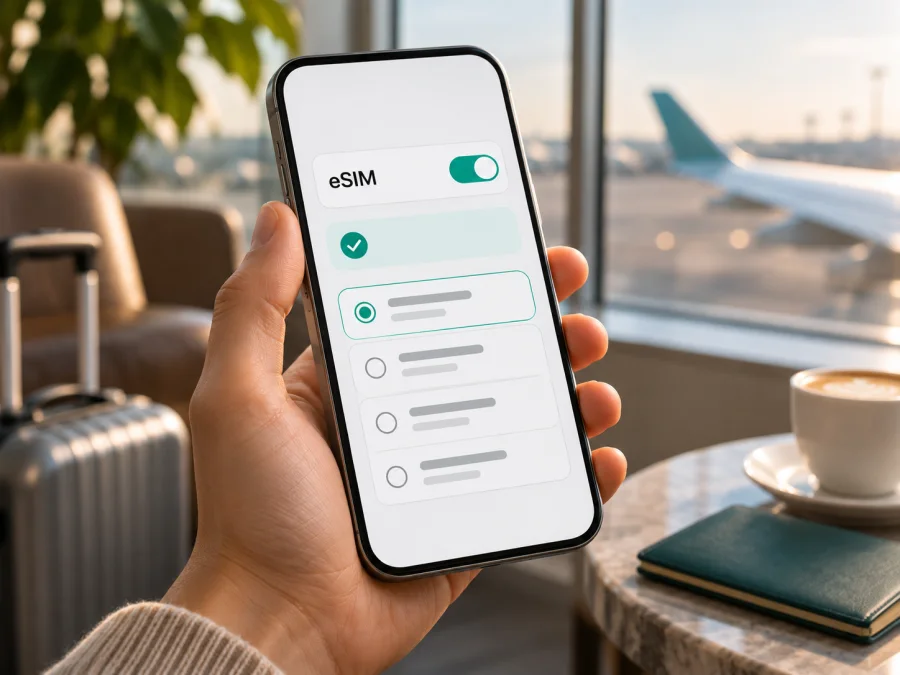
Apple iPhone 13 eSIM: compatibility, setup, and travel use
Short answer: Apple iPhone 13 supports eSIM in most markets. Apple lists the model for nano-SIM plus eSIM use and for Dual eSIM. There is an important regional exception: the iPhone 13 model A2634 sold for mainland China, Hong Kong, and Macao uses two physical nano-SIM cards and does not support eSIM. Check the model number and settings on the phone you actually have before choosing a travel plan. A carrier lock or a local provider's rules can also prevent activation, even when the hardware supports eSIM.
An eSIM is a digital SIM profile stored in the phone. It can be useful when you want mobile data abroad while keeping your usual number on its physical SIM or another eSIM. The iPhone 13 can use one mobile data line at a time, so you choose which line handles data in Settings. The availability of eSIM service depends on the phone's regional model, the country where you are, and the specific network provider and plan.
Does Apple iPhone 13 support eSIM?
Yes, for the standard international versions of Apple iPhone 13. Apple's current technical information lists support for a physical nano-SIM with an eSIM and for Dual eSIM. That means an eligible iPhone 13 can store and use compatible digital SIM profiles; it does not mean every plan, market, or carrier supports activation on every device.
The main exception is model A2634, a regional version associated with mainland China, Hong Kong, and Macao. Apple's model and SIM guidance identifies this iPhone 13 variant as a dual nano-SIM device. It has two physical SIM positions instead of eSIM support. A SIM tray or the ability to use two lines is not, by itself, proof that a phone supports eSIM: the two-line arrangement on A2634 is physical SIM plus physical SIM.
Where you use the phone is separate from where it was sold. Apple does not list iPhone 13 for eSIM profiles from mainland-China network providers; general eSIM support on an international version does not qualify it for that market. A2634 does not gain eSIM by travelling elsewhere. Check both the phone variant and provider market.
| What to check | Apple iPhone 13 guidance | What it means for you |
|---|---|---|
| Standard model | nano-SIM plus eSIM; Dual eSIM supported | An eSIM can be added if the exact phone and provider are eligible. |
| Regional model A2634 | Sold for mainland China, Hong Kong, and Macao; dual physical nano-SIM | Do not expect an eSIM menu or EID. Use a compatible physical SIM option if available. |
| Mainland-China operator market | iPhone 13 is not on Apple's supported model list for mainland-China carrier eSIM profiles | A supported international phone does not automatically qualify for local eSIM activation there. |
| Carrier status | A phone locked to a provider may reject another provider's eSIM | Check the carrier-lock status and ask the original provider about unlocking. |
| Provider and plan | The provider must support eSIM for this model and service | Confirm the exact plan, activation method, and installation location before purchase. |
Identify the regional version before buying
Open Settings → General → About. Tap Model Number to reveal the A-number. Apple lists A2482 (United States), A2631 (Canada, Japan, Mexico, and Saudi Arabia), A2634 (mainland China, Hong Kong, and Macao), A2635 (Armenia, Belarus, Kazakhstan, Kyrgyzstan, and Russia), and A2633 (other countries and regions). A2634 is the dual physical nano-SIM version; other listed variants generally support eSIM, subject to provider and market rules.
For a used or imported phone, verify the A-number yourself rather than relying on a listing or SIM tray. Distinguish Apple iPhone 13 from iPhone 13 mini, iPhone 13 Pro, and iPhone 13 Pro Max; those are separate models.
How to check eSIM compatibility on your iPhone
Check the phone before purchasing a plan. Use these indicators together:
- EID: Open Settings → General → About and scroll through the identifiers. An EID is normally listed on an eSIM-capable phone.
- Add eSIM: Open Settings → Cellular (or Mobile Data) and look for Add eSIM, Add Cellular Plan, or Set Up Cellular. Wording can vary by iOS version.
- Carrier Lock: In Settings → General → About, “No SIM restrictions” means the iPhone is unlocked. If it is locked, ask that carrier about unlocking; Apple cannot unlock it.
- Provider and market: Confirm that the provider supports the exact phone variant, the destination, and installation where you will be when you scan the code.
- Software and Wi-Fi: Update iOS before travel and keep Wi-Fi available for profile download.
An EID and an add-eSIM option are useful indicators, but neither guarantees that a particular tariff is available in your location. If the settings and model number disagree, check with Apple Support or the seller before paying. Check whether your device is compatible before choosing a travel plan.
Compatibility checklist
Before ordering, confirm each point:
- [ ] The model number is not A2634 if you need to install an eSIM.
- [ ] An EID appears in Settings → General → About.
- [ ] An eSIM-add option appears under Settings → Cellular or Mobile Data.
- [ ] The phone is unlocked, or the plan comes from the carrier that has locked it.
- [ ] The eSIM provider supports the device and destination market.
- [ ] The plan's validity, data allowance, supported countries, and activation conditions match your trip.
- [ ] You can connect to Wi-Fi when you install the profile, and you know when the plan starts using data or its validity period.
What to check before choosing a travel eSIM
Match the plan's country list to every stop on your itinerary. Check its data allowance, validity period, supported network access, and the event that starts the validity clock. Installation, activation, and first connection are not always the same event. Follow the plan terms, especially if you intend to install before departure. Do not delete a profile to pause service unless the provider confirms it can be reinstalled.
A travel eSIM may be data-only and may not include a regular phone number, calls, or SMS. Your usual number can remain on a separate line if the device and carriers support it, subject to your home carrier's roaming terms. Kaspersky eSIM Store is an app and website where you can choose, arrange, and activate an eSIM with a suitable mobile-data plan for an international trip. Review the selected plan's terms; the app and website do not operate a mobile network or determine local coverage.
How to install and activate eSIM on Apple iPhone 13
Use stable Wi-Fi and keep the QR code or activation details available on another screen. Follow the provider's instructions if they differ from these general steps.
Step-by-step setup
- Confirm eligibility. Check the model number, EID, add-eSIM option, carrier lock, destination, and plan conditions.
- Open the installation details. Find the QR code, activation link, or manual information in the plan instructions.
- Open Cellular settings. Go to Settings → Cellular (or Mobile Data) and tap Add eSIM or Add Cellular Plan. You can also scan the code with Camera and tap the notification.
- Scan or enter details. Frame the code shown on another device. Use manual entry only when the provider offers it; enter any confirmation code supplied.
- Follow the prompts. Label the new line “Travel” or another clear name. Choose a default voice line if asked.
- Select mobile data. In Cellular Data, select the travel eSIM. Turn off Allow Cellular Data Switching if you want to prevent automatic switching.
- Set timing and roaming. Follow the plan's directions for when to turn on the line and whether to enable data roaming. Travel eSIMs may require it.
- Wait for service. Connection may take a few minutes. Restart if instructed, then check the line and test a webpage.
Other available methods include provider activation, a provider app, or manual entry. The provider decides whether to install before travel, activate on arrival, or leave the line off until you reach the destination.
See the iOS eSIM installation instructions. The Android installation instructions apply if you are preparing a second Android phone, not Apple iPhone 13.
After setup: use the eSIM for travel data
When ready, switch on the travel line and select it under Cellular Data. If your home SIM remains active, review its roaming settings to avoid unexpected charges. At your destination, check the plan's country coverage, line status, airplane mode, and the selected data line. Follow provider instructions for data roaming and network selection. Signal and available technologies depend on local networks; iPhone 13's hardware does not guarantee 5G access on every plan.
Keep the profile if the provider permits it. Turn the line off after the trip, and do not delete it as a troubleshooting step unless the provider confirms reinstallation is possible.
Common problems and what to check
“Add eSIM” or EID is missing
Check the A-number. A2634 is the dual physical-SIM variant. If your model should support eSIM, restart, update iOS over Wi-Fi, and check whether device management restricts cellular changes. Verify with Apple or the seller before buying a plan.
The QR code will not scan or the profile will not download
Increase the code's screen brightness, clean the camera lens, and make sure the whole code is visible. Check Wi-Fi and confirm the code belongs to this plan and has not already been used. Try an activation link or manual entry only if the provider supports it; single-use codes may require provider assistance.
The plan cannot be added
Check region, carrier lock, Wi-Fi, iOS version, and where installation is taking place. Ask the provider whether the model is supported and whether the profile is expired, previously installed, or awaiting a confirmation step. Save the error message before contacting support.
The eSIM is installed but there is no service
Confirm the line is on, the plan has reached its activation point, and the country is covered. Check airplane mode, the selected data line, and the provider's roaming instructions. Restart and check for carrier settings updates in Settings → General → About. If No Service or SOS remains, ask the provider to verify plan status and local coverage.
Data uses the wrong line or stops
Choose the travel eSIM under Cellular Data and disable data switching if desired. Check the plan's remaining data and validity. If service is slow, review its supported networks and try the provider's recommended selection. Coverage varies by location; contact the provider if the problem persists.
Practical travel scenarios
- Data as soon as you land: Install before departure if allowed, keep the details offline, and switch the line on at the time specified by the provider.
- Keep your usual number: Leave the home line enabled if needed, choose the travel eSIM for data, and review the home carrier's roaming charges and settings.
- Visit several countries: Check every destination against the plan's full coverage list, including layovers. A regional label alone is not enough.
- Own A2634: Its two SIM positions are physical nano-SIM slots. Ask about a physical travel SIM or home-carrier roaming; do not buy an eSIM-only plan.
- Travel to mainland China: Device, provider, and location rules are separate. Apple does not list iPhone 13 for mainland-China carrier eSIM profiles. Confirm with your travel-plan provider whether its profile can be installed before departure and used on arrival.
Frequently asked questions
Can Apple iPhone 13 use two eSIMs?
Yes, eligible regional versions support Dual eSIM. A2634 uses two physical nano-SIM cards and does not support eSIM.
Does every iPhone 13 have an EID?
No. Check Settings → General → About for an EID and Settings → Cellular for an add-eSIM option, then confirm the A-number.
Can a carrier-locked iPhone use a travel eSIM?
Only when the plan is from the carrier that locked the phone, or after that carrier unlocks it. “No SIM restrictions” under Carrier Lock indicates an unlocked phone.
Can I install at home and activate abroad?
Often, but the timing depends on the plan. Installation, activation, first connection, and the validity start may be different events; follow the plan terms.
Will a travel eSIM replace my number?
Usually not if it is a data-only plan. You can keep your regular number on another line if device and carrier settings allow it; calls and SMS follow your home carrier's terms.
Does eSIM guarantee 5G or coverage everywhere?
No. Access depends on the plan, partner networks, local coverage, and settings. Check actual destinations and conditions.
What if activation fails abroad?
Use Wi-Fi to check the line, data settings, and activation instructions. Contact the plan provider before deleting the eSIM.
Final check before your trip
Before you choose a travel plan, verify the model number, EID, add-eSIM setting, carrier lock, and destination requirements on your own Apple iPhone 13. Most regional versions support eSIM, while A2634 uses two physical nano-SIM cards; mainland-China carrier eSIM rules are a separate restriction. Then compare the selected plan's country list, data allowance, validity, and activation timing with your itinerary.
Kaspersky eSIM Store's app and website help you choose, arrange, and activate an eSIM with a mobile-data plan for an international trip. Start by checking your device's compatibility, then choose a plan for your destination. Confirm the plan's terms and your phone's eSIM support before purchase so you can prepare with clear expectations.


