Travel connectivity guide
Apple iPhone 13 mini 256GB eSIM: compatibility
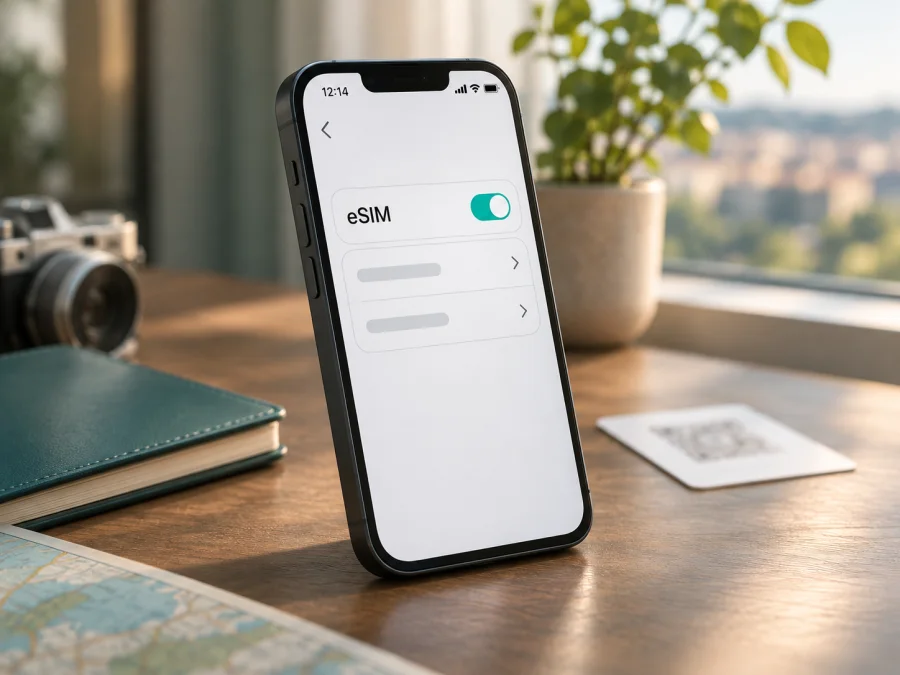
Apple iPhone 13 mini 256GB eSIM: compatibility and setup
Short answer: the standard Apple iPhone 13 mini 256GB supports eSIM. Apple lists the iPhone 13 mini among models that support one physical nano-SIM plus an eSIM, as well as two eSIMs. The important exception is the mainland China version: Apple’s current regional guidance does not list the iPhone 13 mini as an eSIM-capable model for use with a mainland China network. Hong Kong and Macao have separate model and SIM arrangements, so check the actual phone rather than relying on the product name alone. The 256GB storage capacity does not change eSIM capability.
For a travel data plan, confirm that your particular phone has an EID or an Add eSIM option, is not locked to a carrier, and can use an eSIM from the operator market where you plan to travel. These checks matter more than the storage size printed in a listing.
Does Apple iPhone 13 mini 256GB support eSIM?
Yes, for the standard international versions of Apple iPhone 13 mini 256GB. Apple’s technical specifications list Dual SIM with nano-SIM and eSIM and also list Dual eSIM support for iPhone 13 mini. That means a compatible phone can keep a physical SIM and an eSIM available, or use two eSIM profiles in supported configurations. Only one line supplies mobile data at a time; the phone’s settings let you choose which line does so.
There is a market-specific exception. Apple does not list iPhone 13 mini among models that support eSIM with mainland China network providers. Apple’s guidance separately includes iPhone 13 mini in its eSIM information for Hong Kong and Macao. If the handset was imported, refurbished, or sold as a regional variant, verify the model number and EID on the phone before choosing a plan.
| Item | What to know |
|---|---|
| Exact device variant | Apple iPhone 13 mini 256GB |
| eSIM on standard international versions | Supported, subject to carrier and country availability |
| SIM combinations | One nano-SIM plus eSIM; Dual eSIM is also supported on eligible models |
| Mainland China version | iPhone 13 mini is not listed by Apple among models that support eSIM with mainland China providers |
| Storage effect | 256GB storage does not determine eSIM support |
| Fastest device check | Look for an EID in Settings > General > About and an Add eSIM option in cellular settings |
| Before buying | Confirm eSIM support, carrier-unlock status, destination eligibility, and the plan’s data and validity terms |
“Supports eSIM” describes the phone’s capability; it does not guarantee that every carrier, destination, or travel plan can activate on it. The plan may have restrictions on eligible devices, installation location, timing, or reuse.
Why regional versions matter
Apple groups several hardware model numbers under the iPhone 13 mini name: A2481 (United States), A2626 (Canada, Japan, Mexico, Saudi Arabia), A2629 (mainland China), A2630 (Armenia, Belarus, Kazakhstan, Kyrgyzstan, Russia), and A2628 (other countries and regions). The number helps identify the hardware variant, but does not guarantee that a particular provider will activate it.
Treat a mainland China-market unit as a distinct version: its intended SIM configuration differs, and Apple does not list it for eSIM with mainland China providers. Hong Kong and Macao have separate arrangements, so identify the actual model rather than relying on the retail name. A home-market activation rule and a foreign travel plan are not automatically interchangeable; both Apple’s instructions and the plan conditions apply.
Carrier locking is a separate issue from regional hardware. Even a phone with an EID and the correct eSIM menu may reject another provider’s profile if the iPhone is locked to its original network. Apple’s check is in Settings > General > About: look for Carrier Lock or Network Provider Lock. If it says No SIM restrictions, the phone is unlocked. If it shows a restriction, ask the original carrier about unlocking before buying a plan for a different network. A travel eSIM cannot remove a carrier lock.
Check compatibility before buying a plan
Use both the model information and the menus on the phone. This is especially important when the listing says only “Apple iPhone 13 mini 256GB” and omits the market, model number, or carrier status.
- Find the model number. Open Settings > General > About. The value beside Model Number may first show a part number. Tap it to display the hardware number beginning with “A”, such as A2481 or A2628. Compare it with Apple’s current model-identification information and ask the seller which market supplied the device if the number is unclear.
- Look for the EID. Stay on the About screen and scroll down. On an eSIM-capable iPhone, an EID is normally listed near the IMEI and other identifiers. Apple also explains how to find the EID on the original packaging or through a computer used to manage the phone. Do not post the EID publicly; it is a device identifier that may be requested during support or activation.
- Look for the add-profile control. Open Settings > Cellular (called Mobile Data in some regional versions of iOS). Look for Add eSIM, Add Cellular Plan, or a similar option. Wording can vary with iOS version and region. Existing SIMs may appear under the same screen.
- Check the carrier lock. In Settings > General > About, confirm that the carrier-lock field says No SIM restrictions if you intend to use a provider different from the one that sold the phone.
- Confirm the plan’s market and terms. Check that the plan covers the country or region you will visit, that it is intended for data use if that is your need, and whether it can be installed before departure. Read when its validity starts and whether it requires data roaming on the eSIM line.
An EID and an Add eSIM control are strong practical signs that this phone can install profiles. If either is missing, confirm the regional unit with Apple, the seller, and the provider before paying. A software update cannot add eSIM hardware to a model that lacks it.
A quick checklist
- [ ] The model number and country or region of sale are known.
- [ ] The phone shows an EID and an Add eSIM option.
- [ ] The iPhone is not carrier-locked, or the original carrier has confirmed it can be unlocked.
- [ ] The iOS version is current enough for the provider’s activation process.
- [ ] The plan covers the intended destination and the expected travel dates.
- [ ] You have a reliable Wi-Fi connection for installation and access to the activation details.
- [ ] You understand when the plan starts, how much data it includes, and whether data roaming must be enabled for that eSIM.
Use the device compatibility check before selecting a travel plan. A successful device check still needs to be paired with a carrier-unlock check and confirmation that the plan supports the destination and the way you intend to use it.
Install and activate an eSIM on Apple iPhone 13 mini 256GB
The provider supplies the eSIM profile and its activation instructions. Depending on that provider, installation may use a QR code, a link, an app, or manual details. Keep the instructions available on another screen or print them if the QR code cannot be opened on the iPhone itself. Do not scan the same QR code repeatedly if the first attempt appears to have started; some activation codes are single-use or tied to one device.
Before beginning, connect to Wi-Fi, charge the phone, and check compatibility. Read the activation terms: installing a profile and starting its validity period may be separate events, depending on the plan. Ask the provider if the timing is unclear.
QR-code installation
- Open Settings and tap Cellular or Mobile Data.
- Tap Add eSIM or Add Cellular Plan. On some iOS versions, the option may be called Set Up Cellular.
- Choose Use QR Code and scan the QR code supplied for your plan. If the code is on the same iPhone, open it on a second device or use the manual option when offered. On supported versions of iOS, you may be able to touch and hold a QR code received in a supported email app or browser and add the eSIM directly.
- Follow the prompts, tap Continue, and confirm Add Cellular Plan or the corresponding button. Enter a confirmation code only if the provider supplied one.
- Give the new line a clear label, such as Travel data, so that it is easy to distinguish from your regular number. Labels are for your own reference and do not change the plan.
- When asked which line to use for calls, messages, or mobile data, choose according to the plan’s purpose. For a data-only travel eSIM, keep your usual number for calls or messages if you need it and select the travel eSIM for mobile data when you reach the destination.
- Keep the new line enabled if the plan’s instructions require it. Wait for the activation status to update; the first network registration may take several minutes.
Labels can differ across iOS releases. If the provider offers an activation link or app, follow its instructions. Do not erase a profile that has not connected yet: some eSIMs cannot be reinstalled with the same code. Check with the provider if it appears to be consumed.
For step-by-step help, see the iOS eSIM installation instructions or the Android eSIM installation instructions. The Android guide is useful if you are preparing a second device; menus on the iPhone are different.
After installation
Open Settings > Cellular and verify that the eSIM line appears and is on. Follow the plan’s instructions about when to enable it. At your destination, select it under Cellular Data or Mobile Data. Turn on Data Roaming for that line only if required. Check Allow Cellular Data Switching; switching may use another line and incur charges under its terms.
Your home number may remain active for calls or SMS if your carrier allows it, but check roaming charges first. A data-only plan does not provide a standard phone number, voice service, or SMS unless its terms say so. Internet calling and messaging apps can use the data connection.
Use eSIM for mobile data while travelling
Before departure, choose a plan that covers every country on your itinerary, including stopovers where you need data. A single-country plan may not cover a border crossing; a regional label alone does not confirm every destination. Match the data allowance and validity period to your trip. Video, cloud sync, and hotspot use can consume data quickly, so check hotspot permission and any speed or fair-use limits.
If the provider allows pre-installation, setting up over Wi-Fi can reduce work after arrival. Activation and validity timing vary: a plan may start at installation, first connection, or another stated time. Save instructions and support details offline, and keep your regular line available until the travel eSIM connects.
At the destination, select the travel eSIM for mobile data and set data roaming as instructed. If it does not connect, check the plan guidance before choosing a network manually. Availability and performance depend on the local network, location, device radio support, and other conditions; eSIM support does not guarantee a particular signal or speed.
Practical travel scenarios
A short city break. Choose data and validity for maps, transport, bookings, and messaging. Install over Wi-Fi if allowed, then use the travel line for data and avoid roaming on your home line unless its terms suit you.
Several countries. Check the plan against every country and relevant layover. If one regional option does not cover the route, review separate country options and their validity rules before installation.
A longer or data-heavy trip. Check data, duration, and hotspot conditions for work calls, backups, or video. Use Wi-Fi for large downloads and use the plan account as the reference for remaining allowance; its counter may differ from iOS’s estimate.
Keep the home number reachable. Ask your carrier about roaming charges, keep the line available if needed, and select the travel eSIM for mobile data. Confirm line settings after setup.
Common problems and what to check
“Add eSIM” is missing
Check the model number, EID, and sales market; mainland China versions are a notable exception. Update iOS and restart once. If the EID and menu remain absent, ask Apple or the seller to identify the hardware. A reset cannot create eSIM support.
The QR code will not scan
Increase brightness on the screen showing the code, remove glare, and open Add eSIM before scanning. If the code is on the iPhone, display it on another screen or use a supported link, app, or manual method. Confirm that it has not already been used.
Installation stops or reports that the plan cannot be added
Check internet access, activation method, device and market eligibility, carrier lock, and any location restriction. Retry only if the provider allows it. If the code is invalid or already used, contact the provider with the error; repeated scans or profile deletion may complicate recovery.
The eSIM appears, but there is no service
Check that the line is on, the destination is covered, activation conditions are met, and the travel eSIM is selected for data. Toggle Airplane Mode briefly, then restart if needed. Enable roaming only if instructed. If service remains unavailable, contact the provider with the model number, iOS version, location, and error message.
Mobile data works on the wrong line or the home bill increases
In Settings > Cellular > Cellular Data, select the intended line and review Allow Cellular Data Switching. Check home-line roaming rules and confirm which lines handle calls, messages, and data.
The connection is slow or data seems to disappear
Check remaining data, validity, speed, and hotspot restrictions. Limit background use or large downloads over cellular data, and use Wi-Fi where practical. The plan’s usage counter may differ from iOS; signal also varies by location and network conditions.
You cannot move the profile to another phone
Transfer depends on the provider; some profiles are bound to the first installation. Check transfer and reinstallation rules before changing phones or erasing a profile, and contact the provider if needed.
Frequently asked questions
Does the 256GB version support eSIM differently from other capacities?
No. Storage capacity is not the deciding factor. The regional hardware model, software, carrier lock, and provider’s activation conditions determine whether a particular iPhone can use a given eSIM.
Can I use a physical SIM and eSIM at the same time?
On eligible iPhone 13 mini versions, yes. Apple documents Dual SIM with a nano-SIM and eSIM, and Dual eSIM support. Which two lines can be active together may depend on the model, provider, and local service. The iPhone uses one cellular data line at a time.
Can I install an eSIM without Wi-Fi?
Installation needs an internet connection. Use Wi-Fi, a hotspot, or another working mobile line if available.
Will this travel eSIM give me a phone number?
Not necessarily. A data-only travel eSIM is for mobile internet and may not include a standard number, voice calls, or SMS. Check the selected plan’s conditions. You can usually use internet-based messaging and calling apps over data, but emergency calling and app availability follow local rules and the relevant service’s terms.
Do I need to turn on data roaming?
Follow the plan’s instructions. Some travel eSIMs require data roaming on the eSIM line to connect to their partner network; others may not. Set the correct line as the data line and check roaming separately for your home SIM to avoid unexpected charges.
Can Kaspersky eSIM Store unlock a carrier-locked iPhone?
No. Kaspersky eSIM Store is an app and website where you can choose, arrange, and activate an eSIM with a suitable plan for mobile internet on an international trip. It does not remove an operator lock. Contact the carrier that locked the phone and confirm that it is unlocked before choosing a plan from a different provider.
What if the phone has an EID but the plan still fails?
An EID does not guarantee that a specific plan is eligible. Check the regional model, unlock status, destination, plan conditions, installation method, and internet connection. The provider can verify whether the profile is valid or already used.
Check the phone, then choose a plan for your trip
Before you pay, verify that your Apple iPhone 13 mini 256GB shows an EID and an Add eSIM option, identify its hardware model and sales region, and confirm No SIM restrictions if you will use another provider. Then check that the plan covers every destination on your route, has enough data for your expected use, and starts when you intend. If a core compatibility check is uncertain, ask the seller or provider to verify the exact model number first.
When the device and terms fit, use the Kaspersky eSIM Store website to browse current travel plans. Select the destination, review the available plan conditions, and follow the provider’s setup guidance. Kaspersky eSIM Store is an app and website that helps you choose, arrange, and activate an eSIM plan for mobile internet abroad; network availability and the plan’s final conditions depend on the specific provider and destination.


