Travel connectivity guide
Apple iPhone 13 Pro 256GB eSIM
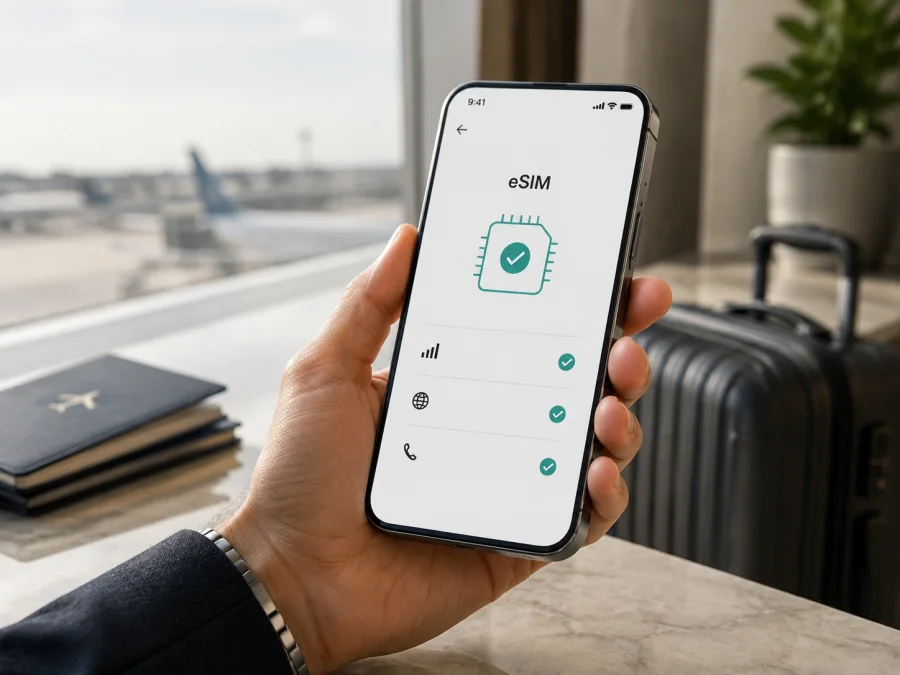
Apple iPhone 13 Pro 256GB eSIM: compatibility and setup
If you are preparing for a trip and want mobile data without swapping a physical SIM, the Apple iPhone 13 Pro 256GB is generally a suitable eSIM device. Apple lists the iPhone 13 Pro as supporting Dual SIM with a nano-SIM and eSIM, as well as Dual eSIM. The 256GB storage option does not itself change that capability. The important checks are the sales region, the exact model, the original carrier, and whether the phone is unlocked.
The practical answer is yes: an Apple iPhone 13 Pro 256GB can use an eSIM when it is an eSIM-capable regional version, has compatible software, and is not restricted to one carrier. Confirm the details on the actual phone before purchasing a travel plan. A marketplace title that says only “iPhone 13 Pro” does not establish the configuration of your unit.
| Checkpoint | Apple iPhone 13 Pro 256GB |
|---|---|
| eSIM | Supported on eSIM-capable regional versions |
| SIM combinations | nano-SIM + eSIM; two eSIMs are also supported by iPhone 13 models where region and carrier allow it |
| Storage | 256GB; storage does not determine eSIM availability |
| Software | Use the latest iOS version available for the phone |
| Network | The plan issuer must support eSIM for iPhone |
| Unlock | “No SIM restrictions” is needed for a plan from another carrier |
| Regional caution | SIM arrangements can differ by market |
| Travel use | Select the travel eSIM as the cellular-data line |
Does Apple iPhone 13 Pro 256GB support eSIM?
Yes, the standard answer is that Apple iPhone 13 Pro 256GB supports eSIM. Apple introduced eSIM support throughout the iPhone 13 Pro family, and its manufacturer specifications identify both physical nano-SIM plus eSIM and dual eSIM use. You can therefore add a compatible digital plan through Cellular settings instead of treating the phone as physical-SIM-only.
That statement describes the model family, not a guarantee about every unit sold under the same name. Apple says eSIM is not supported in all regions. A carrier may have disabled eSIM on a phone it supplied, and a carrier lock can prevent a plan from another provider from activating. The most reliable answer for your unit comes from its settings, model information, and lock status.
The mainland China version needs particular care. Apple’s current regional guidance says that, in mainland China, only iPhone Air and iPhone 17e support eSIM activation; iPhone 13 Pro is listed among models using two nano-SIM cards. A mainland-China Apple iPhone 13 Pro 256GB should therefore be treated as not compatible with a travel eSIM profile, even though the same named model sold in many other markets supports eSIM. Hong Kong and Macao versions also have region-specific SIM arrangements, so check an imported unit directly.
Regional and carrier versions
The name Apple iPhone 13 Pro 256GB identifies generation and capacity, but not every cellular detail. Check the actual phone.
Sales region and model number. Review the receipt, box, and model information. Open Settings > General > About and tap the part number to reveal the model number. Do not infer the region from the current language.
Mainland China, Hong Kong, and Macao. Apple documents different Dual SIM arrangements for these markets. Mainland-China iPhone 13 Pro units use two nano-SIMs rather than the eSIM setup available on many international versions. Hong Kong and Macao units need their own check. If Add eSIM is absent, do not try to force a QR installation.
Carrier supply and lock. eSIM availability and unlocking are separate. A phone can show eSIM controls but reject another provider’s plan. In Settings > General > About, find Carrier Lock. “No SIM restrictions” means unlocked; otherwise only the original carrier can handle the unlock.
Software and plan. eSIM setup needs Wi-Fi or a hotspot and the latest available iOS. The plan issuer must support eSIM activation for iPhone and cover the destination. A travel eSIM usually supplies mobile data, not an ordinary number; voice calls and SMS are not included unless the plan says so.
What to check before purchasing a travel eSIM
Complete this checklist on the actual Apple iPhone 13 Pro 256GB before you pay for a plan:
- Confirm that Settings contains Add eSIM or Add Cellular Plan under Cellular or Mobile Data.
- Confirm that an EID appears in Settings > General > About.
- Confirm that Carrier Lock says No SIM restrictions when the plan is from another carrier.
- Confirm that the phone can connect to Wi-Fi or a hotspot for installation.
- Confirm the sales region and model number, especially for an imported or used device.
- Confirm that the plan covers every country or region on your route.
- Confirm data allowance, validity, activation trigger, top-up, refund, and reissue conditions.
- Confirm whether Data Roaming must be enabled for the travel eSIM.
- Confirm that the QR code, activation link, app, or manual details will be available after purchase.
EID and Settings verification
The EID is an identifier for the embedded-SIM function, not the IMEI. Keep it private. Open Settings > General > About and scroll through the device information. An eSIM-capable phone normally displays an EID, sometimes alongside an eSIM or available-plan section.
Then open Settings > Cellular, called Mobile Data in some regions or language settings. Look for Add eSIM, Add Cellular Plan, or a similar command. The wording can vary by iOS release, but an eSIM-capable unit should offer a path to add a digital plan. If an EID appears but Add eSIM does not, pause: region, carrier configuration, software, or an existing restriction may explain the mismatch. If neither appears, treat the device as unverified and ask Apple or the carrier for a model-specific answer.
For a final check before selecting a plan, Check your device. Use the phone in your hand, not only a seller’s description.
How to install an eSIM on Apple iPhone 13 Pro 256GB
The screens depend on how the plan is issued. Before starting, confirm compatibility and unlock status, connect to Wi-Fi, update iOS if offered, and keep the QR code or activation details ready. If the code is displayed on the iPhone, open it on another screen.
QR-code installation
- Open Settings.
- Tap Cellular or Mobile Data.
- Tap Add eSIM or Add Cellular Plan.
- Choose Use QR Code.
- Scan the QR code supplied with the plan.
- Tap Continue when the plan is detected.
- Tap Add Cellular Plan to confirm.
- Enter a confirmation code if one is provided.
- Label the new line, for example, Travel Data.
- Wait for activation and network registration; this can take several minutes.
- Choose the line that should provide cellular data.
Apple also supports scanning with the Camera app. On iOS 17.4 or later, a QR code received in a supported email app or browser may offer Add eSIM when touched and held. A plan issuer may instead send a link, use an app, or provide manual details. See the Android installation instructions and iOS installation instructions.
After installation
Open Settings > Cellular and tap the new plan. Turn it on when ready, unless the plan says validity begins on installation. Set it as the Cellular Data line. If your home line remains enabled, review its data-roaming setting.
If the travel plan requires it, enable Data Roaming for that eSIM. This allows use of a partner network outside its home network; it does not mean roaming should be enabled on every line. Turn off Allow Cellular Data Switching if you want to prevent the iPhone from moving data to another line. The labels can vary by iOS version and carrier.
Using eSIM for mobile internet while travelling
Install the profile over reliable Wi-Fi, then choose when to turn on the travel line. Timing depends on the plan’s activation rule: validity may start at installation or at connection to a supported network. Read the plan conditions first.
Home line plus travel data
Keep your usual number on the physical SIM or home eSIM for calls, messages, and account verification. Set the travel eSIM as the cellular-data line after landing. Disable data roaming on the home line if you want to reduce the risk of unexpected roaming charges, and enable it on the travel line only when required. Test a webpage with Wi-Fi off after registration.
Light use, heavy use, and hotspot
Maps, messages, boarding passes, and occasional browsing use less data than video calls, cloud sync, streaming, and hotspot use. Turn off mobile data for unneeded apps and monitor the balance in the provider’s profile or app. Personal Hotspot depends on the plan and network provider. The iPhone uses one cellular-data network at a time even when two lines are active.
Kaspersky eSIM Store is an app and website where you can choose, arrange, and activate an eSIM plan for mobile internet during an overseas trip. It is not a mobile operator, network owner, or mobile-internet provider. The connection depends on the plan, destination, partners, compatibility, and settings.
Troubleshooting
Add eSIM is missing
Recheck Settings > General > About for an EID and inspect the model number. Confirm the sales region, especially for a device from mainland China, Hong Kong, or Macao. Install updates and restart. If the EID is absent or the region is unclear, ask Apple or the original carrier.
The QR code will not scan
Increase the brightness of the screen showing the code, clean the lens, and hold the phone steady. Make sure the code is complete and not cropped. If it is on the iPhone, open it on another device or use the issuer’s link, app, or manual-entry method. Do not repeatedly scan after a partial installation.
The profile cannot be added
Verify Wi-Fi, plan validity, iPhone compatibility, and whether the profile was already installed elsewhere. Check Carrier Lock. If the phone is locked, the original carrier must handle unlocking. Send the exact error and requested IMEI or EID through an official support channel; do not post identifiers publicly.
The eSIM is installed but there is no service
Open Settings > Cellular and make sure the travel line is on and selected for data. Check destination coverage, Data Roaming, and network selection. Toggle Airplane Mode, then restart if needed. Test a simple webpage with Wi-Fi off. Do not erase the profile first.
Data uses the wrong line or stops later
In Settings > Cellular > Cellular Data, select the travel eSIM and review Allow Cellular Data Switching. Check home-line roaming separately. If service stops, check data, validity, and country coverage, then toggle Airplane Mode or restart.
Reinstallation or transfer is requested
Do not delete a travel profile just to troubleshoot. Some profiles are tied to the original device or cannot be installed again after deletion. Transfer, reissue, and refund options depend on the purchase terms, so ask the plan issuer first.
FAQ
Is Apple iPhone 13 Pro 256GB compatible with a travel eSIM?
Yes, in most eSIM-capable regional versions. Apple lists iPhone 13 Pro as supporting nano-SIM plus eSIM and dual eSIM. Mainland China versions are a major exception; Hong Kong and Macao units need a direct check. Confirm EID, Add eSIM, region, and Carrier Lock before purchase.
Does 256GB change eSIM support?
No. 256GB is the storage capacity. It does not create or remove the embedded-SIM function within a given regional model; region and carrier restrictions matter more.
Can the travel eSIM replace my ordinary number?
Usually it provides mobile data rather than an ordinary number. Calls and SMS are not included unless the plan says so. Keep the home line for your number and use internet messaging over data.
How do I know if the phone is unlocked?
Open Settings > General > About and find Carrier Lock. “No SIM restrictions” means the iPhone is unlocked for another carrier. Otherwise contact the original carrier first.
Can two eSIMs be active at once?
Apple states that iPhone 13 models and later support two eSIMs in addition to physical SIM plus eSIM. The combination still depends on region, carrier, and configuration; the iPhone uses one cellular-data network at a time.
Where can I get help if setup fails?
Recheck compatibility, Wi-Fi, the data line, roaming, and destination. Then contact the plan issuer or Kaspersky eSIM Store support with the error message and account details. Share EID or IMEI only through official support.
Conclusion: check the device, then choose the trip eSIM
Before a trip, open Settings > General > About, find EID and Carrier Lock, then open Cellular and confirm Add eSIM. Choose a plan that covers the route and fits the data use and dates. Kaspersky eSIM Store helps you choose, arrange, and activate an eSIM plan for mobile internet on an overseas trip through its app or website. Complete the check before purchase.
Final device-and-trip checklist
- The exact phone is Apple iPhone 13 Pro 256GB, and its sales region is known.
- EID appears in Settings > General > About.
- Add eSIM appears under Cellular or Mobile Data.
- Carrier Lock shows No SIM restrictions when another provider’s plan will be used.
- iOS is current and Wi-Fi or hotspot access is available for installation.
- The eSIM plan covers the destination or full route.
- Data allowance, validity, activation timing, roaming, hotspot, top-up, refund, and reissue conditions are understood.
- Cellular Data is assigned to the travel eSIM, while home-line roaming is intentional.
- The QR code or activation details and support contact are accessible.
Check the device before choosing the eSIM for your trip, then install the profile while you have a reliable connection and activate mobile data when the plan is ready.


