Travel connectivity guide
Apple iPhone 13 Pro 512GB eSIM compatibility
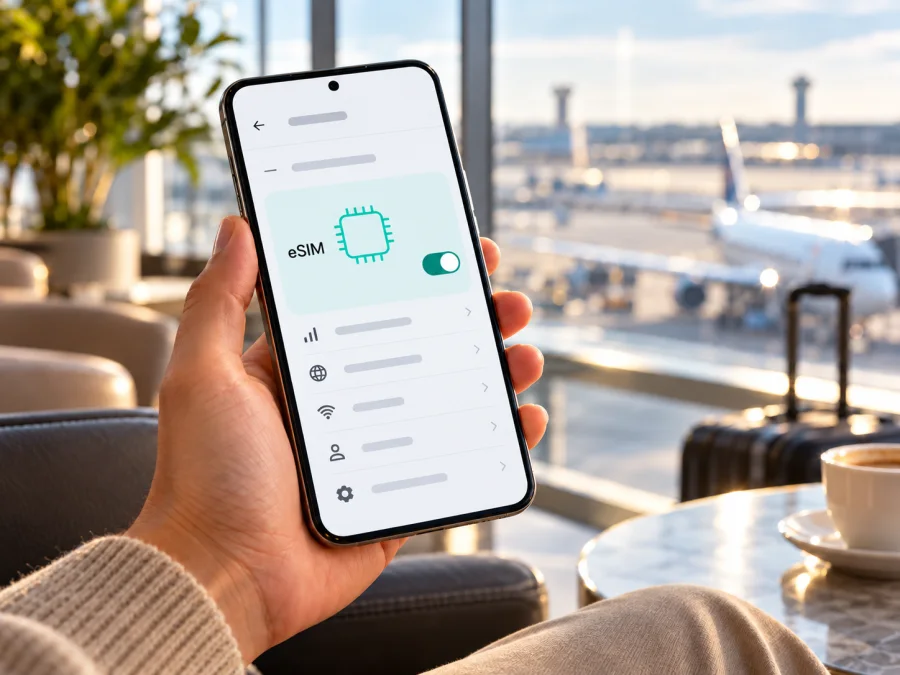
Apple iPhone 13 Pro 512GB eSIM: compatibility and travel setup
Short answer: Apple iPhone 13 Pro 512GB supports eSIM in most regional versions, and Apple lists the iPhone 13 Pro as compatible with both one physical SIM plus an eSIM and two eSIMs. The important exception is the China mainland, Hong Kong and Macao version, model A2639, which is designed for two physical nano-SIM cards and does not support eSIM. The 512GB storage size does not determine cellular compatibility. Before choosing a travel plan, identify the model number, confirm that an eSIM can be added in Settings, and make sure the phone is unlocked for use with another carrier.
Apple's current model-identification information lists five iPhone 13 Pro hardware model numbers: A2483 for the United States; A2636 for Canada, Japan, Mexico and Saudi Arabia; A2639 for China mainland, Hong Kong and Macao; A2640 for Armenia, Belarus, Kazakhstan, Kyrgyzstan and Russia; and A2638 for other countries and regions. Apple identifies A2639 as the dual-physical-SIM regional variant. For the other versions, eSIM is supported as a feature of iPhone 13 Pro, but the carrier, country rules, device lock status and current software can still affect activation. The local operator or travel-plan provider must also support eSIM in the relevant market. If the model number is unavailable or the phone has an unusual carrier configuration, use the on-device checks in this guide and ask the seller or carrier to confirm before paying for a plan.
| Item | What it means for Apple iPhone 13 Pro 512GB |
|---|---|
| Device variant | Apple iPhone 13 Pro 512GB; the storage capacity is part of the requested model name and does not change eSIM capability. |
| eSIM capability | Supported on the usual regional versions of iPhone 13 Pro; not supported on the A2639 dual-nano-SIM version for China mainland, Hong Kong and Macao. |
| Model number check | Settings → General → About → tap the value beside Model Number to reveal the A-number. |
| Dual SIM | Compatible regional versions support a nano-SIM with an eSIM and can store/use two eSIM lines. Only one line uses cellular data at a time. |
| Network lock | A carrier-locked phone may reject a travel eSIM from another provider. Check Carrier Lock in About. |
| Storage | 512GB affects available storage, not the eSIM radio or regional SIM configuration. |
| Best pre-purchase check | Confirm the A-number, an Add eSIM option, No SIM restrictions, and the plan's destination and validity conditions. |
Does Apple iPhone 13 Pro 512GB support eSIM?
Yes, if the phone is an eSIM-capable regional version. Apple lists iPhone 13 Pro among its eSIM-compatible iPhones, and the iPhone 13 generation supports Dual SIM with a physical nano-SIM and an eSIM, as well as two eSIMs. These options are useful when you want to keep a home number available while using a separate data line on a trip. The phone uses one cellular data line at a time, so you select which line supplies mobile data in Settings.
Do not rely on the retail name alone. Apple’s support page identifies A2639 as the iPhone 13 Pro version sold for China mainland, Hong Kong and Macao. Apple lists those regional iPhone configurations as supporting two physical nano-SIM cards. That is a different SIM arrangement from a digital eSIM profile. If the About screen shows A2639, treat this phone as not compatible with a travel eSIM, even if its storage is 512GB, its software is up to date, or a seller’s listing uses the generic name “iPhone 13 Pro.” A physical SIM tray is not proof that eSIM is available: many iPhone versions have both a tray and eSIM, while the regional variant matters.
The handset market and the destination operator market are separate checks. An eSIM-capable iPhone bought outside China mainland does not thereby become eligible for an eSIM profile from a China mainland operator; Apple’s mainland-China guidance limits which iPhone models can install those local profiles. Conversely, a compatible travel eSIM for another destination depends on that plan’s provider and local network arrangements. Check the destination and provider terms rather than treating eSIM as universally available across borders.
For model A2483, A2636, A2640 or A2638, eSIM support is expected for iPhone 13 Pro. Still, check the handset itself. A second-hand device may be carrier-locked, managed by an organization, running an old iOS release, or subject to a carrier-specific restriction. A plan also needs to be valid for the destination and usable with the phone's supported network bands and local service conditions. eSIM hardware compatibility is only one part of successful service.
Check your exact regional version before buying
The model number is more useful than a seller’s title, country of current use, color, storage capacity or the SIM tray alone. To find it:
- Open Settings on the iPhone.
- Tap General, then About.
- Find Model Number. The first value may look like an Apple part number with letters and numbers.
- Tap that value once. It should change to an A-number such as A2638 or A2639.
- Compare the A-number with the regional list above. If it is A2639, do not buy an eSIM plan for this phone. If it is another iPhone 13 Pro model number, continue with the Settings and carrier-lock checks below.
The model number identifies a hardware family, not every detail of the phone's current state. A phone originally sold in one market can be used in another, and refurbished or imported units can have confusing sales descriptions. Ask the seller for the A-number from Settings → General → About and request a return option if the compatibility cannot be demonstrated. If the phone is not yet activated, the model number can also be checked on its original packaging; match the packaging to the device rather than assuming they belong together.
On-device eSIM checklist
Use these checks before purchasing a data plan:
- Look for the setup option. Open Settings → Cellular (called Mobile Data in some regions). Look for Add eSIM or Add Cellular Plan. Wording can vary by iOS version and language. If no option appears, first check the model number; do not assume a software update will add eSIM to A2639.
- Check for an EID. In Settings → General → About, scroll through the device information for EID. An EID is an identifier associated with the embedded SIM hardware. Its presence is a useful sign that the phone has eSIM capability, but use it together with the A-number and the available setup controls.
- Check the carrier lock. On the same About screen, find Carrier Lock. No SIM restrictions indicates that the iPhone is unlocked. If the screen says a SIM is locked or restricted, contact the carrier that locked it and ask whether it can be unlocked before using a different travel provider.
- Check device management. If the phone is owned or managed by a company or school, an administrator may limit changes to cellular settings. Ask the administrator before trying to add a plan.
- Confirm the plan requirements. Check whether the eSIM is a data-only plan, when its validity begins, which country or region it covers, and whether the provider requires installation or activation in a particular place or over Wi-Fi.
The EID is not the activation code. Do not send an EID, IMEI, QR code or one-time activation details to an unknown person. When you need support, use the contact route provided by your seller or service provider and share only the information they request through that channel.
If you want a broader device check, check whether your device is compatible before selecting a plan. The check is especially important for imported iPhones and for devices whose seller cannot confirm the regional model.
Before installing an eSIM
An eSIM profile is downloaded to the phone rather than inserted as a plastic card. Install over stable Wi-Fi and keep the QR code or activation details available. Before starting, confirm that the phone is not A2639, that Add eSIM appears in Settings, and that Carrier Lock says No SIM restrictions if you will use a different provider. Update iOS if needed, and check when the plan’s validity begins: some plans start on installation, while others start on first connection in the destination.
Read the provider’s destination, data allowance, validity and roaming instructions. Do not delete a working eSIM just to make space unless you know how to restore it; a replacement activation code may be needed. Keep the activation details private and use the provider’s official support channel if something goes wrong.
How to install and activate eSIM on Apple iPhone 13 Pro 512GB
For this iPhone, follow the iOS eSIM installation instructions. The Android eSIM installation instructions are available for someone using a different device. If the provider gives plan-specific steps, follow those for activation timing and settings.
Install with a QR code
- Connect to Wi-Fi and open Settings → Cellular (or Mobile Data).
- Tap Add eSIM or Add Cellular Plan, then select Use QR Code if offered.
- Scan the QR code supplied for the plan. If it is displayed on this iPhone, use manual entry or the provider’s app instead.
- Follow the prompts and enter a confirmation code only if the provider supplied one.
- Label the plan Travel Data or another clear name. Choose line preferences when asked; these can be changed later in Cellular settings.
- Wait for the profile to finish adding. Do not repeatedly scan a one-time code while the request is processing.
The profile can be installed before service starts. Depending on the plan, validity may begin at installation or only after connection in the destination, so check the terms before setup.
Install manually or through an app
Some providers supply an SM-DP+ address and activation code rather than a QR code. In Settings → Cellular → Add eSIM, choose manual entry if available and copy the supplied details exactly. Do not guess a missing character or enter the EID where an activation code is requested. If a provider app opens the iOS setup flow, confirm that the plan details match your order.
After installation, check that the new line appears in Settings → Cellular. When ready to use it, turn on the travel line, select it under Cellular Data, and enable Data Roaming for that line if the provider instructs you to. Consider turning off Allow Cellular Data Switching if you want to avoid data falling back to your home line. Your home carrier may charge for roaming voice, texts or data, so check its terms separately.
The Kaspersky eSIM Store app and website help users choose, arrange and activate an eSIM with a mobile-data plan for an overseas trip. Browse the Kaspersky eSIM Store to review current destinations and plans; the homepage is a general browsing page, not a specific country tariff.
Using the iPhone while travelling
If the plan allows it, install the eSIM over Wi-Fi before departure and select it for mobile data when you reach the destination. Keep your home line available only if you need it and have checked its roaming charges. Travel plans may be data-only and may not include a regular number, voice calls or SMS; check the individual plan terms. Internet calling and messaging apps can use the data connection where available.
For a multi-country trip, confirm that every destination is covered. A single-country plan may not work across the whole route. Consider downloading maps and tickets over Wi-Fi and checking cellular data usage during the trip. Network availability and performance depend on local service and conditions; eSIM compatibility does not guarantee reception everywhere.
| Situation | Practical setup |
|---|---|
| Keep a home number and add trip data | Keep the home line on if needed, select the travel eSIM for Cellular Data, and check home-carrier roaming charges. |
| Avoid using home-line data | Select the travel eSIM for Cellular Data and turn off Allow Cellular Data Switching if you prefer no automatic fallback. |
| Use two eSIMs | Compatible iPhone 13 Pro versions support two active eSIMs, but only one line supplies cellular data at a time. |
| Visit several countries | Confirm all destinations and the validity start in the plan terms. |
| No service after landing | Check line status, selected data line, roaming if required, Airplane Mode and plan activation; restart if needed. |
Troubleshooting: when an eSIM will not install or connect
“Add eSIM” is missing
Check the A-number in Settings → General → About. A2639 is the dual-physical-SIM version and does not support eSIM. For another model, restart, update iOS, and check whether device management or a carrier restriction hides cellular settings. If the option remains absent, ask Apple or the seller to confirm the hardware before buying a plan.
The QR code fails or the profile will not add
Use stable Wi-Fi, make sure the code is clear and has not already been used, and check that the plan is eligible for installation now. If an error appears, record its wording and contact the provider that issued the plan. Ask whether manual activation or a replacement code is available. Do not delete a partially added profile before receiving advice.
The profile appears but there is no signal
In Settings → Cellular, confirm that the travel line is turned on and selected for Cellular Data. Turn on roaming for that line if instructed, confirm Airplane Mode is off, and restart the iPhone. Check that the plan covers your current destination and has reached its activation time. Allow a few minutes for registration before contacting the plan provider.
Data does not work, runs out quickly, or the home line is charged
Check the provider’s account for remaining data and validity. On iPhone, Settings → Cellular shows usage since the last statistics reset, which may differ from the provider’s counter. Video, cloud backups, app updates and hotspot use can consume data quickly. Select the travel eSIM for Cellular Data and disable data switching if you want to prevent fallback; check roaming separately for each line. Calls and texts can have different charges from data.
The phone is locked to a carrier
Check Settings → General → About → Carrier Lock. If it does not say No SIM restrictions, contact the carrier that controls the lock to ask whether the phone can be unlocked. eSIM capability does not bypass a carrier lock. Avoid resetting network settings as a first step; it removes saved Wi-Fi networks and will not solve an unsupported regional model or carrier lock.
Frequently asked questions
Does the 512GB version have different eSIM support from other iPhone 13 Pro capacities?
No. Apple lists 512GB as one of the available iPhone 13 Pro capacities. Storage capacity does not identify the regional cellular model or change whether it has eSIM. Check the A-number and Settings on the individual phone.
Which iPhone 13 Pro model number does not support eSIM?
Apple identifies A2639 as the iPhone 13 Pro version for China mainland, Hong Kong and Macao. That regional version uses two physical nano-SIM cards and does not support eSIM. The other listed iPhone 13 Pro regional model numbers are A2483, A2636, A2640 and A2638; confirm availability on the handset and with the intended provider.
Can I have my home SIM and a travel eSIM active together?
On an eSIM-capable iPhone 13 Pro, you can use Dual SIM with one nano-SIM and one eSIM, or with two eSIMs. The phone selects one cellular-data line at a time. Check roaming costs for the home line and choose the travel eSIM for mobile data if that matches your plan.
Does an eSIM plan give me a phone number?
Not necessarily. Travel eSIM plans are often intended for mobile data and may not include a regular number, voice calling or SMS. Check the terms for the exact plan. Messaging and calling apps can use internet data where available.
Should I install the eSIM before I fly?
That depends on when the provider starts the plan’s validity. Some plans can be installed before travel and begin later; others begin when installed or first connected. Read the activation instructions, use Wi-Fi for setup, and install at the recommended time.
Is an EID enough to prove that a travel eSIM will work?
It is a useful compatibility indicator but not a complete guarantee. Also check the model number, the Add eSIM option, carrier lock, destination coverage, plan rules and any local restrictions. Successful service depends on all of these conditions.
Final check before choosing a travel eSIM
For Apple iPhone 13 Pro 512GB, the practical answer is yes on most regional versions, no on the A2639 dual-physical-SIM version. Verify the A-number in About, confirm that the phone offers Add eSIM and shows an EID, and look for No SIM restrictions under Carrier Lock. Then check the travel plan’s country or regional coverage, data allowance, validity start and roaming instructions. If any of those checks are unclear, confirm them with the seller or provider before purchase. Once the device and plan match, install over Wi-Fi, label the travel line clearly, and select it for mobile data when the plan is ready to use.
To compare what is currently available for a destination, browse the Kaspersky eSIM Store. It is an app and website where you can choose, arrange and activate an eSIM with a mobile-data plan for an overseas trip; check the plan details and device compatibility before proceeding.


