Travel connectivity guide
Apple iPhone 13 Pro Max 256GB eSIM Guide
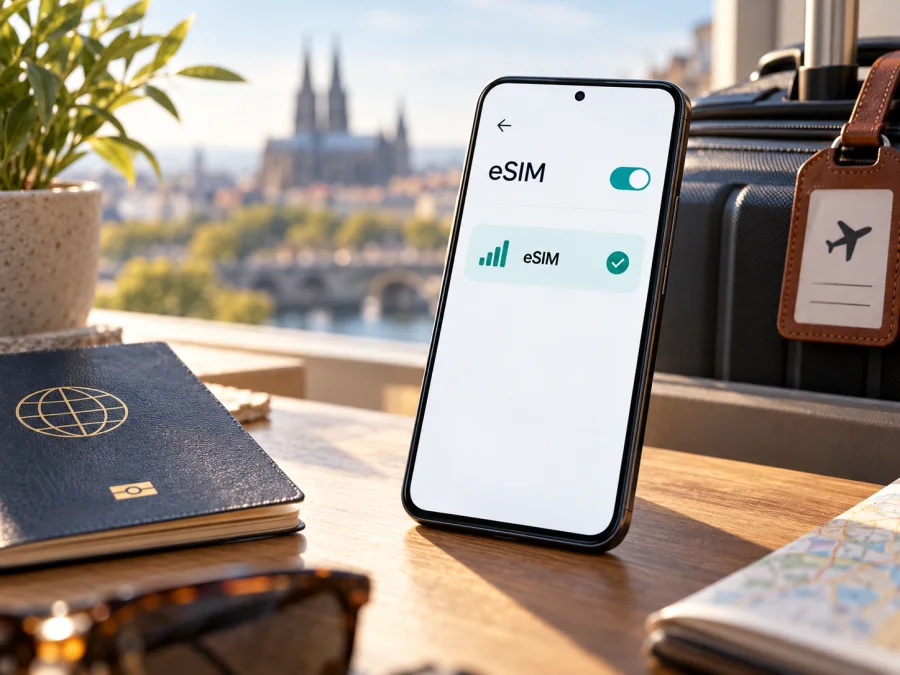
Apple iPhone 13 Pro Max 256GB eSIM: compatibility and setup
If you have an Apple iPhone 13 Pro Max 256GB, the short answer is usually yes: this iPhone supports eSIM. Apple lists the iPhone 13 Pro Max among eSIM-capable iPhone models and specifies Dual SIM with nano-SIM and eSIM, as well as support for two active eSIMs. However, the exact market version matters. iPhone 13 Pro Max units sold for mainland China, Hong Kong, and Macao use two physical nano-SIM cards and do not support eSIM profiles. The “256GB” label identifies storage capacity; it does not identify the cellular region or prove that a particular handset has eSIM.
Before choosing a travel plan, check the model number and the settings on the phone itself. An imported or second-hand iPhone may be locked to a carrier, have a regional SIM configuration, or have been repaired or altered. Use the checks below before you buy or install an eSIM.
Quick specification check
| Item | What applies to Apple iPhone 13 Pro Max 256GB |
|---|---|
| Device generation | iPhone 13 Pro Max, introduced in 2021 |
| Storage in this variant | 256GB; storage size does not change eSIM capability |
| Physical SIM | A nano-SIM tray is present on models that support eSIM; some regional variants have two nano-SIM trays |
| eSIM | Supported on most regional versions; unavailable on the mainland China, Hong Kong, and Macao dual-physical-SIM variant |
| Dual SIM | Depending on the regional version: nano-SIM + eSIM, two active eSIMs, or two physical nano-SIMs |
| Main requirement | An eSIM-capable regional version, a carrier-unlocked phone when using another provider, and a plan that works in your destination |
Does this exact 256GB variant support eSIM?
The 256GB capacity does not create a different eSIM variant. Apple offered iPhone 13 Pro Max in several storage capacities, while the cellular configuration follows the market model. Therefore, a 256GB handset bought in a market where Apple sold the eSIM-capable configuration will generally support eSIM. A 256GB handset from the A2644 regional family is the important exception: Apple identifies that version with the dual nano-SIM configuration used for mainland China, Hong Kong, and Macao.
This is a distinction between device capability and operator or geographic availability. A phone can contain eSIM hardware and still fail to install a profile when the carrier, local rules, device lock, software state, or the place where you are trying to activate it prevents it. Likewise, a local carrier may require a specific activation method, identity check, or in-person visit. The model’s eSIM capability does not guarantee that every operator or every travel plan will work in every country.
There can also be carrier restrictions independent of region. Check Settings → General → About → Carrier Lock. If the phone says No SIM restrictions, it is unlocked. If it shows a carrier restriction or a carrier name, ask the original carrier whether it can unlock the iPhone. An eSIM plan from another provider may not activate on a locked device even when the hardware supports eSIM. Do not attempt to bypass a lock; ask the carrier that applied it.
Check eSIM compatibility on the phone
Use at least two checks. The model number helps identify the market variant; EID and the add-eSIM controls help confirm that eSIM is available on the handset as configured.
- Open Settings → General → About.
- Scroll through the information. Look for EID. Apple says EID and other cellular identifiers appear in this screen on supported devices. You can tap and hold the EID to copy it if a provider’s support team asks for it; share it only with a legitimate provider that needs it for activation.
- On the same About screen, tap the value beside Model Number. The displayed part number changes to an A-number such as A2643 or A2644. Compare it with Apple’s current model identification page and the region in which the phone was originally sold.
- Open Settings → Cellular (called Mobile Data in some regions). Look for Add eSIM, Set Up Cellular, or a similar option. Menu wording varies by iOS version and language.
- Check Settings → General → About → Carrier Lock. For a travel eSIM from another provider, No SIM restrictions is the useful unlocked status.
A visible EID and an Add eSIM option are strong indicators that the phone can add an eSIM profile, but they do not promise acceptance by a particular provider. If neither appears, restart the iPhone, update iOS when practical, and check the model number again. If the handset is an A2644 model or the seller described it as a dual-physical-SIM version, assume eSIM is unavailable unless Apple or the carrier can confirm otherwise for that exact device. If the EID is present but Add eSIM is missing, ask Apple Support or the carrier to check the device configuration before paying for a plan.
Check whether your device is compatible before purchasing an eSIM plan. Confirm the exact iPhone variant, unlock status, destination coverage, plan validity, data allowance, activation rules, and whether the plan can be installed from your current location.
Regional versions and operator restrictions
Apple sells iPhone models with different SIM arrangements in different markets. The names on the box can look almost identical, and an online marketplace may use a generic title even when it is selling a specific regional model. For iPhone 13 Pro Max, the crucial distinction is the A2644 version associated with mainland China, Hong Kong, and Macao. Apple documents dual physical nano-SIM use for these markets. A2643 and other regional versions may support nano-SIM plus eSIM; models sold in some regions can also use two active eSIMs.
What to check before you buy a travel eSIM
Run through this list before ordering a plan:
- Model: Does About show an eSIM-capable regional version? Is it the A2644 dual nano-SIM configuration?
- EID: Is an EID shown in About?
- Menu: Is Add eSIM or Set Up Cellular available under Cellular settings?
- Lock: Does Carrier Lock show No SIM restrictions?
- Destination: Does the plan’s coverage explicitly include every country where you need data? A regional plan may cover several countries, but check its named destinations.
- Validity: When does the validity period begin—at purchase, installation, or first connection to a supported network?
- Data: Does the allowance match your use for maps, messaging, browsing, and hotspot needs? Check hotspot availability and fair-use limits in the plan details.
- Installation: Will you receive a QR code, in-app installation, or manual activation details? Can you access them on a second screen or another device?
- Travel timing: Can the profile be installed before departure, or must it be installed after arrival? Follow the plan’s specific instructions.
How to install and activate an eSIM on iPhone
Only begin after confirming compatibility and reading the plan’s activation instructions. Have a reliable Wi-Fi connection, the provider’s QR code or installation details, and any confirmation code ready. If the provider says the profile must be installed after arrival, follow that timing. Some plans begin validity at installation or at the first connection to a supported network.
Install with a QR code
- Connect the iPhone to Wi-Fi. Keep the QR code visible on another screen or printed page. If you received it on this iPhone, use the provider’s supported installation option or display the QR code elsewhere; the camera cannot scan a code shown on the same screen.
- Open Settings → Cellular → Add eSIM. Depending on your iOS version, the button may say Set Up Cellular.
- Tap Use QR Code and point the camera at the code. If prompted, enter the confirmation code supplied with the activation details.
- Follow the on-screen prompts to add the cellular plan. Assign a label such as Travel so it is easy to recognize next to your existing line.
- When iPhone asks how to use the lines, choose the travel eSIM for cellular data when you want it to provide data. Keep your primary number selected for calls or messages only if you want to use it and have checked potential roaming charges.
- Leave Allow Cellular Data Switching off if you want to make sure the phone does not switch data back to your primary line unexpectedly. The exact choices depend on your needs and carrier configuration.
- If the provider’s instructions say to enable data roaming for its travel eSIM, turn it on for that line only: Settings → Cellular → [Travel] → Data Roaming. Follow the plan instructions; this setting is not universally required.
- After landing or when the plan should start, turn on the Travel line and select it under Cellular Data. Wait for the phone to register on a supported network, then open a webpage or map to confirm data works.
Install through a provider app or manually
For general setup guidance, see the iPhone eSIM installation instructions or the Android eSIM installation instructions. The iPhone guide is the relevant one for this model; the Android page is included for readers setting up another compatible device.
Use the eSIM for mobile data while traveling
Once the profile is added, you can leave it installed and decide when to use it. Before departure, label the line and confirm it is switched on only when appropriate for the plan’s activation terms. At your destination, open Settings → Cellular, turn on the travel line, and choose it under Cellular Data. If the plan requires data roaming, enable it for the travel line. Avoid turning on data roaming for your home SIM unless you intend to use your home carrier’s roaming service.
The iPhone 13 Pro Max can keep more than one line available, but it uses one cellular data line at a time. In Settings → Cellular → Cellular Data, select the line intended for internet access. Calls and SMS may continue through a different line depending on your choices, carrier support, and the home plan. If you use your home number for iMessage or account verification, review the default voice and messaging line settings before switching data.
For example, you could install an eSIM before a week-long trip, keep your home SIM active for incoming messages, and select the travel eSIM for maps and browsing after arrival. If you are visiting several countries, check whether the selected plan covers each stop and whether the plan’s regional coverage applies on land, at sea, or in transit. Coverage and speed depend on the underlying local network, device conditions, and the exact plan. Do not assume a plan covers every border crossing or ferry route.
Kaspersky eSIM Store is an app and website where you can choose, arrange, and activate an eSIM with a plan for mobile data on an overseas trip. After confirming your phone is compatible, browse current travel eSIM options and review each plan’s destination, data amount, duration, and activation conditions. The available options and their terms can change, so check the displayed details for your own itinerary.
Troubleshooting: if the eSIM does not work
The Add eSIM option is missing. Check About for EID and Model Number. Confirm whether the iPhone is an A2644 regional version. Restart the phone and check that iOS is updated. If EID is absent or the phone appears to be a dual-physical-SIM model, contact Apple or the seller to confirm the exact hardware before buying a plan.
The profile installs, but the phone shows No Service. Check that you are in the destination and activation window covered by the plan, and that the Travel line is switched on. Confirm that Airplane Mode is off, restart the iPhone, and give it a few minutes to register. If the plan specifies a network selection method, follow that instruction. In some cases, automatic network selection may need to be turned off temporarily so you can select a listed supported network.
The iPhone uses the wrong line for data. Reopen Settings → Cellular → Cellular Data and select the travel eSIM. Turn off Cellular Data Switching if you want to prevent automatic switching. Confirm that the travel line itself is on. Names such as “Travel” or “Secondary” make the lines easier to distinguish.
The eSIM works in one country but not another. Confirm that the next destination is included and check the provider’s network or manual-selection instructions. Network partners and service availability can differ by country. A plan label such as “Europe” or “Global” is not a guarantee of service in every territory or on every transport route; use the destination list for the exact plan.
FAQ
Does Apple iPhone 13 Pro Max 256GB support eSIM?
Most regional versions do. Apple lists iPhone 13 Pro Max as supporting nano-SIM plus eSIM and two active eSIMs. The 256GB storage capacity does not change this capability. The mainland China, Hong Kong, and Macao dual nano-SIM model is the notable exception and does not support eSIM installation.
Can I tell eSIM support from the 256GB label?
No. Storage capacity describes how much local storage the phone has. Check the A-number model identifier, EID, and Add eSIM option instead.
Can I use an eSIM and a physical SIM at the same time?
On compatible regional versions, iPhone 13 Pro Max supports Dual SIM with nano-SIM and eSIM. It can also keep two eSIMs active where the regional model and provider support that arrangement. The dual nano-SIM regional model uses two physical cards instead. Only one line supplies cellular data at a time.
Does eSIM automatically replace my regular number?
No. An eSIM is a digital SIM profile. A travel data plan may be used alongside your primary line, subject to carrier and device settings. A travel plan does not necessarily include a standard phone number, voice calls, or SMS; check its terms.
Do I have to turn on data roaming?
Only if the provider’s instructions require it. If it does, enable roaming for the travel eSIM line specifically. Keep roaming off for your home line if you want to avoid using that carrier’s roaming data, unless you have chosen to use it.
Is an EID enough to guarantee that my chosen plan will work?
No. EID confirms an eSIM-related identifier is present, but plan activation can still depend on the phone being unlocked, the provider’s requirements, the destination, local rules, software, and the activation method. Confirm those details before purchase.
Final check before your trip
For Apple iPhone 13 Pro Max 256GB, start with the regional model number—not the storage capacity. Look for EID and Add eSIM in Settings, confirm that Carrier Lock says No SIM restrictions, and check the precise destination and activation rules for the plan you are considering. If the phone is the A2644 version associated with mainland China, Hong Kong, and Macao, it uses two physical nano-SIM cards and eSIM is not available on that model.
After compatibility is confirmed, install the profile using the method supplied with the plan, choose the correct line for Cellular Data, and enable data roaming only if the provider requires it for that travel eSIM. A few minutes of checking before purchase can prevent setup problems after arrival. Once your device is confirmed, choose a travel eSIM plan by destination, data allowance, validity, and activation timing, then keep the setup instructions available for the journey.


