Travel connectivity guide
Apple iPhone 13 Pro Max 512GB eSIM Guide
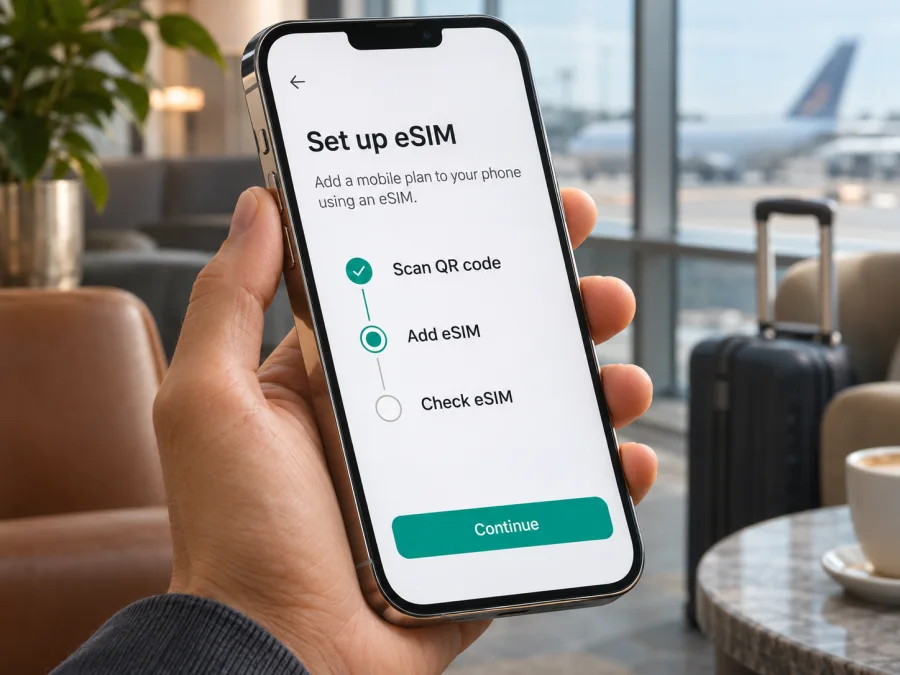
Apple iPhone 13 Pro Max 512GB eSIM: compatibility and setup guide
Yes, Apple iPhone 13 Pro Max 512GB supports eSIM in many regional versions. Apple lists eSIM and dual eSIM support for iPhone 13 Pro Max. However, the exact storage capacity does not identify the phone’s sales region, and regional SIM hardware differs. In particular, versions sold for mainland China, Hong Kong, and Macao may have two physical nano-SIM slots instead of eSIM. Check the individual phone before choosing a travel plan.
That distinction matters when you want mobile data abroad. A phone can be unlocked and otherwise work normally, yet still lack an eSIM profile option because it is a regional model. Conversely, a compatible version may support eSIM but be restricted by its original carrier. The reliable answer comes from checking the device itself, its model number, and its carrier-lock status—not from “512GB” alone.
Apple’s current iPhone 13 Pro Max technical specifications list “nano-SIM and eSIM” and “Dual eSIM support”; Apple’s current Dual SIM guidance says iPhone 13 models and later can use two eSIMs. Apple’s support information also distinguishes regional hardware, including models with two physical nano-SIM cards in mainland China, Hong Kong, and Macao. These details were checked on 3 November 2026. The exact regional version of an individual phone still needs to be confirmed in Settings.
Quick answer and key details
| Item | What to know about Apple iPhone 13 Pro Max 512GB |
|---|---|
| eSIM support | Supported on many regional versions; check the actual device before purchase. |
| Physical SIM | Many versions combine one nano-SIM with eSIM. Some regional versions have two nano-SIMs. |
| Dual SIM | Supported configurations can use a physical SIM and an eSIM; iPhone 13 models also support two eSIMs. |
| 512GB storage | Storage capacity does not determine eSIM capability or the device’s sales region. |
| Carrier restriction | The phone must be unlocked to use a plan from a different carrier. |
| Best device checks | Look for an EID and an Add eSIM option; review the model number and Carrier Lock status. |
| Travel use | A compatible travel eSIM can provide mobile data where its plan is available; coverage and conditions depend on that plan and its local network. |
Apple’s eSIM support statement covers the model family, not every identical-looking handset in every market. “Apple iPhone 13 Pro Max 512GB” describes the brand, model, and storage amount, but does not include a regional model identifier. If you are buying a used or imported device, ask the seller to show the About screen and SIM tray, and confirm that the phone is not carrier-locked.
Why regional versions can differ
For this generation, Apple’s regional guidance identifies iPhone 13 Pro Max among the devices that can use two nano-SIM cards when purchased in mainland China, Hong Kong, or Macao. That is a hardware-region distinction, not a setting that can be changed by installing another version of iOS. Apple’s current China mainland eSIM page also explains that older iPhone models are not supported for installing eSIM profiles from providers in mainland China. A device bought elsewhere may still support eSIM for compatible providers outside that market; local service rules and provider support are separate questions.
The memory label does not resolve these differences. Apple iPhone 13 Pro Max 512GB can refer to phones from different sales regions, with different model numbers and SIM trays. Ask for the model number shown in Settings → General → About, and check the physical SIM tray. Do not rely on an online compatibility list that does not identify the exact model.
There is a second distinction: eSIM hardware support is not the same as carrier access. A compatible iPhone can be locked to a particular carrier. Apple’s iPhone settings show Carrier Lock status in About. If the screen says No SIM restrictions, the phone is unlocked. If it names a restriction or displays another status, ask the carrier that applied the lock about eligibility and unlocking. Kaspersky eSIM Store cannot remove a carrier restriction.
Check your exact phone before buying
Use these checks before paying for a travel plan, especially for a used or imported phone.
- Find the EID. Open Settings → General → About, then scroll through the identifiers. On supported iPhones, Apple lists the EID on this screen. An EID is the identifier associated with the device’s eSIM hardware. Its presence is a useful sign, but it does not by itself prove that a particular plan, carrier, or country will work.
- Look for Add eSIM. Open Settings → Cellular (called Mobile Data in some regions or language settings). Look for Add eSIM or Add Cellular Plan. Menu wording can vary by iOS version and region. If the option appears, continue to verify that the phone is unlocked and that the selected provider supports the model.
- Check the SIM tray. If the tray holds two nano-SIM cards, the phone may be a regional dual-physical-SIM version without eSIM. Compare this clue with the model number and the phone’s origin; do not infer support from appearance alone.
- Check Carrier Lock. In Settings → General → About, review Carrier Lock. No SIM restrictions indicates that the iPhone is unlocked. If it is locked, contact the original carrier before purchasing a plan from another provider.
- Confirm the exact version with Apple or the seller. Record the model number and ask Apple Support or the seller to confirm the SIM configuration for that market. Avoid posting your EID, IMEI, or serial number publicly.
- Check the plan’s terms. Confirm that it is available for your destination and supports eSIM on your phone. Verify data allowance, validity period, activation conditions, and whether data roaming must be enabled.
Use the device compatibility check as a final reminder before you select a plan. Treat the handset’s own settings as the starting point, then confirm the exact regional variant and provider requirements.
Compatibility checklist
- [ ] I can see an EID in Settings → General → About, or Apple has confirmed the exact model supports eSIM.
- [ ] Add eSIM or Add Cellular Plan appears under Settings → Cellular.
- [ ] The SIM tray and model number do not indicate a two-physical-SIM regional configuration.
- [ ] Carrier Lock shows No SIM restrictions, or the carrier has confirmed that the phone can be unlocked.
- [ ] The eSIM plan supports the destination and its activation rules fit my travel dates.
- [ ] I have a stable Wi-Fi connection and access to the QR code or other installation details.
If one check is unclear, pause before purchase and contact the seller, Apple Support, or the provider of the plan. The EID and menu are helpful checks, but a missing option can also relate to the regional version, iOS state, or a restriction. Do not delete an existing profile just to test compatibility: an eSIM profile may not be reusable after removal.
Set up an eSIM on Apple iPhone 13 Pro Max 512GB
Before starting, connect to reliable Wi-Fi, update iOS if practical, and keep the installation details available on another screen or printed page. If you received a QR code on this same iPhone, display it on another device so the camera can scan it. Follow the plan provider’s instructions: the steps and the moment data service begins can vary by plan.
For the full device-specific flows, see the iOS eSIM installation instructions or the Android eSIM installation instructions. Apple iPhone 13 Pro Max 512GB uses iOS; the Android page is included for readers helping someone with a different phone.
Install with a QR code
- Open Cellular settings. On the iPhone, go to Settings → Cellular and tap Add eSIM or Add Cellular Plan.
- Choose QR-code setup. Tap the option to use a QR code. Depending on your iOS version, the next screen may offer other setup methods as well.
- Scan the provider’s code. Hold the iPhone so the QR code is inside the frame. If scanning is unavailable, check whether the provider supplies manual activation details or an app-based method.
- Confirm the plan. Read the on-screen prompts and tap Continue or Add Cellular Plan when asked. Keep the phone online while the profile downloads.
- Label the line. Choose a clear label such as Travel data so you can distinguish it from your usual number.
- Choose defaults carefully. Keep your usual number as the default voice line if you need it for calls and messages. Select the travel eSIM for cellular data when you are ready to use it. The iPhone uses one cellular-data line at a time.
- Check the provider’s activation instructions. Some plans begin their validity when installed; others start under different conditions. Do not assume installation and service activation are the same event. If you want to wait until arrival, leave it off as directed.
- Enable data roaming only when instructed. Some travel eSIMs require Data Roaming for that eSIM. Open its line settings and follow the provider’s instructions. This setting can have different billing consequences on your home line, so verify which line it applies to.
- Test the connection. When the plan should be active, turn off Wi-Fi briefly, confirm the travel line is selected for cellular data, and load a simple webpage. Reconnect to Wi-Fi if service is not ready and continue with the checks below.
If the provider offers app-based or manual setup, follow its instructions. Keep your confirmation and do not share QR or activation details.
Keep your regular number and use travel data
A practical setup for many trips is to retain the home line for calls or account messages and select the travel eSIM only for mobile data. Before departure, decide whether you want the home line active. Your home operator may charge roaming fees for calls, messages, or data even when the travel eSIM is installed. Check its terms, then switch off cellular data roaming on the home line if you want to avoid unintended data use. On the travel line, enable roaming only if its provider requires it.
You can also turn off Allow Cellular Data Switching if you do not want the iPhone to change data lines automatically. With two active lines, calls on one line can affect the other line’s availability depending on network and carrier support. The travel eSIM should not be assumed to include a normal phone number, voice calls, or SMS. Check the plan details; internet-based messaging and calls can work through apps when data is available.
Use the eSIM during a trip
Before travel, choose a plan for the countries or regions on your itinerary. Review coverage, data allowance, validity, and activation rules; a plan’s availability does not guarantee signal in every location.
Kaspersky eSIM Store is an app and website where you can choose, arrange, and activate an eSIM with a plan for mobile data on an international trip. For an English-language starting point, browse the Kaspersky eSIM Store. Review the current destination and plan conditions there before choosing; the homepage is a general starting point, not a country-specific offer. The mobile service itself depends on the selected plan and the local network it uses.
A simple travel sequence helps avoid surprises:
- At home: Confirm compatibility and unlock status, then save the setup details.
- After arrival: Turn on the travel line, select it for data, enable roaming if instructed, and test a webpage.
- During the trip: Monitor data use and check plan coverage before crossing a border.
- When you return: Select your usual line for data and remove the travel profile only if the provider allows it.
Check the selected data line after a restart or settings change. For hotspot use, confirm it is allowed by the plan.
Troubleshooting: when eSIM will not install or connect
There is no Add eSIM option
Restart the iPhone and check Settings → General → About for an EID. Check the model number and SIM tray, especially if the phone was sold in mainland China, Hong Kong, or Macao. Confirm the iOS version is current enough for the provider’s setup method. If there is no EID and the phone has a two-nano-SIM tray, it may be a regional version without eSIM. Ask Apple Support or the seller to identify the exact model rather than trying repeated QR codes.
The QR code does not scan
Increase screen brightness on the device displaying the code, clean the iPhone camera lens, and move the code farther away so the full image is visible. Make sure the QR code is intended for this plan and has not already been used. If it still fails, use only the provider’s documented manual or app-based installation method. Do not enter a code from an unverified message.
The profile downloads but shows no service
Check that the plan is within its validity and is meant for your current country. In Settings → Cellular, confirm the travel line is enabled and selected for cellular data. If the provider requires it, turn on Data Roaming for that line. Toggle Airplane Mode briefly or restart. If it remains offline, contact the plan provider with the model, iOS version, destination, and error message. Do not post your EID or QR code publicly.
The iPhone uses the wrong line for data
Open Settings → Cellular → Cellular Data and select the travel eSIM. Review Allow Cellular Data Switching and confirm the selection after a restart. Only one line supplies cellular data at a time.
The phone says SIM Not Supported or requests an unlock
Check Settings → General → About → Carrier Lock. If the phone is restricted, contact the original carrier and ask about its unlock process. Installing a different eSIM profile does not unlock an iPhone. If Carrier Lock says No SIM restrictions, contact the plan provider to verify the plan, profile, and supported destination.
Data works, but an app or website does not
Test another website and confirm the plan has data and remains valid. Avoid resetting network settings or deleting the eSIM as a first step; removal may require a replacement profile.
A call or message is using the home line
Review Default Voice Line, iMessage, FaceTime, and data-line settings. A data eSIM may not include a number, voice calls, or SMS. Check home-line roaming terms before keeping it active.
Frequently asked questions
Does Apple iPhone 13 Pro Max 512GB support eSIM?
Yes, many versions do. Apple lists eSIM and dual eSIM support for iPhone 13 Pro Max. But the 512GB label does not tell you which regional version you have. Check the EID, Add eSIM menu, model number, SIM tray, and Carrier Lock before buying a plan.
Can I use two eSIMs at the same time?
Apple says iPhone 13 models and later support two eSIMs, as well as a physical SIM and an eSIM. Regional hardware and provider support still matter; only one line provides cellular data at a time.
Does a China, Hong Kong, or Macao version support eSIM?
Do not assume that it does. Apple documents two-nano-SIM configurations for iPhone 13 Pro Max models purchased in mainland China, Hong Kong, or Macao. Check the exact model. Mainland China has separate provider conditions for eSIM profiles.
Is the 512GB model more likely to support eSIM?
No. Storage capacity describes available device storage, not its SIM hardware or carrier status. Phones with the same storage size can come from different sales regions.
Do I need an internet connection to install an eSIM?
Usually you need a working internet connection to download a profile, so use stable Wi-Fi before travel. Follow the plan provider’s specific instructions, and keep another device available if you need to scan a QR code displayed digitally.
When should I activate a travel eSIM?
Follow the plan’s stated activation rules. Installation, activation, and the start of the validity period may be separate events. If the provider says the period starts on installation, install close to the recommended time. If it starts on first network use, you may be able to install earlier and enable the line later.
Can an eSIM replace my normal number?
A travel data plan may provide mobile internet without a conventional phone number, voice calls, or SMS. Check the plan terms. You can often keep your usual line for calls and use the travel eSIM for data, but your home operator’s roaming charges may still apply.
What if the EID appears but Add eSIM is missing?
The EID is a useful indicator, not a guarantee of service. Review the regional model and iOS version, then contact Apple Support or the seller. Ask the provider about your exact configuration.
Before you choose a plan
For Apple iPhone 13 Pro Max 512GB, the most accurate answer is conditional: eSIM is supported by many regional versions, but the name and storage size alone cannot confirm this individual phone. Check for an EID and Add eSIM, identify the model and SIM-tray configuration, and confirm that Carrier Lock shows No SIM restrictions or that the original carrier will unlock the phone.
Then choose a plan for the places you will visit and check its data allowance, validity, activation timing, roaming requirement, and hotspot rules. Kaspersky eSIM Store can help you choose, arrange, and activate an eSIM plan for mobile data on an international trip. Verify your phone before purchase, keep the installation details accessible, and enable the travel profile only when you are ready to use it.


