Travel connectivity guide
Apple iPhone 14 128GB eSIM Compatibility and Setup
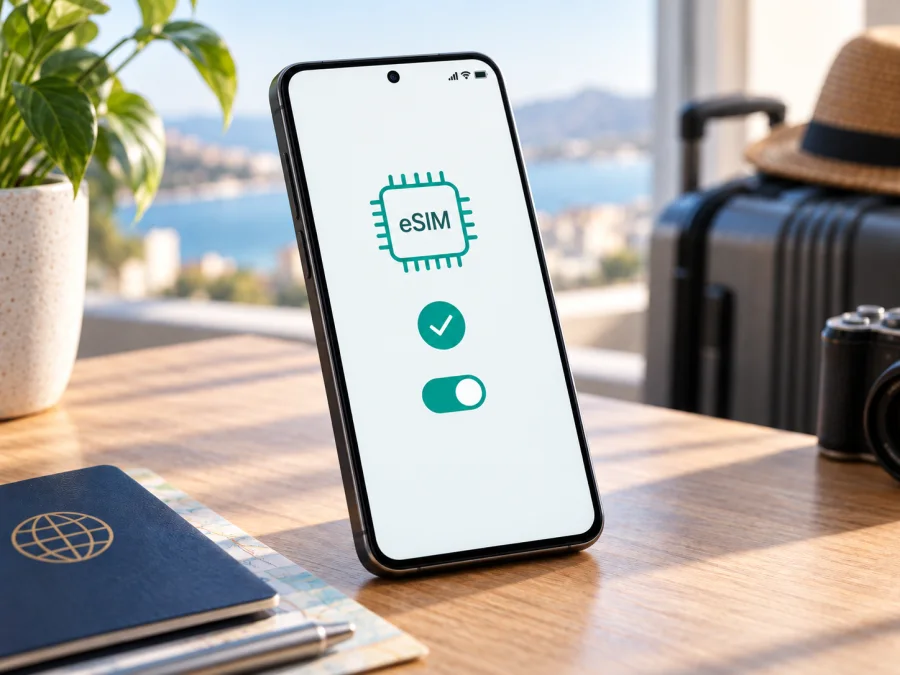
Apple iPhone 14 128GB eSIM: compatibility and setup guide
The Apple iPhone 14 128GB can use an eSIM in many markets, but the storage size does not determine SIM compatibility. The region where the phone was sold does. In the United States, iPhone 14 models are eSIM-only. In many other markets, the phone combines a physical nano-SIM tray with eSIM. Some regional versions use two physical nano-SIM cards and do not offer the same eSIM options. Check the model number and the controls in Settings before choosing a travel plan.
This guide explains what to check on an Apple iPhone 14 128GB, how to add an eSIM, and how to use one for mobile data while travelling. It also covers carrier locks, activation timing, data-line settings and common connection problems. An eSIM is a digital SIM profile: it does not change the phone’s storage, and it does not by itself guarantee that a particular provider or plan will work in every country.
Apple iPhone 14 128GB at a glance
| Item | What it means for eSIM |
|---|---|
| Exact device variant | Apple iPhone 14 128GB |
| Storage | 128GB; storage capacity does not affect eSIM capability |
| Device type | Smartphone running iOS |
| eSIM answer | Supported on many regional versions; confirm the sales region and device settings |
| SIM setup by region | U.S. versions are eSIM-only; many international versions support nano-SIM plus eSIM; selected markets have different SIM configurations |
| What is needed | An unlocked, eSIM-capable handset, a compatible plan and a supported activation method |
| Best first check | Settings → General → About for EID and model information; Settings → Cellular for Add eSIM |
Short answer
If your Apple iPhone 14 128GB was sold in the United States, it is designed to activate with eSIM and has no physical SIM tray. If it was sold in most other regions, Apple lists iPhone 14 as supporting eSIM alongside a nano-SIM. That general statement does not apply to every market: Apple identifies iPhone 14 models sold in mainland China, Hong Kong and Macao as versions with two nano-SIMs for Dual SIM, rather than the usual nano-SIM-plus-eSIM arrangement. Availability can also depend on the carrier, the device’s lock status and the eSIM provider’s activation rules.
So, the practical answer for the exact 128GB variant is: eSIM is available on many Apple iPhone 14 128GB units, but verify the individual phone before purchase or travel. The 128GB label identifies storage, not the radio or regional configuration. If a seller cannot confirm the original market, rely on the phone’s model information and live Settings menus rather than the listing title alone.
Why the sales region matters
Apple sells iPhone models with different SIM hardware in different markets. The U.S. Apple iPhone 14 128GB is eSIM-only and has no physical SIM tray. Many other markets use a nano-SIM tray alongside eSIM. Apple documents iPhone 14 models sold in mainland China, Hong Kong and Macao among those that support Dual SIM with two nano-SIM cards. That setup is not the same as eSIM support. Apple’s mainland China eSIM guidance does not include iPhone 14, so do not assume such a phone can install a travel eSIM.
A phone keeps the configuration of the market where it was sold, even if it is used elsewhere. Carrier support and the plan’s activation method matter too. A compatible handset can still be locked to its original carrier or unsupported by a particular eSIM provider. Confirm the exact model, whether it is unlocked and whether the plan supports its destination and iPhone activation before purchase.
The 128GB figure describes file storage; it does not determine eSIM hardware. A 5G connection is also separate from the eSIM format. Neither a software update nor an eSIM QR code can add missing hardware or override regional restrictions.
Compatibility check for your phone
<a id="kesim-device-compatibility"></a> Use these checks before ordering a travel plan. Regional variants can look alike, so check the phone itself as well as its listing.
- Identify the model. Open Settings → General → About. Note Model Name and Model Number. Tap the displayed part number to reveal the regulatory model number. If the original sales market is unclear, ask the seller or Apple to identify the exact unit.
- Look for EID. In the same About screen, scroll through device identifiers. An EID is associated with embedded SIM hardware. Its presence is a strong indication of eSIM capability; its absence warrants confirmation from Apple or the seller.
- Look for the setup control. Open Settings → Cellular (also called Mobile Data or Mobile Service in some versions) and check for Add eSIM, Add Cellular Plan or Set Up Cellular. Wording varies, but software cannot add eSIM hardware to a regional version that lacks it.
- Check carrier lock. In Settings → General → About, find Carrier Lock. “No SIM restrictions” means the phone is unlocked. Otherwise, contact its original carrier before using another provider.
- Check plan conditions. Confirm the destination, supported iPhone activation method, Wi-Fi requirement and when validity begins.
Quick checklist
- [ ] The regional model and sales market are known.
- [ ] Settings shows an EID and Add eSIM (or equivalent).
- [ ] The phone is unlocked, or its carrier confirms that the plan can be used.
- [ ] The destination and activation method are supported, and validity timing is clear.
If the EID and setup option are present, the phone is a strong candidate, but not every provider or plan is guaranteed to work. If either is missing, pause before buying and check your device against the precise regional configuration.
What an eSIM can do on a trip
A travel eSIM can provide mobile data without removing a physical SIM. Use it for maps, ride-hailing, translation, reservations and messaging apps after arrival. On a compatible dual-SIM version, you may keep a home line available for calls or verification messages while choosing the travel eSIM for cellular data. iPhone uses one cellular data line at a time, and a data plan does not automatically include a phone number, voice calls or SMS. Check the individual plan terms.
Compare covered countries, data allowance, validity period, speed limits and hotspot conditions. A regional plan may suit a multi-country route; a country plan may suit one stop. Read the included destinations rather than relying on the plan name.
After checking compatibility, Kaspersky eSIM Store is an app and website where you can choose, arrange and activate an eSIM with a mobile-data plan for an international trip. Availability depends on the selected plan and local network. Kaspersky eSIM Store is not a mobile operator or network owner.
Before you install: prepare the iPhone
- Connect to Wi-Fi and update iOS when practical; this can help setup, but cannot add missing eSIM hardware.
- Confirm the phone is unlocked and the plan supports the destination and iPhone activation method.
- Keep QR instructions on another screen. Check whether validity begins at installation or first network connection.
- Do not delete a profile to pause it or remove your home line unless the provider confirms it can be restored.
Install and activate an eSIM on Apple iPhone 14 128GB
Menu labels vary by iOS version. Follow the plan’s activation method. See the iOS instructions for Apple devices and Android instructions for another device.
Add a QR-code plan
- Connect to Wi-Fi. Open Settings → Cellular → Add eSIM and choose Use QR Code. Alternatively, scan with Camera and tap the plan notification.
- Frame the provider’s QR code and enter a confirmation code if asked. Keep activation details private; a code may be single-use.
- Follow the prompts and label the new line “Travel.” If the QR code is on the iPhone, use another screen or a supported long-press option.
- Choose the line for cellular data. Review voice and messaging selections if you are keeping your home line.
- Turn on the line when the plan instructions say. If installation starts validity, wait until the appropriate time; if validity begins on first connection, advance installation over Wi-Fi may be convenient.
Use an app, link or manual details
Some providers activate through an app, secure link or manual server details. Use only the method supplied with the plan. For manual setup, go to Settings → Cellular → Add eSIM and enter the supplied information exactly. Confirm transfer eligibility before moving a profile from another phone; many travel eSIMs are device-bound.
Select the travel data line
In Settings → Cellular, open Travel and turn on “Turn On This Line.” Select it under Cellular Data when ready. Enable Data Roaming for that line only if its instructions require it. Review roaming on your home line to avoid unexpected charges. Turn off “Allow Cellular Data Switching” if you want data to remain on the travel plan. Check the active lines before relying on service.
Practical travel scenarios
One destination
Check validity timing, install over Wi-Fi if allowed, label the line “Travel,” and leave it off until the plan says to activate. After arrival, enable it and select it for Cellular Data. Keep the home line active only for the services you need and understand its roaming charges.
Several countries
Confirm every stop is included, including a layover where you need data. Check whether one profile covers the route. At a border, allow time to register, then verify the selected data line, roaming setting and plan validity.
Home number plus travel data
On a compatible dual-SIM version, the home line may remain available for calls or messages while the eSIM handles data. Carrier support and settings affect the result. Ordinary calls and SMS may incur roaming charges, so check with the home carrier. The phone uses one cellular data line at a time.
Limited data or weak signal
Download offline maps and travel details before leaving. Review usage in Settings → Cellular, noting that provider counters may reset on a different schedule. Use Wi-Fi for large downloads and allow time for network registration in areas with weak coverage.
Troubleshooting: if the eSIM does not work
“Add eSIM” is missing
Check Settings → General → About for EID and model information. A mainland China, Hong Kong or Macao iPhone 14 may use two nano-SIMs. Verify the exact sales region with Apple or the seller. A reset or update cannot convert a hardware variant without eSIM.
QR scan fails or profile will not download
Use stable Wi-Fi, increase the screen brightness showing the QR code, and make sure the code is valid and unused. If it is on the iPhone itself, use another screen or a supported long-press flow. Enter manual details only when supplied by the provider. Save the exact error message and contact the provider before requesting a replacement.
“Activating” or “No Service” appears
Keep Wi-Fi on during setup, allow time for registration and check whether the plan activates only in its destination. Toggle Airplane Mode, restart, then confirm the line is enabled and the destination is covered. If required, enable Data Roaming for the travel line. Check plan validity and local outage information with the provider.
Connected, but apps have no internet
Confirm the travel line is on and selected under Cellular Data. Test more than one app, temporarily review any VPN or content filter, and enter APN information only if the provider supplied it. Contact the provider if no apps can connect.
Calls, messages or a removed profile
A data eSIM may not include voice or SMS. Check which line is selected for voice, iMessage and data, and confirm home-carrier roaming charges. Do not delete a profile as a first step: it may not be reinstallable. If a profile was removed or used on another phone, ask the provider whether it can be restored or reissued; many profiles are device-bound.
FAQ
Does every Apple iPhone 14 128GB support eSIM?
No. Many regional versions do, the U.S. version is eSIM-only, and mainland China, Hong Kong and Macao versions may use two physical nano-SIMs. Check EID, the setup menu and model region.
Does 128GB determine eSIM capacity?
No. Storage is separate from eSIM hardware and profile limits, which depend on model, iOS and provider rules.
Can I use a travel eSIM with my home SIM?
A compatible version can use dual-SIM features, but configuration varies by market. Cellular data uses one selected line; calls and messages depend on settings and carrier support.
Will a travel eSIM replace my home number?
Not when added as a separate line, but a transfer can deactivate the old SIM. Read prompts carefully and do not choose transfer when you mean to add a travel data line.
Should I install before travel? Is EID enough?
Install in advance only if the plan’s validity timing makes sense. EID indicates embedded SIM hardware, but the plan must also support the unlocked phone, activation method and destination. A data plan does not necessarily include voice or SMS.
Final device check and trip eSIM plan
Before choosing a plan for an Apple iPhone 14 128GB, confirm its sales region, model number, EID and Add eSIM control. The 128GB label describes storage, not SIM compatibility. Check carrier unlock, destination coverage, activation method and validity timing; ask the seller, Apple or provider if anything is unclear.
Once the phone passes these checks, compare plans by destination, data allowance, validity and activation rules. Install as instructed, label the line, select it for data when appropriate and review home-line roaming. The device is ready for trip data only when its regional configuration and selected plan both support eSIM.


