Travel connectivity guide
Apple iPhone 14 Plus 128GB eSIM Guide
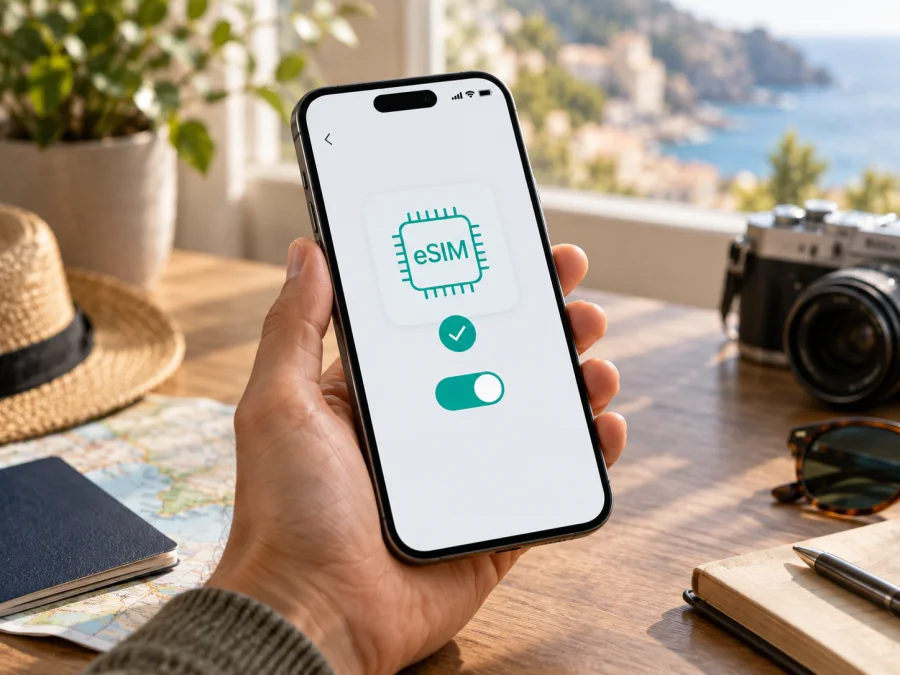
Apple iPhone 14 Plus 128GB eSIM: compatibility, setup and travel use
If you have an Apple iPhone 14 Plus 128GB, the 128 GB storage configuration does not change its eSIM capability. Apple lists the iPhone 14 Plus among models that support eSIM in many markets. The important exception is the version made for mainland China: Apple says iPhone 14 Plus models cannot install eSIM profiles from mainland China network providers. In Hong Kong and Macao, iPhone 14 Plus models are among those that can use two physical nano-SIM cards. The US version is eSIM-only, with no physical SIM tray. Check the model’s original sales region and the options in Settings before choosing a travel plan.
An eSIM is a digital SIM profile stored in the phone. It can be added without inserting a new plastic card, provided the exact iPhone variant, iOS version and mobile provider support the setup method. For travel, this can make it possible to prepare mobile data before departure while keeping a primary line available for calls or messages. A particular plan’s coverage, supported network and conditions still depend on its provider and destination.
Apple iPhone 14 Plus 128GB at a glance
| Item | What to know |
|---|---|
| Device variant | Apple iPhone 14 Plus 128GB |
| Storage | 128 GB; storage size does not determine eSIM support |
| eSIM capability | Supported on many regional versions; verify the region and device settings |
| US version | eSIM-only, with no physical SIM tray |
| Many other markets | eSIM plus a nano-SIM tray; exact options depend on the sales region |
| Mainland China version | Not compatible with mainland China carrier eSIM profiles according to Apple’s current guidance |
| Hong Kong and Macao versions | iPhone 14 Plus may use two physical nano-SIM cards; confirm the exact regional model |
| Travel use | A compatible travel eSIM can be used for mobile data where the plan supports service |
This is a guide to the named 128 GB variant, not a claim that every phone carrying the iPhone 14 Plus name has the same SIM arrangement. Storage capacity identifies the configuration requested here; it does not identify the country or region for which the phone was manufactured. If the phone was bought second-hand, imported, supplied by a carrier or refurbished, check its model number and settings rather than relying on the seller’s short description.
Why the sales region matters
Apple’s specifications describe eSIM availability by market. The iPhone 14 Plus sold in the United States is designed to activate using eSIM only. A version sold in many other countries and regions supports eSIM and also has a nano-SIM tray. Apple also notes that eSIM may be disabled on an iPhone purchased through some carriers. That means an iPhone can be an eSIM-capable model in general while an individual carrier-sold device or line still needs to be checked.
The clearest regional warning concerns mainland China. Apple’s current list of iPhones that support eSIM in mainland China does not include the iPhone 14 Plus. A mainland China iPhone 14 Plus should therefore not be treated as able to add a local carrier eSIM profile. Models sold in Hong Kong or Macao can have a dual nano-SIM arrangement instead. Do not assume that a physical SIM tray proves eSIM support, or that a phone with no tray is automatically ready for every travel eSIM: the device must still be unlocked and the eSIM provider’s requirements must be met.
When checking the region, find the model number in Settings > General > About. Tap the part number shown next to “Model Number” to reveal the model identifier, then compare it with the original packaging or the sales information from the seller. If the phone is locked to a carrier, its eSIM options may be limited to that carrier. Ask the carrier that applied the lock to confirm its status and unlock requirements. Apple’s technical specifications also caution that eSIM availability may depend on the carrier and that some carrier-sold devices may have eSIM turned off.
The name Apple iPhone 14 Plus 128GB does not tell you whether the phone is unlocked, whether an eSIM profile is already installed, or which regional SIM configuration it has. Confirm those details before purchasing a travel plan. If the device came from a different country, is managed by an employer, or has been repaired, check its live settings as well as its paperwork.
The capacity on a receipt or listing identifies storage, not the cellular configuration. For an imported or second-hand phone, ask for the model number shown in Settings and check the EID and Add eSIM option on the device itself; an online listing or screenshot may describe another unit. The original sales region remains relevant because changing the language or region setting in iOS does not change the hardware variant. If the seller cannot verify it, ask Apple or the carrier before paying.
Check eSIM compatibility on your iPhone
<a id="kesim-device-compatibility"></a>
Use this quick check before ordering a plan. It helps separate support for the phone itself from support for a specific provider or destination.
- [ ] Confirm the model and region. In Settings, open General, then About. Check the model number and, if possible, the original market. Be especially careful with mainland China, Hong Kong and Macao variants.
- [ ] Look for an EID. In Settings > General > About, scroll through the device information for an EID (Embedded Identity Document). Its presence is a useful sign that the phone has eSIM hardware. If there is no EID, do not assume the phone can add an eSIM; confirm the exact variant with Apple or the carrier.
- [ ] Look for the add option. Open Settings > Cellular (or Mobile Data, depending on region and iOS wording). Look for “Add eSIM” or “Add Cellular Plan.” The wording can vary by iOS version. If the option is missing, first check the model region, carrier lock, iOS update and carrier restrictions.
- [ ] Check the carrier lock. In Settings > General > About, look for “Carrier Lock.” “No SIM restrictions” indicates an unlocked phone. If another status appears, contact the carrier before buying a plan from a different provider.
- [ ] Confirm the plan’s destination and device requirements. Check that the plan applies in every country on your route, supports your iPhone’s eSIM activation method and is intended for mobile data if that is what you need.
Check your device against these points before you commit to a plan. A visible EID or add-eSIM control is helpful, but it does not guarantee that every provider’s profile will activate: regional restrictions, carrier locks, account conditions, iOS software and the provider’s own activation rules can still matter. If a used iPhone has been reset, inspect it during setup or connect to Wi-Fi so you can check its current settings.
Apple says iPhone 13 and later support Dual eSIM, but stored profiles and simultaneously active lines are different. Available line combinations may depend on the regional model and plan. Check Settings > Cellular to see which lines are active and selected for data. A travel eSIM is usually data-only; it does not replace your regular number or include calls and SMS unless its terms say so.
When a travel eSIM can help
A travel eSIM can provide data after landing without a physical SIM shop visit. Install over Wi-Fi before departure if allowed, keep your regular line available, and select the travel line for data on arrival. Check whether validity starts at installation, first connection or another provider-defined event.
Kaspersky eSIM Store is an app and website where you can choose, arrange and activate an eSIM with a suitable mobile data plan for an overseas trip. Review destination coverage, allowance, validity and terms. Plans are intended for mobile data unless conditions say otherwise; they do not automatically include a regular number, calls or SMS. Internet messaging and calls may work in apps.
For multi-country travel, confirm coverage at every stop. Estimate use for maps, messages, meetings, uploads and hotspots; video and backups can consume data quickly. Check tethering terms.
Install and activate an eSIM
Connect to Wi-Fi, update iOS if needed, and keep the QR code accessible on another screen. Some codes are one-use; do not delete a profile unless the provider confirms it can be reissued.
- Check eSIM support. Look for an EID or Add eSIM option in Settings.
- Check carrier lock. Confirm the phone is unlocked before using another provider.
- Open Cellular settings. Go to Settings > Cellular (or Mobile Data) > Add eSIM.
- Choose the activation method. Scan the QR code, open a provider link or app, transfer a line if supported, or enter details manually.
- Confirm the plan. Follow the on-screen prompt to add the profile.
- Wait for activation. Keep Wi-Fi connected while the profile downloads; setup may take a few minutes.
- Label the line. Use a name such as “Travel” to distinguish it from your primary line.
- Select the data line. Choose the travel eSIM for Cellular Data when you are ready to use it at your destination.
- Check roaming instructions. Some plans require Data Roaming on for that eSIM; follow the provider’s guidance.
- Test service. In a covered area, turn Wi-Fi off briefly and load a webpage.
See the iOS eSIM installation instructions. The Android eSIM installation instructions cover setup for another traveller. Kaspersky eSIM Store’s app and website help you choose, arrange and activate a mobile data plan for an overseas trip.
Set up dual lines for a trip
In Settings > Cellular, select the travel eSIM for Cellular Data when you want to use its allowance. Review Cellular Data Switching: the phone may use another line for data, which could incur home-carrier charges. Check roaming terms before enabling it.
A data-only travel eSIM does not replace your regular number. Calls, SMS and voicemail follow carrier terms. After the trip, switch data back to your regular line. Before deleting the travel profile, check whether it can be reused or transferred.
Troubleshooting common issues
“Add eSIM” is missing. Check Settings > General > About for an EID, update iOS and restart. Verify the model region and carrier lock. Apple does not list mainland China iPhone 14 Plus models as supporting mainland China carrier eSIM profiles. Confirm eligibility before purchasing.
The QR code fails. Use Wi-Fi and show the whole code on another screen. Check whether it expired or was used. Use a link or manual entry only if supported; ask about a replacement before deleting the profile.
The eSIM is installed but has no service. Turn on the line in Settings > Cellular. Check coverage and activation timing. Enable Data Roaming only if instructed. Toggle Airplane Mode, restart and allow time to register. If service does not return, contact the provider with the model, iOS version and error.
There are signal bars but no data. Confirm Cellular Data uses the travel eSIM and allowance remains. Check provider APN or roaming instructions, test with Wi-Fi off, then restart. Do not change advanced values without exact guidance.
The primary line is roaming. Check the selected data line and Cellular Data Switching. Review your home carrier’s roaming terms; calls, SMS and voicemail may have separate rules.
A profile disappeared or will not transfer. Contact the provider before resetting the phone or deleting the eSIM. Some profiles cannot be reinstalled or transferred.
Practical checks by travel scenario
- Short holiday: Install at home if allowed; check validity start, then select the travel line for data on arrival.
- Several countries: Confirm coverage and allowance for every destination.
- Work trip: Check hotspot terms and estimate laptop and meeting use.
- Late arrival: Installing at the destination requires a working internet connection.
Frequently asked questions
Does Apple iPhone 14 Plus 128GB support eSIM?
Yes, many regional versions do. The US version is eSIM-only; many others support eSIM and nano-SIM. Mainland China versions cannot install mainland China carrier eSIM profiles under Apple’s guidance. Verify the device’s region, EID and carrier status.
Does 128 GB storage affect eSIM?
No. eSIM support depends on the regional model, carrier restrictions, iOS and provider rules, not storage.
Can I use a physical SIM and travel eSIM together?
Many non-US versions have both eSIM and a nano-SIM tray; the US version has no tray. Confirm the exact region and active-line options in Settings.
Does a travel eSIM include calls or SMS?
Not unless its terms say so. Travel plans in Kaspersky eSIM Store are intended for mobile data; internet messaging and calls may work in apps.
Should I install before travelling?
It can be convenient, but check when validity begins. Some plans start at installation, others at first connection or another event.
What if I cannot find an EID?
Check Settings > General > About and update iOS. If no EID or Add eSIM option appears, confirm the model and region with Apple or the carrier before purchasing.
Final device check and trip eSIM choice
Before choosing a plan for Apple iPhone 14 Plus 128GB, verify its region, EID, Add eSIM option and unlocked status. Confirm the plan supports the phone, covers your route and has an activation method you can use. Storage does not affect eSIM support; regional options differ.
Compare coverage, data allowance, validity, price and hotspot terms with your itinerary. Kaspersky eSIM Store’s app and website help you choose, arrange and activate an eSIM data plan for an overseas trip. After arrival, confirm the travel line supplies mobile data.


