Travel connectivity guide
Apple iPhone 14 Pro 128GB eSIM: Compatibility Guide
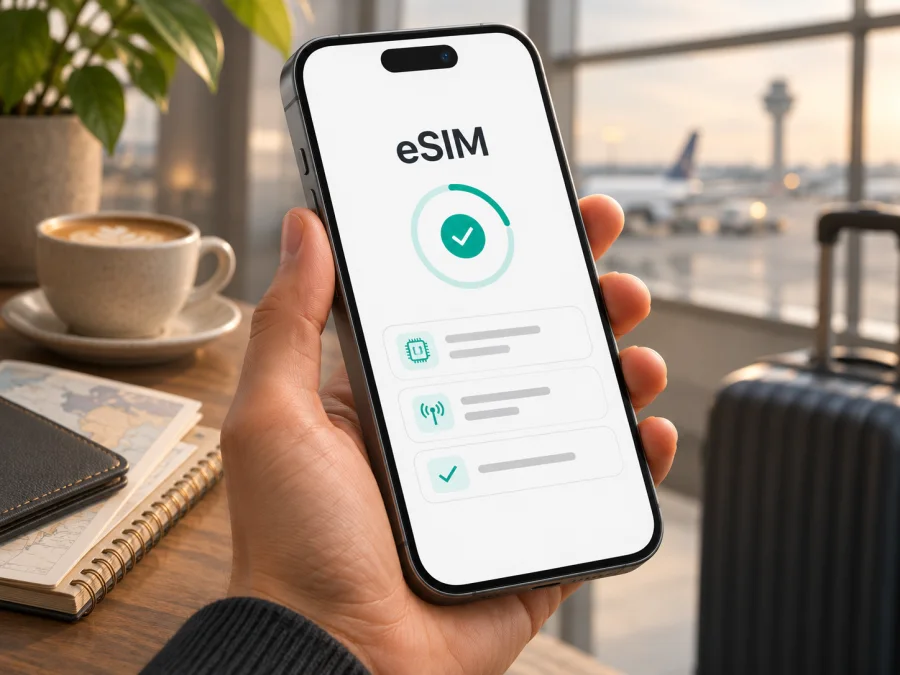
Apple iPhone 14 Pro 128GB eSIM: compatibility and setup guide
Short answer: Apple iPhone 14 Pro 128GB supports eSIM in most markets. The 128GB storage capacity does not change cellular compatibility. However, the exact regional model matters: Apple lists the iPhone 14 Pro sold in mainland China among models that do not support eSIM. Some market versions also differ in whether they have a physical SIM tray. Check the model in Settings and the EID on the phone before choosing a travel plan.
This guide covers regional versions, compatibility checks, setup, travel data, and common problems. An eSIM is a digital SIM profile; you still need a compatible, unlocked phone and a plan valid for your destination.
Does Apple iPhone 14 Pro 128GB support eSIM?
Yes, if your phone is an eSIM-capable regional version. Apple’s technical specifications for iPhone 14 Pro describe support for two active eSIMs and storage for multiple eSIM profiles. The storage variant named in this article, 128GB, does not determine whether eSIM is available. The country or region for which the phone was made does.
The most important exception is mainland China. Apple’s current eSIM travel guidance says that iPhone 14 models sold for mainland China do not support eSIM. A mainland China iPhone 14 Pro may have two physical nano-SIM slots instead. Hong Kong and Macao models can also differ from international versions, so do not infer eSIM support from the name “iPhone 14 Pro,” the presence of a SIM tray, or the country where you currently live. A SIM tray can coexist with eSIM on many international iPhone 14 Pro models; its presence alone does not mean eSIM is unavailable.
| Item | What to know about Apple iPhone 14 Pro 128GB |
|---|---|
| eSIM | Supported on most regional versions; verify the individual phone |
| Active lines | Compatible versions can use two active eSIMs; carrier and local rules can affect service |
| Physical SIM | Depends on the regional version; many versions have a nano-SIM tray, while U.S. versions are eSIM-only |
| Mainland China version | iPhone 14 Pro sold for mainland China is not listed by Apple as eSIM-capable |
| Storage | 128GB storage does not change eSIM support |
| Carrier lock | A phone locked to one carrier may not accept a travel eSIM from another provider |
| Best pre-purchase check | Look for an EID and an Add eSIM option, then confirm the phone is unlocked |
Apple’s specifications describe a model family, not the history of an individual used or imported phone. Check the phone’s Settings and the seller’s exact model information rather than relying only on a listing that says “iPhone 14 Pro 128GB.”
Regional versions and carrier restrictions
The U.S. iPhone 14 Pro uses eSIM and has no physical SIM card. Many versions sold elsewhere combine a nano-SIM with eSIM and support two active eSIMs. The same retail name can therefore describe different SIM hardware; 128GB is storage, not a region code.
Apple says the mainland China iPhone 14 Pro does not support eSIM. This is a model and market distinction, not a rule for every phone used in China or all Hong Kong and Macao versions. For an imported phone, verify its model number and EID instead of relying on the seller’s location.
Hardware support and service availability are separate: the carrier or travel provider for your intended market must support eSIM provisioning, and roaming depends on the destination and plan. Carrier locking is a separate issue from regional hardware. An eSIM-capable phone can still be restricted to the carrier that originally sold it. Apple says to open Settings → General → About and check Carrier Lock. No SIM restrictions means the phone is unlocked. If another status appears, contact the original carrier; Apple cannot unlock it for you. This matters when you want to add an eSIM provided by a different company while travelling.
What to check before buying a travel eSIM
Run these checks on the phone itself before paying for a plan. They help distinguish eSIM capability from the other conditions needed for activation.
- [ ] Find an EID: Open Settings → General → About and scroll through the device information. An EID is the identifier for the built-in eSIM hardware. If no EID appears, do not assume the phone can add an eSIM; confirm its region and model with Apple or the seller.
- [ ] Look for Add eSIM: Open Settings → Cellular (called Mobile Data in some language or region settings). Look for Add eSIM or Set Up Cellular. Menu labels may vary with iOS version and configuration.
- [ ] Check the region: Match the model number shown in About with the region information from the seller or Apple. An iPhone 14 Pro from mainland China is not an eSIM option, even if another regional version with the same name supports it.
- [ ] Check Carrier Lock: Under Settings → General → About, confirm No SIM restrictions if the travel profile comes from another provider.
- [ ] Check plan requirements: Confirm the destination, covered countries or regions, data allowance, validity period, activation trigger, supported network, and any tethering limits in the plan details.
- [ ] Prepare a connection: Have Wi-Fi or another working internet connection available while downloading the eSIM profile, unless the activation instructions say otherwise.
- [ ] Keep your existing line available: Decide which line should handle calls and messages and which should use mobile data. Check roaming terms with your home carrier before travel.
If you want a second check before continuing, check whether your device is compatible. This check is useful for other phones too, but the result for a different model does not establish compatibility for Apple iPhone 14 Pro 128GB.
Once the phone passes these checks, you can browse current destinations and plans on the Kaspersky eSIM Store website. It is a site and app where you can choose, arrange, and activate an eSIM plan for mobile data on an international trip. Review the current plan terms for your destination before selecting one; the home page is a starting point for browsing, not a specific country tariff.
How to install and activate an eSIM on iPhone 14 Pro
The plan may use a QR code, app, activation message, or manual details. Follow its instructions and install over Wi-Fi. Avoid deleting a profile to troubleshoot: some eSIMs cannot be installed again after removal.
- Prepare the iPhone. Update iOS if an update is available, connect to Wi-Fi, and keep the plan’s QR code or activation instructions accessible. If the QR code is displayed on this same iPhone, open it on another screen or use the provider’s in-app installation flow if offered.
- Open cellular settings. Go to Settings → Cellular → Add eSIM. Depending on the iOS release, the first option may be called Set Up Cellular.
- Choose the offered method. For a QR code, use Use QR Code and scan the code. If the provider gives manual activation information, select the corresponding manual entry option and enter it exactly as supplied. If an app or carrier activation is specified, open that app or follow the on-screen notification instead.
- Confirm the profile. Follow the prompts to add the cellular plan. Give the line a clear label such as Travel so you can distinguish it from your primary number. The profile may appear in Settings before it has service at the destination.
- Choose default lines carefully. If asked, select which line should handle calls and messages and which should use cellular data. You can keep your home line for calls while reserving data for the travel eSIM, subject to your home carrier’s charges and the plan’s terms.
- Wait for the right activation point. Some plans begin their validity period when installed, while others begin when the phone first connects to a supported network or on a scheduled date. Read the plan’s activation rule before installation. If it starts on first connection, leaving the travel line off until arrival may help avoid starting the term early.
- At your destination, enable the travel line. In Settings → Cellular, turn on the travel eSIM. Set Cellular Data to that line. Enable Data Roaming for the travel line only if its instructions require it. Data roaming can create charges on other lines, so verify which line is selected.
- Test a connection. Turn off Wi-Fi briefly and open a simple web page or messaging app. If there is no connection, check signal, line status, data selection, roaming instructions, and the plan’s activation status before changing other settings.
For Apple’s current setup flow, use the iOS eSIM instructions. The Android eSIM instructions apply to a compatible Android phone, not the iPhone menus above. After activation, confirm that the travel line is on and selected for data. Keep the QR code and order details accessible; some QR codes are one-time use.
Using the eSIM for mobile data on a trip
Before departure, decide which line should provide each service. A common arrangement is to keep the home line available for calls and authentication messages, while selecting the travel eSIM for mobile data. Whether calls, SMS, or receiving messages incur charges depends on your home plan. A data-only travel eSIM should not be assumed to include an ordinary phone number, voice service, or SMS unless its plan details explicitly say so. Internet messaging and app-based calls can work over data, subject to the apps and local network availability.
For a single-country trip, confirm coverage for that country. On a multi-country route, verify every destination where you expect to connect. Regional names such as “Europe,” “Asia,” or “global” do not guarantee that every territory or network is included; check the listed coverage and exclusions.
If the plan allows, install before departure but enable data according to its start rule. Save the instructions offline. On arrival, select the travel line for data. Before returning home, switch back to your usual line. Check the plan rules before deleting a profile; removal is not cancellation or a refund.
Common eSIM problems and what to check
“Add eSIM” or EID is missing
Check the exact regional model. Apple iPhone 14 Pro sold for mainland China does not support eSIM; many other versions do. Restart the phone, update iOS if possible, and check Settings → General → About and Settings → Cellular again. If the EID or Add eSIM option remains absent, ask Apple or the seller to verify the specific device before buying a plan.
The QR code fails or the profile will not download
Use stable Wi-Fi and make sure the QR code is clear and belongs to this purchase. If it is displayed on the same iPhone, use another screen or the provider’s app. A code may be one-time use or expired; contact the provider with the order reference rather than repeatedly deleting or reinstalling the profile.
The profile is installed but has no service
Check the plan’s activation date, covered destination, and validity rule. Turn on the travel line, make sure Airplane Mode is off, and select the travel eSIM under Cellular Data. Enable data roaming on that line only if the instructions require it. Restart or briefly toggle Airplane Mode, then check reception and plan status. Installation alone does not guarantee service in every location.
Data uses the wrong line or roaming does not work
Under Settings → Cellular, select the travel eSIM for Cellular Data and review Allow Cellular Data Switching if available. Check roaming separately for each line. Your home carrier sets charges for the home line, so confirm its terms and disable its roaming if you do not want it used abroad.
Another provider’s eSIM is rejected
Open Settings → General → About → Carrier Lock. No SIM restrictions indicates the phone is unlocked. If it is locked, contact the original carrier; Apple cannot unlock it. A compatible eSIM-capable phone may still reject another provider’s profile while locked.
The connection is slow or stops
Check signal, remaining data, and plan validity. Move to a better reception area, restart the phone, and confirm the network and roaming settings from the provider’s instructions. If the plan offers network selection, follow its guidance. When contacting support, provide the order reference and error details, not passwords or security codes.
Travel checklist
- Check the EID, Add eSIM, regional version, and Carrier Lock.
- Confirm every destination is covered and when plan validity begins.
- Install over Wi-Fi using the supplied method and save the instructions.
- Label your lines, select the travel eSIM for data, and follow its roaming directions.
- Review possible home-carrier charges before departure.
Frequently asked questions
Does the 128GB version have different eSIM support?
No. Storage does not determine cellular hardware; the regional model does.
Can I use a physical SIM and eSIM together?
Many international versions support both, while the U.S. version is eSIM-only. Mainland China iPhone 14 Pro does not support eSIM. Check your specific phone.
Can I use two eSIMs at once?
Compatible versions support two active eSIMs. Carrier, market, and iOS conditions can affect service.
Will a travel eSIM work if the iPhone is locked?
A different provider’s eSIM may not work. Check Carrier Lock in About; only the original carrier can unlock the phone.
Does a data eSIM include calls and texts?
Not necessarily. Check the plan terms; data-only plans may not include a phone number, voice, or SMS. Messaging apps can use data.
Final check before your trip
Apple iPhone 14 Pro 128GB supports eSIM when it is an eSIM-capable regional model. Check the EID, Add eSIM, region, and unlock status, then choose a plan that covers your itinerary and follow its activation instructions.
Kaspersky eSIM Store is an app and website where you can choose, arrange, and activate an eSIM plan for mobile data on an international trip. Review the current destination coverage, data allowance, validity, and activation terms. If the model is unclear, verify it with Apple or the seller before travel.


