Travel connectivity guide
Apple iPhone 14 Pro Max 128GB eSIM: setup guide
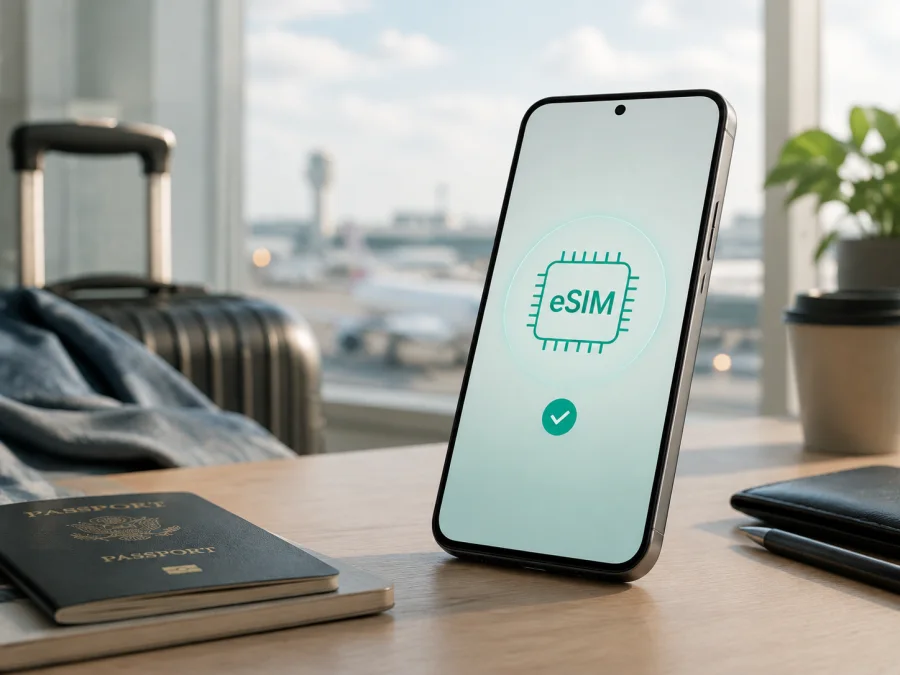
Apple iPhone 14 Pro Max 128GB eSIM: compatibility, setup and travel use
If you are checking whether Apple iPhone 14 Pro Max 128GB can use an eSIM for a trip, the short answer is yes: this iPhone generation has built-in eSIM capability. The 128GB storage variant does not change that capability. What can change the result is the market in which the phone was sold, the exact hardware configuration, the carrier that issued the plan, and whether the iPhone is locked to a carrier.
An eSIM is a digital SIM profile stored in the phone. For travel, it can add a data line without removing your everyday SIM, provided the device and plan are compatible.
Quick answer: does Apple iPhone 14 Pro Max 128GB support eSIM?
Yes. Apple’s current technical information lists iPhone 14 Pro Max with Dual eSIM capability, including two active eSIMs and storage for multiple eSIM profiles. Apple also states that the iPhone 14 Pro Max models sold in the United States use eSIM technology and do not work with a physical SIM card. Models sold in many other markets combine an eSIM with a nano-SIM tray.
That answer applies to the model’s eSIM hardware, not automatically to every unit. An imported phone can have a different SIM configuration, and activation still depends on a supported plan, internet access, and an unlocked device when two carriers are involved.
Key characteristics to check
| Item | What it means for eSIM use |
|---|---|
| Exact device | Apple iPhone 14 Pro Max 128GB |
| eSIM support | Yes, when the regional configuration includes eSIM and the plan supports it |
| SIM combinations | Two eSIMs are supported on iPhone 13 and later; some units also have a nano-SIM tray |
| U.S. configuration | eSIM-only; no physical SIM card support |
| Other markets | Often eSIM plus nano-SIM, but verify the exact unit |
| Storage | 128GB; storage capacity does not determine eSIM support |
| Main requirements | Compatible plan, internet access for installation, current usable iOS, and no relevant carrier lock |
| Travel use | A separate eSIM can be selected for mobile data while the home line is kept for other purposes |
Regional and operator differences
The iPhone 14 Pro Max name is not enough to identify the SIM arrangement. A U.S.-purchased unit is eSIM-only. A unit sold in many other markets may have eSIM plus a nano-SIM tray. Apple also documents dual nano-SIM configurations for certain models sold in mainland China, Hong Kong, or Macao. An imported phone from one of those markets therefore needs an exact-unit check; do not infer eSIM support from the storage label or a retailer’s generic listing.
The carrier must support eSIM activation for the selected plan. A carrier-locked iPhone may reject a second carrier’s eSIM, even when the hardware supports it. If the two lines use different carriers, the phone normally needs to be unlocked. Menu wording varies by language and iOS version: look for Cellular, Mobile Data, Add eSIM, or Set Up Cellular, plus an EID in the device information.
Compatibility check before you buy a plan
Perform this check on the exact Apple iPhone 14 Pro Max 128GB that will travel with you. For a used or imported phone, ask to see its settings rather than relying on the box.
1. Find the EID
Open Settings, choose General, and tap About. Scroll through the identifiers and look for EID. The EID is the identifier associated with the phone’s embedded SIM function. Do not publish it in a listing or send it to an unknown person; it is enough to confirm that the field exists.
If there is no EID, do not assume that a reset or a new QR code will add eSIM hardware. Recheck the exact model and region, then ask Apple or the carrier about the configuration.
2. Look for the eSIM menu
Open Settings > Cellular or Settings > Mobile Data. Look for Add eSIM or Set Up Cellular. The exact placement varies, and seeing the control confirms the setup path—not that every plan will activate.
3. Check the carrier-lock status
In Settings > General > About, look for Carrier Lock. No SIM restrictions indicates that the iPhone is not reporting a carrier lock. If another status appears, contact the original carrier before choosing a different provider.
4. Confirm the plan requirements
Check that the plan covers the country, region, or route you will visit. Review traffic, validity, activation timing, refill rules, and whether data roaming is required. A data-only travel eSIM usually does not add a phone number, voice calls, or SMS unless its terms say otherwise.
Compatibility checklist
- [ ] The phone is the exact Apple iPhone 14 Pro Max 128GB variant you intend to use.
- [ ] An EID is visible under Settings > General > About.
- [ ] Add eSIM or Set Up Cellular is visible under Settings > Cellular or Mobile Data.
- [ ] The regional SIM configuration has been confirmed, especially for mainland China, Hong Kong, or Macao units.
- [ ] Carrier Lock shows no restriction, or the travel plan is from the permitted carrier.
- [ ] The iPhone can connect to Wi-Fi or another working data connection during installation.
- [ ] The destination and plan validity match the trip.
- [ ] You know whether the plan is data-only and whether data roaming is required.
Check your device before purchasing, especially when the Apple iPhone 14 Pro Max 128GB is imported, used, or from an unknown market.
How to install and activate an eSIM
Install the profile over reliable Wi-Fi. Keep the QR code or activation details on another screen if possible. Do not delete a working eSIM just to repeat an installation unless the plan instructions say to do so.
1. Prepare the iPhone
Charge the phone sufficiently for setup.
Connect it to stable Wi-Fi.
Update iOS if a suitable update is available before the trip.
Keep the confirmation, QR code, activation details, and support contact accessible.
2. Start adding the profile
Open Settings > Cellular or Mobile Data.
Tap Add eSIM or Set Up Cellular.
Choose Use QR Code; open additional options if needed.
Scan the QR code supplied for the plan. If manual entry is offered, enter only the details provided by the plan service. Do not invent an SM-DP+ address, activation code, or confirmation code.
3. Complete activation
Wait while the iPhone downloads the plan; activation can take several minutes.
Label the line Travel or another clear name.
Confirm the new line appears and is turned on under Settings > Cellular.
Select it under Cellular Data or Mobile Data when you want it to handle internet traffic. If the plan requires roaming, turn on Data Roaming for the travel line only; some plans connect without it.
For additional device guidance, see the iOS eSIM installation instructions and the Android eSIM installation instructions. The iOS guide applies to this phone; the Android guide is useful for a companion’s device.
Using the eSIM for mobile internet while travelling
Before leaving, install the profile with dependable internet and check when validity starts. Some plans begin on activation; others wait for registration on a supported network. Keep the QR code and activation details until the line works.
Scenario 1: keep your home number and use travel data
Leave the home line available if needed, but set the travel eSIM as the data line after arrival and turn off data roaming on the home line. Voice, SMS, voicemail, or other home-line activity may still incur operator charges.
Scenario 2: a U.S. eSIM-only iPhone
If it was purchased in the United States, plan for eSIM-based setup because the phone does not use a physical SIM card. Add a compatible travel eSIM only after checking that the device is unlocked and the plan covers the destination.
Scenario 3: a phone with a nano-SIM tray
On an eligible international configuration, keep a physical home SIM in the tray and add the travel eSIM. Name the lines separately, select the travel line for data, and turn off Allow Cellular Data Switching unless automatic switching is intentional.
Kaspersky eSIM Store is an app and website where you can choose, arrange, and activate an eSIM with a suitable tariff for mobile internet during an overseas trip. It helps you review the destination and plan conditions. It is not a mobile operator, network owner, or provider of mobile internet; connection, coverage, speed, validity, and restrictions depend on the selected plan, networks, location, and device.
Common problems and checks
“Add eSIM” is missing
Check the EID under Settings > General > About, the purchase region, and the exact model. Review whether the unit may be a regional dual nano-SIM configuration. Update iOS, restart, and check again. If there is still no EID or eSIM menu, ask the seller, Apple, or the carrier to verify the unit before purchasing.
The QR code will not scan
Use a second screen, increase brightness, and hold the iPhone steady. Confirm that the code belongs to this plan and has not been used or cancelled under its rules. Use manual entry only with supplied details and stay on Wi-Fi.
The profile will not download
Confirm that Wi-Fi works, the iPhone is not in Airplane Mode, and the plan is eligible. An activation server may be temporarily unavailable. Retry according to the plan instructions and contact support if it remains pending. Avoid repeated deletion and reinstallation because some profiles have limited installation rules.
The eSIM appears but there is no service
Open Settings > Cellular, tap the travel line, and confirm Turn On This Line is enabled. Select it under Cellular Data and enable Data Roaming only if required. Toggle Airplane Mode, restart, and confirm the plan is active in a covered destination. Use only supplied APN or network values.
Mobile data uses the wrong line
Reopen Settings > Cellular > Cellular Data and select the travel eSIM. Turn off Allow Cellular Data Switching if you want a fixed choice, then review the home line’s data-roaming switch. Clear labels reduce mistakes.
Data runs out sooner than expected
Check which line is selected and whether hotspot, video, downloads, photo sync, or background refresh is consuming traffic. Compare iPhone usage with the balance shown in the relevant profile or app. If permitted, use a refill or choose another package through the available service flow.
Calls or SMS do not work on the travel line
Many travel eSIM plans are data-only and do not include a number, voice calls, or SMS. Use messaging and calling apps over data, or keep the home line enabled for services that require its number. If a plan advertises voice or SMS, check its terms and contact the relevant provider.
FAQ
Does Apple iPhone 14 Pro Max 128GB support eSIM?
Yes, including Dual eSIM capability. The exact result still depends on region, carrier, plan, and unlocked status. Verify the EID and Add eSIM menu on the actual unit.
Can I use two eSIMs at once?
Apple documents two active eSIMs for iPhone 14 Pro Max. Additional profiles may be stored, but device, region, carrier, and plan rules apply. Only one cellular data network is used at a time.
Can I leave my home SIM active while travelling?
Usually, when the regional configuration and carriers allow it. Set the travel eSIM as data and review roaming on the home line. Home-line activity can have separate operator charges.
Does a travel eSIM replace a phone number?
Not usually. A data-only travel eSIM provides mobile internet under its terms, not a replacement number. Ordinary voice or SMS are not included unless the plan says so.
Why does the iPhone show a SIM tray but no eSIM option?
The tray describes only part of the hardware. A regional or imported unit may differ, and software or carrier conditions can affect setup. Check the EID and menu, then confirm the market with the seller or carrier.
What should I do if activation still fails?
Do not guess activation details or repeatedly erase the profile. Confirm compatibility and unlocked status, verify the destination and plan, reconnect to Wi-Fi, and restart. If it still fails, contact support with the order information and exact error, keeping private identifiers confidential.
Final device check before your trip
For Apple iPhone 14 Pro Max 128GB, the eSIM answer is positive, but the safe purchase decision is based on the exact unit in your hand. Before selecting a travel plan, confirm all of the following:
- The EID is present in Settings > General > About.
- Add eSIM or Set Up Cellular is visible in Settings > Cellular or Mobile Data.
- The phone’s sales region is known, with extra care for mainland China, Hong Kong, and Macao configurations.
- The phone is unlocked for the selected plan, or the plan belongs to the permitted carrier.
- The destination, traffic allowance, validity, activation timing, roaming requirement, and hotspot rules fit the itinerary.
- The home line’s data roaming is controlled before the travel eSIM becomes the data line.
- The QR code or supported activation details and the service support route are available.
Once those checks pass, use Kaspersky eSIM Store as the app and website for choosing, arranging, and activating an eSIM tariff for mobile internet on your overseas trip. Select the destination and a suitable plan, install the profile over a reliable connection, choose the travel line for cellular data, and test the connection before depending on it. This sequence keeps the focus where it belongs: verified device compatibility first, then a travel eSIM that matches the plan and the journey.


