Travel connectivity guide
Apple iPhone 14 Pro Max 256GB eSIM support
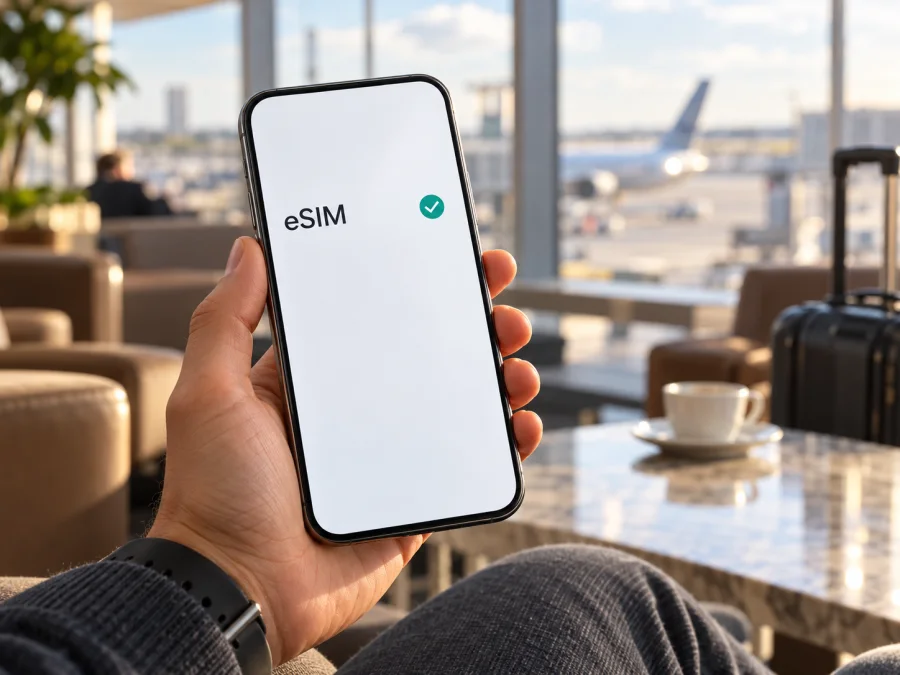
Apple iPhone 14 Pro Max 256GB eSIM: compatibility and setup guide
Short answer
The Apple iPhone 14 Pro Max 256GB can use eSIM when it is a regional version that includes eSIM hardware and the mobile operator or travel eSIM provider supports activation for that device. The 256GB storage capacity does not identify the cellular variant. Check the model number and the phone’s own settings before choosing a plan.
There is an important regional exception: the A2896 version sold for China mainland, Hong Kong, and Macao uses two physical nano-SIM cards for Dual SIM on this generation. Do not assume it can install an eSIM just because another iPhone 14 Pro Max can. Apple’s current regional guidance says that iPhone 14 Pro Max models are among the two-nano-SIM models sold in those markets; mainland China eSIM service is limited to specifically listed newer models. If your A2896 was bought there, treat eSIM compatibility as unsupported unless Apple and the seller can confirm otherwise for your exact device and intended service.
For other regional versions, Apple lists the iPhone 14 Pro Max as an eSIM-capable iPhone. Even then, an eSIM plan can only be installed if the phone is not carrier-locked and the relevant operator supports eSIM activation.
At a glance
| Item | What to know |
|---|---|
| Exact device covered | Apple iPhone 14 Pro Max 256GB |
| Storage variant | 256GB is one of Apple’s listed capacities; storage does not determine eSIM support |
| Main regional split | A2896 is associated with China mainland, Hong Kong, and Macao and uses two physical nano-SIM cards for this model generation |
| Other model numbers | A2651, A2893, A2895, and A2894 cover other listed markets; confirm the exact handset and service market |
| United States version | A2651 has no physical SIM tray; it relies on eSIM for cellular service |
| Typical eSIM checks | An EID in Settings, an Add eSIM or Add Cellular Plan control, and successful carrier eligibility confirmation |
| Travel use | A compatible, unlocked phone can keep a home line and use a separate travel data eSIM, subject to plan terms |
Why the region matters
Apple assigns different model numbers to iPhone 14 Pro Max devices sold in different markets. The model number is more useful than the product name on a listing because the same commercial name can cover different SIM hardware. Apple’s published model list associates A2651 with the United States and Puerto Rico; A2893 with Canada, Guam, Japan, Mexico, Saudi Arabia, and the U.S. Virgin Islands; A2896 with China mainland, Hong Kong, and Macao; A2895 with Armenia, Belarus, Kazakhstan, Kyrgyzstan, and Russia; and A2894 with other countries and regions.
A physical SIM tray does not, by itself, prove that eSIM is absent. Many versions sold outside the United States have both a nano-SIM tray and eSIM capability. In contrast, the A2896 two-nano-SIM configuration is a meaningful exception for this generation. The US version has no SIM tray, so its cellular plans must be provisioned digitally. Use this check before relying on a seller’s description:
- Open Settings > General > About.
- Find Model Number. The value first shown may be a part number; tap it to reveal the hardware model number beginning with “A”.
- Compare that number with Apple’s model information for iPhone 14 Pro Max and confirm the original sales market with the seller if the phone is imported.
- Check EID on the same About screen. If it is present, the device has an eSIM identifier, but the plan still needs operator and regional eligibility.
- Open Settings > Cellular (or Mobile Data, depending on region and iOS language). Look for Add eSIM, Add Cellular Plan, or an equivalent setup option.
An EID is a strong hardware indicator, not a promise of service. A missing menu can also reflect iOS version, restrictions, device management, or a locked/unsupported market configuration. If model number, EID, and menu do not agree, ask Apple Support or the seller to check the serial number and exact regional configuration before purchasing a plan.
The model number is a hardware identifier, while the part number can vary with sales configuration. Tapping the displayed part number in About reveals the A-number used in Apple’s regional model list. Record both the A-number and where the phone was originally sold: a seller may describe a handset by its current location, while its SIM configuration follows the market version. A second-hand or refurbished listing should be checked on the device itself before you pay.
EID and the setup menu answer slightly different questions. EID indicates an embedded SIM identity is available to the system; Add eSIM shows that iOS exposes an installation path. Neither confirms that a specific operator will issue a profile to your account or that the plan works in your destination. Conversely, a temporarily missing menu is not enough to diagnose hardware: check that iOS is current, the phone is not restricted by a workplace profile, and the model number is understood correctly. When any of these checks conflict, ask Apple or the seller to verify the serial number rather than relying on appearance.
For A2895, the regional designation alone should not be treated as a guarantee about every local operator: Apple’s model list identifies its sales markets, while the operator decides which subscribers and plans can be provisioned. A2894 likewise covers “other countries and regions,” so the country name on a receipt may be useful when confirming the variant. For A2651, the absence of a tray matches the US eSIM-only design; for tray-equipped A2893, A2895, and A2894 versions, a physical SIM slot can coexist with eSIM. If a refurbished listing says only “international version,” ask for the A-number and verify it in Settings before checkout.
Compatibility checklist
- [ ] The Model Number has been checked in Settings, not inferred from the 256GB label or seller title.
- [ ] The device is not the A2896 two-physical-SIM configuration if you need eSIM.
- [ ] An EID is visible in About, or Apple has confirmed the exact model’s eSIM capability.
- [ ] Settings includes an eSIM setup option, where available in your current iOS version.
- [ ] The phone is unlocked for use with another provider, or the plan is from the locking carrier.
- [ ] The intended operator market supports eSIM activation for this iPhone and plan type.
- [ ] The plan’s destination, validity period, data allowance, activation timing, and device-transfer rules fit the trip.
Check whether your device is compatible before selecting a travel plan. Compatibility depends on the exact regional model as well as the destination operator and the phone’s lock status. Keep this check tied to the specific handset and the operator market where the profile will be issued; the same product name can cover more than one SIM configuration.
Confirm carrier and operator eligibility
A phone can have eSIM hardware and still reject a particular plan. Carrier locking is separate from eSIM support. If the iPhone is locked, Apple’s dual-SIM guidance requires the available lines to meet the carrier’s conditions; when using two different providers, the phone generally needs to be unlocked. Check Settings > General > About > Carrier Lock. “No SIM restrictions” indicates that the phone is unlocked. If the screen shows a restriction or does not give a clear answer, contact the original carrier before travel.
The operator market matters too. eSIM availability, identity checks, supported device lists, and activation methods differ between mobile operators and countries. A provider may exclude some account types, prepaid products, or regional versions. Ask whether it supports your exact model number and whether the plan is intended for visitors. For China mainland, do not confuse a travel eSIM from a foreign provider with an eSIM issued by a mainland operator: Apple’s regional rules distinguish these use cases and restrict which iPhone models can install mainland-carrier eSIM profiles.
Kaspersky eSIM Store is an app and website where you can choose, arrange, and activate an eSIM with a mobile-data plan for an international trip. Before you use it, confirm that your iPhone is compatible and unlocked. Then browse the English Kaspersky eSIM Store site to check current destinations and available plan conditions. This is the general store homepage for browsing current travel options, not a country-specific tariff page.
Install and activate an eSIM on iPhone
Get the installation details from the plan provider before you begin. This may be a QR code, an in-app activation flow, a carrier notification, a link, or manual activation details. Keep the iPhone connected to Wi-Fi and the QR code accessible on another screen. Do not delete a profile unless the provider advises it; some cannot be installed again after removal.
QR-code setup
- Open Settings > Cellular or Settings > Mobile Data.
- Tap Add eSIM or Add Cellular Plan. You can also scan a provider’s QR code with the Camera app if that is the method it supplied.
- Follow the on-screen prompts and tap Continue or Add Cellular Plan when asked.
- Enter a confirmation code only if the provider has supplied one. Do not guess the code or use a QR code that belongs to a different order.
- Wait for iOS to download and activate the profile. Keep the phone online and do not close the setup screen if it is still processing.
- Give the line a clear label such as “Travel” so it is easy to select later.
- When asked which line to use for cellular data, choose the travel eSIM when its plan should be used. Keep your home number as the default voice line if that is what you want.
- At your destination, enable the travel line and turn on data roaming for that line only if the plan instructions require it. Check the provider’s activation rules before enabling it early; some plans start validity on installation, while others start at first network connection.
Other activation methods
Some carriers activate eSIM automatically after assigning a plan to the device. If a Carrier Cellular Plan Ready to Be Installed notification appears, open it and follow the prompts. Some providers use an app or a link, while others ask you to enter activation details manually in Settings > Cellular > Add eSIM. Available methods depend on the provider and iOS version.
Nearby iPhone transfer works only when the carrier and both devices support it, and activation may deactivate the old SIM. For a travel plan, use the method supplied for that order; do not assume an old QR code can be reused. Ask the provider how to move an eSIM from Android.
For guided steps, see How to install your eSIM on iOS and How to install your eSIM on Android. The iOS instructions apply to this device; the Android page is useful if you are preparing another phone in your travel group.
Use the travel eSIM without losing track of your home line
If the provider permits it, install before departure on a stable connection. Check when validity begins, whether roaming is required, and save order details offline. A single-use QR code is not a backup installation file.
After landing, open Settings > Cellular and make the travel eSIM the line for Cellular Data. Keep your home line enabled only if you need calls or texts on that number and understand your home carrier’s roaming charges. On some iOS versions, Allow Cellular Data Switching can permit the iPhone to use data from another line under certain conditions; turn it off if you want the phone to use only the selected travel line for data. Verify the data line before using maps, video, cloud sync, or app updates.
A travel data eSIM is not automatically a replacement for a phone subscription. Unless its terms say otherwise, assume it provides data without a regular number, voice calls, or SMS. Messaging apps work over data, but verification texts need a line that can receive SMS.
- One-country holiday: match the destination and validity to the trip; use Wi-Fi for large downloads if data is limited.
- Multi-country itinerary: confirm that every stop is named in the plan’s country list; do not infer coverage from a region label.
- Short stopover: check whether validity starts at installation or first network connection.
- Work travel: keep the home line for calls if needed, set the travel eSIM for data, and check any company device rules.
- Limited data: restrict background refresh, downloads, and cloud uploads; compare iOS usage with the plan account.
The app and website let you manage a travel data eSIM and review its plan conditions.
Troubleshooting: what to check first
There is no Add eSIM option. Confirm the model number and check for an EID in Settings > General > About. Update iOS when appropriate, then restart the phone. If it is A2896 or has no EID, stop before buying and ask Apple or the seller about that exact regional device. A profile cannot add eSIM hardware to a phone that does not support it.
The QR code will not scan or setup says the plan cannot be added. Use Wi-Fi and confirm that the code is current, unused, and for this order. Use manual entry only with matching details from the provider. Avoid repeated removal and reinstallation.
The eSIM installs but shows No Service. Check whether the plan is active yet, whether you are in a destination included in the plan, and whether the line is turned on. Some travel plans connect only after arrival. Toggle Airplane Mode once, then restart if needed. If it persists, contact the plan provider with your order reference and model number.
The phone uses the wrong line for data. Open Settings > Cellular > Cellular Data and select the travel eSIM. Review Default Voice Line separately. If you want to prevent unintended data use on the home line, turn off data roaming for that line and disable cellular-data switching.
Data does not work after the line connects. Confirm that Cellular Data is on, the correct line is selected, and data roaming is enabled for the travel eSIM only when the plan instructions require it. Check remaining data, validity, signal, and any provider APN instructions; do not guess APN values.
The plan works in one place but not another. Mobile coverage depends on the supported local network, geography, buildings, congestion, and the plan’s country list. Move to stronger signal, toggle Airplane Mode, and check whether the area is included.
The provider says the phone is locked. Check Carrier Lock in About and ask the original carrier to confirm unlock eligibility.
You cannot transfer the eSIM or reuse the QR code. Many profiles are intended for one installation or one device. Ask the provider to reissue or transfer the plan using its supported process. Deleting an active profile may make recovery harder, so obtain instructions first.
Frequently asked questions
Does Apple iPhone 14 Pro Max 256GB support eSIM?
The regional model, not 256GB capacity, determines support. Most versions outside A2896 support eSIM, subject to carrier, market, lock, and plan eligibility. Check the model number and EID.
Can the 256GB model use two SIMs?
Depending on region, it can use nano-SIM plus eSIM or two active eSIMs. A2896 uses two physical nano-SIM cards.
Does seeing a SIM tray mean eSIM will not work?
No. Many iPhone 14 Pro Max regional versions include a physical SIM tray and eSIM capability. The tray is not a definitive eSIM test. Check the A-number model, EID, and Add eSIM menu.
Can I install a travel eSIM before leaving home?
Often, if the provider allows it. Check whether validity begins at installation or first supported network connection, and do not remove the profile without guidance.
Will my home number still receive calls and texts?
It may if the home line remains enabled and the carrier supports roaming; charges may apply. A data plan generally does not provide your home number’s calls or SMS.
What if I cannot find an EID?
Recheck About and the A-number, then contact Apple or the seller with the serial number if no EID or setup option appears.
Is the phone’s region the same as my current operator market?
Not necessarily. Hardware, lock status, and local activation rules still apply. Confirm with the operator issuing the profile, not only the destination country.
Final checks before your trip
For the Apple iPhone 14 Pro Max 256GB, start with the device itself: reveal the A-number model in Settings > General > About, look for an EID, and check for Add eSIM in Settings > Cellular. Pay special attention to A2896, the two-physical-SIM version associated with China mainland, Hong Kong, and Macao. For other versions, confirm that the phone is unlocked and that the operator supports eSIM for your specific market and plan.
Once compatibility is confirmed, compare the destination, data allowance, validity, activation timing, and supported countries before choosing a travel plan. Kaspersky eSIM Store’s app and website let you browse, arrange, and activate an eSIM data plan for an international trip; use the plan conditions shown for your route and keep the home line’s roaming settings under control. A few checks at home can make the connection process clearer when you arrive.


