Travel connectivity guide
Apple iPhone 14 Pro Max eSIM: Compatibility & Setup
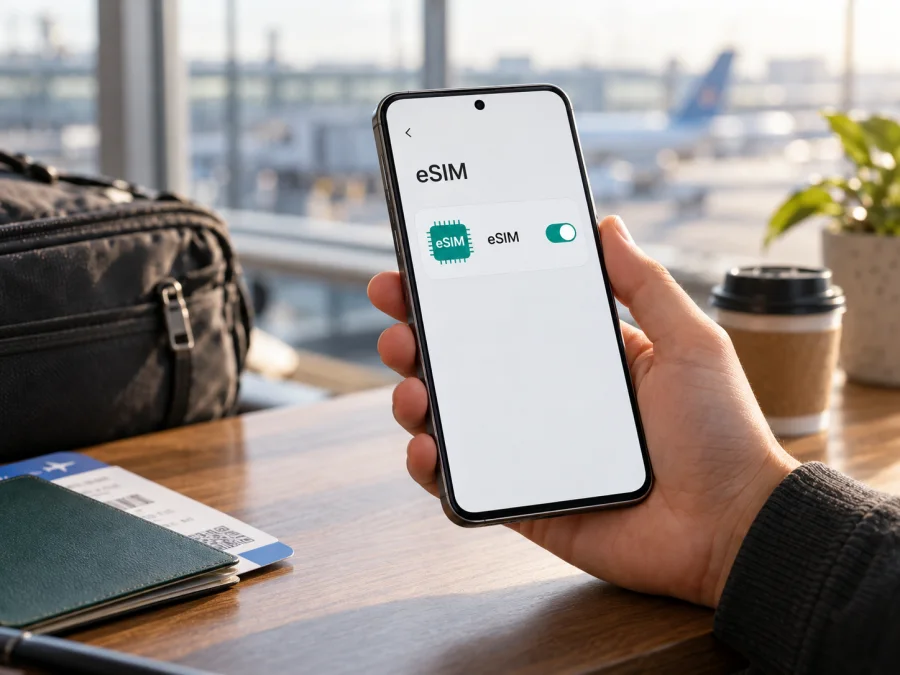
Apple iPhone 14 Pro Max eSIM: compatibility, setup and travel use
The Apple iPhone 14 Pro Max can use eSIM, but the answer depends on where that particular handset was sold. US models are eSIM-only. Most models sold outside the United States support an eSIM alongside a physical nano-SIM. A China mainland, Hong Kong or Macao regional model is the important exception: it uses two physical nano-SIM cards and does not have the eSIM capability needed for a travel data profile. Check the model number and the settings on your own phone before choosing a plan.
This distinction concerns the device’s regional hardware configuration, not your current location. A phone bought in one market may travel to another, but a travel eSIM still needs a compatible handset, an unlocked device, and a plan that supports the destination and network. A familiar product name alone does not tell you which SIM configuration is inside.
At a glance
| Check | What to know about Apple iPhone 14 Pro Max |
|---|---|
| eSIM support | Yes for US models and most models sold outside the United States; no for the China mainland/Hong Kong/Macao dual-nano-SIM variant |
| US version | eSIM-only; there is no physical SIM tray |
| Most other regional versions | eSIM and one physical nano-SIM are supported |
| Mainland China, Hong Kong and Macao version | Two physical nano-SIM slots; do not assume that it supports eSIM |
| Carrier and plan | The carrier or travel plan must support eSIM activation, and the handset must not be carrier-locked against the intended service |
| Best first check | Open Settings, tap General, then About; review the model number, EID and available cellular options |
The regional code can help narrow the answer. Apple identifies iPhone 14 Pro Max model numbers A2651 for the United States and Puerto Rico; A2893 for Canada, Guam, Japan, Mexico, Saudi Arabia and the US Virgin Islands; A2896 for mainland China, Hong Kong and Macao; A2895 for Armenia, Belarus, Kazakhstan, Kyrgyzstan and Russia; and A2894 for other countries and regions. These codes identify the hardware family and its original market. They do not guarantee that a particular carrier, current account or travel plan will activate successfully.
What the regional difference means
A US Apple iPhone 14 Pro Max has no SIM tray. Its cellular service is activated through eSIM, so it cannot fall back to inserting a physical SIM card. Before buying a travel profile, confirm that the phone is not locked to a carrier and that the plan’s provider accepts eSIM activations on your device. If the phone is still locked, contact the carrier that sold it to ask about unlocking eligibility.
Many models sold outside the United States combine an eSIM with a nano-SIM tray. This configuration can be useful when you want to keep a home number on a physical SIM and use a separate eSIM for mobile data abroad. The phone can store more than one eSIM profile, but the number that can be active at once and the available combinations depend on the iPhone configuration and iOS. Follow the labels shown in Settings; do not assume every stored profile is currently connected.
The A2896 model number needs particular care because it covers mainland China, Hong Kong and Macao. For the iPhone 14 Pro Max in this regional group, Apple describes dual-SIM use with two nano-SIM cards. It is not an eSIM-capable exception just because an eSIM might be available in the place you are visiting. A local network’s eSIM service cannot add eSIM hardware support to a phone that lacks it.
Check your exact phone before you buy
Use this checklist on the iPhone you will take on the trip:
- [ ] Open Settings → General → About and find the model number. Tap the part number if needed to display the A-number, then compare it with the regional list above.
- [ ] On the same About screen, look for EID. An EID is an identifier used by eSIM-capable devices. Its presence is a useful sign, but continue with the menu and plan checks too.
- [ ] Open Settings → Cellular (called Mobile Service in some language or iOS versions). Look for Add eSIM or Add Cellular Plan. Menu wording may vary slightly.
- [ ] If the phone has a SIM tray, do not infer that it lacks eSIM: many international iPhone 14 Pro Max models have both. Confirm the A-number and EID.
- [ ] If the phone is a China/Hong Kong/Macao A2896 regional model, treat it as a dual-nano-SIM variant without eSIM support for this generation.
- [ ] In Settings → General → About, find Carrier Lock. No SIM restrictions indicates that the iPhone is unlocked. If another status appears or the field is unclear, ask the carrier or seller before buying a plan.
- [ ] Check that your iOS version is current enough for the activation method and that you can connect to Wi-Fi during setup.
- [ ] Confirm that the travel plan covers your destination and that its provider accepts the device and activation method you intend to use.
If the phone came from a reseller or a previous owner, compare the A-number shown in Settings with the original market description. Ask for the actual device to be shown. A screenshot from a different handset or a product listing can describe another regional version. When in doubt, ask the carrier or seller to verify this exact phone before paying for a travel profile.
If you want an additional device-level check before proceeding, check whether your device is compatible. Use that check alongside the information in Settings, especially if the phone was imported or has an uncertain sales history.
Choosing a travel data eSIM
Once compatibility is clear, choose a plan for the countries and dates on your itinerary. A country-specific plan may fit a single destination; a regional plan may be more convenient across a multi-country route. Read the current plan information before purchase and compare the destination, data allowance, validity period, activation timing and any restrictions that matter to you. Offers and conditions can change, so do not make a decision based on an old screenshot or a plan described for a different country.
Kaspersky eSIM Store is an app and website that helps you select, arrange and activate an eSIM with a mobile data plan for an overseas trip. It is not a mobile network operator and does not own the networks used by a plan. You can browse current travel eSIM options and check the destination, allowance and validity shown for each available offer. This link opens the Store homepage for browsing; it is not a link to a specific country tariff.
Think about how you want to use your existing number. You can normally keep it selected for calls or messages while assigning mobile data to the travel eSIM, but your home carrier may charge roaming fees if its line uses data or if calls are answered abroad. Review your home plan’s roaming conditions. To reduce accidental charges, turn off data roaming for the home line and disable cellular data switching unless you specifically want iOS to move data between lines. This does not prevent every possible charge, so check your carrier’s terms.
Install an eSIM on Apple iPhone 14 Pro Max
Install the profile while you have a stable internet connection, preferably before travel. Keep the QR code or in-app installation details available on another screen if you plan to scan it. A QR code can generally be used only once for installation; do not delete an installed profile or repeatedly scan the code unless the plan provider tells you to do so.
1. Confirm compatibility and unlock status
Recheck the model number, EID and Add eSIM menu. Make sure the phone is not restricted by Carrier Lock. If any of these checks conflict, contact the seller, carrier or plan support before starting activation.
2. Open cellular settings
Go to Settings → Cellular or Settings → Mobile Service, then choose Add eSIM. Depending on the version of iOS, you may see an option to use a QR code, transfer a nearby iPhone plan, or enter details manually. Use the method supplied for your purchased plan; do not select an unrelated transfer option.
3. Scan the activation QR code
Choose the QR-code option and scan the code displayed on a different device or printed for you. If you cannot scan it, check whether the provider supplied manual activation details and enter those exactly as instructed. Never share the QR code or activation details publicly, since they can be used to install your profile.
4. Add and label the plan
Follow the on-screen prompts to confirm installation. Give the line a clear label such as Travel or the destination name so it is easy to distinguish from your primary number. A label is only for your own reference; it does not change the plan or its coverage.
5. Choose the default lines
When prompted, choose which line to use for calls and messages and which one to use for cellular data. If you want to keep your regular number available, select it for calls and messages if appropriate, and assign the travel eSIM to cellular data. Make sure you understand any roaming costs on the primary line.
6. Set data switching and roaming
Turn off Allow Cellular Data Switching if you want to keep data on the selected travel line. Enable Data Roaming for the travel eSIM only when its provider’s instructions require it; many travel data profiles need this setting to connect. Follow the plan’s instructions rather than turning roaming on indiscriminately for every line.
7. Wait for activation and test
Some profiles connect shortly after installation; network registration can take several minutes and may require reaching the destination. When you are ready to use the plan, turn on the travel line, select it for cellular data and check that the correct network indicator appears. Open a simple webpage or messaging app to confirm data access. Avoid testing by placing chargeable calls unless the plan explicitly includes them.
Kaspersky eSIM Store’s guides provide additional visual steps for installing an eSIM on iOS and installing an eSIM on Android. The Android guide is for other devices and is not the procedure for this iPhone.
Use the eSIM during a trip
After landing, turn on the travel eSIM and set it as the cellular-data line. If the service requires data roaming, enable roaming for that eSIM only. Keep cellular data switching off if you want to avoid an automatic change to the home line. Give the phone a few minutes to register; then check the plan instructions for network selection or APN settings if there is still no data.
Troubleshooting: no service or no data
The Add eSIM option is missing. Restart the phone and check Settings → General → About for an EID. Confirm the A-number. If it is A2896, the regional dual-nano-SIM configuration explains the missing eSIM option. On other models, update iOS if possible and contact Apple or the carrier if the EID or menu remains absent. Do not assume that a software reset will add unsupported hardware.
The profile will not install. Confirm that you have a stable Wi-Fi connection and that you are scanning the correct QR code for this device. Check for a message that the code has already been used or the profile is already installed. Avoid deleting the profile as a first troubleshooting step; ask the plan provider whether it can be reissued or reinstalled.
The phone says the plan cannot be added. Check Carrier Lock and confirm that the plan supports the device’s region and activation method. A carrier-locked phone may reject an otherwise valid travel profile. If the A-number, EID and lock status look correct, contact the plan provider with the exact error message and your device model number.
The eSIM is installed but has no data. Confirm that the line is switched on and selected under cellular data. Check the destination, plan start time, remaining allowance and expiry date. Enable data roaming for the travel line if the provider requires it. Verify APN details only against the instructions supplied for that plan; do not copy APN values from an unrelated service.
The phone uses the wrong line. Reopen Cellular settings and select the travel eSIM for cellular data. Turn off data switching if you do not want the iPhone to use another line automatically. Check that the primary line is not set to use cellular data and that its roaming settings match your preference.
You are back home and want to avoid accidental use. Turn off the travel eSIM line or remove it only when you no longer need it and the provider’s terms allow it. Keep your primary data line selected and verify data roaming settings for your home carrier. Removing an eSIM profile may be difficult or impossible to reverse without a new activation, so do not delete it just to troubleshoot a temporary connection issue.
FAQ
Does every Apple iPhone 14 Pro Max support eSIM?
No. US models are eSIM-only, and many other regional models support eSIM with a nano-SIM. The mainland China, Hong Kong and Macao regional variant uses two nano-SIMs and does not support eSIM for this generation. Check the A-number and Settings before purchasing a plan.
How can I tell whether my iPhone has eSIM?
Open Settings → General → About and look for an EID, then check Settings → Cellular for Add eSIM or Add Cellular Plan. Confirm the regional model number too. If the results do not match, ask Apple or your carrier to verify the device.
Does an unlocked phone guarantee that a travel eSIM will work?
No. Unlock status removes a carrier restriction, but the hardware must support eSIM and the plan must accept the device and cover the destination. Check all three before purchase.
Can I keep my regular SIM active while using a travel eSIM?
Often, yes, on a supported dual-SIM regional model. You can typically assign one line to calls and messages and the other to data. The US eSIM-only version has no physical SIM tray, while the A2896 regional variant relies on two nano-SIMs rather than eSIM. Check the configuration on your handset and potential roaming charges with your home carrier.
Is the travel eSIM a replacement for my phone number?
Usually not. Travel data plans are generally intended for mobile internet and may not include a separate phone number, voice calls or SMS. Read the individual plan terms and use internet messaging or calling apps where suitable.
When should I install and activate it?
Follow the provider’s instructions. Installation can often be completed before departure over Wi-Fi, but a plan’s validity may start at a different point, such as purchase or first connection. Confirm the timing before installing, and turn on the line when you are ready to use it.
What if there is no EID on the About screen?
Recheck the A-number and look for Add eSIM under Cellular settings. The A2896 regional variant is not expected to offer eSIM for iPhone 14 Pro Max. If your device appears to be another regional model, contact Apple or the carrier with the model number rather than relying on a generic listing.
Final check before your trip
For Apple iPhone 14 Pro Max, start with the regional identity: a US model supports eSIM only; most other regional models support eSIM alongside a nano-SIM; and the A2896 mainland China/Hong Kong/Macao model is a dual-nano-SIM version without eSIM. Confirm the A-number, EID, Add eSIM menu and Carrier Lock status on the actual phone. Then check that the chosen plan covers every destination, fits your travel dates and explains its activation and roaming requirements.
Once those checks are complete, you can choose an eSIM for the trip with a clearer idea of what the phone can do. Kaspersky eSIM Store’s app and website help you select, arrange and activate a suitable mobile-data eSIM plan for travel. Review the current conditions before purchase, keep your home line’s roaming settings in mind, and save the installation details until your trip is over.


