Travel connectivity guide
Apple iPhone 15 128GB eSIM: Compatibility & Setup
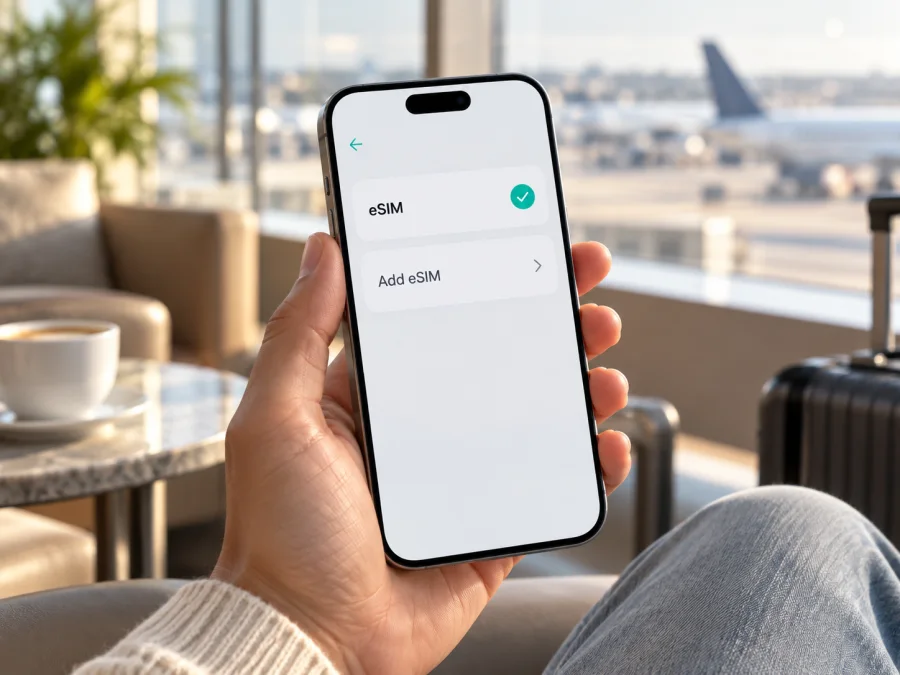
Apple iPhone 15 128GB eSIM: compatibility and setup guide
Quick answer: Apple iPhone 15 128GB supports eSIM in many regional versions, but the storage size does not tell you which SIM hardware your phone has. U.S. models are eSIM-only, most other regional versions combine a physical nano-SIM tray with eSIM, and the model sold for mainland China, Hong Kong, and Macao uses two physical nano-SIMs instead of eSIM. Check the model number and the settings on your own phone before choosing a plan. A carrier or service provider must also support eSIM activation for the country and plan you intend to use.
This distinction matters when you are preparing for a trip. The same retail name and 128GB capacity can describe devices with different SIM configurations. A phone may be technically eSIM-capable while a particular provider, plan, or operator market does not support activation on it. The reliable check combines the exact model number, the EID or eSIM controls in iOS, the carrier-lock status, and the terms of the travel plan.
Does Apple iPhone 15 128GB support eSIM?
Yes, if it is a regional hardware version with eSIM capability. Apple lists eSIM support for iPhone 15, including Dual eSIM capability on supported versions. The U.S. version has no physical SIM tray and uses eSIM. Versions sold in many other countries have a nano-SIM tray as well as eSIM, so they can keep a physical line and add a travel eSIM. However, the model number A3092, sold for mainland China, Hong Kong, and Macao, is the dual-nano-SIM version and does not provide eSIM. Apple identifies iPhone 15 models bought in those markets as supporting Dual SIM with two nano-SIM cards.
| Item | What to know about Apple iPhone 15 128GB |
|---|---|
| eSIM answer | Supported on eSIM-capable regional models; not supported by the A3092 dual-physical-SIM variant |
| U.S. hardware | Model A2846; eSIM-only, with no SIM tray |
| Other regional hardware | Model A3090 covers other countries and regions; A3089 covers Canada, Guam, Japan, Mexico, Saudi Arabia, and the U.S. Virgin Islands. These versions have a physical nano-SIM tray; check eSIM in Settings before purchase |
| Mainland China, Hong Kong, Macao | Model A3092; two nano-SIM cards, no eSIM |
| Storage | 128GB is a storage option and does not determine eSIM capability |
| Software | Use a current iOS version; menu wording can vary slightly by iOS release and language |
| Travel plan | The plan provider and the mobile network in the destination must support the relevant eSIM activation and service |
The regional distinctions describe the device hardware, not a blanket rule about where a phone can physically be used. A model purchased in one country can travel to another, but activation depends on the device’s eSIM hardware, whether it is unlocked, the plan’s destination and terms, and the operator or service provider’s support in that market. Likewise, being in a country where eSIM is common does not add eSIM hardware to a model that has two physical SIM slots.
<a id="kesim-device-compatibility"></a>
Check the exact model and eSIM compatibility
Start with the model identifier rather than the product name. On the iPhone, open Settings > General > About. Find Model Number. The value initially shown may be a part number; tap it to reveal the model identifier beginning with “A”, such as A2846 or A3090. Compare it with the regional list above. You can also check the small print on the original packaging, but the entry in Settings is preferable because boxes and devices can be mixed after resale.
Next, check the device for an EID. In Settings > General > About, scroll through the information for EID. EID is the identifier associated with an embedded SIM. If it is present, that is a strong practical sign that the phone contains eSIM hardware. You can also open Settings > Cellular (called Mobile Data in some regions or iOS versions) and look for Add eSIM, Set Up Cellular, or a similar option. Labels may differ with language and software version. Availability of the eSIM controls can also depend on the exact hardware variant, current iOS release, and carrier configuration.
The sales region, your present location, and the mobile network that issues a plan are three separate details. For example, an A3092 sold for mainland China, Hong Kong, or Macao uses two physical nano-SIM cards; being abroad does not turn that model into an eSIM phone. Conversely, an eSIM-capable iPhone bought elsewhere may travel internationally, but the destination’s rules and the particular operator market still determine which plans can be activated there. Apple currently states that iPhone 15 cannot install eSIM profiles from mainland China operators, including when the iPhone was purchased outside mainland China. That restriction concerns mainland China operator profiles; it should not be confused with the hardware question or treated as proof that every international travel plan works there. Ask the plan provider about the exact destination and network before buying.
Model and capacity labels are not substitutes for these checks. Storage such as 128GB, color, and language do not identify the SIM configuration. If you are buying a used phone remotely, request a photo of Settings > General > About showing the model identifier and an EID, with personal identifiers covered. Do not publish or send the full EID publicly. If the seller cannot confirm the variant, postpone the purchase until Apple or the seller can verify it.
Also check whether the iPhone is locked to a carrier. Open Settings > General > About and find Carrier Lock or Network Provider Lock. No SIM Restrictions means the phone is unlocked. If another status appears, contact the carrier that locked it and ask about unlocking. Apple cannot remove a carrier lock on the carrier’s behalf. An eSIM profile from a different provider may not activate on a locked phone even when the hardware supports eSIM.
Before choosing a plan, check whether your device is compatible. Confirm the model number, EID or Add eSIM control, carrier lock, plan activation method, and destination support together.
Before you buy a travel eSIM
Complete this short checklist before choosing a plan:
- [ ] Confirm that the device is Apple iPhone 15 128GB and record its A-model identifier from Settings.
- [ ] Check for an EID or an Add eSIM option. If neither appears, pause and verify the variant before paying.
- [ ] Confirm that Carrier Lock says No SIM Restrictions, or ask the current carrier to unlock the phone.
- [ ] Check that the eSIM plan covers the destination country or the full route, including any stopovers where you expect to use data.
- [ ] Read the plan details for data allowance, validity, supported network, activation requirements, and when validity begins.
- [ ] Confirm whether installation requires Wi-Fi, a QR code, an app, manual activation details, or another supported method.
- [ ] Keep access to the QR code or activation instructions on another screen or printed copy if you plan to scan it with the iPhone.
- [ ] Avoid deleting an installed eSIM profile unless the provider’s support team tells you to. Some profiles cannot be downloaded again after removal.
How to install and activate an eSIM on iPhone 15
- Check the device first. Confirm eSIM capability, an unlocked status, and that the plan is intended for your destination. Update iOS if a required update is available and you have time to complete it safely.
- Open cellular settings. Go to Settings > Cellular or Settings > Mobile Data. Tap Add eSIM or Set Up Cellular. The exact label depends on the iOS version and region.
- Choose the provider’s method. Select Use QR Code if you received one. Depending on iOS and how the code was delivered, you may be able to scan it with Camera or press and hold a QR code in a supported email or browser. If a provider supplies manual details, choose the option to enter details manually. Only use an activation link or app provided through the plan’s official instructions.
- Scan or enter the details. Position the QR code in the frame or carefully enter the provided information. If iOS asks for a confirmation code, use the code supplied by the plan provider. Do not reuse a code that has already been used unless the provider confirms it can be used again.
- Add the cellular plan. Review the on-screen prompts and tap the control to continue or add the plan. Wait while iOS downloads and installs the eSIM profile. Keep the iPhone connected to the internet and do not close the process midway.
- Label the line. Choose a label that makes the lines easy to recognize, such as “Travel” for the new eSIM and “Primary” for your usual line. The label is for your own settings and does not change the plan.
- Choose defaults carefully. If asked, select which line to use for calls, messages, and mobile data. For a data-only travel eSIM, you can usually leave your home number as the default for calls and messages and select the travel line for mobile data. The available choices depend on your plan and other active SIMs.
- Set the data line. Open Settings > Cellular > Cellular Data (or Mobile Data) and select the travel eSIM when you are ready to use it. Turn on Data Roaming for that eSIM only if the plan’s instructions require it. Follow the provider’s guidance; roaming settings can affect charges on other lines.
- Wait for the activation conditions. Some plans connect only after you arrive in the covered destination; others have different rules. Follow the plan’s instructions and allow time for network registration. Do not delete the eSIM if it does not connect immediately.
- Check the connection. Confirm that the travel line is enabled, the correct line is selected for data, Airplane Mode is off, and the phone shows a supported network. Open a simple webpage or messaging app to check data service.
For additional platform steps, see the iOS eSIM installation instructions and the Android eSIM installation instructions.
Using the travel eSIM during a trip
Before leaving home, you can review the destination and plan details, confirm compatibility, and install the eSIM if its activation rules allow. Keep your regular line available if you need your usual number for calls or verification messages, but decide which line uses mobile data. On arrival, turn on the travel line if you left it off, select it for cellular data, and follow the plan’s roaming instructions. An iPhone can use one cellular data network at a time even if multiple lines are active.
If your home line remains enabled, check the Allow Cellular Data Switching setting. Data switching can let the phone use another line under certain conditions. If you want to avoid unexpected roaming data on the primary line, keep switching off and confirm the travel line is selected. Your home carrier’s voice, text, and roaming charges are separate from the travel eSIM plan. If you do not need the home line while away, you can turn it off temporarily, but consider whether you need calls, SMS verification, or other services tied to that number.
A travel eSIM is generally intended for mobile data, not as a replacement for every function of your normal mobile plan. Internet calls and messaging apps may work over data, but ordinary calls and SMS depend on the plan and your phone-number line. If you need a local number, voice minutes, or text messages, look for those exact features in the plan terms or keep using a separate supported line.
Common problems and what to check
There is no Add eSIM control. Recheck the A-model identifier and the EID in Settings > General > About. A3092 is the dual-nano-SIM variant. If you believe you have an eSIM-capable model, restart the iPhone, install available iOS updates, and ask Apple or the seller to confirm the hardware variant. A software reset should not be your first diagnostic step.
The QR code will not scan. Increase screen brightness on the device showing the code, clean the iPhone camera lens, and hold the camera steady with the entire code in frame. Check that the code is not cropped or blurry. If the QR code is displayed on the iPhone itself, show it on another device or use the provider’s supported manual entry method. Avoid taking repeated actions if the provider says the code is single-use.
The profile fails to download or an error appears. Check that the iPhone has a stable Wi-Fi or cellular internet connection, turn Airplane Mode off, and retry only as instructed. Make sure the code or activation details are for this device and have not expired or already been used. Confirm the plan is valid for this regional model and destination. Save the exact error message and contact the provider if it persists; do not delete an existing profile to make room without advice.
The eSIM is installed, but there is no service. Check that the line is enabled in Settings > Cellular, that you are in a supported destination, and that the plan is active according to its terms. If instructed, enable Data Roaming for the travel line. Toggle Airplane Mode on briefly and off, then restart the iPhone. Allow a few minutes for network registration. If the line still shows no service, confirm the selected network and activation status with the provider.
The phone has signal but apps do not load. Verify that the travel line is selected under cellular data, cellular data is enabled, and the plan has remaining data and validity. Check whether a VPN, data limit, low-data setting, or app-specific restriction is affecting the connection. Try a basic webpage and another app. If only one app fails, the problem may be app-specific rather than the eSIM connection.
The home line is using data or roaming unexpectedly. Reopen Cellular settings and verify the selected data line. Turn off cellular data switching if you want to keep data on the travel profile, and review roaming settings on both lines. Check charges and roaming options with your home carrier; an eSIM plan does not automatically change the rules for your original number.
The phone is locked. Check Settings > General > About > Carrier Lock. If it does not say No SIM Restrictions, contact the carrier that sold or locked the phone. A supported eSIM cannot override a carrier lock, and Apple directs customers to the carrier for unlocking.
Frequently asked questions
Does every Apple iPhone 15 128GB have eSIM?
No. The capacity is not enough to identify the SIM hardware. A2846 is the U.S. eSIM-only version, many A3090 or A3089-market versions combine eSIM with a physical SIM tray, and A3092 is the China mainland, Hong Kong, and Macao dual-nano-SIM version without eSIM. Check the identifier and Settings on the actual phone.
Can a mainland China iPhone 15 use an international travel eSIM?
The A3092 version is the dual physical SIM variant and has no eSIM hardware for adding a travel profile. Apple also says iPhone 15 cannot install eSIM profiles from mainland China operators. If your device was bought elsewhere and you will travel in mainland China, ask the travel plan provider whether its specific service can be used there and check destination, network, and regulatory terms. Device variant, physical location, and the provider’s operator market are separate questions.
Can I use a physical SIM and an eSIM together?
On supported versions with a physical nano-SIM tray, iPhone 15 can use Dual SIM with a nano-SIM and eSIM; it also supports two active eSIMs where the model and provider permit. U.S. eSIM-only units have no physical SIM tray. The A3092 version uses two physical nano-SIMs instead of eSIM. Only one line can provide cellular data at a time.
Will an eSIM give me a phone number?
Not necessarily. Many travel eSIM plans are data-only and do not include a regular phone number, voice calls, or SMS. Read the specific plan terms. You may continue using messaging and internet-calling apps over mobile data, while calls and texts to your ordinary number use your other line and may be subject to that carrier’s charges.
What does 128GB change about eSIM?
Nothing about the eSIM radio capability. 128GB describes storage capacity. Two iPhones with the same capacity can have different regional SIM configurations, so check the A-model identifier and the settings rather than relying on storage or product name.
Check your device and choose a travel eSIM
Before ordering, verify that your specific Apple iPhone 15 128GB has eSIM hardware, confirm its model number and EID, and check for No SIM Restrictions. Then confirm the destination, data allowance, validity period, activation timing, and roaming instructions in the plan details. The A3092 dual-nano-SIM variant cannot add an eSIM, while eSIM-capable regional models still require a compatible plan and a supported operator market.
Kaspersky eSIM Store is an app and website where you can choose, order, and activate an eSIM with a suitable plan for mobile internet on an international trip. Use its available country or regional options to review the terms for your route. Check compatibility before purchase, follow the provider’s installation steps, and keep your primary line and roaming settings under your control while you travel.


