Travel connectivity guide
Apple iPhone 15 Plus 128GB eSIM: compatibility
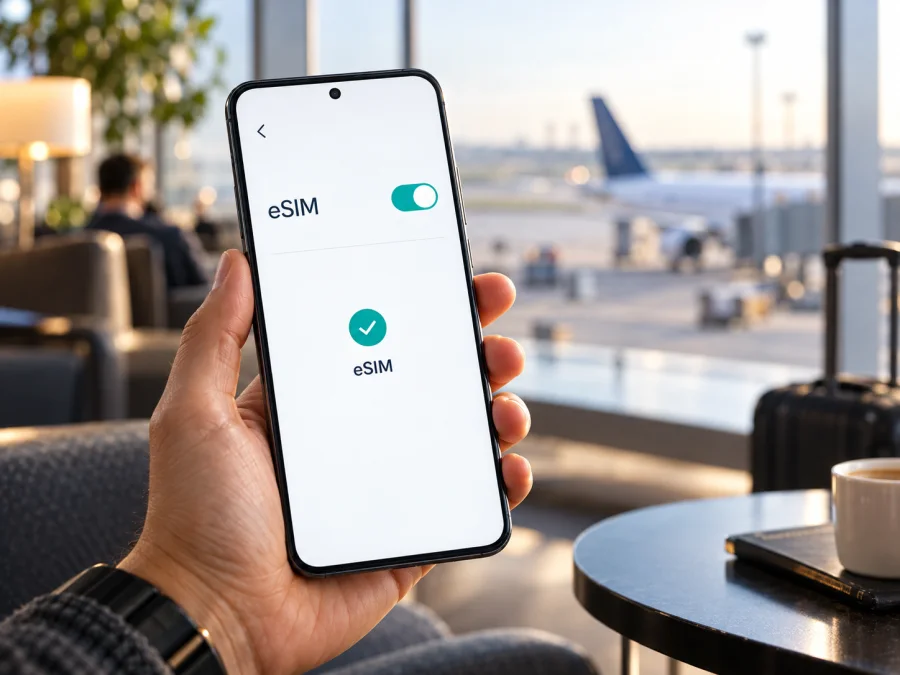
Apple iPhone 15 Plus 128GB eSIM: compatibility and setup
The Apple iPhone 15 Plus 128GB supports eSIM on most regional versions. The US model is eSIM-only; most other regions combine eSIM and a physical nano-SIM; mainland China, Hong Kong, and Macao use two physical nano-SIM cards. Storage capacity does not affect cellular support.
Before choosing a travel plan, check the phone’s model number, EID or “Add eSIM” option, and carrier-lock status. Confirm that the plan covers your itinerary.
Quick specifications
| Item | What to know |
|---|---|
| Device variant | Apple iPhone 15 Plus 128GB |
| Introduced | 2023 generation |
| eSIM | Yes on eSIM-capable regional variants; not on the mainland China/Hong Kong/Macao dual-nano-SIM variant |
| US version | eSIM only; no physical SIM tray |
| Most other regions | Physical nano-SIM plus eSIM |
| China mainland, Hong Kong, and Macao version | Two physical nano-SIM cards; no eSIM on this generation |
| Stored profiles | Apple lists storage for eight or more eSIM profiles on the eSIM-capable iPhone 15 family; the number active at once is not the same as the number stored |
| Active lines | Two eSIMs can be active at the same time on supported versions; only one cellular data line is used at a time |
| Travel use | A compatible travel eSIM can provide mobile data where its plan and partner network apply |
Does Apple iPhone 15 Plus 128GB support eSIM?
Yes, if your phone is an eSIM-capable regional variant. Apple’s specifications for the iPhone 15 Plus list eSIM support, including Dual eSIM, and the iPhone 15 family can store multiple eSIM profiles. The US model is activated with eSIM and has no physical SIM card support. Models sold in many other markets include a nano-SIM tray as well as eSIM capability.
There is an important regional exception. The model sold for mainland China, Hong Kong, and Macao is designed for Dual SIM with two nano-SIM cards. The iPhone 15 Plus version for those markets does not support adding an eSIM. A dual-SIM feature by itself therefore does not prove eSIM support: on that version, “dual SIM” means two physical cards.
Apple identifies the iPhone 15 Plus regional model numbers as A2847 for the United States and Puerto Rico, A3093 for Canada, Guam, Japan, Mexico, Saudi Arabia, and the US Virgin Islands, A3096 for mainland China, Hong Kong, and Macao, and A3094 for other countries and regions. The market where a phone was sold matters more than the language or country currently selected in iOS. A phone bought abroad keeps the capabilities of its hardware variant when you travel.
Keep market and geography separate: a phone’s sales region determines its hardware, while the visited network and plan determine whether it can connect. Apple’s current guidance does not list iPhone 15 Plus among models that can install eSIM profiles from mainland China carriers. That local operator-market limit is separate from using a travel eSIM elsewhere.
Regional radio bands, local carrier settings, the carrier’s eSIM activation process, and iOS version can affect service or setup. An eSIM-capable device can still fail to activate a particular plan if the provider does not support that model, the device is locked, the profile has already been used, or the phone cannot reach the activation server. Check the specific phone and plan rather than assuming support based on an iPhone 15 Plus label alone.
What to check before buying a travel plan
Run these checks on the phone you will take on the trip. If the phone is used or was bought from another country, ask the seller for its model number and confirm the device can be activated with another provider.
- [ ] Confirm the model number. Open Settings → General → About. Find Model Number and tap the part number shown beside it to reveal the A-number. Compare it with the regional list above. A3096 indicates the China mainland/Hong Kong/Macao dual-physical-SIM variant.
- [ ] Look for an EID. In Settings → General → About, scroll through the device details. An EID is the identifier associated with the embedded SIM hardware. If it is present, that is a strong practical sign that the phone has eSIM capability. If it is absent, do not assume an eSIM will work; verify the model number with Apple or the seller.
- [ ] Check the setup control. Open Settings → Cellular (called Mobile Data in some regions). Look for Add eSIM or Set Up Cellular. Labels can vary with iOS version and country. If the control is missing, check the exact regional model and contact Apple or the seller before paying for a plan.
- [ ] Check the network lock. Go to Settings → General → About and look at Carrier Lock or Network Provider Lock. No SIM Restrictions means the iPhone is unlocked. If a different restriction is shown, only the original carrier can confirm whether it can be unlocked. A locked phone may reject a travel provider’s eSIM even when its hardware supports eSIM.
- [ ] Confirm the plan’s market and purpose. Make sure the destination list covers every country you will visit, and read the terms for supported device types, activation, data allowance, validity, and whether the profile is data-only. A plan for mobile data may not include a regular phone number, voice calls, or SMS.
- [ ] Prepare an internet connection. Keep access to Wi-Fi or another connection while installing a profile. The phone needs to download and activate the eSIM information, and the provider may require a confirmation code or app.
- [ ] Check available eSIM slots and profiles. If the phone already has several profiles, review them in Cellular settings. Storage capacity for profiles does not mean all can be active simultaneously. Keep only the lines you need active and avoid deleting a profile unless its provider confirms it can be installed again.
<a id="kesim-device-compatibility"></a>
Check your device before you choose a plan
Check whether your device is compatible before you pay. Confirm the A-number, EID or Add eSIM control, and carrier-lock status on the actual phone. If you cannot confirm these details, ask Apple or the seller to verify the regional variant. This quick check can prevent buying a plan that the phone cannot install.
Installing an eSIM on the iPhone 15 Plus
The exact setup method is supplied with the eSIM plan. A provider may offer a QR code, an activation link, an app, or manual activation details. Keep the instructions available on another screen or printed page if you need to scan a QR code with the iPhone. Have a working Wi-Fi connection, make sure the plan is intended for this device and destination, and do not scan or submit an activation code more than once unless the provider tells you to.
Install with a QR code
- Connect to Wi-Fi. Use a stable connection and keep the phone powered on. If the plan is delivered in an email or account, open it on another device when possible so the iPhone camera can scan the code.
- Open the eSIM settings. On the iPhone, go to Settings → Cellular or Settings → Mobile Data, then tap Add eSIM or Set Up Cellular. If the iPhone is being configured for the first time, choose the option to use a QR code when it appears.
- Scan the provider’s code. Follow the on-screen prompts. If a confirmation code is requested, enter the code supplied with the plan. On supported iOS versions, a QR code displayed in the default email app or browser may also be pressed and held to start adding the eSIM.
- Wait for the profile to download. Keep the Settings screen open while iOS completes the process. Do not remove the profile or restart repeatedly if the screen takes a few minutes; first check the provider’s setup instructions and connection status.
- Label the line. Choose a clear label such as “Travel” so you can distinguish it from your usual number. A label helps you pick the correct line for mobile data later.
- Choose when to use it. Depending on the plan, install the eSIM before leaving and turn it on when you reach the destination, or follow the provider’s specific activation timing. Installation and the start of a plan’s validity are not always the same event; check the plan terms.
- Select the data line at the right time. In Settings → Cellular → Cellular Data, select the travel eSIM when you want it to carry mobile data. Turn on Data Roaming for that eSIM only if the provider’s instructions require it. Keep your primary line’s roaming setting under review to avoid unexpected charges.
Other installation methods
If the provider sends an activation link, open it on the iPhone and follow the iOS prompts. If the provider uses an app, install it from the App Store and complete the steps it gives you. Some providers provide manual SM-DP+ address and activation details; enter them only through Add eSIM → Enter Details Manually when that method is explicitly offered. A transfer from another phone depends on provider support. Do not assume that an eSIM can be moved just by copying it: many profiles are one-time installable or require a new activation from the provider.
For a screen-by-screen walkthrough, use the iOS eSIM installation instructions. The Android installation instructions are useful if you are setting up another supported device for a family member or travel companion.
Using the iPhone 15 Plus for mobile data on a trip
A travel eSIM can help with maps, transport bookings, translation, messaging, and work tools as soon as you arrive. Check that the plan covers every country on your route, then install the profile while you have a reliable internet connection. Installation and the start of validity are not always the same event: some plans start at first connection or activation, while others follow different terms. Check the timing before installing early.
At your destination, open Settings → Cellular, turn on the travel line, and select it under Cellular Data. Enable Data Roaming for that eSIM only if the provider requires it. Review Allow Cellular Data Switching so data does not move to your home line unexpectedly. The iPhone uses one mobile-data line at a time. A data-only plan does not necessarily include a regular number, voice service, or SMS, so check the terms if you need those services. When you return, select your usual line for data and do not delete the travel profile until you know whether it can be reinstalled or topped up.
Common problems and what to check
“Add eSIM” is missing
Check Settings → General → About for the EID and A-number. If the model is A3096, it is the dual-physical-SIM regional version and does not support eSIM. If the model should support eSIM but the menu is absent, update iOS when practical, restart once, and check for carrier or device-management restrictions. If the EID is missing or the model remains unclear, ask Apple or the seller to confirm the hardware variant before purchasing a plan.
The profile will not install
Confirm that the phone is connected to the internet, the iOS version is current enough for the provider’s method, and the profile is intended for this model and market. Check that the same plan has not already been installed on another device. If the phone displays a carrier-lock warning, contact the carrier that sold or locked the phone. If the activation code has been consumed or the provider reports an account problem, contact the plan provider with the exact error message; do not post the QR code or activation details publicly.
The eSIM is installed but there is no signal
Verify that the travel line is turned on and that your location is within the plan’s coverage area. Check the plan’s start conditions and supported network selection, then switch Airplane Mode on briefly and off. Restarting the phone once may help it register on a local network. If automatic network selection fails, follow the provider’s instructions before choosing a network manually. A compatible eSIM profile cannot create coverage where the plan has no supported partner network.
The phone connects but data does not work
Confirm that the travel line is selected under Cellular Data, that mobile data is enabled, and that data roaming is set as the plan requires. Check whether the provider supplied APN settings and enter them only as directed. Confirm that the plan has started and still has data available. If the data indicator appears but apps remain offline, test a different app or webpage and check for a device VPN, content filter, or configuration profile that may affect traffic.
Unexpected charges appear on the home line
Review Cellular Data, Default Voice Line, and Allow Cellular Data Switching. Check the roaming switch for each line separately and review the home carrier’s billing details. A travel eSIM does not automatically disable the main line or its roaming. When in doubt, switch off the home line’s data roaming and make sure the travel eSIM is selected for mobile data.
Practical travel scenarios
Short city break: Install over Wi-Fi before departure, check when the plan becomes valid, and select it for mobile data after landing. Use it for maps, tickets, and messaging.
Multi-country itinerary: Compare the plan’s country list with every stop, including places where you expect to use data during a transfer. Do not infer coverage from a broad region label alone.
Keep your home number: On an eSIM-capable regional version, you can keep your main line and add a travel eSIM. Choose which line carries data and check home-carrier roaming costs before leaving the primary line on.
Phone bought abroad: Verify the A-number and unlock status on the actual device. Its current location does not change the regional hardware or guarantee that a particular plan accepts it.
Frequently asked questions
Can Apple iPhone 15 Plus 128GB use two eSIMs?
Yes, on eSIM-capable regional variants. Apple lists Dual eSIM support for the iPhone 15 Plus, with two active eSIMs and storage for multiple profiles. The mainland China/Hong Kong/Macao model uses two nano-SIM cards instead, so it cannot use two eSIMs.
Does every iPhone 15 Plus 128GB have an eSIM?
No. Most versions support eSIM, but the regional variant matters. In particular, the A3096 model for mainland China, Hong Kong, and Macao has two physical nano-SIM slots rather than eSIM. Check the model number and EID on the actual device.
Can I use a travel eSIM if the phone still has a physical SIM tray?
Yes, if it is one of the eSIM-capable versions and it is unlocked. A physical SIM tray is normal on many iPhone 15 Plus models that also support eSIM. The tray alone does not prove or disprove eSIM support; check the model number and Settings.
Will installing the travel profile cancel my regular number?
Usually, installing a separate travel profile does not by itself cancel a home line, but line behavior depends on the setup method and provider. Check the prompts before confirming a transfer or replacement. Select the travel eSIM for data if that is your intention, and keep the home line only if its charges and roaming settings suit you.
Is eSIM the same as a phone plan with calls and texts?
Not necessarily. Many travel eSIM plans are for mobile data only. Check the selected plan’s terms if you need a local number, voice service, or SMS. Internet messaging and calling apps can use the data connection, but they do not add conventional cellular voice or SMS service to a data-only plan.
Before your next trip
The Apple iPhone 15 Plus 128GB is suitable for a travel eSIM when the specific regional version supports eSIM, the phone is unlocked, and the selected plan covers your destination. Check the A-number, EID or Add eSIM control, and Carrier Lock setting on the device itself. Treat the mainland China/Hong Kong/Macao A3096 variant separately: it uses two physical nano-SIM cards and has no eSIM support.
Once compatibility is clear, compare a plan’s covered locations, data allowance, validity, activation timing, and any roaming instructions with your itinerary. Kaspersky eSIM Store is an app and website where you can choose, arrange, and activate an eSIM with a plan for mobile internet on an international trip. Review the plan conditions before setup, then follow the provider’s activation steps and select the eSIM for mobile data when you are ready to use it.


