Travel connectivity guide
Apple iPhone 15 Plus 512GB eSIM: setup guide
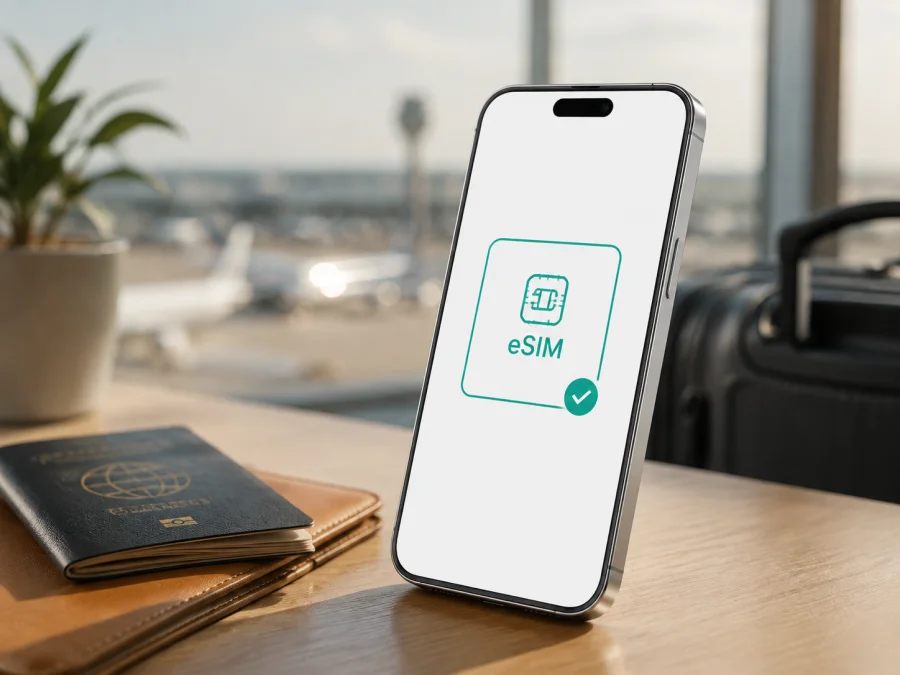
Apple iPhone 15 Plus 512GB eSIM: compatibility and setup
If you are preparing the Apple iPhone 15 Plus 512GB for a trip, the short answer is: eSIM support is available on many versions of this device, but it is not determined by the 512GB storage capacity alone. The country or region where the phone was sold, its model number, carrier-lock status and current iOS version all matter. A device bought in the United States is eSIM-only. Many versions sold outside the United States combine eSIM with a physical nano-SIM. Devices intended for China mainland, Hong Kong or Macao can be different and may use two physical nano-SIMs instead.
That distinction matters before you choose a travel plan. Apple’s current support information lists the Apple iPhone 15 Plus 512GB within a generation that supports eSIM, but Apple also states that eSIM availability is not identical in every country or region. The storage option is not the deciding factor: a 512GB phone can have different SIM capabilities depending on regional hardware. Treat the exact phone in your hand as the source of truth.
Quick answer: does Apple iPhone 15 Plus 512GB support eSIM?
Usually, yes. Apple’s documentation for this generation describes eSIM use, and supported versions can use two eSIM profiles. That lets you add a travel eSIM while keeping a regular line available. Only one line uses mobile data at a time, so you choose the data line in Cellular settings.
The qualification is important: “Apple iPhone 15 Plus 512GB” is a storage and retail description, not a complete regional identifier. The 512GB label does not reveal whether the phone is a US eSIM-only version, an international eSIM-and-nano-SIM version, or a China mainland/Hong Kong/Macao version with a different SIM arrangement. Apple’s official model-identification information separates these variants by model number and sales region.
What the 512GB label tells you
| Item | Meaning for eSIM compatibility |
|---|---|
| Exact device | Apple iPhone 15 Plus 512GB; keep this full name when checking the listing or invoice. |
| Storage | 512GB describes capacity. It does not by itself confirm or rule out eSIM. |
| Generation | This generation is listed by Apple among models that can support eSIM. |
| US version | US-sold versions are eSIM-only and have no physical SIM tray. |
| Many other regions | Versions sold outside the US can use eSIM and a nano-SIM. |
| China mainland, Hong Kong and Macao | Some versions use two nano-SIM cards; verify the actual phone. |
| Carrier status | An unlocked phone is needed when using plans from two different carriers. |
The table is a starting point. For an imported or second-hand device, confirm the model number and Settings screens before paying.
Regional versions and operator restrictions
The same retail family can have different SIM hardware. The US version has no SIM tray and is designed around eSIM. Many other regions have both a nano-SIM tray and eSIM, which lets your everyday number remain on the physical SIM while Travel handles data. Apple separately documents two-nano-SIM configurations for certain phones bought in China mainland, Hong Kong or Macao. If such a phone lacks EID or Add eSIM, do not assume an update will create support.
An eSIM-capable phone can still refuse a plan if it is carrier-locked, if the carrier does not support eSIM activation, or if the plan is not eligible. If you want two different providers, confirm that the Apple iPhone 15 Plus 512GB is unlocked.
The device and the plan are separate checks. The phone must be able to activate an eSIM, while the selected plan must cover the destination and fit your dates. A positive result in the phone menu does not guarantee coverage in a particular country.
How to check your exact phone before purchase
Use the phone’s own settings rather than relying on the box or seller’s headline. Apple places the EID and model details in the About screen. EID and Add eSIM together show that the system exposes the eSIM path, but still confirm the carrier lock and destination plan.
Device check
- Open Settings.
- Tap General.
- Tap About.
- Look for EID among the identifiers.
- Note the Model Number and, if needed, tap it to reveal the hardware identifier.
- Return to Settings and open Cellular.
- Look for Add eSIM, Set Up Cellular or similar wording.
If EID is present and Add eSIM is available, the software is exposing eSIM support. If both are missing, pause the purchase and investigate the regional model. A physical SIM tray does not prove eSIM is absent, because many international versions have both.
For the cleanest result, connect to Wi‑Fi, install the latest supported iOS and restart before checking. Managed or restricted devices may behave differently.
If you want a compact pre-purchase reference, Check your device before selecting a tariff. The check should answer four questions: is this the correct regional version, is an EID visible, is an eSIM addition control available, and is the phone unlocked for the intended plan?
Compatibility checklist for a travel eSIM
<a id="kesim-device-compatibility"></a>
Use this checklist for the Apple iPhone 15 Plus 512GB and for any plan you are considering:
- Confirm the exact device name and 512GB storage; do not use a generic iPhone 15 listing as proof.
- Check the model number and sales region, especially for an imported phone.
- Look for EID in Settings > General > About.
- Look for Add eSIM or Set Up Cellular in Settings > Cellular.
- Confirm that the device is not carrier-locked.
- Check that the plan supports eSIM activation on iPhone.
- Confirm that the plan covers every country or region on your route.
- Check data allowance, validity, activation rule and refund conditions.
- Keep Wi‑Fi available for installation.
- Decide whether your home line should remain active.
Kaspersky eSIM Store is an app and website where you can choose, arrange and activate an eSIM with a suitable mobile-data plan for an overseas trip. It is not a mobile operator, network owner or mobile-internet provider; coverage depends on the underlying local operator arrangements and selected plan.
Choosing a plan for your trip
Start with the route, not with the phone’s storage. A short city break may need data for maps, messages and transport apps; a longer trip may need more for calls, hotspot use and cloud services. Read the plan’s destination, allowance, validity and activation wording. If your route crosses borders, confirm that every country is included. Unless the conditions say otherwise, a travel eSIM is for mobile internet rather than a separate phone number, ordinary voice calls or SMS.
How to install and activate eSIM on Apple iPhone 15 Plus 512GB
Before starting, make sure the phone is unlocked, charged, connected to Wi‑Fi and running supported iOS. Keep the QR code or activation details on another screen. Do not delete an existing eSIM until you understand the plan’s reinstall rules.
For general setup references, see the iOS eSIM installation instructions and the Android eSIM installation instructions. The Android guide is included for travellers preparing another phone; the steps below are for the Apple iPhone 15 Plus 512GB.
1. Prepare the connection
Connect the phone to reliable Wi‑Fi so it can download and register the profile.
2. Open the eSIM menu
Go to Settings > Cellular and tap Add eSIM or Set Up Cellular. Wording can vary with the iOS language and version. If the option is not present, return to the compatibility checks instead of trying random QR codes.
3. Scan or enter the details
Choose the QR-code option and place the code inside the frame. Follow the prompts, or use the supplied link, app flow or manual SM-DP+ details. A confirmation code may be requested. Keep activation details private.
4. Add and label the line
Confirm the mobile plan and label it Travel. Keep the regular line’s label distinct. The profile may appear before it registers on a local network.
5. Choose the data line
When iOS asks about default lines, select Travel for Cellular Data. Review Allow Cellular Data Switching; leaving it off is often easier for monitoring.
6. Configure roaming
Open the travel line’s settings and check Data Roaming. Some plans require it through a partner network. Follow the plan’s conditions; roaming on the home line can create charges.
7. Activate at the right time
If the plan starts on first connection in the destination, install it before departure and keep the line off until needed. After landing, turn on Travel, select it for Cellular Data and test a webpage.
8. Check the result
Open Control Center and look for the expected line or network indicator. In Settings > Cellular, verify that Travel is on and selected for Cellular Data. Test briefly with Wi‑Fi off.
Practical travel scenarios
Keep your home line installed when the regional version has nano-SIM and eSIM, but select Travel for Cellular Data and review roaming settings. US versions are eSIM-only. Installing before departure can be convenient, but installation is not always activation, so check when validity or data use begins.
After landing, turn off airplane mode, turn on Travel and select it for Cellular Data. For a multi-country itinerary, confirm the next destination is included. Check hotspot support separately; 512GB storage does not increase mobile data.
Troubleshooting eSIM problems
There is no Add eSIM option
Check Settings > General > About for EID and confirm the model number and sales region. A China mainland, Hong Kong or Macao version with two nano-SIM support may not expose eSIM. If EID is present but the menu is missing, update iOS, connect to Wi‑Fi and restart before asking Apple or the seller to confirm the hardware.
The QR code will not scan
Increase the brightness of the other screen, clean the lens and hold the code steady. Make sure it belongs to this plan and has not been used. Use a supplied link or manual details where supported. Never publish an activation code.
The profile was added but there is no service
Confirm that Travel is on and selected under Cellular Data. Check the destination, data-roaming requirement and activation status. Toggle airplane mode, restart and allow a few minutes for registration. The issue may be the local network or plan eligibility, not storage capacity.
Data is coming from the wrong line
Open Settings > Cellular > Cellular Data and select Travel. Review Allow Cellular Data Switching and turn it off for one fixed data line. Disable home-line data roaming if you do not want it used.
Activation says unsupported or unavailable
Check for a carrier lock, an incorrect regional model and an iOS update. Verify that the plan supports eSIM on iPhone. If EID is present and the problem persists, keep the error message, EID and model number ready for support; do not erase the profile before asking whether it can be reissued.
The connection is slow or stops
Check signal strength, selected network, remaining data and validity. Try airplane mode once and test with Wi‑Fi off. A 5G icon does not prove that the travel line has usable data.
FAQ
Is the 512GB version automatically eSIM-compatible?
No. Capacity does not determine SIM hardware. Apple iPhone 15 Plus 512GB can be eSIM-capable in many regions, but imported devices and versions sold for China mainland, Hong Kong or Macao require extra care. Check EID, Add eSIM, model number and carrier lock status.
Can I use a physical SIM and travel eSIM together?
Often, yes, on versions with both a nano-SIM tray and eSIM. Keep the home SIM installed and select Travel for Cellular Data. US versions are eSIM-only, so confirm the regional model before planning a dual-line setup.
Will eSIM give me a regular phone number?
Not necessarily. A travel eSIM in this context is for mobile internet. Unless the plan explicitly includes voice or SMS, use internet-based apps for communication.
Do I need to remove my home SIM?
Usually not. Keep it installed if needed, but check voice, SMS and roaming settings to avoid charges. Label every line and select the correct data line.
Can I install the same eSIM on another phone?
Do not assume so. Many profiles are tied to the first installation. Review the plan’s terms before deleting or transferring it.
Is the Apple iPhone 15 Plus 512GB suitable for travel data?
It can be, if the exact regional model exposes eSIM, the phone is unlocked, the plan covers the destination and setup succeeds. Storage and 5G capability do not replace the compatibility and plan checks.
What if the phone was bought used?
Ask the seller to show Settings > General > About, including EID and model number, and Settings > Cellular, including Add eSIM. Confirm that Activation Lock is removed and the phone is not carrier-locked.
Final device check before your trip
Before paying for a travel eSIM, confirm the exact Apple iPhone 15 Plus 512GB and sales region, find the EID, locate Add eSIM in Cellular settings and confirm that the phone is unlocked. Then match the plan to your route, validity and data needs.
Once compatibility is confirmed, use Kaspersky eSIM Store as the app or website for choosing, arranging and activating an eSIM with a suitable travel mobile-data plan. Review the destination and validity, then install with reliable internet and select Travel for Cellular Data.
If the phone lacks EID or Add eSIM, or uses the China mainland, Hong Kong or Macao two-nano-SIM configuration, confirm support before purchase. Check the device first, then choose and activate a matching travel eSIM.


