Travel connectivity guide
Apple iPhone 15 Plus eSIM: Compatibility & Setup
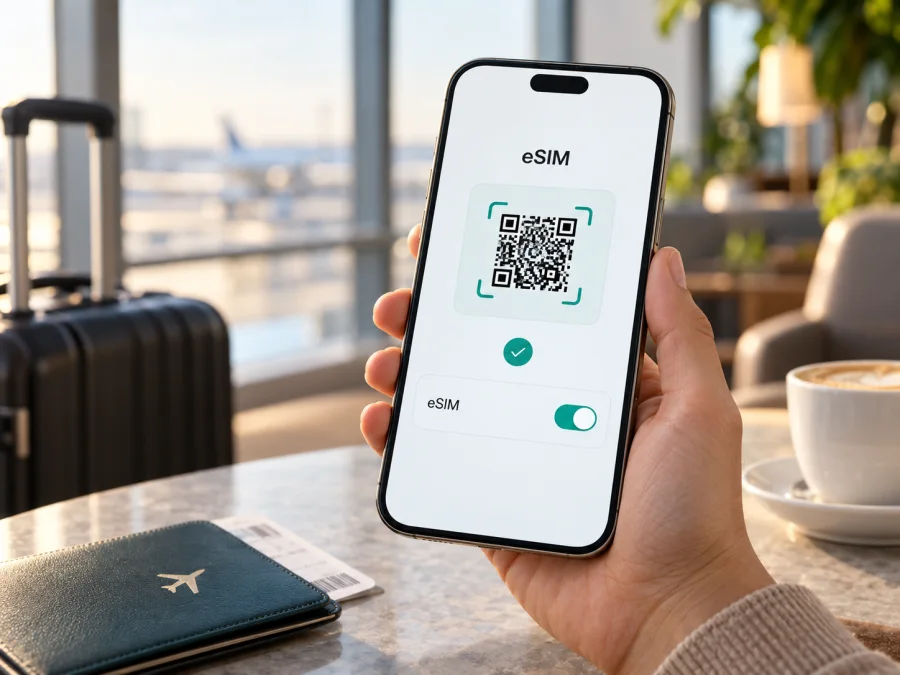
Apple iPhone 15 Plus eSIM: compatibility, setup and travel use
Yes, Apple iPhone 15 Plus supports eSIM in most markets. It can use a digital mobile plan alongside a physical nano-SIM, or use two active eSIMs. There is one important regional exception for this exact model: versions sold in mainland China, Hong Kong and Macao are designed for two physical nano-SIM cards and do not offer eSIM. Apple’s current guidance for mainland China lists newer, specific models as eSIM-capable; Apple iPhone 15 Plus is not among them. If you are buying a used or imported phone, check the actual device rather than relying on the model name alone.
Apple iPhone 15 Plus eSIM compatibility at a glance
| Check | What to know |
|---|---|
| General model support | Supported on Apple iPhone 15 Plus versions intended for most markets, subject to carrier and country availability. |
| Mainland China version | Does not support eSIM; the regional model uses two physical nano-SIM cards. |
| Hong Kong or Macao version | Apple lists Apple iPhone 15 Plus among models with dual nano-SIM support for those markets. Treat it as a physical-SIM version and verify the exact unit before purchase. |
| Dual SIM on supported versions | Depending on market and carrier, a physical nano-SIM can be used with an eSIM, or two eSIMs can be active. Only one line uses mobile data at a time. |
| What to verify | Find the EID and the “Add eSIM” control in Settings, then confirm that the device is unlocked and the plan supports the destination. |
Apple’s regional hardware differences matter more than the shared product name. Most Apple iPhone 15 Plus phones sold in the United States and many other countries support eSIM. US models are eSIM-only, while many international versions have a physical SIM tray as well as eSIM. The China mainland, Hong Kong and Macao configurations are the notable exception for Apple iPhone 15 Plus: Apple’s documentation describes dual nano-SIM use for these devices. A dual-SIM listing by itself does not prove that one of those SIMs is an eSIM.
The country where the phone is used is also distinct from the country where it was sold. A supported international Apple iPhone 15 Plus can generally use a compatible travel eSIM abroad, but local regulations, carrier provisioning and the plan’s supported destinations still apply. Conversely, travelling across a border does not add an eSIM feature to a regional hardware version that lacks it. If the phone was bought second-hand, brought in from another market or refurbished, ask for the model number and verify it directly on the handset.
Confirm your own phone before choosing a plan
- Open Settings and tap General, then About.
- Scroll down and look for EID. An EID is the identifier for the embedded SIM hardware. If it is present, that is a strong indication that this handset has eSIM hardware.
- Return to Settings and open Cellular (called Mobile Data in some regions). Look for Add eSIM or Add Cellular Plan. The wording depends on iOS language and version.
- Check Carrier Lock in Settings > General > About. For use with another provider, the status should say No SIM restrictions. Contact the original carrier if the phone is locked; eSIM capability does not remove a carrier lock.
- If either the EID or add-plan option is missing, compare the model number with Apple’s regional information and ask Apple or the seller to identify the unit. Do this before paying for a travel plan.
<a id="kesim-device-compatibility"></a>
Compatibility checklist for Apple iPhone 15 Plus
Use this checklist before ordering a data plan:
- [ ] The phone shows an EID in Settings > General > About.
- [ ] Add eSIM appears under Settings > Cellular/Mobile Data.
- [ ] The phone is unlocked, or the carrier confirms that it permits the eSIM you intend to use.
- [ ] The eSIM plan supports the destination or every country on your itinerary.
- [ ] You have a stable Wi-Fi connection for installation and enough time to complete activation.
- [ ] You understand the plan’s data allowance, validity period, activation trigger and any fair-use limits.
- [ ] You know which line will provide mobile data and how to avoid unwanted roaming on your home line.
Before paying, distinguish hardware support from permission to connect. The EID confirms an embedded-SIM component; the Add eSIM setting confirms that iOS exposes the setup flow. Neither one confirms that the phone is unlocked, that a provider accepts the device, or that a plan covers your destination. Treat all four checks—regional version, EID, lock status and plan terms—as separate pieces of the decision. A seller’s description or SIM-tray appearance alone is not enough to establish all of them.
Check whether your device is compatible before selecting a plan. A model-family match is only an initial indication: the exact region, lock status, software, carrier and destination can affect whether installation and service work. For a trip, also read the plan details carefully. Coverage and speed depend on the local network used by the plan, signal conditions and local availability; they are not guaranteed simply because the phone accepts an eSIM profile.
Set up an eSIM on Apple iPhone 15 Plus
Before starting, connect the iPhone to Wi-Fi, update iOS if practical and keep the installation details available. An eSIM may be installed through a carrier-supported transfer, a QR code, a carrier app or manual details. Which methods appear depends on the provider and iOS. Use the method supplied for your plan; do not scan a QR code sent for a different device or purchase.
- Review the plan instructions. Confirm the destination, data amount, validity, when validity begins, and whether the provider requires installation before departure or activation after arrival. Some plans start their validity when first connected to a supported network; others use a different trigger.
- Open the cellular settings. On Apple iPhone 15 Plus, go to Settings > Cellular or Settings > Mobile Data, then tap Add eSIM. Follow the on-screen flow.
- Choose the provided installation method. If the plan uses a QR code, scan it with the iPhone camera or choose the QR-code option in the setup flow. For a carrier app, use the official app and follow its prompts. Enter manual details only if the provider has explicitly supplied them.
- Label the line. Choose a clear label such as “Travel” so you can distinguish it from your home number in settings. Labels help manage the lines but do not change the plan’s conditions.
- Choose defaults deliberately. Keep your home line selected for calls and messages if you need it. Select the travel eSIM for Cellular Data when you want it to provide internet access. If offered, enable Allow Cellular Data Switching only if you understand how the phone may switch data lines and what your home carrier may charge.
- Check data roaming for the travel line. Some travel plans require Data Roaming to be on for that eSIM to connect to its partner network. Follow the plan’s instructions for that line specifically. Check that roaming is off on your home line if you want to avoid roaming charges there.
- Wait for registration. The plan may show as activating before it connects. Once it is active, check for a carrier name or signal indicator, then open a webpage with Wi-Fi turned off to confirm that mobile data works.
For screenshots and platform-specific steps, see the iOS installation instructions and the Android installation instructions. Apple iPhone 15 Plus uses iOS; screens vary by version, language and provider.
Installation is not always the same as activation
Installing a profile and starting service are not always the same event. A plan may begin when it reaches a supported network, at a specified date or after another provider step. Read the activation rule before installation; if first connection starts validity, keep the travel line off until the trip. Follow the provider’s roaming instructions after arrival and allow time for network registration. Avoid deleting a profile to troubleshoot: single-use QR codes may require the provider to issue a replacement.
Using Apple iPhone 15 Plus for mobile data on a trip
A travel eSIM is useful when you decide in advance which line should provide data. Keep your regular number available for calls or verification only if needed, and review its roaming terms: your home carrier may charge for calls, texts or roaming even when a travel plan is installed. Many travel eSIMs are data-only, so check the selected plan’s terms for voice, SMS and hotspot support.
Prepare before departure
Check destination coverage, data allowance, validity and the rule that starts the plan. Install over reliable Wi-Fi if the provider permits; label the new line “Travel” and choose which line will provide mobile data. If first connection starts validity, keep the travel line off until the intended time. Save the plan instructions securely, but do not expect a QR code to be reusable.
Arrive and connect
Enable the travel eSIM, select it for mobile data and enable data roaming for that line if the provider requires it. Wait for registration, then test a webpage with Wi-Fi disabled. If you visit several countries, confirm that all stops are included in the plan. For hotspot use, verify support and restrictions before purchase, and monitor usage because video, backups and updates can use data quickly.
Dual SIM does not mean both lines provide data simultaneously: Apple iPhone 15 Plus uses one cellular data line at a time. Data switching may change which line is used, and charges depend on each carrier’s terms. If avoiding home-line data charges is important, select the travel eSIM explicitly and turn off data roaming on the home line.
Troubleshooting eSIM on Apple iPhone 15 Plus
“Add eSIM” is missing. Look for an EID in Settings > General > About, restart and update iOS if available. Confirm the model’s market and number. Mainland China, Hong Kong and Macao Apple iPhone 15 Plus versions use two nano-SIM cards. If the region or EID is unclear, ask Apple or the seller before buying a plan.
The profile will not install. Confirm Wi-Fi access, correct date and time, and that the QR code belongs to this plan and has not been used. Follow the provider’s supported installation method. If an error remains, contact the plan provider with the error details. Do not share the QR code; it can contain activation credentials.
The profile is installed but there is no service. Check that the line is on, the plan is valid in your location and its activation time has arrived. Select the travel line for data and follow the plan’s roaming and network-selection directions. Briefly toggle airplane mode or restart once. If signal appears but pages do not load, turn off Wi-Fi for a test and check that mobile data is enabled.
The phone is slow or the eSIM was deleted. Check coverage, remaining data and validity; local signal and network conditions affect speed. Apple iPhone 15 Plus 5G access depends on the plan, local network, settings and compatible bands. If you deleted the profile, do not repeatedly scan its QR code: contact the provider, as some codes are single-use. A deleted profile is not necessarily a cancelled plan.
Frequently asked questions
Does every Apple iPhone 15 Plus support eSIM?
No. Most regional versions do, but models sold in mainland China, Hong Kong and Macao use two physical nano-SIMs. Check the EID, Add eSIM setting and the exact phone’s origin.
Can it use two eSIMs or keep my home number?
On eSIM-capable versions, iPhone 13 and later can use two active eSIMs where the carrier and market support them. Versions with a SIM tray may combine a nano-SIM and eSIM; US models are eSIM-only. Keep your regular number only after checking home-carrier charges and select the travel eSIM for data.
Does a travel eSIM include a phone number?
Many plans are for mobile data only and do not include a conventional number, voice service or SMS. Check the individual plan; internet calling and messaging apps can use its data connection.
Should I install before travelling, and is the phone unlocked?
Reliable Wi-Fi can make installation easier, but follow the provider’s instructions about when to install and when validity begins. eSIM support does not mean the phone is unlocked: Settings > General > About > Carrier Lock should show No SIM restrictions for use with another provider.
Before your trip: check the phone, then choose the plan
The safest quick decision for Apple iPhone 15 Plus is to verify the handset in your hand: find its EID, confirm Add eSIM appears in Settings and check No SIM restrictions if you will use another provider. If it was purchased in mainland China, Hong Kong or Macao, treat it as a dual nano-SIM model unless Apple or the device itself confirms otherwise. Do not rely only on a listing title or a seller’s broad claim that “iPhone 15 Plus supports eSIM.”
Then match the eSIM plan to the trip: make sure the destination or route is covered, the validity window suits your dates, and the data allowance suits your usage. Read whether installation or first network connection starts the plan, and whether roaming or hotspot use is supported. Kaspersky eSIM Store is an app and website where you can choose, arrange and activate an eSIM with a mobile data plan for an international trip. The local network, coverage and service conditions depend on the plan and the networks available at your destination. Check compatibility before choosing a plan, and keep the setup instructions accessible while travelling.


