Travel connectivity guide
Apple iPhone 15 Pro 512GB eSIM: compatibility
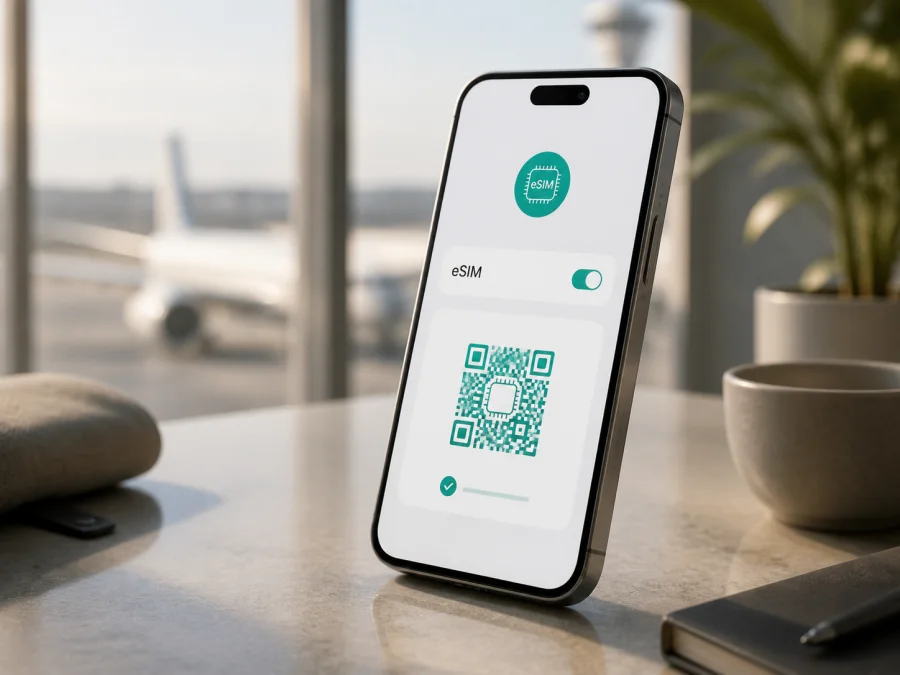
Apple iPhone 15 Pro 512GB eSIM compatibility and installation
Yes, an Apple iPhone 15 Pro 512GB can support eSIM. The important detail is the sales region: US models are eSIM-only, many other regional versions combine eSIM with a nano-SIM, and models sold for China mainland, Hong Kong, or Macao can use two physical nano-SIM cards. Therefore, confirm the individual phone in iOS before buying a travel plan.
Apple’s current eSIM guidance covers the iPhone 15 Pro generation. On an eSIM-capable phone, an EID appears in Settings > General > About, and iOS offers Add eSIM in Settings > Cellular or Mobile Data. You also need an unlocked phone, a provider that supports eSIM, and a plan that includes your destination.
Quick answer for Apple iPhone 15 Pro 512GB
| Check | Practical answer |
|---|---|
| Exact device | Apple iPhone 15 Pro 512GB |
| eSIM | Yes on eSIM-capable regional versions; verify the actual phone |
| US version | eSIM-only, with no physical SIM tray |
| Many other markets | eSIM plus nano-SIM, subject to carrier support |
| China mainland, Hong Kong, or Macao versions | Apple documents two nano-SIM support; do not assume eSIM |
| Storage | 512GB changes capacity, not eSIM eligibility |
| Lock status | Check for No SIM restrictions in Carrier Lock |
| Best proof | An EID plus an Add eSIM option |
Does Apple iPhone 15 Pro 512GB support eSIM?
Yes, if it is the eSIM-capable regional version. Apple describes the iPhone 15 Pro as supporting digital cellular plans without a physical SIM, and its eSIM-capable configuration supports two active eSIMs and stores multiple profiles. The phone uses one cellular data network at a time, so two lines do not mean two simultaneous data connections.
There are three useful regional cases:
- US model: iPhone 15 Pro models purchased in the United States are activated with eSIM only. A compatible travel plan can be added digitally, but the provider must support eSIM and the phone must be unlocked.
- Most non-US models: the phone normally has eSIM and one nano-SIM. You may keep a home physical SIM and use a travel eSIM for data, subject to the plan’s conditions.
- China mainland, Hong Kong, or Macao model: Apple documents iPhone 15 Pro units from these markets with two nano-SIM cards. Apple’s current China mainland guidance says only iPhone 17e and iPhone Air support China mainland carrier eSIM profiles; other iPhone models cannot install those profiles. For these regional units, use the EID and Add eSIM checks rather than an assumption based on the name.
How to verify your phone before buying a plan
Check the EID
- Open Settings.
- Tap General.
- Tap About.
- Scroll through the identifiers.
- Look for EID, the identifier for the embedded SIM.
Apple places the EID on the About screen. You may touch and hold it to copy the number, but do not post it publicly.
Look for Add eSIM
- Open Settings.
- Tap Cellular or Mobile Data.
- Look for Add eSIM, Set Up Cellular, or a similar option.
- Do not delete an existing line just to test the menu.
If the option is missing, restart the iPhone, check for a carrier settings update, and look again. If there is no EID and no eSIM setup control, pause the purchase. A two-nano-SIM regional phone may be behaving as designed. Ask Apple, the seller, or the intended provider to identify the model before you pay.
Check the model and carrier lock
In Settings > General > About, tap the value beside Model Number to switch between the part number and A-number model identifier. Compare it with the sales region or invoice. Confirm that the phone still shows 512GB if that exact variant matters to your purchase; storage does not verify eSIM.
On the same screen, find Carrier Lock. The expected unlocked result is No SIM restrictions. If another status appears, contact the current provider before buying. Apple states that only the current provider can remove a carrier lock; adding a profile cannot bypass it.
These checks answer different questions. The EID confirms that the phone has embedded-SIM hardware; Add eSIM confirms that the current iOS configuration exposes the installation path; and No SIM restrictions confirms that another provider may be used. A plan can still be limited by destination, carrier, or regional policy, so keep all three checks together and ask for clarification when one is missing.
What to check before buying an eSIM plan
Use these signals to make the device decision before continuing to plan selection or payment.
Before buying, use this final compatibility step: Check your device using the EID, Add eSIM, and No SIM restrictions signals. Then confirm that the plan supports the destination, iOS version, and required data service.
Compatibility is a chain of conditions. Work through this checklist before payment:
- [ ] The phone is the exact Apple iPhone 15 Pro 512GB variant, not another iPhone 15 model or a different regional version.
- [ ] EID appears in Settings > General > About.
- [ ] Add eSIM or an equivalent setup control appears in Settings.
- [ ] Carrier Lock says No SIM restrictions, or the current provider has confirmed the unlock.
- [ ] The phone is not managed by an organization that blocks new cellular plans.
- [ ] iOS meets the provider’s activation requirements.
- [ ] Wi-Fi or another internet connection is available for downloading the profile.
- [ ] The plan covers every country or region on the itinerary.
- [ ] Data allowance, validity, start condition, top-up, and refund terms are suitable.
- [ ] You know whether the travel eSIM requires data roaming.
- [ ] The QR code or activation details are stored securely and can be shown on another screen.
Make this check before reaching the airport. Validity may begin at installation, first connection, or another stated event, and a profile may be non-refundable after use. A mobile-data eSIM normally does not include a regular phone number, voice calls, or SMS unless stated.
Kaspersky eSIM Store is an app and website for choosing, arranging, and activating an eSIM plan for mobile internet during a foreign trip. It is not a mobile operator, network owner, or internet provider; the selected plan and its local network partners determine coverage. Review destination, traffic, and validity conditions in the app or site.
How to install an eSIM on Apple iPhone 15 Pro 512GB
Connect to Wi-Fi, charge the phone, and keep the activation details ready. Install only after the checks pass. If the QR code is on the iPhone, show it on another screen or use the provider’s supported manual method.
The iOS eSIM installation instructions cover the general flow. For readers preparing another device, the Android eSIM installation instructions explain the Android menus; they do not replace the iPhone steps below.
Install with a QR code
- Connect the iPhone to Wi-Fi.
- Display the complete activation QR code on another screen.
- Open Settings.
- Tap Cellular or Mobile Data.
- Tap Add eSIM or Set Up Cellular.
- Choose the QR-code option.
- Scan the code.
- Tap the detected cellular-plan notification.
- Tap Continue.
- Tap Add Cellular Plan.
- Enter a confirmation code if requested.
- Wait while iOS downloads the profile.
- Label the line Travel so it is easy to identify.
Apple also supports scanning a carrier QR code with the Camera app after setup. On supported iOS versions, a QR code in the default email app or browser may offer Add eSIM when touched and held. A provider may instead send a carrier link or manual details; use only the supplied values.
Activate and select the data line
When iOS asks how to use the new line, keep the home line as the default for voice and messages if you need that number. Select Travel for Cellular Data when you are ready to use the travel plan. Leave Allow Cellular Data Switching off unless you intentionally want iOS to change data lines.
Open Settings > Cellular > Travel. Turn on This Line when the trip plan should be active. If its terms require it, turn on Data Roaming for Travel only. Do not assume roaming is always required or free; follow the plan conditions. Keep data roaming off on the home line unless its terms are clear.
Installation and activation are not always simultaneous. The profile can download while the line is disabled, its start condition has not occurred, or iOS is using the home line for data. Activation may take a few minutes, so keep the details until the connection is confirmed.
How to use the eSIM for mobile internet while traveling
Keep the home line for calls and messages and assign mobile data to Travel. Install before departure on Wi-Fi, but follow the plan’s stated start condition: it may be installation, first connection in the destination, or another trigger.
Short city trip
Use Travel for maps, transport, translation, bookings, banking alerts, and messages. On arrival, open Settings > Cellular, enable Travel, and select it as Cellular Data. Send a message to confirm the connection before leaving Wi-Fi.
Multi-country itinerary
Check whether one regional plan covers every stop. A country plan may stop working at a border even though the phone remains compatible. Keep the home number enabled for necessary messages, but make sure it is not selected for Cellular Data. Monitor balance and validity as you move between networks.
Longer stay or heavy use
Estimate traffic for video calls, work files, navigation, tethering, and media. The phone’s 512GB storage is unrelated to the plan’s data allowance. If hotspot use matters, confirm that the plan permits it. A travel eSIM gives data under its conditions, but it does not automatically provide a local phone number.
After the trip, turn off Travel. Remove it only when you are sure it is no longer needed, because some profiles cannot be transferred or reinstalled after activation.
Troubleshooting
No EID or Add eSIM
Recheck both Settings paths, restart the iPhone, and install an offered carrier settings update. Confirm the part number and sales region. A China mainland, Hong Kong, or Macao model with two nano-SIM slots may have no eSIM controls. Do not force a QR code onto it; ask the seller or provider to confirm compatibility.
QR code will not scan
Increase the other screen’s brightness and hold the phone steady. Use a second screen if needed. If manual details were supplied, enter them through Settings > Cellular > Add eSIM > Enter Details Manually exactly as received. Never guess an SM-DP+ address or activation code.
Profile will not download
Use reliable Wi-Fi, turn off Airplane Mode, restart the phone, and check iOS requirements. A profile may be limited to one installation or one device. If activation began on another phone, contact the provider before deleting anything.
Installed but no service
Confirm that Travel is enabled and selected under Cellular Data. Check Data Roaming, toggle Airplane Mode, and wait a few minutes. Verify destination coverage and contact support if the line still shows no service. Kaspersky eSIM Store can help with selection and activation, but it does not control local coverage.
Home line is using data
Open Settings > Cellular > Cellular Data and select Travel. Review Allow Cellular Data Switching and disable it for a fixed data line. An active home line for calls does not mean it is the selected data line.
Plan is unsupported or locked
Return to Settings > General > About and check Carrier Lock. No SIM restrictions is the expected unlocked status. If an unlocked phone rejects the profile, the regional model, code, or destination may be unsupported. Give support the error and EID; keep the QR code private.
FAQ
Does Apple iPhone 15 Pro 512GB have eSIM?
Yes, eSIM is supported by eSIM-capable regional versions. The 512GB capacity does not change the answer. Verify the actual phone because US models are eSIM-only and some China mainland, Hong Kong, or Macao versions are documented with two nano-SIM cards.
Does a travel eSIM include calls and SMS?
Usually not when it is a mobile-data plan. It does not include a regular phone number unless the plan explicitly provides one. Use the home line where permitted or use calling and messaging apps over data.
Can I activate a travel eSIM in China mainland?
Do not assume so. Apple’s current guidance says only iPhone 17e and iPhone Air support China mainland carrier eSIM profiles. An Apple iPhone 15 Pro 512GB from another region may support eSIM elsewhere, but that does not mean it can install a mainland carrier profile in China mainland.
Conclusion: check first, then choose a travel eSIM
The Apple iPhone 15 Pro 512GB is a good candidate for travel eSIM use when its regional version is eSIM-capable. Before paying, confirm the exact device name and 512GB variant, find an EID, find Add eSIM, check for No SIM restrictions, and identify the sales region. Treat China mainland, Hong Kong, and Macao versions carefully because Apple documents a two-nano-SIM configuration for iPhone 15 Pro there and limits China mainland carrier eSIM support to newer models in its current guidance.
After the device passes, choose the country or route, compare data allowance and validity with the itinerary, and keep activation details available. Kaspersky eSIM Store helps you choose, arrange, and activate an eSIM travel plan through its app or website; the selected plan and local network determine service. Before payment, check your Apple iPhone 15 Pro 512GB, confirm the destination, and choose the eSIM that fits your trip.


