Travel connectivity guide
Apple iPhone 16 512GB eSIM: setup guide
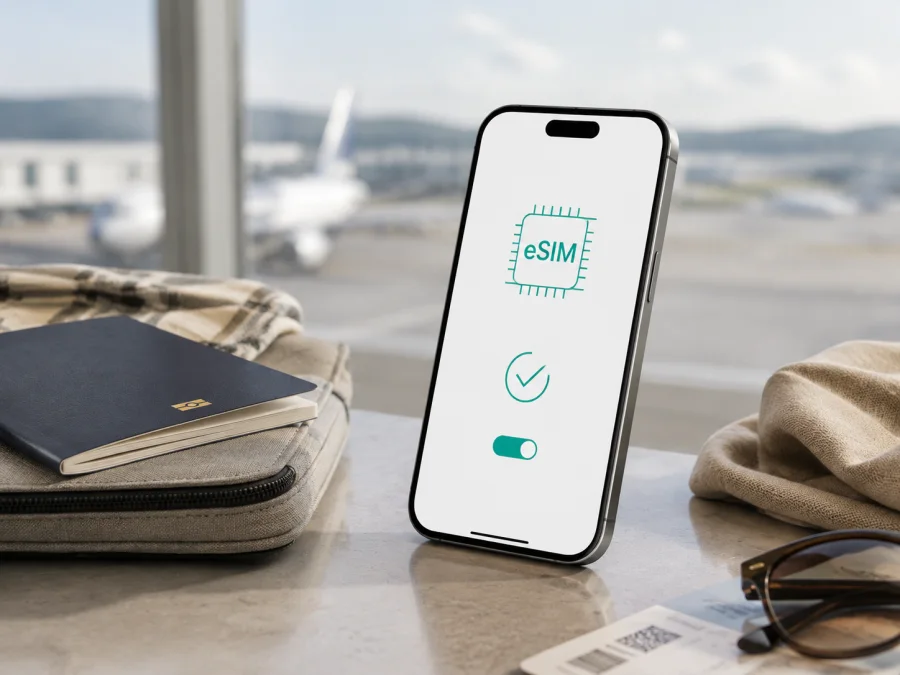
Apple iPhone 16 512GB eSIM: compatibility, setup, and travel use
If you are checking whether the Apple iPhone 16 512GB can use an eSIM for mobile data abroad, the short answer is: usually yes, but the sales region matters. Apple lists eSIM support for many iPhone 16 versions, including eSIM-only versions sold in the United States and versions that combine an eSIM with a physical nano-SIM in other markets. The same storage configuration can also be sold in a regional version with two nano-SIM cards and no eSIM option. The 512GB capacity does not decide compatibility; the market version, carrier policy, and device status do.
Before choosing a travel plan, confirm that your particular Apple iPhone 16 512GB shows an EID or an option to add an eSIM, and check that it is not carrier-locked. Kaspersky eSIM Store is an app and website where you can choose, arrange, and activate an eSIM with a plan for mobile internet during an international trip; it is not a mobile operator or network provider.
Does Apple iPhone 16 512GB support eSIM?
The Apple iPhone 16 512GB supports eSIM when its regional version includes the eSIM hardware and permits activation. Apple’s current specifications describe dual eSIM use for eSIM-based versions, with eight or more profiles stored and two eSIMs active subject to carrier and local conditions. Other versions combine a nano-SIM with an eSIM. These family-level specifications do not replace checking the exact phone.
There is an important exception. Apple’s SIM guidance says that iPhone 16 models sold for China mainland, Hong Kong, and Macao may use two physical nano-SIM cards rather than an eSIM. An Apple iPhone 16 512GB from that configuration may not display EID or Add eSIM. Ask for the sales region and model identifier, then verify the device menu.
Quick answer by version
| Apple iPhone 16 512GB version | eSIM expectation | What to do |
|---|---|---|
| United States eSIM-only version | eSIM expected; no physical SIM | Confirm EID and Add eSIM. |
| Many international versions | Often nano-SIM plus eSIM | Check the phone and plan. |
| China mainland version | Apple documents two nano-SIMs | Do not assume eSIM; check EID. |
| Hong Kong or Macao version | Some use two nano-SIMs | Confirm the regional model. |
| Used, refurbished, or imported phone | Depends on market and lock | Inspect the device itself. |
What eSIM means for a trip
An eSIM is a digital SIM built into the phone. It activates a cellular plan without a physical card. A travel eSIM can be a data line while you keep your familiar number for calls or messages; Apple iPhone 16 models can manage more than one plan, but only one line handles cellular data at a time.
For Kaspersky eSIM Store, the relevant scenario is mobile internet for an international trip. In the app or website, review the destination, data allowance, and validity shown for an available eSIM plan. After arranging it, install and activate the eSIM on a compatible device. Unless the offer says otherwise, expect data for maps, translation, bookings, email, browsing, and messaging rather than a regular number, ordinary calls, or SMS.
An eSIM can reduce dependence on airport Wi‑Fi or the search for a physical SIM. It does not guarantee coverage or connection on a locked or unsupported phone. Coverage, speed, local rules, and activation timing depend on the plan, so read the offer conditions first.
Verify the exact device before purchase
Perform these checks on the Apple iPhone 16 512GB you intend to use; they are more reliable than a marketplace title or general statement that “iPhone 16 supports eSIM”.
- Check for an EID. Open Settings > General > About and scroll through the identifiers. A visible EID indicates an eSIM component. Do not publish the full EID in an open chat.
- Check the eSIM menu. Open Settings > Cellular or Settings > Mobile Data. Look for Add eSIM, Set Up Cellular, or a similar option. Wording varies with iOS language and version.
- Check the installed lines. See whether the phone lists an eSIM line or lets you add one. A physical SIM tray does not prove eSIM is absent.
- Check carrier lock. In Settings > General > About, find Carrier Lock. “No SIM restrictions” indicates that the phone is unlocked for compatible networks. If a restriction is shown, contact that carrier before expecting another provider’s eSIM to activate.
- Check software and internet. Install the latest available iOS, connect to Wi‑Fi, and allow carrier-settings updates. The profile download needs internet access.
- Check the offer. Confirm destination, validity, data allowance, activation rules, hotspot policy, and data-only status.
Use the internal check before you commit to a plan: Check your device. If the EID and Add eSIM option are missing, pause and verify the regional model with the seller or Apple support. A reset or repeated QR scan cannot add missing eSIM hardware.
<a id="kesim-device-compatibility"></a>
Compatibility checklist
- [ ] The exact device is Apple iPhone 16 512GB, not another iPhone 16 family variant.
- [ ] The sales region and model identifier are known, especially for an imported or used phone.
- [ ] Settings > General > About shows an EID.
- [ ] Settings > Cellular/Mobile Data shows Add eSIM or Set Up Cellular.
- [ ] Carrier Lock says No SIM restrictions, or the intended plan is accepted by the locked carrier.
- [ ] The phone can connect to Wi‑Fi during installation.
- [ ] iOS and carrier settings are up to date.
- [ ] Destination, data amount, validity, and roaming conditions match the trip.
- [ ] You understand whether the offer includes data only or also voice and SMS.
If the boxes are checked, compatibility is likely, but final activation still depends on the provider and destination network. Resolve any failed check first.
How to install an eSIM on Apple iPhone 16 512GB
Prepare the Apple iPhone 16 512GB, activation details, order information, and reliable Wi‑Fi. Keep the QR code on another screen if possible.
1. Confirm the prerequisites
Verify EID, Add eSIM, carrier-lock status, and destination. Do not remove your main line before the travel line is tested. Cellular setup may appear during new-phone setup.
2. Open eSIM setup
Open Settings, tap Cellular or Mobile Data, then tap Add eSIM or Set Up Cellular. If iOS offers a nearby-iPhone transfer, QR code, or manual entry, choose the method supplied for your plan.
3. Scan the QR code
Choose Use QR Code and point the camera at the activation code. Keep the entire code in frame, accept the detected plan, and follow the prompts. Enter a supplied confirmation code when asked. Never use a code intended for another order.
4. Use another supplied method
If the provider supplies a link or app-based flow, use it and allow the eSIM to be added. For manual activation, open Add eSIM and copy the SM-DP+ address and activation code exactly. A mistyped character can prevent download.
5. Label the line
When iOS asks for a label, use Travel data and leave your everyday line unchanged.
6. Select the data line
Choose the travel eSIM as the cellular-data line. Review Allow Cellular Data Switching; leaving it off can prevent unexpected use of the primary line and roaming charges.
7. Set roaming as required
Some travel eSIMs require Data Roaming on the travel line because they use a partner network. Follow the plan’s directions and keep roaming off on the primary line unless you intend to use it.
8. Test activation
Wait several minutes for registration. If the line does not appear, toggle Airplane Mode. Check signal and open a simple web page. Do not delete a new profile while troubleshooting; record the error.
For platform-specific guidance, see Android installation instructions and iOS installation instructions. The iOS guide is the relevant one for Apple iPhone 16 512GB; the Android guide can help someone assisting with the QR code from another device.
How to use the eSIM during travel
Before leaving home
Install the profile on dependable Wi‑Fi, but read the activation rule first: validity may begin at installation, on an eligible network, or in the product flow. Keep your primary line available for authentication messages.
Select the destination carefully. A country plan may not cover a neighboring country, while a regional plan may suit several countries. Check the whole route.
On arrival
Open Settings > Cellular, select the travel eSIM for cellular data, and turn it on if necessary. Enable data roaming on that line only when the plan requires it. Keep the primary line for calls and SMS if desired, but disable its data roaming. Allow registration time, then load a small page to confirm the data line.
During the trip
Monitor allowance and validity. Video, cloud backups, updates, and hotspot use can consume data quickly. A data-only plan supports maps, email, messaging, and browsing but may not provide a regular number.
If you cross a border, confirm that the plan includes the next country and that the travel eSIM remains selected for data. On return, switch data to your primary line and review roaming. Do not erase a profile until you know you will not need it again.
Common problems and practical checks
The Add eSIM option is missing
Recheck Settings > General > About for EID. If there is no EID and the phone has a physical SIM tray, it may be a dual-nano-SIM regional version. Confirm the original market, especially if the Apple iPhone 16 512GB was imported from China mainland, Hong Kong, or Macao. An update cannot add eSIM hardware to a configuration built without it.
The QR code does not scan
Increase brightness, clean the lens, and show the full code. Use the QR option inside Add eSIM. If the code is on the same phone, use the iOS Add eSIM action when offered or enter manual details. Ask support whether the code is unused.
The profile will not download
Use reliable Wi‑Fi, confirm Airplane Mode is off, restart the iPhone, and install carrier settings if offered. Check automatic date and time and compare every manual field. A carrier lock can reject another provider’s eSIM. Share the error, EID, IMEI, and order reference only through private support.
The eSIM is installed but there is no service
Open Settings > Cellular, select the travel line, and check that it is on and selected for data. Follow the plan’s roaming and APN directions; do not copy an APN from another plan. Toggle Airplane Mode, restart, and verify activation, coverage, allowance, and validity. If a carrier appears but pages do not load, recheck the data line.
The internet uses the wrong line
Open Settings > Cellular > Cellular Data and select the travel eSIM. Review Allow Cellular Data Switching and turn it off if you want to prevent automatic use of the primary line. Check data-roaming status for both lines, especially where the primary carrier charges for roaming.
The plan stops working
Check data, validity, destination coverage, and hotspot rules. Move to a clearer signal and restart the line once. Do not erase the eSIM first.
FAQ
Is every Apple iPhone 16 512GB eSIM-compatible?
No. Many versions support eSIM, but regional configurations differ. Apple identifies eSIM-only versions in some markets, eSIM plus nano-SIM versions in others, and two-nano-SIM configurations for certain China mainland, Hong Kong, and Macao models. Check EID and Add eSIM on the exact phone.
Does 512GB change eSIM support?
No. Original sales region, model configuration, carrier lock, software, and provider support matter more than capacity.
Can I keep my regular number active?
Usually, a supported iPhone can keep a primary line active while a travel eSIM supplies data. Select the correct data line and review roaming. Exact behavior depends on device version, carrier, and plan; only one line handles cellular data at a time.
Can I use the travel eSIM for calls and SMS?
Assume it is data-only unless the plan explicitly includes a number and voice or messaging. Internet calls and messages can work through compatible apps. Your primary line can remain available for ordinary calls and SMS if its carrier and settings permit it.
Can I move the profile to another phone?
Do not assume so. Profiles and activation codes may be tied to the issuing process or device, and some cannot be reused after installation or deletion. Check the plan conditions first.
What if the Apple iPhone 16 512GB is second-hand?
Confirm the regional model, inspect EID and Add eSIM, check Carrier Lock, update iOS, and ensure the previous owner removed the phone from their account. Resolve uncertainty before arranging a time-limited plan.
Final check before choosing a travel eSIM
The Apple iPhone 16 512GB is a good candidate for a travel eSIM when its exact regional version shows an EID and Add eSIM flow, the phone is unlocked, and the offer covers the itinerary. Do not infer compatibility from storage, 5G labeling, a SIM tray, or a generic title. For a China mainland, Hong Kong, or Macao dual-nano-SIM version, assume eSIM may be unavailable until the device proves otherwise.
Before you leave, complete the device check, update the phone, arrange the eSIM with stable internet, and note which line is selected for data. Then use Kaspersky eSIM Store, through its app or website, to choose and activate an eSIM with a suitable mobile-data plan for the destination and duration of your trip. Confirm the conditions, install only after compatibility is clear, and keep the decision tied to the exact device in your possession. This helps you choose a travel eSIM with fewer surprises.


