Travel connectivity guide
Apple iPhone 16 eSIM: Compatibility and Setup
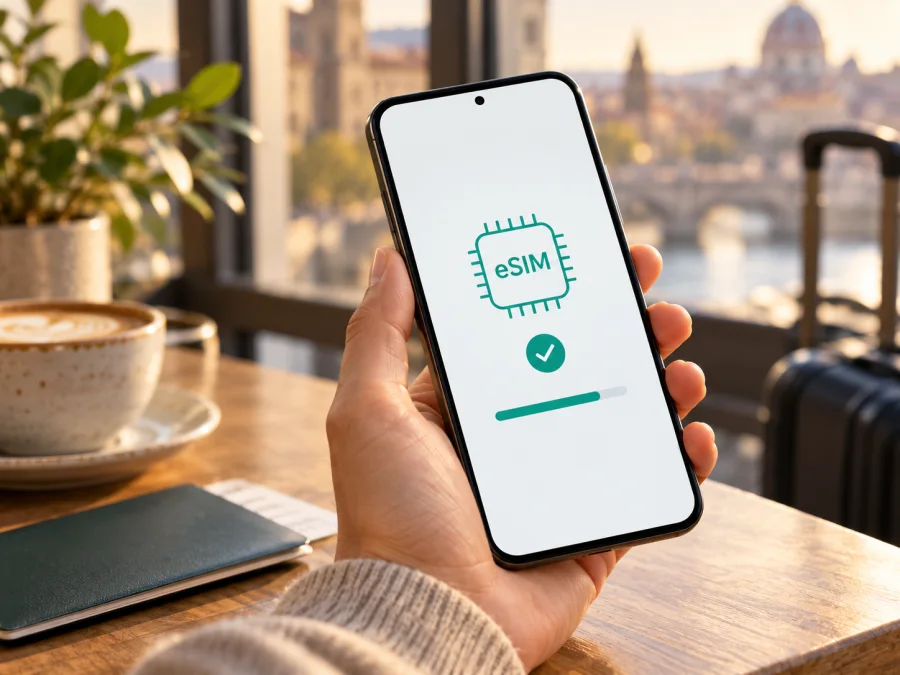
Apple iPhone 16 eSIM: compatibility, setup, and travel guide
Does Apple iPhone 16 support eSIM?
Usually, yes. Apple iPhone 16 supports eSIM on models sold in most markets. The important exception is the regional version sold in mainland China, Hong Kong, and Macao: Apple identifies that hardware separately and documents it as a dual physical nano-SIM model. Do not assume that an iPhone 16 bought in one of those markets can install a travel eSIM. Check the model number and the phone’s own settings before buying a plan.
There is a second regional difference. iPhone 16 models sold in the United States are eSIM-only and have no physical SIM tray. Many versions sold elsewhere support one physical nano-SIM alongside eSIM. These differences affect how you use a home SIM and a travel plan, but do not change the basic eSIM setup on a compatible, unlocked phone.
This guide is specifically about Apple iPhone 16. It does not treat iPhone 16 Plus, iPhone 16 Pro, or iPhone 16 Pro Max as interchangeable versions. Where Apple’s regional documentation distinguishes hardware, the market and model number matter more than the retail name shown on the box.
Compatibility at a glance
| Check | What to expect on Apple iPhone 16 |
|---|---|
| eSIM hardware | Supported on most regional versions; not supported on the dual physical-SIM version for mainland China, Hong Kong, and Macao |
| U.S. version | eSIM only; no physical SIM tray |
| Many other versions | Physical nano-SIM plus eSIM; exact SIM arrangement depends on market |
| eSIM profiles | Apple lists dual eSIM capability and storage for eight or more profiles on supported versions; stored profiles and active lines are different things |
| Network plan | A carrier or travel eSIM provider must support eSIM and the selected service plan |
| Carrier lock | The phone must be unlocked to use a plan from another provider |
| Travel data | A travel plan can provide data where its listed network and coverage conditions apply; support does not guarantee service everywhere |
The regional distinction is not a software switch. If a model has no eSIM hardware, updating iOS or changing the language will not add it. Conversely, an eSIM-capable iPhone can still fail to activate a particular plan because the provider, destination, carrier lock, or account does not meet the plan’s conditions.
Which regional version do you have?
Apple’s iPhone 16 model identification information separates the U.S. version (A3081), several other regional versions (including A3286 and A3287), and A3288 for mainland China, Hong Kong, and Macao. Treat these identifiers as a clue to investigate, not as a substitute for checking the device: Apple’s support information and your exact settings are the final practical checks, especially if the phone was imported, refurbished, or sold second-hand.
On the regional dual nano-SIM iPhone 16, the physical tray is intended for two nano-SIM cards. Apple’s documentation for iPhone 16 models purchased in mainland China, Hong Kong, or Macao describes dual SIM with two nano-SIM cards. An eSIM entry may therefore be absent. For an imported phone, ask the seller for the full model number and country of sale before purchase, and verify the EID and eSIM controls on the actual device rather than relying on a generic “iPhone 16 supports eSIM” statement.
The U.S. iPhone 16 is a different case: it has no SIM tray and uses eSIM for mobile service. That can be convenient when setting up a digital travel plan, but it also means you cannot insert a local physical SIM as a fallback. If you rely on a home line while travelling, check that your carrier supports eSIM and that you can keep or transfer that line as needed.
A model number does not tell you whether the phone is carrier locked. A phone may have eSIM hardware but still refuse a plan from another carrier until the original carrier unlocks it. This is common with phones sold through carrier financing or service bundles. Confirm the status before you leave, when you can still contact the seller or carrier.
Check eSIM support on the phone itself
Use these checks before choosing or paying for a travel plan:
- Look for an EID. Open Settings → General → About and scroll through the device information. An EID (Embedded Identity Document) is the identifier associated with an eSIM. If an EID is present, that is a strong sign that the phone includes eSIM capability.
- Look for the add-eSIM control. Open Settings → Cellular (called Mobile Service in some regions or iOS languages). Look for Add eSIM, Add Cellular Plan, or a similar option. The exact label varies by language and software version.
- Check the model number. In Settings → General → About, tap the part number next to Model Number to reveal the A-number. Compare it with Apple’s regional model information, especially if the phone was purchased in mainland China, Hong Kong, or Macao.
- Check the SIM tray and seller details. A physical tray alone does not prove or disprove eSIM support: many international iPhone 16 models have both. A U.S. version has no tray. For a used or imported phone, ask where it was originally sold.
- Check the lock status. In Settings → General → About, find Carrier Lock. The message No SIM Restrictions indicates the phone is unlocked. If another status appears, ask the original carrier whether it can be unlocked before using a different provider.
- Confirm the exact plan requirements. Check that the provider supports iPhone eSIM activation, your destination, and the service type you need. The phone being eSIM-compatible does not make every plan compatible.
A missing EID and missing add-eSIM option are reasons to stop and verify the regional model before purchase. If the seller cannot provide a clear answer, do not treat a successful result on another iPhone 16 as proof for this handset. Check your device before you choose a travel plan.
Get ready before installing
Connect to reliable Wi-Fi, install available iOS updates, and keep the iPhone charged. Have the provider’s setup details ready: a QR code, activation link, app, or manual-entry information. If the QR code is displayed on the iPhone itself, use another screen or the provider’s manual method.
Check when the plan’s validity begins. It may start at installation, first connection to a supported network, or a chosen date. If installing before departure, confirm the rule first. Keep your existing line until the travel profile is working, and do not delete an eSIM to troubleshoot unless the provider confirms it can be reinstalled; activation codes may be single-use.
Install and activate an eSIM on Apple iPhone 16
The menu labels and available methods depend on the iOS version and plan provider. Follow the instructions supplied with the plan if they differ from this general flow.
- Connect to Wi-Fi. Use a stable internet connection and keep the phone charged. Make sure the device is not in Airplane Mode.
- Open the eSIM setup screen. Go to Settings → Cellular or Settings → Mobile Service, then choose Add eSIM. On some iOS versions, the path may be Add Cellular Plan.
- Choose the method supplied by the provider. Select Use QR Code and scan the code, follow an activation link, complete setup in the provider’s app, or choose manual entry if you were given the required details. Do not scan a code from an untrusted message.
- Review the plan and confirm. iPhone may show a confirmation screen before downloading the cellular plan. Check the provider and plan description, then continue. Leave the phone connected while the profile downloads.
- Label the line. Choose a clear label such as “Travel” so you can distinguish it from your home line in settings. The label is for your own reference and does not change the plan.
- Choose default line settings. If iPhone asks which line to use for calls, messages, or mobile data, make a deliberate choice. A data-only travel plan generally does not replace your usual number for ordinary calls or SMS.
- Set mobile data to the travel line when appropriate. Open Settings → Cellular/Mobile Service → Cellular Data/Mobile Data and select the travel eSIM when you want its data allowance to be used. Turn off automatic data switching if you do not want the phone to use another line’s data unexpectedly.
- Follow the plan’s activation instructions. Depending on the plan, the line may need to be enabled, data roaming may need to be turned on for that line, or activation may wait until arrival. Do not enable roaming on your home line unless you understand its charges.
- Check service after arrival. Allow time for network registration, then check the signal, data line, and the plan’s usage information. Try opening a simple webpage with Wi-Fi turned off to confirm that mobile data is working.
For screen-by-screen help, see the iOS eSIM installation instructions. If you are also helping a travel companion with an Android phone, the Android eSIM installation instructions cover that setup separately.
Use Apple iPhone 16 for mobile data abroad
A travel eSIM can supply data for maps, messaging, bookings, translation, and ride services without swapping a physical SIM at your destination. Review the plan’s destination list, coverage notes, data allowance, validity, and speed or fair-use limits. For a multi-country trip, confirm that every stop is included.
Kaspersky eSIM Store is an app and website where you can select, arrange, and activate an eSIM with a mobile data plan for an international trip. The conditions depend on the selected plan. Browse the Kaspersky eSIM Store to check current destinations and terms. This is the general English homepage, not a tariff page for a particular country.
A common setup is to keep the home line for calls or messages and assign mobile data to the travel eSIM. If offered, turn off Allow Cellular Data Switching to avoid unexpected use of the home line’s data. Check your home carrier’s roaming terms first; calls or messages may incur charges even when mobile data uses the travel plan.
On arrival, select the travel eSIM as the data line. Enable data roaming for that line only if its instructions require it; keep roaming off for your home line if you want to avoid its data charges. Network access, speed, and coverage depend on the plan and local network. Data-only eSIMs do not automatically include a regular number, voice calls, or SMS unless the plan explicitly says so. Internet calling and messaging apps require a working data connection.
Troubleshooting: check these settings in order
“Add eSIM” is missing
Look for an EID in Settings → General → About, then verify the A-number and original market. The A3288 dual physical-SIM version for mainland China, Hong Kong, or Macao does not support eSIM. An update cannot add eSIM hardware. If the device is another regional version but both EID and Add eSIM are absent, ask Apple or the seller to check that handset.
Installation or QR scanning fails
Check Wi-Fi, code readability, and whether the code has already been used. If it is displayed on the same phone, use another screen or manual entry only if the provider supplied the details. Restart setup from Settings. If the code is rejected as invalid or already used, contact the provider before deleting the profile.
The profile installed, but there is no service
Check that the eSIM line is enabled and selected for mobile data. Toggle Airplane Mode, then restart if needed. Confirm the plan’s start time and whether it requires data roaming on the travel line. Follow the provider’s network selection guidance. Keep roaming disabled on the home line if you want to avoid charges there.
Data uses the wrong line, or the connection is slow
Review Cellular/Mobile Service → Cellular Data/Mobile Data and Allow Cellular Data Switching. Check the selected plan’s balance, validity, signal, and destination coverage. Move to a place with better reception or briefly toggle Airplane Mode. Phone settings cannot create coverage where the plan or local network has none.
The phone rejects the plan or asks you to delete the eSIM
Check Settings → General → About → Carrier Lock for No SIM Restrictions, and confirm that the plan supports your destination and activation method. Save the error wording for the provider, but do not share your EID, QR code, or activation details publicly. Before deleting a profile, ask whether it can be reinstalled or transferred; deleting it does not necessarily cancel the plan.
Practical scenarios
- Bought in the United States: expect an eSIM-only model with no physical SIM tray. Verify EID and Add eSIM, confirm the phone is unlocked, and ask your home carrier how to keep your number active while using travel data.
- Bought in mainland China, Hong Kong, or Macao: verify the model number and settings before shopping. Apple documents the iPhone 16 from these markets with two physical nano-SIMs. If EID and Add eSIM are absent, plan around physical SIMs and ask Apple or the retailer to verify unclear import history.
- Bought in another market: many versions combine a physical nano-SIM and eSIM. Check EID, Add eSIM, and Carrier Lock on the actual phone. If keeping a home SIM, assign mobile data to the travel line only after reviewing roaming terms.
- Visiting several countries: match every stop to the plan’s listed destinations and validity. Regional coverage should not be assumed from a single-country plan.
Frequently asked questions
Does every Apple iPhone 16 support eSIM?
No. Most versions do, but Apple identifies the mainland China, Hong Kong, and Macao iPhone 16 as a dual physical nano-SIM model. Check the actual A-number, EID, and Add eSIM setting.
Can I use a physical SIM and eSIM together?
On compatible versions, yes, if the carriers support the arrangement. The U.S. model has no physical SIM tray; the China, Hong Kong, and Macao version uses two nano-SIMs.
How many eSIMs can it store?
Apple lists storage for eight or more profiles and two active eSIMs on supported iPhone 16 versions. Stored profiles are not all active at once.
Does eSIM support guarantee 5G or free roaming?
No. Service depends on the local network, plan, relevant bands, and roaming arrangement. Check speed and destination conditions, and review the home carrier’s fees separately.
Can I keep my home number or move the travel eSIM?
You may be able to keep the home line active while using a travel eSIM for data, depending on model and carrier. A data plan does not automatically include a phone number, voice, or SMS. Do not assume the eSIM can be transferred or reinstalled; ask its provider before deleting or moving it.
Should I install before departure?
That is often convenient if advance installation is allowed. First check whether validity begins at installation, first network connection, or a selected date, and follow the plan’s instructions.
Final check before your trip
Before choosing a travel plan, confirm that your exact Apple iPhone 16 has an EID and an Add eSIM option, identify its regional model, and check Carrier Lock. If the phone was bought in mainland China, Hong Kong, or Macao, verify the dual physical-SIM version carefully; if it was bought in the United States, remember that it is eSIM-only. Then match the plan to every destination, review its data allowance and validity start, and follow the provider’s installation steps.
Once compatibility is clear, use the Kaspersky eSIM Store app or website to browse current destinations and compare the terms for your trip. Choose a plan only after checking that its coverage and activation conditions fit your route. That short device check helps you avoid buying a profile that your particular iPhone cannot install and makes setup easier before you leave.


