Travel connectivity guide
Apple iPhone 16 Plus 128GB eSIM
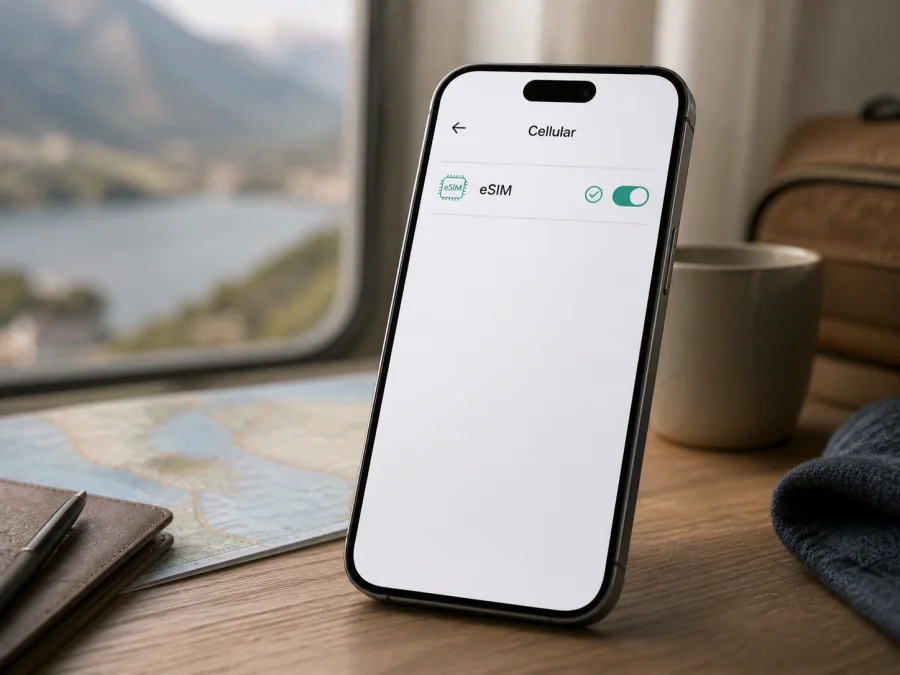
Apple iPhone 16 Plus 128GB eSIM compatibility and travel setup
If you are checking whether the Apple iPhone 16 Plus 128GB can use an eSIM, the short answer is yes for eSIM-capable regional versions, provided the mobile plan and carrier support eSIM. The 128GB storage capacity does not remove or add this feature: the decisive details are the market in which the phone was sold, its exact model version, carrier lock status, and the software and carrier settings currently installed.
Apple describes iPhone 16 Plus as supporting eSIM, and its specifications include dual eSIM capability: two eSIMs can be active at the same time, while the phone can store more eSIM profiles. This is useful when a home line and a travel data line need to remain available together. It does not mean that every retail version has the same physical SIM arrangement, or that every eSIM tariff will activate automatically. The phone still needs a compatible, unlocked cellular service.
Quick answer for this exact variant
The device name in this article is Apple iPhone 16 Plus 128GB. It is not being treated as a generic iPhone 16, an iPhone 16 Pro, or another storage version. Apple’s model family supports eSIM, but the answer for a particular handset should be confirmed on the handset itself before a plan is purchased.
| Item | What it means for Apple iPhone 16 Plus 128GB |
|---|---|
| eSIM | Supported on eSIM-capable regional versions |
| Active lines | Up to two active eSIMs are supported by Apple’s specifications; the carrier may impose its own limits |
| Physical SIM | US versions are eSIM-only; versions sold in many other markets can combine eSIM and nano-SIM |
| Storage | 128GB; storage does not determine eSIM support |
| 5G and LTE | Cellular bands and 5G availability depend on the regional model and the network used |
| Carrier requirement | The chosen carrier or eSIM service must support eSIM and the relevant plan |
| Lock requirement | A carrier-locked iPhone may reject a travel eSIM from another service |
| Best evidence | An EID in Settings and an Add eSIM option are strong device-level indicators |
This distinction matters for a travel eSIM. A handset can have the correct hardware but still fail to activate when the carrier does not support eSIM, the device is locked, the purchased profile is for a different destination, or the local network does not match the plan. The phone’s 5G label also does not guarantee 5G on every partner network. Data may connect through 4G/LTE where that is the available technology.
What the regional version changes
The same retail name can cover different regional configurations. Apple’s official specifications identify iPhone 16 Plus eSIM-only versions in the United States. On those models, there is no physical SIM card to insert: cellular service is activated through an eSIM profile. This can be convenient for travel because a new data profile can be added without handling a card, but it makes carrier eSIM support essential.
In many markets outside the United States, the iPhone 16 Plus is listed with both eSIM and a nano-SIM. Such a phone can keep a physical home line and add a digital travel line, subject to the carrier and account rules. A tray therefore does not prove that eSIM is missing, and the absence of a tray does not by itself prove that a plan will activate. The Settings app and the EID are more useful checks.
There are also market-specific exceptions. Apple’s current SIM guidance says that iPhone 16 Plus models purchased in China mainland do not fit the general eSIM assumption; Apple states that only certain newer models support eSIM there. Models sold for Hong Kong and Macao may use two physical nano-SIM cards instead. A phone imported from one of these markets can therefore behave differently from a phone with the same name bought elsewhere. Do not infer the regional configuration from the language of the interface, the seller’s shortened title, or the fact that another owner has an eSIM menu.
The model or part number helps identify the hardware family, but it is not a substitute for the on-device test. Open Settings > General > About and note the model information. Tap the part number if you need the model number rather than the retail part number. Compare the result with the seller’s invoice and packaging, especially if the phone was imported, refurbished, or activated in a different country.
The carrier side is equally important. Apple requires a plan from a carrier that supports eSIM. A travel data profile may also require the device to be unlocked. If Settings > General > About shows a carrier-lock field, look for wording such as “No SIM restrictions.” If a restriction is shown, only the original carrier can normally remove it under its own rules. An unlocked phone can still fail when an eSIM profile is already installed, the account has not been provisioned, or the destination plan has expired.
eSIM compatibility checklist {#kesim-device-compatibility}
Before selecting a tariff for Apple iPhone 16 Plus 128GB, use this checklist against every point rather than relying on the model name alone.
- [ ] The phone is actually Apple iPhone 16 Plus 128GB, not a similar-looking iPhone 16 model or a different capacity.
- [ ] Settings > General > About shows an EID. It is a long identifier for the embedded SIM and is different from the IMEI.
- [ ] Settings > Cellular or Settings > Mobile Service includes Add eSIM, Set Up Cellular, or comparable wording. The label can vary with language, region, and iOS version.
- [ ] The device’s regional version is known. US eSIM-only, international eSIM-plus-nano-SIM, China mainland, and Hong Kong/Macao configurations should not be assumed interchangeable.
- [ ] The carrier-lock field indicates that the phone can accept another service, or the original carrier has confirmed an unlock.
- [ ] The selected eSIM service supports this destination and offers the type of mobile data needed for the trip.
- [ ] The iPhone can connect to Wi-Fi or another hotspot during installation, unless the carrier provides a different supported activation path.
- [ ] The plan’s validity, data allowance, activation trigger, tethering rules, and supported networks have been read before payment.
The most decisive local test is simple: locate the EID, then look for the eSIM addition control. If both are present, the handset is showing the expected capability. If the EID is missing, the menu is absent, or the phone reports that eSIM is unavailable, pause before purchasing. A software update can change the wording of a menu, but it cannot turn a market-restricted hardware configuration into a universally compatible one.
Use the internal device check whenever you return to this section: Check your device. A phone may support eSIM while a particular profile remains unavailable because a carrier can restrict activation by country, account type, identity verification, network technology, or plan terms. A data plan may not provide a phone number, voice calling, or SMS; those are plan characteristics, not proof that the iPhone is incompatible.
Choosing a travel eSIM plan
Once the device check is positive, Kaspersky eSIM Store can help you use its app or website to choose, arrange, and activate an eSIM with a mobile-data tariff for an overseas trip. Review destination, duration, data, coverage, and activation conditions. Kaspersky eSIM Store is not the mobile operator, network owner, or provider of the underlying mobile internet.
Choose by trip, not storage. Maps and messages need less data; video calls, backups, navigation, and hotspot use need more. For multi-country travel, check countries, terms, partner networks, and signal.
How to install and activate the eSIM
Screens vary by iOS version, carrier, and delivery method. Have the QR code, link, or manual details ready. Keep the order page until the profile works; do not reuse a one-time code unless permitted.
For general platform guidance, see the Android eSIM installation instructions and the iOS eSIM installation instructions. The Apple iPhone 16 Plus 128GB uses the iOS path below.
-
Check timing. Install over reliable Wi-Fi when permitted. Some plans start at installation; others start on first connection. Read the condition so a short-validity plan is not activated too early.
-
Open cellular settings. Go to Settings > Cellular or Settings > Mobile Service, select Add eSIM, and choose the supplied option: QR code, transfer, nearby-device setup, or manual entry.
-
Scan or enter the profile. Choose Use QR Code, show it on another screen if necessary, or use manual entry. Enter the SM-DP+ address and activation code exactly as supplied.
-
Wait for download. Keep Wi-Fi connected while the profile is added. “Activating” can remain briefly; repeated failure can indicate an account, carrier, network, or used-profile issue.
-
Label the line. Use “Travel” or “Trip data” to avoid selecting the wrong line.
-
Set cellular data. Select the travel eSIM in Cellular Data. Leave Allow Cellular Data Switching off to prevent iOS from moving data to the home line.
-
Configure the home line. Decide whether it stays on for calls and messages. Ask the home carrier about roaming charges; do not delete a working home eSIM.
-
Activate at the destination. Turn on the travel line, select it for data, and enable roaming for that line only when required. This can allow an approved partner network.
-
Test a small request. Turn Wi-Fi off, open a webpage, refresh a map, or send an internet message. Confirm the travel line and data counter.
Installation downloads the profile; activation connects it to a supported network and plan. Service can remain pending until the plan starts or provisioning finishes.
Using Apple iPhone 16 Plus 128GB on a trip
After landing, connect to Wi-Fi if available, confirm the travel line is on, select it under Cellular Data, and enable roaming for that line when required. If the plan starts on first connection, follow its timing rule. Keep order details offline.
For navigation, messaging, translation, tickets, and ride services, a data-only eSIM is often sufficient. Voice calls and SMS are not included unless the plan says so. Internet calls use data, while the home number remains subject to its carrier’s roaming rules.
The iPhone 16 Plus supports 5G, but a travel eSIM does not guarantee a 5G indicator. Local network, bands, tariff, congestion, and coverage decide the connection. If 5G is unstable, automatic Voice & Data or LTE may help.
For a multi-country route, label profiles by destination and turn an unneeded one off before deleting it. The 128GB capacity is storage, not data allowance; check Personal Hotspot rules.
Troubleshooting and settings checks
Add eSIM is missing. Confirm Settings > Cellular or Mobile Service, update iOS, restart, and check for an EID under Settings > General > About. If both are absent, investigate the market version, especially China mainland, Hong Kong, or Macao.
The QR code will not scan. Increase brightness, show the entire code, clean the lens, use another screen, or choose manual entry. A used code may need reissuing.
The profile installs but shows no service. Turn on the travel line, select it under Cellular Data, enable roaming when required, toggle Airplane Mode, and restart. Check destination, validity, APN, unlock status, data balance, and provisioning.
Signal appears but apps have no internet. Turn Wi-Fi off, verify the travel line and app cellular permissions, and disable data switching. Weak signal, a captive portal, APN, or a partner-network issue can interfere.
Calls or SMS do not work. This may be normal for a data-only plan. Check its description, use internet messaging, or keep the home line available under acceptable roaming terms.
5G does not appear. Check the local network, plan, regional model bands, and coverage. Test LTE and ordinary data; a missing 5G icon alone does not show that the eSIM is incompatible.
The eSIM cannot be transferred or deleted. Some profiles are one-time or device-tied. Do not erase a working profile; record the error, EID, IMEI, line label, and plan details before contacting the service or carrier.
FAQ
Does Apple iPhone 16 Plus 128GB support eSIM?
Yes, on an eSIM-capable regional version. It must be unlocked for a different service and paired with an eSIM-supporting plan.
Is the US version different?
Yes. US iPhone 16 Plus models are eSIM-only; many outside the US support eSIM and nano-SIM. Check China mainland and Hong Kong/Macao configurations separately.
Can two eSIMs be active?
Apple lists dual eSIM support on supported configurations. Carrier rules still apply, and only one cellular data line is used at a time.
Does the 128GB version need a special eSIM tariff?
No. Check destination, plan, regional configuration, carrier support, and lock status; storage does not control eSIM.
Can I check compatibility without buying a plan?
Yes. Find the EID and Add eSIM control, confirm the region and carrier lock, then compare destination and plan. Technical support does not guarantee service availability.
Final device check before your trip
For Apple iPhone 16 Plus 128GB, verify the exact handset: confirm the EID, find Add eSIM, identify the market version, and check carrier restrictions. Then confirm destination, allowance, validity, activation timing, roaming, and tethering rules.
Afterward, use Kaspersky eSIM Store on its app or website to select, arrange, and activate an eSIM tariff for mobile internet abroad. Label the lines, select travel data on arrival, and test it.


