Travel connectivity guide
Apple iPhone 16 Plus eSIM: Compatibility & Setup
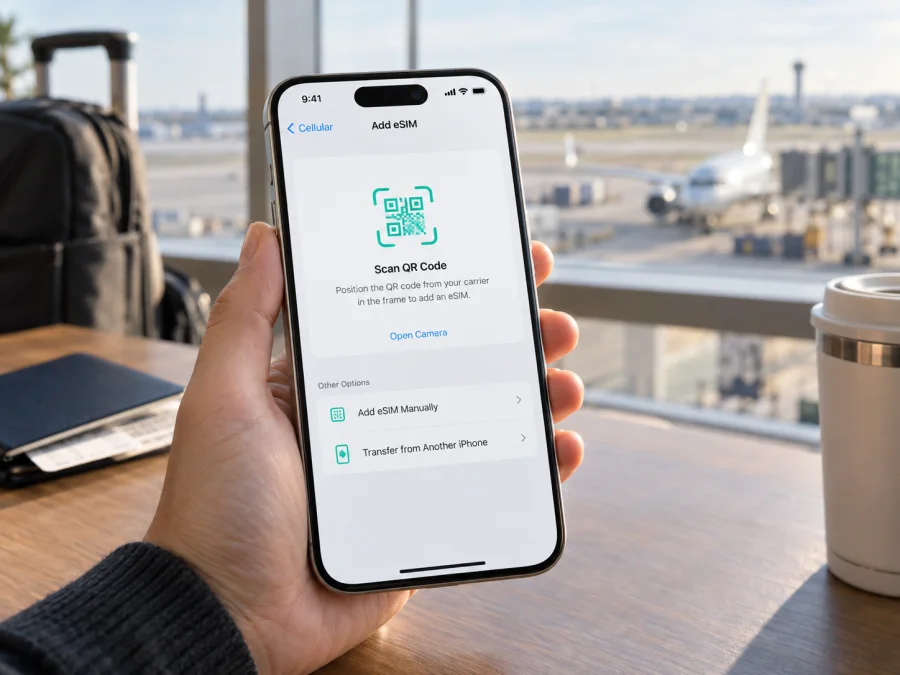
Apple iPhone 16 Plus eSIM: compatibility and setup guide
The Apple iPhone 16 Plus supports eSIM, but the answer depends on the regional hardware version. The U.S. model has no physical SIM tray and uses eSIM. Many models sold in other countries combine eSIM with a nano-SIM tray. The version associated with China mainland, Hong Kong, and Macao supports two physical nano-SIM cards; it is not the same eSIM configuration. Check the model number in Settings before choosing a travel plan.
For an eSIM-capable iPhone 16 Plus, you can keep a supported home line and add a separate eSIM for mobile data while travelling. Before you buy a plan, confirm that your particular phone has eSIM hardware, is not carrier-locked, and can use the provider’s activation method. The model name on the box alone does not confirm all three points.
Apple iPhone 16 Plus eSIM specifications at a glance
| Item | What to expect |
|---|---|
| Device covered here | Apple iPhone 16 Plus, introduced in 2024 |
| eSIM support | Yes on U.S. and most other regional versions; no on the China mainland, Hong Kong, and Macao dual-nano-SIM version |
| U.S. model number | A3082; eSIM only, with no SIM tray |
| Other regional model numbers | A3289 for a group of markets including Canada and Japan; A3290 for other countries and regions; these include eSIM capability |
| China mainland, Hong Kong, and Macao model | A3291; dual physical nano-SIM configuration, not an eSIM model |
| Stored profiles / active lines | eSIM-capable iPhone 16 Plus models can store multiple eSIM profiles and use two active eSIMs; supported combinations depend on the version and carrier |
| Physical SIM | Available on many non-U.S. eSIM models; absent on the U.S. model and replaced by two nano-SIM slots on A3291 |
| Main checks before purchase | Model number, EID or Add eSIM option, carrier lock, destination and plan compatibility |
The table describes the Apple model numbers, not a guarantee that every carrier offers eSIM service for every plan. A carrier or travel eSIM provider must support the activation method and destination you intend to use. If the seller’s listing does not identify a model number, ask for it before paying.
Which regional Apple iPhone 16 Plus has eSIM?
Apple groups the iPhone 16 Plus into four model numbers. A3082 is sold for the United States and Puerto Rico. It is eSIM-only, so there is no slot for a physical SIM. A3289 is assigned to several markets, including Canada, Japan, Mexico, and some Gulf states. A3290 is used in other countries and regions. These models have a physical nano-SIM tray and eSIM support. Depending on the carrier, they can use a nano-SIM and eSIM together or two eSIMs.
A3291 is the important exception. Apple associates it with China mainland, Hong Kong, and Macao. This version supports Dual SIM with two nano-SIM cards rather than eSIM. Do not assume that the A3291 becomes eSIM-capable because it is used outside those places, has a different language setting, or runs a newer iOS release. The embedded eSIM hardware is a model feature, not a setting that can be added later.
Geography also matters beyond the hardware. Mainland China has a separate carrier eSIM eligibility policy: Apple’s current support information names only specific newer models for activating a mainland Chinese carrier’s eSIM. Apple iPhone 16 Plus is not on that supported list. A foreign-market eSIM-capable iPhone 16 Plus may use a travel eSIM for another market, but it cannot install a mainland China carrier profile. Apple also says a non-mainland eSIM profile cannot be installed while the phone is physically in mainland China. If the provider permits it, install the travel profile before arrival and confirm the destination terms.
Retail labels such as “global” or “unlocked” are inconsistent, so check the A-number in Settings → General → About. Tap Model Number if it shows a part number first. A3082 has no SIM tray, A3291 has two nano-SIM slots, and many A3289/A3290 models combine one nano-SIM tray with eSIM. A tray alone does not prove eSIM support.
<a id="kesim-device-compatibility"></a>
Check eSIM compatibility on your own phone
Use this checklist before ordering a travel eSIM:
- [ ] Open Settings → General → About and note the A-number model identifier.
- [ ] Confirm that the number is A3082, A3289, or A3290. Treat A3291 as the dual-physical-SIM exception.
- [ ] On the About page, look for EID. An EID is the identifier for the embedded SIM hardware.
- [ ] Open Settings → Cellular (called Mobile Data in some regions) and look for Add eSIM or Set Up Cellular.
- [ ] Check Carrier Lock in About. “No SIM restrictions” means the phone is unlocked; a carrier lock can prevent a plan from another provider from working.
- [ ] Confirm that the provider supports your destination, iPhone activation method, and the iOS version on your phone.
A seller may use a broad regional name while sourcing stock from several markets. Ask the seller to confirm the A-number in writing and whether the device is carrier-unlocked, especially if the listing is vague or the phone is refurbished. If the phone is already set up, check the Settings screen yourself before paying. Do not use another handset’s EID or compatibility result as proof for this one: the embedded SIM identifier belongs to an individual device. These checks take only a moment and can prevent a plan purchase that the phone cannot use.
Before ordering, match the phone in your hand with the product description rather than relying on the family name. The same Apple iPhone 16 Plus label can refer to a device with no SIM tray, one physical slot plus eSIM, or two physical SIM slots. If you are buying a used or imported phone, request a clear photo of the About screen with personal identifiers hidden. The A-number and Carrier Lock field are enough to answer the regional and unlock questions; do not share the full EID publicly.
Check your device if you want to review the general compatibility steps before selecting a plan.
An EID is strong evidence of eSIM hardware; Add eSIM is another sign. Menus can vary by iOS, region, or device management. If both are missing, a software update will not add the hardware. Confirm the A-number with Apple or the seller. Imported stock may differ from the locally sold version, and a work or school administrator may separately restrict cellular settings.
Check the carrier lock
An eSIM-capable phone can still reject another provider’s plan if it is locked. In About, check Carrier Lock; No SIM restrictions means unlocked. Otherwise, ask the carrier that sold the phone about unlocking. Two different providers generally require an unlocked iPhone, and the travel provider may have additional conditions.
What an eSIM can do on a trip
An eSIM is a digital SIM profile stored in the phone. A travel plan can provide mobile data in its stated destinations. Check its coverage list, validity start, activation steps, and tethering terms; coverage and availability depend on the plan and local network.
Many travel-data plans do not include a regular number, calls, or SMS unless stated. Your home line may remain available separately, subject to its settings and roaming terms. Internet calling and messaging apps can use the data connection.
If your destination is one country, select a plan for that country. For a multi-country itinerary, check whether a regional plan includes every stop rather than assuming that a nearby country is covered. For example, compare the country list for Spain or Europe with your route. Kaspersky eSIM Store is an app and website that helps travellers choose, arrange, and activate an eSIM with a suitable mobile-data plan for an international trip. Review the plan’s stated destinations and terms before selecting it.
Installing before departure over Wi-Fi can be convenient, but validity may begin at installation or at first connection. Follow the plan’s activation details. If you plan to wait until arrival, confirm whether the profile can be downloaded beforehand.
Install and activate an eSIM on Apple iPhone 16 Plus
Before starting, confirm eSIM support, unlock status, and the provider’s instructions. Connect to Wi-Fi or another reliable internet connection. Keep the QR code or activation details available on a different screen or printed page so that the iPhone camera can scan them. Do not delete an installed profile to troubleshoot unless the provider confirms that it can be reissued; some QR codes can only be used once.
Option 1: Add the plan with a QR code
- Open Settings.
- Tap Cellular or Mobile Data.
- Tap Add eSIM or Set Up Cellular.
- Choose Use QR Code.
- Scan the QR code supplied for your plan.
- Tap Continue and follow the on-screen prompts.
- Enter a confirmation code if the provider supplied one.
- Wait for the phone to finish adding the cellular plan.
- Label the new line, such as Travel, so it is easy to identify.
- Choose whether to turn the line on now or leave it off until the trip, following the plan’s activation instructions.
If the QR code is on the iPhone itself, use the provider’s manual-entry or activation-link option. Supported iOS versions may recognize a QR image in the default email app or browser when you touch and hold it.
Option 2: Use an activation link or manual details
Open a supported activation link and allow the prompt to add the eSIM. For manual details, go to Settings → Cellular → Add eSIM, choose manual entry, and carefully enter the SM-DP+ address and activation code. Do not reuse details from another plan or device.
Option 3: Transfer from another iPhone
Some carriers support transferring a personal line from a nearby iPhone with eSIM Quick Transfer. Follow Apple’s prompts on both devices; the old line may stop working when transfer completes. This is for supported carrier lines, not a substitute for installing a separate travel plan.
Set the line for mobile data
- Open Settings → Cellular.
- Turn on the travel line if it is not already active.
- Tap Cellular Data and select the travel eSIM for data use.
- Decide whether to enable Allow Cellular Data Switching. Turn it off if you want to avoid automatic data use on your home line.
- Open the travel line’s settings and enable Data Roaming only if the plan’s instructions require it.
- When you reach the covered destination, turn on Airplane Mode briefly or restart the phone if it does not register automatically.
- Check that the travel line shows a network and test a basic web page.
Keep your home line configured carefully. If you leave it enabled, your home carrier may charge for roaming calls, SMS, or data under its own terms. Selecting the travel line for cellular data does not necessarily disable the home line’s roaming charges for voice or messages. Review your home plan and turn off the services you do not want to use abroad.
For more help with iPhone setup, see the iOS eSIM installation instructions. If you are helping someone with an Android phone, the Android eSIM installation instructions describe that platform’s steps.
Practical travel setups
Keep your home line for calls and texts. Install the travel eSIM and label both lines clearly. Select the travel line for cellular data. Keep the home line available only if you need it, and check whether incoming calls, voicemail, or SMS can trigger charges from your home provider. Do not enable data switching unless you understand which line could carry data.
Use it after landing. Install over Wi-Fi beforehand if allowed. Keep the line off until arrival if that matches the instructions, then select it for data and enable roaming if required. Check whether validity starts at installation.
Travel across borders. Compare every stop with the plan’s coverage list. A country plan may stop working outside that country; regional inclusions vary. Save the plan instructions and support details offline.
Share data with a laptop. Check that tethering is allowed. Updates, backups, and video calls can use data quickly, so monitor usage in Settings and the plan’s usage tool.
Common problems and what to check
There is no Add eSIM option. Confirm the A-number and check for an EID. A3291 is the dual-nano-SIM model. If the model is A3082, A3289, or A3290 but the menu is missing, restart the phone, check for a current iOS update, and confirm that a work or school management profile is not restricting cellular settings. Contact Apple or the seller if the EID remains absent.
The QR code will not scan. Increase screen brightness on the device showing the QR code, clean the iPhone camera, and move the code farther away until it is in focus. Use a second screen. If the code is damaged, expired, already used, or intended for another device, request new activation details from the provider rather than repeatedly trying an old code.
The profile downloads but says Activating. Keep the iPhone connected to Wi-Fi and wait several minutes. Check that the plan has been released for activation and that the destination is supported. Restart the phone once if it remains stuck. If the status does not change, contact the plan provider with the error message and your order details; avoid deleting the profile until support confirms what to do.
The eSIM is installed but there is no data. Confirm that the travel line is turned on and selected under Cellular Data. Check the provider’s APN instructions if any were supplied. Confirm whether Data Roaming is required for that line, then toggle Airplane Mode off and on or restart the phone. Also check that you are within the plan’s destination coverage and that the plan is active and has remaining allowance.
The phone displays SOS or No Service. Make sure the line is enabled, wait for network registration, and move to an area with better reception. Check for a local outage and try automatic network selection if the provider recommends it. A plan can be valid while the available local signal is weak or temporarily unavailable; the phone model alone cannot guarantee coverage.
The travel eSIM works, but the regular line does not. Review which line is selected for calls, messages, and data. Check the home carrier’s roaming settings and any dual-SIM restrictions. If the home line was transferred or replaced during setup, its earlier SIM may have been deactivated. Contact that carrier to restore or reissue the line.
Frequently asked questions
Does every Apple iPhone 16 Plus support eSIM?
No. A3082, A3289, and A3290 are eSIM-capable regional versions. A3291, assigned to China mainland, Hong Kong, and Macao, is the dual physical nano-SIM version. Confirm the A-number and EID on your exact phone.
Can an iPhone 16 Plus use eSIM and a physical SIM at once?
On compatible regional versions with a nano-SIM tray, the phone can use a physical SIM and an eSIM together if the carriers support the selected combination. The U.S. A3082 has no physical SIM tray. A3291 instead has two nano-SIM slots and does not use eSIM.
Can I install two eSIMs?
Compatible iPhone 16 Plus versions can store multiple eSIM profiles and support two active eSIMs. Only the lines selected and supported by the carriers can be active in the chosen configuration. A3291 does not gain eSIM support by storing profiles in iCloud or changing regions.
Can I use a travel eSIM in mainland China?
A foreign-market iPhone 16 Plus with eSIM hardware may use a travel profile if the plan and applicable rules permit it. A non-mainland eSIM must be installed before entering mainland China; it cannot be installed while the phone is there. This does not make iPhone 16 Plus eligible for a mainland China carrier eSIM. A3291 lacks eSIM hardware. Check the plan and local conditions before relying on data service.
Will my usual phone number move to the travel eSIM?
Not automatically. A travel-data eSIM normally adds a separate cellular line and does not replace the number on your existing SIM. Keep the regular line only if you want it and understand your home carrier’s roaming charges. Data-only plans generally do not provide standard voice or SMS service unless their terms say so.
Should I install the eSIM before leaving?
Often it is convenient to install while connected to reliable Wi-Fi, but activation timing varies. Some plans begin validity when installed, while others start on first connection in the destination. Read the plan’s instructions and leave activation until arrival if that is required.
Before you choose a travel eSIM
Use the model number as the first filter: Apple iPhone 16 Plus A3082, A3289, and A3290 support eSIM; A3291 is the China mainland, Hong Kong, and Macao dual-nano-SIM version. Confirm the EID or Add eSIM setting, check that Carrier Lock says No SIM restrictions, and make sure the plan supports your destination and activation method. If any of those checks is uncertain, resolve it before checkout.
After compatibility is confirmed, compare the plan’s destinations, data allowance, validity rules, activation timing, tethering terms, and support process with your itinerary. Kaspersky eSIM Store’s app and website help you choose, arrange, and activate an eSIM with a suitable mobile-data plan for an international trip. Review the conditions for your specific plan, then install it using the provider’s instructions and keep the activation details available during travel.


