Travel connectivity guide
Apple iPhone 16 Pro 256GB eSIM compatibility
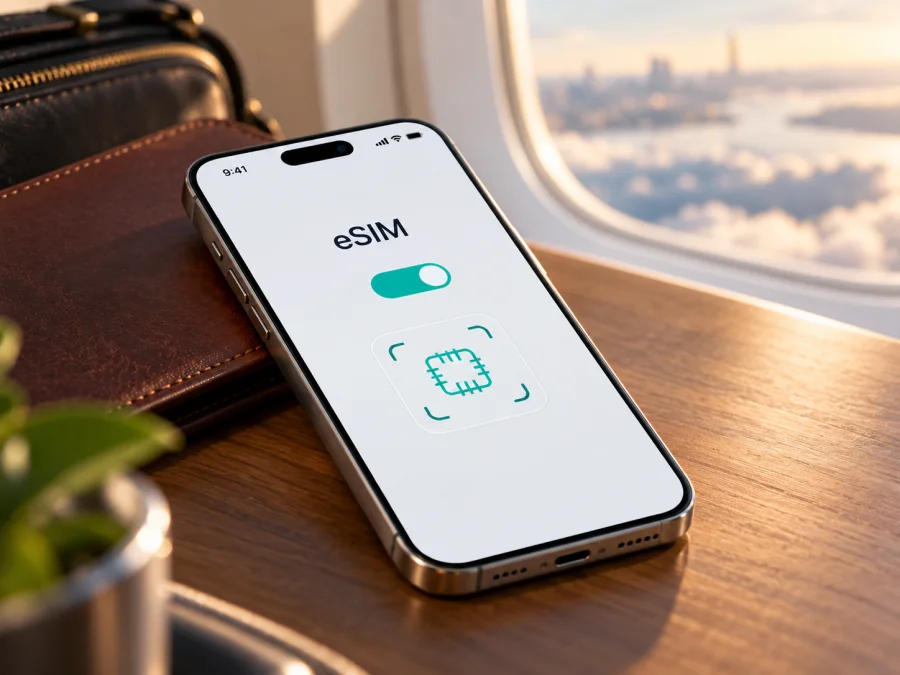
Apple iPhone 16 Pro 256GB eSIM compatibility and setup
If you are preparing for a trip, the Apple iPhone 16 Pro 256GB can use a travel eSIM when the specific regional version supports eSIM, the phone is not carrier-locked, and the eSIM provider supports the destination. The storage capacity does not determine cellular compatibility. The important detail is the model number and the market for which the phone was made.
There is one important exception: the iPhone 16 Pro model A3294, sold for mainland China, Hong Kong, and Macao, uses two physical nano-SIM cards and does not provide eSIM support. By contrast, the US version is eSIM-only, while many other regional versions combine a nano-SIM tray with eSIM. Check the phone itself before choosing a plan; the family name and 256GB label alone are not enough to identify its SIM configuration.
Quick compatibility answer
Does Apple iPhone 16 Pro 256GB support eSIM? Usually yes, but not every regional version. Apple’s current iPhone identification and technical-specification information confirms that this model family supports eSIM, including dual eSIM on supported versions. The A3294 variant for mainland China, Hong Kong, and Macao is the notable exception: Apple lists it among the two-nano-SIM models. Storage size—256GB in this article’s exact model name—does not change that regional distinction.
| Item | What to know |
|---|---|
| Device variant | Apple iPhone 16 Pro 256GB |
| Storage | 256GB; this describes capacity, not SIM capability |
| eSIM answer | Supported on many regional versions; verify the exact model number |
| US version | eSIM-only; it has no physical SIM tray |
| Mainland China / Hong Kong / Macao version | Model A3294; dual physical nano-SIM and no eSIM |
| Other regional versions | Many include a nano-SIM tray and eSIM; confirm on the device and with the seller |
| Carrier requirements | The carrier or eSIM provider must support eSIM; a carrier lock may prevent use with another provider |
| Travel use | A travel eSIM can provide mobile data where its selected plan is available |
Apple lists dual eSIM capability on supported versions. Carrier participation and service terms still determine plan eligibility and activation.
Why the regional version matters
The name Apple iPhone 16 Pro 256GB identifies the product family and storage configuration, not the SIM hardware inside a particular unit. Apple assigns regional model numbers: A3083 for the United States and Puerto Rico, A3292 for several named markets, A3294 for mainland China, Hong Kong, and Macao, and A3293 for other countries and regions.
Use the codes to identify the version, then confirm its SIM arrangement. A3294 uses two nano-SIM cards and does not gain eSIM capability when used abroad. The US model has no SIM tray and uses eSIM. Many A3293 and A3292 devices combine a nano-SIM tray with eSIM; verify the actual unit rather than assuming every non-US phone is identical.
Geography and device market are separate. A phone keeps its hardware version when it travels, while local operators set their own eSIM activation rules. Apple’s current China mainland guidance limits local eSIM activation to specified newer models; iPhone 16 Pro is not listed. Apple also says non-mainland-provider eSIMs cannot be installed while you are in mainland China. If your route includes mainland China, confirm both the phone version and where/when installation is possible. General international eSIM support does not prove local activation eligibility.
An otherwise compatible phone can still reject an eSIM if it is carrier-locked, eSIM is not enabled for the account, or the plan is restricted to a different device or destination. Ask the seller for the model number and original market, and ask the carrier whether the phone is unlocked.
What to check before buying a travel plan
Start with the iPhone in your hand. A listing title, box label, or seller’s general description can be incomplete, especially when a phone was imported or refurbished. Check the device’s model number and its SIM settings. Then check carrier lock status and the eSIM plan’s destination and requirements.
Use this checklist:
- [ ] Confirm that the phone is Apple iPhone 16 Pro 256GB, not another iPhone 16 variant with a similar name.
- [ ] In Settings → General → About, read the Model Number entry. If it shows a part number, tap it to reveal the A-number, such as A3083, A3292, A3294, or A3293.
- [ ] Look for an EID in the About screen. An EID is an identifier associated with the phone’s embedded SIM capability. Its presence is a strong device-level indication that eSIM hardware is available.
- [ ] Open Settings → Cellular (called Mobile Service in some language/region settings) and look for Add eSIM or Set Up Cellular.
- [ ] If the model is A3294, treat it as the dual-physical-SIM regional version; do not buy an eSIM plan for this phone on the assumption that it supports eSIM.
- [ ] Check Settings → General → About → Carrier Lock. “No SIM restrictions” means the phone is not locked to a carrier; if another status appears, ask the carrier that applied the lock about unlocking it.
- [ ] Confirm that the eSIM plan is valid for every country or region on your route and that its data allowance and validity suit your trip.
- [ ] Check the provider’s installation method, activation timing, device limits, and whether data roaming must be enabled for that eSIM.
Labels vary by language, but the relevant screens remain under General → About and Cellular/Mobile Service. Do not post screenshots exposing your EID, IMEI, serial number, QR code, or activation details; share identifiers only through a trusted support channel when requested.
If the EID or Add eSIM option is absent, confirm the A-number, update iOS, restart, and check again. On A3294, this matches the dual-physical-SIM configuration. For another version, ask Apple or the seller to confirm its capability and ask the carrier about eSIM eligibility; settings can also vary by software and configuration.
For a second opinion, check your device’s eSIM compatibility before selecting a travel plan. This check is especially useful for imported phones, devices bought second-hand, and phones whose original market is not clear.
How to install and activate an eSIM
Install over a stable internet connection, preferably before departure if the plan terms allow it. Keep the QR code on another screen. Codes are often single-use, so do not delete a profile or rescan without provider guidance.
- Confirm compatibility. Verify the model number, EID or Add eSIM option, and unlocked status. Make sure the exact Apple iPhone 16 Pro 256GB version is supported by the plan provider.
- Choose the destination and plan. Check country or regional coverage, data allowance, validity period, activation deadline, and any network or hotspot conditions in the plan details.
- Prepare an internet connection. Connect to Wi‑Fi or another reliable connection. Apple notes that eSIM setup requires internet access in the normal setup flow.
- Open the cellular settings. Go to Settings → Cellular → Add eSIM. Depending on iOS wording, you may see Set Up Cellular.
- Add the profile. Choose Use QR Code and scan the code supplied with your plan, or use manual entry / provider-app activation if those options are offered. Follow the prompts and enter any confirmation code requested by the provider.
- Label the line. Choose a clear label such as “Travel” so you can distinguish the eSIM from your home number. Avoid deleting the profile after activation unless support confirms it is safe to do so.
- Choose the data line. In Cellular settings, select the travel eSIM for Cellular Data when you want to use it. Keep your usual line for calls or messages if you need it and if your home carrier’s roaming settings are understood.
- Set data roaming as instructed. Some travel eSIMs require Data Roaming to be enabled on that eSIM. Change the setting for the travel line only, and follow the provider’s instructions; avoid enabling roaming on your home line unless you intend to use your home carrier’s roaming service.
- Wait for registration. The profile may take a few minutes to connect. Activation may happen at installation or only after connection to a supported local network, depending on the plan terms.
- Check the connection. Confirm that the travel line is on, the correct line is selected for mobile data, and a network name or data indicator appears. Open a simple webpage with Wi‑Fi turned off to verify mobile data.
For screen-by-screen help, follow the iOS eSIM installation instructions. The Android installation instructions can help someone setting up a supported Android device. Keep the QR code visible on another screen while scanning.
Kaspersky eSIM Store is an app and website where travelers can choose, arrange, and activate an eSIM with a suitable plan for mobile data on an international trip. It is not the mobile operator or the network that carries the data. Review the specific plan’s coverage, validity, allowance, and activation terms before you proceed.
Using the eSIM while travelling
An eSIM profile is the digital SIM configuration on the phone; the plan defines the service, destination, and activation/expiry conditions. Follow the plan instructions on whether to install before leaving, switch it on at arrival, or schedule activation. Installation alone does not show that data use has begun.
Before leaving, label the travel line, save instructions offline, and confirm which line will carry data. Check your home operator’s charges if you keep that number active. Supported iPhones can keep two lines active but use one cellular-data line at a time; calls or texts may still incur home-plan charges.
At your destination, turn on the travel line and select it for mobile data. If the plan requires it, enable data roaming for that line. Wait a few minutes for network registration, then try opening a webpage. If you are moving between countries, verify that the plan covers each stop; a country-specific plan may not apply across a border. A regional plan can be useful for a multi-country itinerary only if its terms list every relevant destination.
Estimate data needs for navigation, bookings, maps, messaging, and updates. Photo backups, video, and app downloads can use data quickly, so consider pausing large background transfers. Hotspot use depends on phone settings and plan terms; check before relying on it for another device.
Kaspersky eSIM Store can help you review current destinations and plan details through its website. The website is a general place to browse available travel eSIM options; it is not a specific country tariff page. Availability, prices, coverage, validity, and provider conditions can change, so check the current details for your own destination before purchase.
Common problems and what to check
“Add eSIM” is missing. Check the model number and EID first. If you have A3294, the two-nano-SIM hardware explains why eSIM setup is unavailable. For other versions, update iOS, restart, and ask Apple or the seller to confirm the regional model’s capability. Also check whether device management or a carrier restriction is affecting settings.
The QR code will not scan. Increase screen brightness on the device displaying it, clean the iPhone camera area, and hold the camera steady. Confirm that the code is for this plan and has not already been used. If scanning is unavailable, use manual details only when the provider supplies them. Never share a QR code publicly; it can contain credentials that allow installation.
The profile installs but has no service. Confirm that the travel line is enabled, the plan covers the country you are in, and the plan’s activation conditions have been met. Toggle Airplane Mode on and off, restart the iPhone, and wait for the device to register. Check whether the provider requires data roaming on that eSIM and whether the carrier lock is preventing connection.
The phone connects, but there is no internet. Verify that the travel eSIM is selected under Cellular Data and that cellular data is enabled. Turn Wi‑Fi off temporarily while testing. Check any APN instructions from the provider, the plan’s remaining data or validity, and whether a local network has been selected automatically. Do not change network settings at random; ask support for the exact values if manual configuration is needed.
The home SIM is using data or roaming. Reopen Cellular settings and confirm the selected data line. Review Data Roaming for each line separately. If you do not want the home line to use cellular data abroad, disable data roaming on that line or turn it off if appropriate. Review your home operator’s terms before changing voice and messaging settings.
The eSIM appears installed twice or the profile seems stuck. Do not delete it as a first troubleshooting step. Some activation codes can only be used once, and reinstalling may require a replacement from the provider. Capture the error text and contact support with the plan order details; do not send your full QR code in a public message.
The device says it is locked. Check Carrier Lock under Settings → General → About. A travel eSIM from another provider generally requires an unlocked iPhone. Only the carrier that applied the lock can confirm eligibility and unlock it; changing iOS settings does not remove a carrier lock.
Apple’s troubleshooting guidance recommends toggling Airplane Mode, checking for a provider-settings update under Settings → General → About, confirming the line is listed, and restarting. If the issue continues, contact the provider with the error and model information; share EID or IMEI only through trusted support.
Frequently asked questions
Does every Apple iPhone 16 Pro 256GB have eSIM?
No. Many versions support eSIM, but the A3294 version for mainland China, Hong Kong, and Macao is a dual-nano-SIM model without eSIM. The US version is eSIM-only, and many other versions have both a nano-SIM tray and eSIM. Confirm the A-number and settings on your own phone.
Does 256GB storage affect eSIM support?
No. The storage capacity identifies how much local storage the phone has. Regional hardware and carrier conditions determine eSIM availability.
Can I use two eSIMs at the same time?
Apple lists dual eSIM capability for supported iPhone 16 models. The exact active-line and carrier behavior depends on the regional version, iOS, and participating carriers. The phone uses one cellular-data line at a time.
Can I install a travel eSIM on an A3294 phone while abroad?
No. A3294 is the China mainland, Hong Kong, and Macao version with two physical nano-SIM slots and no eSIM support. Being outside those markets does not change the phone’s hardware.
Does an EID guarantee that a travel plan will work?
No. An EID indicates eSIM hardware, but the phone also needs to be unlocked, the provider must support the device, and the plan must cover the destination. Activation rules and local network availability also apply.
Should I install the eSIM before my flight?
Often it is practical to install before departure while you have reliable Wi‑Fi, but follow the plan’s specific activation instructions. Some plans begin their validity at purchase or installation; others begin when they connect in the destination. Check the terms rather than assuming one timing rule.
Does a travel eSIM include a phone number, calls, or SMS?
Not necessarily. Travel eSIM plans in Kaspersky eSIM Store are intended for mobile data unless the selected plan explicitly says otherwise. You can keep a separate line for voice and SMS, subject to your home carrier’s terms, or use internet-based messaging apps.
What should I do if activation fails?
Check that the model supports eSIM, that the phone is unlocked, and that it has a working internet connection during setup. Confirm the QR code and plan status, restart the device, and check provider settings. If the line still does not register, contact the provider or carrier with the error details.
Final check before your trip
For Apple iPhone 16 Pro 256GB, the decisive compatibility check is the exact regional model, not the storage capacity or the broad product name. Review Settings → General → About for the A-number and EID, look for Add eSIM, and confirm the phone is unlocked. If the model is A3294, use a physical SIM instead of buying a travel eSIM for this device. If it is an eSIM-capable version, verify the provider, destination, activation rules, data roaming instructions, and plan duration before purchase.
Once those checks are complete, choose a travel plan that fits your route and data needs, install the profile over a reliable connection, and select it for mobile data when appropriate. Kaspersky eSIM Store’s app and website help you choose, arrange, and activate an eSIM with a suitable plan for mobile data abroad. Check the device first, then review the current destination options and plan terms so your setup matches both the phone’s regional hardware and your itinerary.


