Travel connectivity guide
Apple iPhone 16 Pro 512GB eSIM Compatibility
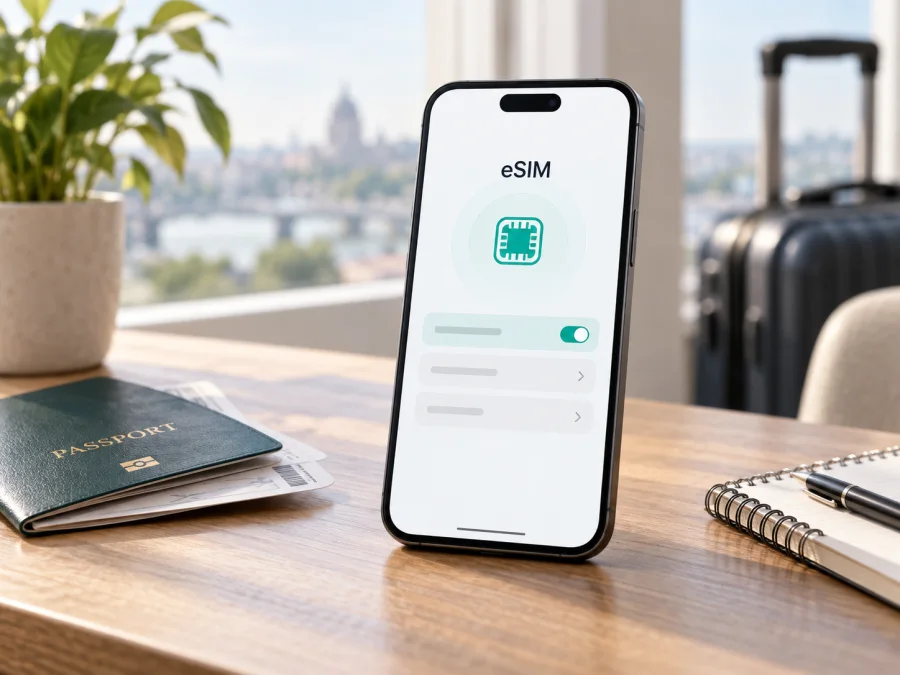
Apple iPhone 16 Pro 512GB eSIM: compatibility and setup guide
The Apple iPhone 16 Pro 512GB supports eSIM in most markets where Apple sells the international version, but the answer depends on the exact regional model. Storage capacity does not affect eSIM: a 512GB unit uses the same SIM hardware rules as another storage configuration of the same regional model. The important checks are where the phone was sold, its model number, whether it is carrier-unlocked, and whether it has an EID and an Add eSIM option.
Apple’s current iPhone SIM guidance distinguishes the U.S. model, which uses eSIM only, from most models sold outside the U.S., which support eSIM alongside a physical nano-SIM. Apple also identifies mainland China as an exception: the iPhone 16 Pro is not among the iPhone models supported for eSIM there. Some iPhone models sold in Hong Kong and Macao use two physical nano-SIM cards instead. Regional identification matters especially for imported or refurbished units.
Apple iPhone 16 Pro 512GB eSIM at a glance
| Item | What to know |
|---|---|
| Exact variant covered | Apple iPhone 16 Pro 512GB |
| eSIM answer | Yes for supported regional variants; not universally across every market version |
| U.S.-sold iPhone 16 Pro | eSIM-only; no physical SIM card support |
| Most versions sold outside the U.S. | eSIM plus one nano-SIM, subject to market and carrier support |
| Mainland China version | Apple does not list iPhone 16 Pro as supporting eSIM in mainland China |
| Hong Kong or Macao version | Certain models use two nano-SIM cards; do not assume eSIM from the product name alone |
| Storage capacity | 512GB does not determine eSIM compatibility |
| Device identifiers to check | Model number and EID in Settings > General > About |
| Network requirements | Unlocked device, a supported eSIM provider, and internet access during setup in most cases |
Why the region matters
Mainland China needs particular care. Apple’s current list of iPhones that support carrier eSIM in mainland China includes newer designated models, not iPhone 16 Pro. A phone that supports eSIM elsewhere does not thereby become compatible with a mainland Chinese carrier’s eSIM profile. Likewise, Apple documents that certain Hong Kong and Macao iPhones use two physical nano-SIM cards. That dual-SIM arrangement is not the same as eSIM support.
Check the exact device before purchase
Use this checklist on the actual phone, not only on a listing or box description:
- [ ] Open Settings > General > About and find Model Number. Tap the part number if necessary to reveal the model identifier that starts with “A”.
- [ ] On the same screen, look for EID. An EID is the embedded SIM identifier associated with eSIM hardware.
- [ ] Open Settings > Cellular (or Mobile Service, depending on iOS language and version). Look for Add eSIM or Set Up Cellular.
- [ ] Check Carrier Lock in About. For an unlocked iPhone, it should say No SIM restrictions. If it shows a restriction, ask the carrier or seller whether a travel eSIM from another provider can be used.
- [ ] Compare the model number and place of sale with Apple’s regional SIM guidance. Do not infer the region from the language, color, storage size, or seller’s shorthand.
- [ ] Confirm that the eSIM provider supports the destination and that the plan’s terms fit your trip.
This regional distinction matters for travel, too. A device bought in a market with eSIM support may be able to install a travel eSIM for a destination, if it is unlocked and the provider supports that device. A mainland China iPhone 16 Pro should be treated as not eSIM-compatible unless Apple’s information for its exact model number says otherwise. For a Hong Kong or Macao unit, verify the individual model in Settings and with the seller before assuming it can add an eSIM. Local carrier rules can impose additional limits even when the phone itself supports the technology.
Confirm that model, EID, and menu evidence agree. A visible EID is a useful sign of eSIM hardware, while the Add eSIM control confirms the current iOS setup exposes profile installation. The model number resolves regional exceptions. If these checks disagree, pause and ask Apple or the seller to identify the device before purchasing a plan.
When buying remotely, ask for the model identifier rather than relying on a marketplace label such as “global version.” Match it to the market where the phone was originally sold, and confirm eSIM capability on the actual device in Settings. A carrier-unlocked status and an EID support the check, but they do not override a market-specific hardware limitation or guarantee that a provider accepts the model.
Check whether your device is compatible before choosing a plan. If the menu item or EID is missing, restart the phone, update iOS, and check the exact model number. If it remains absent, do not buy a plan based only on the “iPhone 16 Pro” name; verify with Apple or the seller first.
Install and activate an eSIM
Before setup, connect to Wi-Fi, charge the phone, and keep the provider’s QR code or activation details ready. A QR code may be single-use, so keep the profile after installation.
- Choose the plan for the trip. Confirm the destination or regional coverage, data amount, validity period, activation conditions, and whether the plan is data-only. Make sure the exact iPhone variant is eligible.
- Open cellular settings. On the iPhone, go to Settings > Cellular or Settings > Mobile Service, then tap Add eSIM or Set Up Cellular. Wording may vary slightly by iOS version and language.
- Select an installation method. Choose Use QR Code if the provider sent one. You can also use carrier activation, a provider app, a setup link, or manual details if that method is supplied and supported.
- Scan or enter the details. Follow the onscreen prompts. If asked for a confirmation code, use the code supplied with the activation instructions. Do not use a QR code from an unverified source.
- Label the lines. Give the new profile a clear label such as “Travel” and keep your primary number labelled separately. This makes it easier to choose which line supplies mobile data.
- Choose the default settings. If you want to keep your home number available, select it for calls or messaging as appropriate and choose the travel eSIM for cellular data when you reach the destination. Your home carrier may charge roaming fees if its data line remains active abroad.
- Finish activation under the plan’s rules. Some profiles install before travel and connect only when they reach a supported network; other plans begin their validity at installation or first connection. Follow the provider’s stated timing rather than assuming that installation and activation are the same event.
- Test after arrival. Turn on the travel line, enable data roaming for that line if the provider requires it, and allow a few minutes for registration. Open a simple webpage to confirm data works.
For screenshots and platform-specific steps, see the iOS eSIM installation instructions or Android eSIM installation instructions. The Android guide is useful if you are preparing another phone; the iPhone steps above apply to the Apple iPhone 16 Pro 512GB.
Use it for mobile data while travelling
Before leaving, install the profile when the provider recommends it and check that it appears under cellular plans. Keep the home line enabled only if you need calls or SMS on that number, and review your home carrier’s roaming conditions. On arrival, go to Settings > Cellular, select the travel eSIM as the line for Cellular Data, and turn on data roaming for that line only if its instructions require it. Keep Allow Cellular Data Switching off if you want to prevent the phone from moving data to your home line unexpectedly.
For a short city break, use mobile data for maps, ride bookings, translation, tickets, and messaging; save offline maps and key travel details as backup. On a multi-country route, check that every destination is included: a country plan can stop at the border while the phone remains compatible.
For work or a longer stay, estimate data use for calls, navigation, files, and hotspot sharing, then check tethering terms. A data eSIM may not include a phone number, ordinary calls, or SMS; internet calling apps use data instead.
Kaspersky eSIM Store is an app and website that helps you choose, arrange, and activate an eSIM with a mobile-data plan for an international trip. Review the destination and conditions, and keep setup details accessible before boarding.
Common problems and quick checks
There is no “Add eSIM” option. Check that the iPhone is running current iOS, restart it, and revisit Settings > Cellular. Then look for EID in Settings > General > About. If both are absent, check the exact regional model; a physical-SIM regional variant may not support eSIM. Ask Apple or the seller to verify before purchasing a plan.
The profile installs but shows no service. Confirm you are in a covered destination, the plan is within its validity period, the travel line is turned on, and the iPhone is unlocked. Check whether data roaming must be enabled for that line. If the device allows network selection, return it to automatic selection unless the provider specifies a network manually.
The phone connects, but apps have no internet. Select the travel line for Cellular Data, enable mobile data, and check any provider-required APN or roaming settings. Turn Wi-Fi off for a test and confirm the plan is active; avoid guessing APN values.
The home line is using data abroad. Select the travel line for data and disable automatic switching. To limit roaming charges, turn off data roaming on the home line and check your carrier’s terms.
Activation says the plan cannot be added. Check for a carrier lock, regional eSIM limitation, used QR code, or outdated iOS. Record the error and verify the EID and model number with the profile provider; do not remove a working eSIM first.
Practical scenarios
You bought the phone in the United States. U.S. iPhone 16 Pro models are eSIM-only, so there is no physical SIM tray to use. Check for EID and Add eSIM, confirm the device is unlocked, then install a compatible travel profile over Wi-Fi. This configuration can be convenient when adding a temporary data line, but it makes carrier unlock status especially important.
You bought an international version with a nano-SIM tray. Many versions sold outside the U.S. support both a physical nano-SIM and eSIM. You can retain your regular SIM and add a travel eSIM, then select the travel line for mobile data abroad. Verify the model number because “international version” is not a precise hardware identifier.
You bought the phone in mainland China. Do not assume that an iPhone 16 Pro can add a travel eSIM. Apple’s current mainland China compatibility information does not list this generation as eSIM-capable for the market. Check the exact model number and EID; if the phone lacks eSIM controls, use a compatible physical SIM option where available or another supported device for travel data.
You bought it in Hong Kong or Macao. Some iPhones from these markets use dual nano-SIM hardware. Two physical SIM lines do not imply eSIM capability. Confirm the model identifier, EID, and Add eSIM menu before paying for an eSIM plan.
FAQ
Does every Apple iPhone 16 Pro 512GB support eSIM?
No. Most regional configurations support it, but eSIM availability depends on market and model. Mainland China iPhone 16 Pro models are an important exception, and certain Hong Kong or Macao configurations use two physical nano-SIMs. Check the exact phone rather than relying on the storage size or retail name.
How can I be certain before buying a travel plan?
Look for both an EID and Add eSIM in Settings, check Carrier Lock, and confirm the model identifier with Apple’s regional information. Then check that the plan supports your destination and device. If one of those checks is inconclusive, ask the seller, Apple, or the plan provider to confirm before checkout.
Can the iPhone keep my home number and use travel data?
On a supported dual-SIM configuration, it can use an eligible home line and a travel eSIM together. Set the travel profile as the Cellular Data line and review roaming on the home line. The U.S. version is eSIM-only, while other markets can have a physical SIM tray; available combinations depend on regional hardware, iOS, and carrier support.
Should I install the eSIM before the trip?
Follow the provider’s directions. Installing before departure can make setup easier, but the plan’s validity may begin at installation, at first network connection, or at another defined point. Confirm the activation trigger and keep the QR code or setup information until the profile is working.
Before your next trip
The Apple iPhone 16 Pro 512GB is eSIM-compatible in most supported markets, but regional exceptions make a quick device check essential. Confirm the model number, EID, Add eSIM setting, and No SIM restrictions status on the phone itself. If it was purchased in mainland China, Hong Kong, or Macao, verify its exact SIM configuration instead of relying on the family name.
Once compatibility is clear, compare an eSIM plan’s destinations, data allowance, duration, activation timing, and roaming instructions with your itinerary. Kaspersky eSIM Store’s app and website can help you choose, arrange, and activate an eSIM plan for mobile data on an international trip. Check the phone first, then choose and install a plan that covers your full route.


