Travel connectivity guide
Apple iPhone 16 Pro Max 1TB eSIM: setup
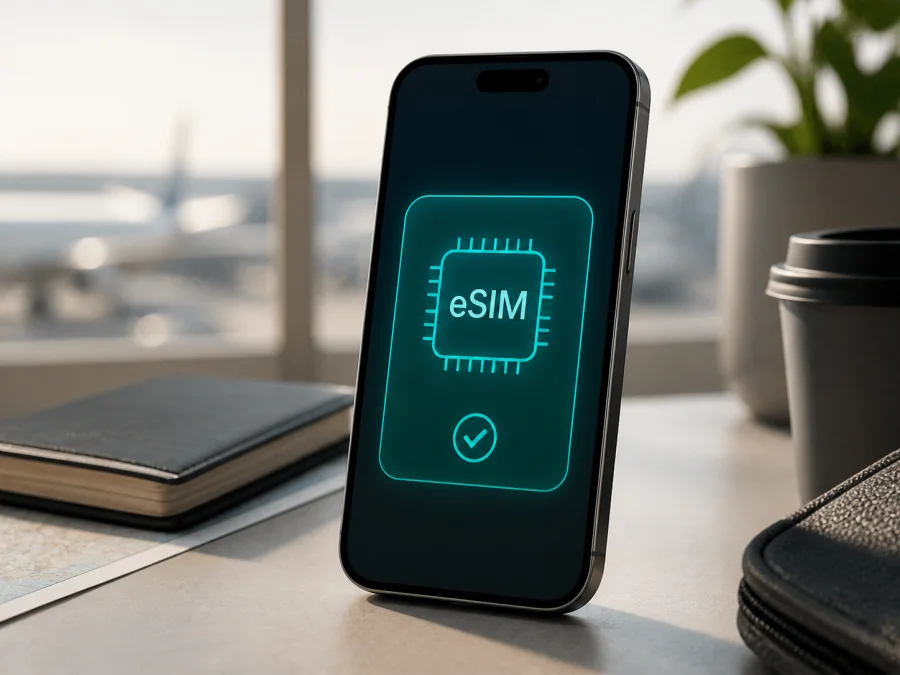
Apple iPhone 16 Pro Max 1TB eSIM: compatibility and setup
If you need mobile internet during a trip, Apple iPhone 16 Pro Max 1TB supports eSIM in the markets and versions where Apple enables the feature. The 1TB label describes storage; it does not create a separate cellular variant or remove eSIM capability. The checks that matter are the market of sale, exact model information, carrier-lock status, iOS, and the eSIM provider’s support for your destination.
An eSIM is a digital SIM built into the phone. It adds a cellular plan without a plastic card and can let you keep your usual line while using a second profile for travel data. The local carrier or travel-plan provider determines the network, coverage, speed and activation conditions. Kaspersky eSIM Store is an app and website that helps you choose, arrange and activate an eSIM with a mobile-internet tariff for an international trip.
Quick answer: does Apple iPhone 16 Pro Max 1TB support eSIM?
Yes, Apple iPhone 16 Pro Max 1TB supports eSIM when the regional version and carrier conditions allow it. Apple’s current technical specifications for iPhone 16 Pro Max list dual eSIM, including two active eSIMs and storage for eight or more eSIMs. Apple also requires a carrier or worldwide service provider that supports eSIM and a compatible plan.
This answer applies to the 1TB capacity because storage does not change the eSIM hardware. It does not mean every retail unit has the same SIM arrangement. Depending on the market, iPhone 16 Pro Max may combine a physical nano-SIM with eSIM or be eSIM-only. Apple’s specifications show that some regional versions have a SIM tray, while the US version is eSIM-only. A tray is not proof that eSIM is unavailable, and the lack of a tray is not the only check you need.
The practical rule is to look for an EID and an Add eSIM or Set Up Cellular option on the phone you actually own. If either is missing, do not assume that an imported 1TB model behaves like a local one. Verify the exact model with the seller and confirm that the chosen tariff accepts the device and destination.
What the 1TB variant changes — and what it does not
| Item | Apple iPhone 16 Pro Max 1TB |
|---|---|
| Exact variant | Apple iPhone 16 Pro Max 1TB |
| Generation | iPhone 16 Pro Max, introduced in 2024 |
| Storage | 1TB; storage does not change eSIM support |
| eSIM | Supported; dual eSIM is documented for supported configurations |
| Physical SIM | Depends on market; some versions have a nano-SIM tray, others are eSIM-only |
| Network | 5G and LTE bands vary by model number, country and carrier |
| Software | iOS; install the latest version available for the phone |
| Plan | Carrier or travel provider must support eSIM and the chosen destination |
| Travel data | Select the travel profile for cellular data; data roaming may be required |
Imported units can have different bands or menus. A phone can support eSIM and still fail because of a band, account, carrier-lock, regional or tariff restriction.
Regional versions, carrier locks and market restrictions
The main exception is mainland China. Apple’s current support guidance says that, in mainland China, only iPhone 17e and iPhone Air support eSIM. Therefore an Apple iPhone 16 Pro Max 1TB intended for or purchased in mainland China should not be treated as compatible with a mainland-China carrier eSIM. Apple also says that other iPhone models purchased outside mainland China cannot install a carrier eSIM profile there. Hong Kong and Macao have separate arrangements, including models with two nano-SIM cards, so do not group all of these markets together. Check the market and model number of the actual phone.
A carrier lock is separate from eSIM support. A phone may show an EID and Add eSIM but still reject a plan from another carrier. Open Settings > General > About and check Carrier Lock. No SIM restrictions is the expected status when you need to use a different provider. If a restriction is shown, ask the original carrier whether it can be unlocked. An eSIM profile is not a way around a lock.
Depending on language and region, you may see Cellular, Mobile Service or Mobile Data. Install pending iOS and carrier-setting updates, restart the phone and check again.
Check compatibility before buying an eSIM tariff
Run this checklist on the exact Apple iPhone 16 Pro Max 1TB you plan to use:
- Confirm the full name and capacity; do not substitute another iPhone 16 model.
- Open Settings > General > About and find EID, the identifier for the embedded SIM.
- Open Settings > Cellular or Mobile Service and look for Add eSIM, Add Cellular Plan or Set Up Cellular.
- Check Carrier Lock and look for No SIM restrictions before switching providers.
- Install the latest iOS available and accept any carrier-settings update offered in About.
- Make sure Wi‑Fi or another working internet connection will be available during installation.
- Check the tariff’s country or regional coverage, data allowance, validity, activation moment, top-up and refund conditions.
- Confirm whether the plan is data-only. A travel eSIM normally does not include a standard number, calls or SMS unless the tariff says so.
- If the phone was imported, verify its market and model number with the seller, especially for use in mainland China.
Check your device compatibility before you select a travel eSIM tariff. If there is no EID or no option to add a plan, pause the purchase and ask the seller or support service to confirm the phone.
How to find the EID and eSIM menu
- Open Settings.
- Tap General.
- Tap About.
- Scroll to EID.
- Return to Settings.
- Open Cellular or Mobile Service.
- Look for Add eSIM, Add Cellular Plan or Set Up Cellular.
An EID is not a guarantee that every tariff works: the provider must cover your destination and the phone must allow the selected carrier.
Prepare the phone and eSIM profile
Have the activation details ready. A provider may supply a QR code, link, app flow or manual-entry details. Keep the code private and display it on another screen; use stable Wi‑Fi and do not repeatedly scan a single-use profile. Kaspersky eSIM Store helps you choose, arrange and activate an eSIM tariff for a trip through its app or site; it is not a mobile operator, network owner or mobile-internet provider. The selected plan determines coverage, validity and activation timing.
How to install and activate eSIM on Apple iPhone 16 Pro Max 1TB
This is the common QR-code flow for a travel data eSIM.
1. Check the conditions
Confirm the EID, eSIM menu and No SIM restrictions under Settings > General > About. Connect to Wi‑Fi and keep the QR code or profile on another device.
2. Open cellular settings
Go to Settings > Cellular or Settings > Mobile Service. Tap Add eSIM, Add Cellular Plan or Set Up Cellular.
3. Scan or follow the activation method
Choose the QR-code option and scan the tariff code. If the provider sent a link, open it on iPhone and follow the prompt. For manual activation, choose Enter Details Manually and copy the SM-DP+ address and activation code exactly.
4. Confirm the plan
Follow the prompts while the profile downloads and label it Travel. Select it for cellular data; keep the home line for voice only if that matches its roaming terms.
5. Select the data line
Open Settings > Cellular > Cellular Data and select the travel eSIM. Keep Allow Cellular Data Switching off unless you want iPhone to use another line when the selected one has a problem.
6. Set data roaming for the correct line
Open the travel line’s settings and check Data Roaming. Some travel eSIMs require it through partner networks; follow the selected tariff’s terms and check the line label before changing the switch.
7. Test the connection
Turn off Wi‑Fi briefly and open a web page or internet messenger. Activation may take a few minutes and depends on the device, account and local network.
For platform-specific help, use the Android installation instructions for Android devices and the iOS installation instructions for this iPhone.
Using eSIM for mobile internet while travelling
Keep the home line for important calls and messages. Select the travel eSIM as the cellular-data line and review the home carrier’s roaming conditions. Use messengers over the travel data connection when appropriate.
Install before flying and activate at the destination. Some tariffs start validity when installed; others start at first connection. Read the terms: complete advance installation over Wi‑Fi if required, or wait when installation starts the validity period.
Plan for a route, not just one airport. A single-country tariff may suit a short visit; for several countries, confirm that a regional tariff covers every stop and lasts for the itinerary. Coverage, speed and tethering rules are plan-specific. Download maps and bookings over Wi‑Fi, then turn on the travel line and roaming only when required. Personal Hotspot can consume a limited package quickly.
Common problems and checks
The QR code does not scan
Increase the other screen’s brightness, clean the camera and confirm the code belongs to this order. Use a second screen if it is on the iPhone; do not retry a single-use code indefinitely.
“Add eSIM” is missing
Check Settings > General > About for EID, update iOS and carrier settings, restart and inspect the menu again. Confirm the market and model number. If there is no EID or a regional rule excludes the phone, contact the seller, carrier or support service.
The profile downloads but there is no service
Turn on the line and select it under Cellular Data. Check data roaming, toggle Airplane Mode, restart and confirm that the location is covered and the plan has data and validity remaining.
The plan cannot be activated
Possible causes include carrier lock, used profile, wrong manual code, weak internet, account mismatch or regional restriction. Save the error, verify the EID and order, and contact the eSIM service or carrier. Do not erase a working eSIM first.
Data comes from the wrong line
Open Settings > Cellular > Cellular Data and select the travel profile. Review Allow Cellular Data Switching, check the home line’s roaming switch separately, and remember that a signal bar does not identify the active data line.
The connection is slow or stops
Check remaining traffic and validity, move to a stronger-signal area, toggle Airplane Mode and restart. Pause background downloads if needed. 5G capability does not guarantee 5G service everywhere; speed depends on the local network, congestion, reception, settings and tariff.
FAQ
Is the 1TB version different from smaller capacities for eSIM?
No. 1TB describes storage. eSIM availability depends on regional hardware, software, carrier policy and plan support. Check the EID and eSIM menu on the actual handset.
Can two eSIMs be active at the same time?
Apple documents dual eSIM for iPhone 16 Pro Max in supported configurations and says that two eSIMs can be active. Stored and active profiles are different limits, and the iPhone uses one cellular data line at a time.
Can I keep my usual number with a travel eSIM?
Usually, if the market version, carrier and plan support dual-line use. Select the travel eSIM for data and review the home carrier’s roaming conditions.
Does a travel eSIM include calls and SMS?
Not automatically. Many travel eSIM tariffs are mobile-data-only and do not include a standard number, voice calls or SMS unless the plan states otherwise. Internet messengers can work through the data connection.
Can Apple iPhone 16 Pro Max 1TB use a mainland-China eSIM?
Do not assume so. Apple’s current guidance limits mainland-China eSIM support to iPhone 17e and iPhone Air and says other iPhone models cannot install a mainland-China carrier profile. Check the exact destination, market and local rules before travel.
Can I move the same eSIM to another phone?
Only if the tariff and provider support transfer. Some profiles are tied to the first installation or device; confirm the transfer or reissue process before deleting one.
Key takeaways
Apple iPhone 16 Pro Max 1TB is eSIM-compatible in supported regional versions, and 1TB does not change that result. Apple documents dual eSIM, but use still depends on country, market version, carrier, bands, iOS and tariff. Mainland China is a specific exception.
The dependable workflow is: find the EID, look for Add eSIM, confirm No SIM restrictions, update iOS, read the tariff terms, install over Wi‑Fi, choose the travel line for data and test it. Kaspersky eSIM Store helps you choose, arrange and activate a suitable travel eSIM through its app or website; it is not an operator or network provider. Plan conditions determine coverage, allowance, validity and top-ups.
Final device check and travel eSIM choice
Before paying for a travel eSIM, complete this final check:
- Confirm the exact device name: Apple iPhone 16 Pro Max 1TB.
- Find EID in Settings > General > About.
- Find Add eSIM or Set Up Cellular in mobile-service settings.
- Verify market version and carrier-lock status.
- Confirm that the tariff covers the country, region or route.
- Match data allowance and validity to your expected use.
- Read when the tariff starts and whether roaming is required.
- Install and test it while reliable internet is available.
If every check is clear, choose an eSIM tariff for your trip and keep the travel profile labelled. If one item is uncertain, confirm it before purchase.


