Travel connectivity guide
Apple iPhone 16 Pro Max 256GB eSIM Guide
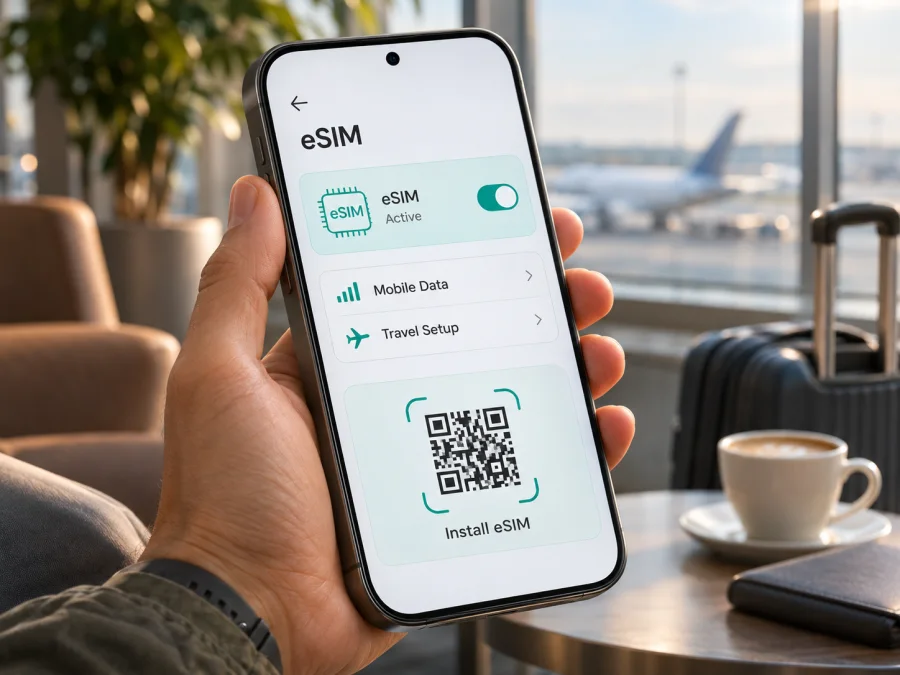
Apple iPhone 16 Pro Max 256GB eSIM: compatibility and setup
Short answer: Apple iPhone 16 Pro Max 256GB supports eSIM in most regional versions. The 256GB storage option does not change cellular capabilities. The key exception is the China mainland, Hong Kong and Macao variant, which uses two physical nano-SIM cards and does not support eSIM. A US model is eSIM-only, while many other regional versions combine eSIM with a physical nano-SIM. Check the exact model number and the phone’s settings before choosing a travel plan.
An eSIM is a digital SIM profile installed on the phone. It can be used for mobile data abroad without replacing a physical SIM card, provided the device is compatible, unlocked and supported in the destination. This guide explains how to identify the regional version, confirm eSIM availability, install a profile and troubleshoot common connection issues.
Apple iPhone 16 Pro Max 256GB eSIM specifications at a glance
| Item | What to know |
|---|---|
| Exact device variant | Apple iPhone 16 Pro Max 256GB |
| Storage | 256GB; storage capacity does not determine eSIM support |
| eSIM support | Yes for most regional versions; the China mainland, Hong Kong and Macao variant is the major exception |
| US regional version | Model A3084; eSIM only, with no physical SIM tray |
| Other common versions | A3295 for a group of markets and A3296 for other countries/regions; these have a nano-SIM tray and support eSIM |
| China mainland, Hong Kong and Macao version | Model A3297; dual nano-SIM configuration, no eSIM support |
| eSIM capacity | iPhone 16 Pro Max can store multiple eSIM profiles and use two active eSIMs at once, subject to carrier and software support |
| Best first checks | Model number, EID, Add eSIM option, carrier lock status and destination-plan conditions |
Apple’s model identification information lists the iPhone 16 Pro Max as a 2024 model in 256GB, 512GB and 1TB capacities. Model numbers identify the sales region, not the storage size. Since the task specifies 256GB, keep that exact variant in mind when checking a listing, invoice or device record; do not assume that a page about another iPhone 16 model describes this phone.
Does Apple iPhone 16 Pro Max 256GB support eSIM?
Yes, if your Apple iPhone 16 Pro Max 256GB is an eSIM-capable regional version. Apple’s technical information for the model describes eSIM support and dual SIM use. Apple also identifies different hardware model numbers by market. The 256GB capacity itself does not disable or add eSIM: the sales region and exact hardware version matter.
The clearest distinction is between these regional groups:
- A3084 — United States and Puerto Rico: eSIM only. There is no SIM tray, so cellular service must be activated with an eSIM.
- A3295 — a group of markets including Canada, Japan, Mexico and several Middle Eastern markets: eSIM plus a physical nano-SIM tray. The precise carrier services available still depend on the operator and country.
- A3296 — other countries and regions: eSIM plus a physical nano-SIM tray in the common international configuration.
- A3297 — China mainland, Hong Kong and Macao: the regional model uses two physical nano-SIM cards and does not offer eSIM. Do not infer eSIM capability from the iPhone 16 Pro Max name alone when buying or using this variant.
These model groups are a guide, not a substitute for checking the actual phone. A device may have been imported, refurbished, replaced or sold in a market different from where you now use it. Ask the seller for the hardware model number and confirm it on the device itself. If the model is A3297, plan around physical SIM service rather than assuming that an eSIM profile can be added. An eSIM-only A3084, on the other hand, requires an eSIM-compatible provider for cellular activation.
The market where you are standing and the market that the device was made for are separate questions. For example, the fact that you are travelling outside China does not turn an A3297 handset into an eSIM model. Similarly, an eSIM-capable iPhone can still be unable to install a particular provider’s profile because of carrier, plan, location or regulatory restrictions. Check the destination and the chosen plan’s terms as well as the device.
When comparing sources, distinguish the phone’s eSIM hardware support from local operator eSIM availability. Apple documents which phone variants can store an eSIM profile. A local carrier controls which plans it offers and how it activates them. A travel data plan also has its own supported destinations and activation rules. One of these facts does not prove the others.
How to check your exact iPhone version
Use the iPhone itself rather than relying only on the product title in an online listing:
- Open Settings.
- Tap General, then About.
- Find Model Number. It may initially show a part number; tap it to display the hardware model number beginning with “A”.
- Note the complete identifier and compare it with the regional groups above. Also check the seller’s original country or region if it is known.
- On the same About screen, look for EID. An EID is an identifier for the built-in eSIM hardware. Its presence is a strong sign that the phone has an eSIM component; if it is absent, do not proceed on assumption alone. Confirm the model number and ask Apple or the seller to clarify.
- Open Settings > Cellular (the label may be Mobile Data in some regions). Look for Add eSIM or Add Cellular Plan.
You can also look for the EID by entering *#06# in the Phone keypad on supported software versions. This opens device identifiers; it does not place a call. If the code does not display an EID, use Settings instead. Menu names may vary slightly by iOS version and language.
A visible Add eSIM control is useful, but it is not by itself a guarantee that a specific plan will work. The phone may be locked to a carrier, a plan may be unavailable in your current location, or an account may need to be eligible for eSIM activation. If the regional model is uncertain or the checks disagree, pause before purchase and confirm with Apple, the current carrier or the seller.
Compatibility checklist before choosing a plan
- [ ] The device is Apple iPhone 16 Pro Max 256GB, and you have checked the hardware model number, not just its product name.
- [ ] The phone is an eSIM-capable regional version; it is not the A3297 China mainland/Hong Kong/Macao dual nano-SIM version.
- [ ] An EID or an Add eSIM option appears in Settings, or Apple/the seller has confirmed eSIM support for this specific device.
- [ ] The phone is unlocked and can accept a profile from a provider other than its original carrier.
- [ ] The plan covers the country or region you will visit and suits your expected data use and travel dates.
- [ ] You have a reliable internet connection for installation and access to the QR code or in-app installation flow.
- [ ] You have read when the plan starts, whether data roaming must be switched on for that eSIM and whether voice calls or SMS are included.
Check your device compatibility before selecting a travel eSIM. If a seller’s description and the phone settings conflict, trust neither guesswork nor a generic model-family statement; have the exact version checked.
What an eSIM can and cannot do on this phone
An eSIM is a digital profile that connects the phone to a mobile network. You can use it for data abroad while keeping a separate home line available, if the device and carriers support Dual SIM. A data-only travel plan does not automatically include a regular number, voice calls or SMS. Check the plan terms; internet calls and messages in apps use data and are not carrier voice or SMS.
The iPhone 16 Pro Max can store multiple eSIM profiles and use two active eSIMs at once, subject to carrier and software support. Storing a profile is not the same as activating it, and only one line is selected for mobile data at a time. Some activation codes are single-use or device-bound, so do not delete a profile as a troubleshooting shortcut.
Choose a travel eSIM for the route
Check that the destination list includes every country on your itinerary. A plan for one country may not cover a neighboring country or stopover. For multi-country travel, compare a regional plan with separate country plans. Coverage and performance depend on local networks, location and network conditions.
Estimate usage from your habits: messaging and email usually need less data than video, cloud backups, large downloads or hotspot use. Check whether tethering is allowed. Review the plan’s data allowance, validity and start condition; plans may start at purchase, installation, first network connection or a scheduled time. Follow the exact plan terms and keep installation details accessible on another screen if you need to scan a QR code.
Kaspersky eSIM Store is an app and website where you can choose, arrange and activate an eSIM with a suitable data plan for an international trip. The plan’s network service and coverage depend on the selected plan and local networks. To browse current options by destination, choose a travel eSIM plan. This is a general destination selector, not a country-specific tariff page.
How to install and activate an eSIM on Apple iPhone 16 Pro Max 256GB
Before starting, connect to Wi‑Fi, keep the QR code or provider’s instructions ready, and confirm that the phone is unlocked and eSIM compatible. Avoid scanning repeatedly or deleting an installed profile unless the provider confirms it can be reinstalled.
Install with a QR code
- Display the provider’s QR code on another screen or print it; the iPhone cannot scan a code displayed on itself.
- On the iPhone, open Settings > Cellular (or Mobile Data) and tap Add eSIM.
- Choose Use QR Code and scan it. If manual details were supplied, enter them exactly as instructed.
- Follow the prompts to add the plan and label the line, for example “Travel”.
- Choose whether to keep your home line on. Set the travel line for data when you are ready to use it; you can change this later in Cellular settings.
- If the plan starts on first connection, leave the line off until you reach the destination if its instructions say so.
- At the destination, enable Turn On This Line, select it under Cellular Data, and switch on Data Roaming for that eSIM only if required by the plan.
- Wait a few minutes for network registration, then test a webpage and check plan status in the provider’s account.
Install from an app
Some providers offer an in-app installation flow. Open the plan on the iPhone, tap its installation control and follow the iOS prompts. Afterwards, confirm that the profile is enabled and selected for cellular data; installation alone does not select the data line.
For general help, see the iOS eSIM installation instructions or Android eSIM installation instructions. The Android guide is for another device; this iPhone uses the iOS steps.
Use the eSIM for mobile internet while travelling
Check these settings when you arrive:
- Cellular Data: select the travel eSIM.
- Turn On This Line: enable the eSIM profile.
- Data Roaming: turn it on for the travel line only if its instructions require it. Keep your home line’s roaming setting in mind.
- Network Selection: start with Automatic. Select a network manually only if the provider identifies one and automatic registration fails.
- Plan status: check remaining data and validity in the provider’s app or account; the phone’s statistics may use a different period.
You may be able to leave your home SIM active for calls or SMS while using travel data, but roaming charges can still apply to calls, messages or voicemail. Check your home carrier’s terms. If the travel plan is data-only, messaging and calls in apps can work through data if you are signed in. Download essential tickets and maps for offline use. An eSIM is not a VPN and does not make every app or website available in every country.
Common problems and what to check
“Add eSIM” is missing
Check the model number and EID in Settings > General > About. The A3297 regional version does not support eSIM. For other versions, restart the phone and install available iOS updates. If the menu remains missing or the checks disagree, ask Apple or the seller to verify the hardware before purchase.
The QR code will not scan
Show it on another screen, increase brightness, keep the full code visible and hold the iPhone steady. If it still fails, use manual details only when supplied by the provider. A previously used code may be single-use; contact the provider before trying to reuse it.
The profile will not install
Check internet access, Airplane Mode and iOS updates. Confirm whether a profile is already installed. Some codes work once or on one device, so do not delete a profile and retry without checking the plan’s rules.
There is no signal or data
Make sure the eSIM line is on and the destination is covered. Toggle Airplane Mode briefly or restart the phone. Use Automatic network selection first, and enable roaming for the travel eSIM if required. For data issues, confirm that this eSIM is selected for Cellular Data, that the plan has started and that data remains. Use APN values only when the provider supplied them. If service still fails, contact support with the model, iOS version, location and error message.
The phone or eSIM is locked or stopped working
On supported iOS versions, check Settings > General > About > Carrier Lock; “No SIM restrictions” indicates an unlocked phone. A carrier lock cannot be removed by resetting network settings. If a working eSIM stops, check its validity, remaining data and destination coverage. Avoid deleting it before contacting the provider, since it may not be reinstallable.
FAQ
Does every Apple iPhone 16 Pro Max 256GB support eSIM?
No. Most regional versions do, but A3297 for China mainland, Hong Kong and Macao uses two nano-SIM cards and does not support eSIM.
Does the 256GB storage option affect eSIM?
No. Storage size does not decide compatibility; the regional hardware version does.
Can I use eSIM and a physical SIM together?
Yes, on eSIM-capable versions, subject to carrier support. A3084 is eSIM-only; A3297 has physical SIMs but no eSIM.
Can I keep my usual number while using travel data?
Often, if both carriers support Dual SIM. Select the travel eSIM for data and check home-carrier roaming charges for calls and messages.
Does a travel eSIM include calls and SMS?
Not necessarily. Many travel plans are data-only. Check the selected plan’s terms.
Can I transfer an installed eSIM to another phone?
Do not assume so. Transfer rules vary, and some codes are single-use or device-bound. Check before deleting a profile.
Final check before your trip
Apple iPhone 16 Pro Max 256GB is compatible with eSIM when it is an eSIM-capable regional version. Verify the A-number, EID or Add eSIM setting, and carrier-unlocked status before you pay for a plan. In particular, avoid assuming that the A3297 China mainland, Hong Kong and Macao model can accept an eSIM; it uses two nano-SIM cards instead. The US A3084 version is eSIM-only, while A3295 and A3296 versions generally combine eSIM with a physical nano-SIM.
Once compatibility is confirmed, choose a plan for the countries on your itinerary, read its data, validity and activation terms, then install and label the profile while you have internet access. Set the travel eSIM as the mobile-data line when you are ready to use it and enable roaming only as instructed for that profile. For a trip, Kaspersky eSIM Store is the app and website where you can choose, arrange and activate an eSIM with a suitable data plan; the actual service depends on the selected plan and local networks. Check your device first, then browse current eSIM options for your destination.


