Travel connectivity guide
Apple iPhone 16 Pro Max 512GB eSIM
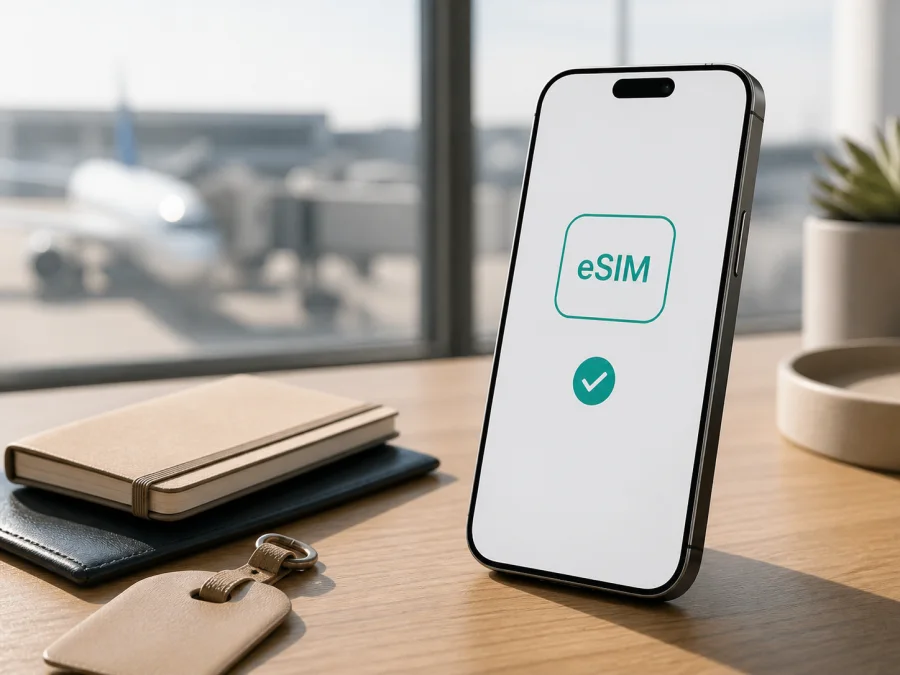
Apple iPhone 16 Pro Max 512GB eSIM: compatibility and setup
If you are preparing an overseas trip with an Apple iPhone 16 Pro Max 512GB, the short answer is yes: the iPhone 16 Pro Max family supports eSIM. Apple makes different regional versions, however. The 512GB storage option does not identify the cellular configuration: the phone can be eSIM-only, eSIM plus nano-SIM, or a regional version where eSIM must not be assumed. Check the actual phone before selecting a travel eSIM tariff.
An eSIM is a digital SIM built into the iPhone. It adds a mobile plan without a plastic card and can provide a separate data line. Kaspersky eSIM Store is an app and website that helps you choose, arrange and activate an eSIM with a suitable tariff for mobile internet during an overseas trip. It is not a mobile operator, network owner or mobile-internet provider; service depends on the selected tariff and local networks.
Quick answer for Apple iPhone 16 Pro Max 512GB
Apple’s current technical information lists the iPhone 16 Pro Max in 256GB, 512GB and 1TB capacities and describes eSIM support for the family. Supported versions can have two active eSIMs and store eight or more. That makes an Apple iPhone 16 Pro Max 512GB a good candidate, but the regional unit determines the final answer.
| Check | Practical meaning |
|---|---|
| Exact variant | Apple iPhone 16 Pro Max 512GB; the capacity is part of the target model. |
| eSIM | Supported by the family, subject to regional model, carrier and device status. |
| U.S. version | eSIM-only; Apple identifies no physical SIM tray. |
| Many other regions | eSIM plus nano-SIM; dual-line use depends on carrier support. |
| Mainland China, Hong Kong or Macao | Do not infer eSIM support from the name; regional dual nano-SIM rules may apply. |
| Storage | 512GB changes file storage, not the eSIM hardware or regional design. |
| Provider | The chosen plan must support eSIM and the destination. |
So the accurate answer is: yes for eSIM-capable versions, including the U.S. configuration, but confirm the region and the phone’s own EID or Add eSIM control. If the unit was purchased in mainland China, Hong Kong or Macao, treat eSIM as unconfirmed until the device and provider both confirm it.
Why the sales region matters
The iPhone name and capacity label are not a full cellular specification. Apple’s current model-identification information lists several iPhone 16 Pro Max model numbers: A3084 for the United States and Puerto Rico; A3295 for a group of other named markets; A3297 for mainland China, Hong Kong and Macao; and A3296 for other countries and regions. A seller can use the same “Apple iPhone 16 Pro Max 512GB” description for phones with different SIM arrangements.
For the United States, Apple describes the iPhone 16 Pro Max as using advanced eSIM technology and not being compatible with physical SIM cards. There is no tray, so a new plan is added digitally. An unlocked U.S. phone can be used with a supported travel provider when the destination and plan are compatible.
For versions sold outside the United States, Apple generally identifies a SIM tray and also lists eSIM capability. A physical home line and travel eSIM can coexist where the carrier permits it. A tray does not mean eSIM is absent, and 512GB does not prove it is present.
Mainland China, Hong Kong and Macao need extra care. Apple currently states that, in mainland China, only specific newer models support eSIM, while certain iPhones sold in Hong Kong and Macao use Dual SIM with two nano-SIM cards. The iPhone 16 Pro Max appears in Apple’s list for two-nano-SIM use in those contexts. Therefore, an A3297 Apple iPhone 16 Pro Max 512GB should not be treated as equivalent to an A3296 or A3084 unit. Verify the A-number and Settings before purchase.
What eSIM does on this iPhone
An eSIM profile is a digital mobile-plan credential downloaded to the phone’s built-in eSIM component. After installation it appears as a line in Cellular settings. A travel profile can handle data while your home line remains available, but the home operator may charge roaming if that line uses data. The travel eSIM selected through Kaspersky eSIM Store is data-focused: voice, SMS and a regular local number are not automatic. Review destination, data, validity, activation rules, networks and other tariff conditions. Apple describes two active eSIMs on supported versions; behavior depends on region, iOS and carrier support.
Compatibility check before purchase
Use the device itself as the final test. Follow this sequence before choosing a travel eSIM tariff:
- Open Settings.
- Tap General.
- Tap About.
- Find EID. A visible EID indicates that the phone has an eSIM component.
- Find Model Number and note the A-number. If a part number is shown, tap it to reveal the model identifier.
- Return to Settings and open Cellular or Mobile Data.
- Look for Add eSIM, Set Up Cellular or an equivalent add-plan control.
- In About, check Carrier Lock. An unlocked iPhone shows No SIM restrictions.
An EID and Add eSIM control show that the phone is technically prepared for a digital profile. You still need a provider and tariff that support the destination and relevant network bands. If either item is missing, pause and ask the seller or carrier about the regional model and unlock status. Do not assume that the 512GB label is enough.
Before buying, check your device compatibility and compare the result with the tariff conditions. This is especially important for a used or imported phone, a carrier-supplied device, and any phone linked to mainland China, Hong Kong or Macao. Keep the model number for support, but do not publish your EID or QR code.
Choosing an eSIM tariff for a trip
After the device passes the check, use Kaspersky eSIM Store as the app or website for selecting a direction and reviewing options. It helps you choose, arrange and activate an eSIM tariff for mobile internet abroad; it does not create a Kaspersky network or replace the local operator supplying access.
Select the country, region or multi-country route and confirm every stop. Estimate use: maps and messages need less data than video, streaming or hotspot sessions. Download large files over Wi‑Fi, choose validity covering the trip and check whether 5G, hotspot, network selection and top-up are included.
Read when validity begins. Some profiles start when installed; others begin when the eSIM connects to a supported network. If activation should wait until arrival, keep the line off. Review current data, validity, price and conditions before proceeding.
How to install and activate eSIM on iPhone
Prepare first: confirm compatibility, unlock status and the exact tariff. Connect the iPhone to Wi‑Fi or another working internet connection. Keep the QR code or activation details available on a second screen.
For step-by-step guides, see how to install an eSIM on iOS and how to install an eSIM on Android.
Install with a QR code
- Connect the iPhone to Wi‑Fi.
- Open Settings.
- Tap Cellular or Mobile Data.
- Tap Add eSIM or Set Up Cellular.
- Choose the QR-code option.
- Scan the code supplied for the selected tariff.
- Follow the on-screen instructions.
- Enter a confirmation code if requested.
- Wait for the plan to finish downloading.
- Label the new line Travel data or another clear name.
You can also use the Camera app if iOS shows a Cellular Plan Detected notification. If the code is on the same iPhone, display it on another screen. Never share a QR code publicly; it may be usable only once.
Use a link, app or manual details
If the provider sends a supported activation link or app flow, open it on the iPhone and follow the prompt for the correct account. Carrier activation and eSIM Quick Transfer are separate methods and may not apply to travel data. For manual setup, open Settings > Cellular > Add eSIM or Add Cellular Plan, choose manual entry and enter the SM-DP+ address and activation code exactly as provided. Do not guess or reuse details from another profile.
Select the line for mobile data
Open Settings > Cellular, turn on the travel line and select it under Cellular Data. Leave Allow Cellular Data Switching off for predictable usage. At the destination, enable Data Roaming for the travel eSIM only when the tariff requires it; this does not mean roaming should be enabled on the home line.
Allow a few minutes for registration, then load a small page and confirm that the travel line’s counter changes. Keep large downloads off until you know which line is active. If registration fails, toggle Airplane Mode, restart the phone and use automatic Network Selection unless the tariff names a supported network.
Practical travel scenarios
Before departure
Complete the EID, model and carrier-lock check at home. Review destination, data, validity and activation timing. Install in advance only if permitted, label the line and save the instructions offline.
Arrival
Turn off Airplane Mode, enable the travel eSIM and select it under Cellular Data. Turn on data roaming for that line if required; leave it off on the home line unless you accept its charges. Test maps or messages before relying on the connection.
Multi-country route
Confirm that every country on the itinerary is covered. A regional profile can reduce repeated setup, but follows its geographic and validity rules. After a border crossing, allow time for registration and recheck the data line. For work or hotspot use, monitor video and cloud traffic and confirm tethering; 512GB storage does not increase the eSIM data allowance.
Returning home
Select the home line under Cellular Data, turn off the travel eSIM and review roaming settings. Keep the profile only if its conditions allow future use; removal may require a new activation code later. Test the usual line before leaving the airport.
Troubleshooting checklist
No EID or Add eSIM option
Recheck the A-number and purchase region. An A3297 unit associated with mainland China, Hong Kong or Macao may have two nano-SIM slots instead of eSIM. Update iOS and restart. If EID and the add-plan control remain absent, ask the seller or carrier before buying.
QR code will not scan
Increase brightness, remove glare and keep the code flat. Use a second screen if needed. Confirm the account and that the code has not already been used; use manual details only when supplied for this profile.
Profile will not download
Use stable Wi‑Fi, check the lock status and confirm automatic date and time. If iOS reports an unsupported carrier or plan, contact support before deleting the profile. An EID alone does not guarantee activation.
Installed but no service
Confirm that the travel line is on and selected for data. Enable data roaming if required, check destination and network conditions, then toggle Airplane Mode or restart. Use manual selection only when recommended by the tariff. Installation does not guarantee service outside coverage.
Data uses the wrong line
Return to Settings > Cellular > Cellular Data and select the travel eSIM. Turn off Cellular Data Switching, disable data roaming on the home line and check the hotspot line. Background activity may create roaming charges.
Activation stays pending
Wait several minutes with stable internet, then restart. Check the profile limit and activation details; avoid repeated reinstall attempts if validity starts on installation. Record the error, model, iOS version and destination for support. Do not share the QR code or EID publicly.
FAQ
Does every Apple iPhone 16 Pro Max 512GB support eSIM?
No storage label guarantees it. The family supports eSIM, but U.S. units are eSIM-only, many other units combine eSIM with nano-SIM, and some mainland-China, Hong Kong and Macao units use two physical nano-SIMs. Verify the EID, Add eSIM control and model number.
Can I use a travel eSIM and my home number together?
Often yes on an unlocked, eSIM-capable configuration. Select the travel profile for data and keep the home line for calls or messages only after checking roaming conditions.
Will a travel eSIM provide a normal phone number?
Not by default. This travel use case is for mobile internet; voice and SMS are included only when the tariff says so. Calling and messaging apps can work over data.
Can I transfer the profile to another iPhone?
Do not assume that you can. Carrier plans and travel profiles have different rules, and a reissue may be required. Check before deleting a profile.
Can a locked iPhone use this eSIM?
It may not. In Settings > General > About, look for No SIM restrictions next to Carrier Lock. If absent, contact the current carrier; an EID does not prove another provider’s eSIM will activate.
Final device check and trip eSIM choice
Before paying for an eSIM tariff, return to the device in your hand and complete the check: Settings > General > About > EID, the visible Add eSIM control in Cellular settings, the A-number model identifier and Carrier Lock: No SIM restrictions. Match the result to the phone’s purchase region, especially if the Apple iPhone 16 Pro Max 512GB came from mainland China, Hong Kong or Macao. If any answer is unclear, ask the seller or current carrier before purchase and do not rely on the capacity label alone.
When compatibility is confirmed, open the Kaspersky eSIM Store app or website, select the route, review data, validity and activation conditions, and choose the eSIM tariff that fits. Install it through the supported flow, select it for mobile data on arrival and keep the home line’s roaming under control.


