Travel connectivity guide
Apple iPhone 16 Pro Max eSIM Compatibility Guide
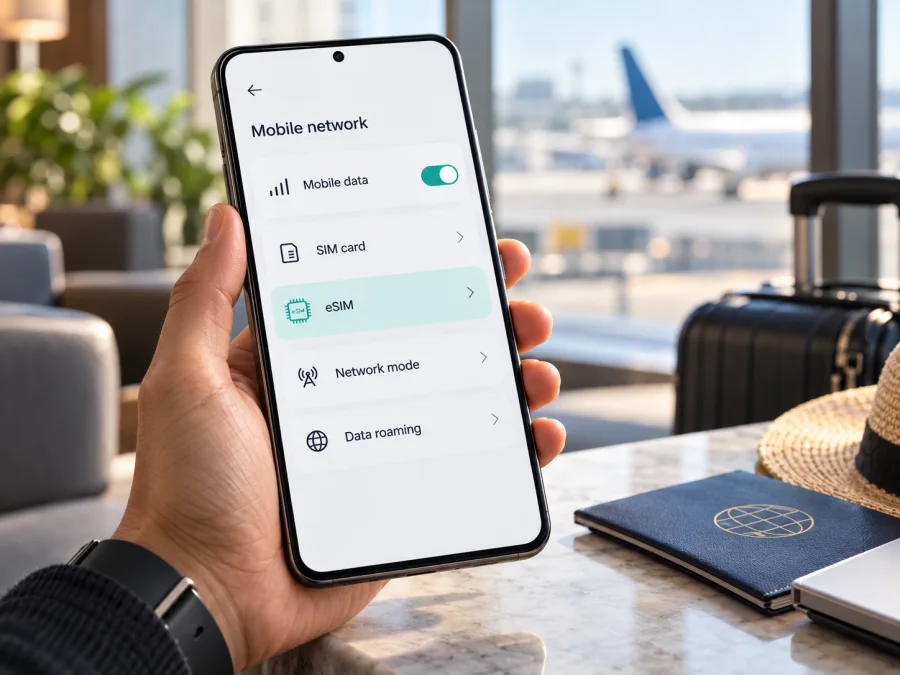
Apple iPhone 16 Pro Max eSIM: compatibility and setup
The Apple iPhone 16 Pro Max supports eSIM in most markets, but the exact answer depends on where that particular unit was sold. A US version is eSIM-only. Versions sold in many other markets combine eSIM with a physical nano-SIM. Mainland China, Hong Kong, and Macao are important exceptions: Apple documents two physical nano-SIM support for the iPhone 16 Pro Max sold in those markets, rather than eSIM support. Check the phone itself before choosing a travel plan, especially if it was bought second-hand or imported.
For a compatible, unlocked version, you can add a travel eSIM in Settings, choose it for mobile data, and keep your usual line available for calls if your home carrier and settings allow. A travel data plan does not automatically include a regular phone number, calls, or SMS. The steps below explain what to check, how to install the profile, and what to do if it does not connect.
Quick answer
Does Apple iPhone 16 Pro Max support eSIM? Usually, yes. Apple lists the iPhone 16 Pro Max among eSIM-compatible models purchased outside the United States, and US versions are in its separate eSIM-only group. A phone purchased for mainland China, Hong Kong, or Macao may instead use two nano-SIM cards and lack eSIM. The retail market and model number matter more than the name printed on the box.
| Check | What to know |
|---|---|
| eSIM availability | Supported on most market versions; verify the specific unit in Settings. |
| US version | eSIM-only; there is no physical SIM tray. |
| Many other markets | eSIM plus a physical nano-SIM may be available. |
| Mainland China, Hong Kong, and Macao | The iPhone 16 Pro Max may be a dual nano-SIM version with no eSIM. |
| Carrier lock | The phone must be unlocked for a plan from another provider. |
| Travel data | Select the travel eSIM as the mobile-data line; data roaming may need to be on for that line. |
| Voice and SMS | A data-only travel plan does not supply a regular number unless its terms explicitly say otherwise. |
The table describes broad regional configurations, not a guarantee for an individual handset. Apple, the original seller, and the mobile provider can confirm details for a specific model number, carrier lock, and plan. A working eSIM menu is a useful check, but it does not prove that a particular travel plan or local network will accept the device.
What varies by region and carrier
The same product name can cover different cellular hardware configurations. Apple’s current SIM compatibility information identifies the iPhone 16 Pro Max as eSIM-capable when purchased outside the United States, while the US version is listed as eSIM-only. For a unit sold in many other regions, the expected setup is one physical nano-SIM and one or more stored eSIM profiles. The US model has no SIM tray, so a physical SIM cannot be used with it.
Apple’s regional guidance identifies a different arrangement for China mainland, Hong Kong, and Macao. An iPhone 16 Pro Max sold for those markets can use two physical nano-SIM cards. Apple’s current eSIM list does not include this model for mainland China, and its dual-nano-SIM instructions specifically include iPhone 16 Pro Max units purchased in mainland China, Hong Kong, or Macao. Do not assume that an overseas eSIM profile can be added simply because the phone is an iPhone 16 Pro Max. Confirm the exact regional model and inspect its settings.
Separate the place of purchase from the place where you are using the phone. Apple’s mainland-China guidance says iPhone 16 Pro Max is not an eligible model for a mainland-carrier eSIM profile, even if the handset was bought elsewhere. Apple also says a non-mainland provider’s eSIM cannot be installed while you are physically in mainland China. A Chinese-market handset is not converted into an eSIM model by travelling abroad. Check the current local rules and provider instructions before travel.
Carrier locking is another separate issue. Hardware can support eSIM while a carrier-locked handset refuses a profile from another provider. On an iPhone, open Settings > General > About and look for Carrier Lock. If the status says No SIM restrictions, the phone is unlocked. If it shows a restriction or the status is unclear, ask the carrier that sold or financed the phone to explain its unlock policy before you buy a travel plan. An unlocked device still needs a supported eSIM configuration and a compatible plan.
Check eSIM compatibility before buying
Use more than one check if you are unsure about the phone’s origin. This is particularly important when the device was purchased abroad, refurbished, supplied by an employer, or sold without its original packaging.
- Open the cellular settings. Go to Settings > Cellular or Settings > Mobile Service. Look for Add eSIM, Set Up Cellular, or an existing digital line. The exact wording can vary by iOS version and language.
- Find the EID. Go to Settings > General > About and scroll through the device information. An EID is a long identifier associated with the embedded SIM. If it appears, that is a useful sign that the handset has eSIM hardware, but it does not confirm that it is unlocked or accepted by a specific provider.
- Check the model number. In Settings > General > About, tap the part number beside Model Number to reveal the hardware model identifier. Compare that identifier with Apple’s information for the market where the phone was sold, or ask Apple Support or the original seller to confirm it. You can also compare the information on the original box, if available.
- Check the carrier status. In the same About screen, confirm that Carrier Lock says No SIM restrictions. If there is a lock, ask the original carrier about unlocking it; only that carrier can clarify its status and terms.
- Confirm the exact travel plan. Check that the plan supports iPhone eSIM activation and covers every country or region on your route. Confirm its data allowance, validity period, supported network, installation method, and the point at which validity starts.
If Add eSIM and EID are both absent, do not treat a general model-family statement as proof that your unit supports it. Check the model identifier and its original sales market with Apple or the seller. If Add eSIM appears but setup fails, the device may still be locked, the profile may be invalid or already used, or the provider may not support that particular activation method.
Use Check your device to review the compatibility information before ordering. Compatibility has three parts: eSIM hardware in this regional model, an unlocked device, and a plan that is valid for the destination and can be activated on that device. A pass on only one or two of these checks is not enough.
What to prepare before installation
Set up the eSIM over stable Wi-Fi unless its instructions say otherwise. Keep the QR code or manual details accessible. If the code is on the Apple iPhone 16 Pro Max screen, display it on another device or use a supported on-device installation option.
Before you start, check the following:
- The regional model supports eSIM and is not carrier-locked.
- iOS is current enough for the provider’s activation method.
- You have Wi-Fi, a valid QR code or activation details, and the plan’s support contact.
- You know when the plan’s validity starts and have noted your home-line settings.
Do not delete a working eSIM or repeatedly scan the same code. Some activation codes are single-use. If a scan fails, keep the code and error details and ask the provider whether it can be reissued or installed another way.
How to install an eSIM on Apple iPhone 16 Pro Max
The menu names below follow Apple’s iOS setup flow. The available choices depend on the eSIM provider and plan. A provider may send a QR code, assign a profile to the device, offer installation through its app, or provide manual details. Use the method supplied for your purchase rather than trying unrelated activation options.
Add the eSIM with a QR code
- Connect to Wi-Fi. Keep it active while the profile downloads.
- Open Settings. Tap Cellular or Mobile Service.
- Start adding a plan. Tap Add eSIM or Set Up Cellular. If prompted, choose the option to use a QR code.
- Scan the provider’s code. Use another screen or a printout, then follow the prompts. Enter a confirmation code if requested.
- Label the line. Choose a clear label such as Travel data so that you can distinguish the travel profile from your personal line later.
- Finish installation. Wait for the profile to appear under your cellular plans.
- Choose when to use it. If you are not ready to connect, leave the line off or keep your normal line selected for data. Check whether the plan’s validity starts at installation or later.
If the plan is assigned automatically
Some providers can assign a profile directly to an eligible iPhone. Open the setup notification and follow the prompts, or check Settings > Cellular for an option to finish setting up a plan. This method is provider-dependent; a missing notification does not prove the phone lacks eSIM hardware.
If you must enter details manually
Use manual entry only when the provider supplied an SM-DP+ address, activation code, or required fields. Copy them carefully. Do not try both manual entry and a QR code for one single-use profile unless instructed; ask the provider for missing details.
For visual setup steps, see the iOS eSIM installation instructions. If you are configuring a different compatible Android phone as well, the Android eSIM installation instructions describe the corresponding process for that platform.
Choose the eSIM for travel data
Installing the profile and using it for data are separate actions. When ready, open Settings > Cellular or Mobile Service, select the travel line, and turn it on. Then choose that eSIM under Cellular Data or Mobile Data. iPhone normally uses one data line at a time.
If the plan requires it, enable Data Roaming for the travel line. This setting applies to the selected line, so check the plan instructions and home-carrier terms. To prevent automatic use of your personal line for data, turn off Allow Cellular Data Switching. Keep your home line active only if you need it and understand possible charges.
For a data-only plan, use the travel eSIM for internet and use messaging or voice apps over data. It does not create a regular number or include standard calls and SMS unless its terms say so. If you need your usual number, check roaming rates and the behavior of calls, voicemail, iMessage, and verification messages with your carrier.
On arrival, allow a few minutes for registration. Follow any network-selection steps from the provider. Availability and signal depend on the local network, location, plan, and device; an eSIM does not guarantee service everywhere.
Use the phone on a trip
For a short trip, install over Wi-Fi before departure and leave the line off until the plan’s stated start time. At the destination, turn it on and select it for data. Check whether installing early affects validity.
For a multi-country itinerary, check whether a regional plan covers every stop. Read its destination list and any country-specific rules; a broad region name is not enough. Track remaining data and validity in the account or app that manages the plan.
For work, you can keep your personal line available for calls and use the travel eSIM for data. Review roaming charges, select the right data line, and disable automatic switching if needed. Check plan and device support before using a hotspot.
For a longer stay, compare the travel plan’s destinations, data, validity, and renewal rules with local options. If you need a local number or recurring service, ask a destination provider about registration requirements.
Kaspersky eSIM Store is an app and website where you can choose, order, and activate an eSIM with a mobile-data plan for an international trip. The plan’s conditions and the local mobile network determine service. To browse current destination options and review their terms, visit the Kaspersky eSIM Store. This homepage is a general starting point; check the destination and plan details shown for your own itinerary.
Troubleshooting: eSIM will not install or connect
Work through the checks in order. Change one setting at a time so you can tell which step resolves the issue.
| Symptom | Checks to make |
|---|---|
| Add eSIM is missing | Confirm the regional model number and look for an EID in Settings > General > About. A mainland China, Hong Kong, or Macao dual-nano-SIM unit may not support eSIM. Ask Apple or the seller to verify the exact model. |
| The QR code is not recognized | Increase screen brightness on the device displaying it, clean the iPhone camera lens, hold the code steady, and confirm that the full code is visible. Try manual activation only if the provider supplied those details. |
| The profile will not download | Reconnect to reliable Wi-Fi, turn Airplane Mode off, restart the phone, and check for an iOS update. Confirm that the activation code has not expired or already been used. |
| The phone says the plan cannot be added | Check the carrier-lock status, the plan’s device requirements, and the exact error. Contact the plan provider to verify that the activation is still available and supported for the destination. |
| The eSIM appears but has no signal | Confirm that the travel line is on, wait several minutes, toggle Airplane Mode once, and restart. Check that the destination is included and that the provider’s network selection instructions are followed. |
| Signal appears but data does not work | Select the travel eSIM under Cellular Data, turn on Data Roaming for that line if the plan requires it, and verify the plan has data remaining and is within its validity period. Check APN settings only if the provider has supplied an APN. |
| The phone uses the wrong line for data | Open Cellular Data settings, select the travel eSIM, and turn off Allow Cellular Data Switching if you do not want automatic switching. Review the home carrier’s roaming terms. |
| The QR code was scanned but the profile is missing | Return to Settings > Cellular and check the list of SIMs. Restart the phone and check again. Do not scan the code repeatedly; ask the provider to confirm whether activation was completed. |
If the line is visible but cannot register, check Settings > General > About for a carrier-settings update prompt. Record the iPhone model number, iOS version, EID if present, plan name, destination, and exact error before contacting support. Do not send account passwords or security codes. Apple can help with device-level settings; the company that issued the travel eSIM can check the profile, plan status, and activation code.
Common questions
Can every Apple iPhone 16 Pro Max use a travel eSIM?
No. Most market versions support eSIM, but configurations sold for mainland China, Hong Kong, and Macao may use two physical nano-SIMs and not support eSIM. US units are eSIM-only. Check the exact phone, not only the product name.
Does an EID prove that my travel plan will work?
No. An EID is evidence of eSIM hardware, not a guarantee that the device is unlocked, that the activation method is supported, or that a plan covers your destination. Confirm all three before purchase.
Can I keep my physical SIM active?
Often, yes, on versions with a SIM tray, if the lines and carriers support the intended configuration. The US eSIM-only version has no physical SIM tray. For travel, you can generally select one line for mobile data and leave the other available for calls, but charges and behavior depend on your home plan and settings.
Will a travel eSIM give me a phone number?
Usually not when the plan is data-only. Check the plan terms for included voice or SMS features. Messaging and calls through internet apps may work when you have data and the app accounts are already set up.
Final checklist: verify the phone, then choose a plan
Before ordering a travel eSIM for Apple iPhone 16 Pro Max, check the sales region and model number, confirm that Add eSIM or an EID is present, and verify that Carrier Lock shows No SIM restrictions. If the phone is a mainland China, Hong Kong, or Macao dual-nano-SIM version, do not expect it to accept an eSIM profile. If you are uncertain, ask Apple or the original seller to identify the hardware configuration.
Then check the destination list, data amount, validity period, installation method, activation timing, roaming requirement, and any restrictions on tethering or transfer. Once the phone and plan both pass those checks, install the profile over a reliable connection, label it clearly, and select it for mobile data when you are ready to use it. Kaspersky eSIM Store can help you browse and activate a suitable travel eSIM plan through its app and website; the selected plan and local network define the service available on your route.


