Travel connectivity guide
Apple iPhone 16e 128GB eSIM: Setup Guide
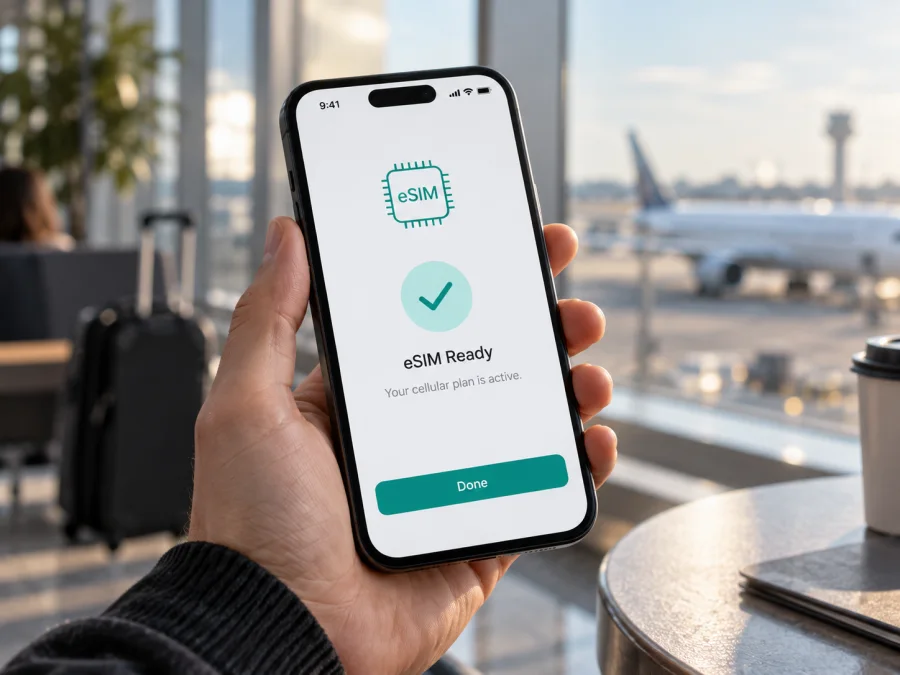
Apple iPhone 16e 128GB eSIM: compatibility and setup
Short answer: Apple iPhone 16e 128GB can use eSIM when it is a regional version with eSIM hardware and the service provider supports eSIM. The 128GB storage option does not change cellular capabilities. The key detail is where the phone was intended for sale: the US version is eSIM-only, most versions sold outside the US combine a physical nano-SIM slot with eSIM, while the mainland China version uses two physical nano-SIM cards and does not support eSIM. Apple also identifies some iPhone 16e devices bought in Hong Kong or Macao as supporting eSIM. Because those market rules are easy to mix up, check the exact phone before choosing a travel plan.
This guide explains what to inspect on the phone, how to add an eSIM, and how to use it for mobile data abroad. An eSIM plan also depends on the provider, destination, device lock status, and the plan’s terms. The model name or storage capacity alone cannot confirm that every unit will accept eSIM.
Does Apple iPhone 16e 128GB support eSIM?
Yes for eSIM-capable regional versions. Apple’s specifications describe eSIM support for iPhone 16e, including Dual eSIM on supported versions. The US model is activated with eSIM and has no physical SIM tray. Models sold in many other countries have a nano-SIM tray and eSIM capability, and supported versions can keep more than one eSIM profile stored. Only one line supplies cellular data at a time.
There is an important regional exception. The iPhone 16e version for mainland China uses two physical nano-SIM cards and does not have eSIM functionality. Apple’s current guidance separately says that some iPhone 16e models purchased in Hong Kong or Macao support eSIM. Do not treat mainland China, Hong Kong, and Macao as one device market: check the exact unit and the rules for the place it was sold. A phone imported from another market may follow that market’s hardware configuration regardless of where you use it now.
The “128GB” part identifies storage. Apple lists 128GB, 256GB, and 512GB capacity options for the same iPhone 16e family; capacity does not itself add or remove an eSIM radio or menu. If a listing only says “Apple iPhone 16e 128GB,” it does not reveal the sales region, model number, SIM tray arrangement, or whether the device is carrier-locked. Ask for those details before buying an eSIM plan.
Quick specifications relevant to eSIM
| Item | What it means for Apple iPhone 16e 128GB |
|---|---|
| Device family | iPhone 16e, introduced in 2025 |
| Storage in this variant | 128GB; storage size does not determine eSIM support |
| eSIM | Supported on eligible regional versions; not supported on the mainland China version |
| Physical SIM | US version has no SIM tray; many other regional versions have a nano-SIM tray; mainland China version has two nano-SIM slots |
| Dual SIM | Supported configurations differ by market; supported models can combine eSIM and nano-SIM or use two eSIMs |
| Mobile data | One line is selected for cellular data at a time |
| What else must be true | The eSIM provider supports the device and destination, the phone is unlocked for that provider, and the plan is valid for the intended use |
Check the exact regional version before you buy
“iPhone 16e” is a product family, not proof that two phones have identical SIM hardware. Apple’s model-identification information lists several model numbers for iPhone 16e: A3212 for the United States and Puerto Rico; A3408 for a group of markets that includes Canada and several Gulf markets; A3410 for mainland China; and A3409 for other countries and regions. The market of sale and actual settings matter, especially for imported phones.
Use these checks together rather than relying on a seller’s brief title:
- Ask where this exact unit was originally sold. Request a receipt, box label, or model information from Settings. “International version” is not a precise market description.
- Check the model number on the phone. Open Settings → General → About. The Model Number row initially shows a part number; tap it to reveal the A-number. Compare that number and the original sales market with Apple’s model identification information.
- Inspect the SIM tray, but do not use it as the only test. A US iPhone 16e has no tray. A tray indicates a regional configuration with physical SIM support, but it does not by itself prove that eSIM is available; the mainland China version is the key exception.
- Look for EID. In Settings → General → About, scroll through the identifiers. An EID is the identifier associated with the embedded SIM hardware. Its presence is a useful sign that the handset can provision eSIM; if it is absent, do not assume support based on the model name. Ask Apple or the seller to confirm the exact regional unit.
- Check the add-eSIM controls. Open Settings → Cellular (called Mobile Data in some regions or iOS language settings). Look for Add eSIM or Add Cellular Plan. The exact label varies with iOS. If the option is missing, check the model’s market and update iOS before concluding anything; then confirm with Apple or the seller.
- Check the carrier lock. In Settings → General → About, find Carrier Lock. “No SIM restrictions” indicates the phone is unlocked. If it shows a restriction or names a carrier, ask that carrier whether it can unlock the phone and whether it will accept the provider for the travel plan.
If EID or the menu is missing, regional hardware, software, or device management may be involved. For a remote purchase, ask the seller for a Settings → General → About screenshot with personal identifiers covered. Do not post an EID, IMEI, serial number, or QR code publicly.
For a travel eSIM, the operator market matters as much as the iPhone’s hardware. The handset must be able to store an eSIM profile, while the company issuing the plan must support that device and provide service for the destination. A compatible phone can still be locked to another carrier, outside the plan’s service area, or running a regional variant without eSIM. Check each point independently; the 128GB label answers none of them. If buying second-hand, verify the model number and EID on the phone itself rather than trusting the box or listing.
Check whether your device is compatible before selecting an eSIM plan. Confirm that the particular iPhone accepts eSIM, that it is not locked against the intended service provider, and that the plan covers your destination. These are separate checks: device capability does not guarantee network availability or a suitable plan.
What to prepare before setting up eSIM
Set up the profile while you have a reliable internet connection, preferably Wi‑Fi. Keep the eSIM instructions or QR code available on another screen or printed page, since one phone generally cannot scan a QR code displayed on itself with its own camera. Some providers offer an in-app, activation-link, or manual setup method instead. Follow the method supplied for your specific plan.
Before starting, confirm all of the following:
- Your exact Apple iPhone 16e 128GB version has an EID or an Add eSIM option.
- The phone is unlocked, or the plan is from a provider allowed by the carrier lock.
- The eSIM plan supports this iPhone and the country or region you will visit.
- You have an internet connection for download and activation.
- You know when the plan’s validity starts. Depending on its terms, validity may begin on installation, activation, or first connection in the destination.
- You understand what the plan includes. Travel eSIM plans commonly provide mobile data; do not assume they include a regular phone number, voice calls, or SMS unless the plan says so.
- You have saved any needed account sign-in details and kept the QR code private.
It is usually sensible to install a travel profile before departure if the provider’s instructions allow it, then leave the line switched off until you need it. If the plan only installs or activates in its destination, follow those specific instructions. Avoid deleting a profile just to retry: some QR codes or activation codes are single-use, and deleting a working profile may require the provider to issue a replacement.
How to install and activate an eSIM on Apple iPhone 16e 128GB
Menu names vary slightly by iOS version and language. These steps describe a common QR-code installation.
Add the plan with a QR code
- Connect to Wi‑Fi. Keep the connection available until the profile finishes downloading.
- Open Settings. Tap Cellular or Mobile Data.
- Start adding a line. Tap Add eSIM or Add Cellular Plan. If iOS offers Use QR Code, choose it.
- Scan the provider’s QR code. Position the code in the frame and follow the on-screen prompts. If prompted, enter the confirmation code supplied with the plan.
- Wait for the profile to install. Keep Settings open and do not scan repeatedly. Installation or activation may take several minutes and depends on the provider and network.
- Label the line. Choose a clear label such as “Travel data” so it is easy to distinguish from your home line.
- Choose what the line is for. If you want to keep your usual number for calls and messages, leave that line selected for those services as appropriate. Select the travel eSIM for Cellular Data when you are ready to use its data allowance.
- Set data switching deliberately. If you want to avoid accidental use of the home line’s roaming data, review Allow Cellular Data Switching and turn it off unless you specifically need automatic switching and understand your home plan’s charges.
- Enable data roaming only as instructed. Some travel eSIMs need Data Roaming enabled on the travel line to connect. Check the plan’s instructions and set this on the eSIM line, not by assumption on every line.
- Check the connection. When the plan should be active, turn off Wi‑Fi briefly and confirm that the travel line shows a network and can load a page. If you are not in the plan’s coverage area yet, the line may install successfully but will not connect until you arrive.
For Apple’s iOS installation steps, see the iPhone eSIM setup instructions. If you are helping someone use an Android phone instead, use the Android eSIM setup instructions.
Other activation methods
Some providers assign a profile directly, send an activation link, or supply manual details. Use only the method stated in your plan instructions. For manual setup, enter the supplied SM-DP+ address and activation code exactly; keep these private. A transfer from another phone follows different carrier rules, and a profile may not be transferable after activation.
Use the eSIM for mobile data on a trip
Before leaving, decide how you want the phone’s lines to work. You can often keep a home line for calls and messages and use a separate travel eSIM for data. Supported versions can store multiple eSIM profiles, but only one line supplies data at a time. Dual-SIM behavior depends on the regional model and carrier.
When you reach the destination:
- Open Settings → Cellular and make sure the travel eSIM line is turned on.
- Under Cellular Data, select the travel eSIM.
- If the plan requires it, enable Data Roaming for that travel line.
- Check that the selected network and data service are available in the destination covered by your plan.
- Keep your home line’s data roaming disabled if you do not want it to use cellular data abroad. Check with your home carrier about calls, texts, voicemail, and roaming charges before travel.
- Test a simple webpage or map after turning Wi‑Fi off. Confirm the selected data line in Settings if it does not load.
A travel eSIM can support maps, reservations, translation, and messaging. Video and cloud backups use data quickly, so review the plan’s allowance and duration.
Kaspersky eSIM Store is an app and website where you can choose, arrange, and activate an eSIM plan for mobile data on an overseas trip. Review the destination and plan conditions, and check compatibility first. Availability depends on the plan and local network conditions.
Common issues and what to check
“Add eSIM” is missing
Confirm the market and model number. The mainland China iPhone 16e has no eSIM. On an eligible version, restart, update iOS, and check Settings → Cellular again. If EID or Add eSIM is still missing, confirm the configuration with Apple or the seller before purchase.
The QR code will not scan
Brighten the screen displaying the code, clean the camera lens, and make sure the full code is visible. If it is on this iPhone, open it on another screen or use a supported link or manual method. Check whether the code expired or was already used; ask the provider about reissue.
The profile downloads but does not connect
Check that you are in a covered location and the activation window has begun. Toggle Airplane Mode, then restart if needed. In Settings → Cellular, enable the eSIM and select it for Cellular Data. Enable Data Roaming on that line only if the plan requires it. Check with the provider for an outage or local limitation.
There is a signal but no internet
Select the travel eSIM under Cellular Data and make sure the line is on. Turn off Wi‑Fi during testing, check remaining data and validity, and follow only APN instructions supplied for the plan. If the home SIM is selected for data, switch lines and test again.
The phone says the eSIM is not supported or cannot be added
Check model number, EID, iOS version, and Carrier Lock. A locked phone may accept only its carrier’s plans, and providers can have their own activation restrictions. Give support the error and model number; share identifiers only through a secure channel.
Data appears to use the wrong line
Review Cellular Data and Allow Cellular Data Switching in Settings → Cellular. Disable switching to keep data on the selected line. Check roaming separately for each line; home-carrier charges may still apply to calls or messages.
If the problem persists, note the error, location, selected data line, and whether the profile appears in Settings. Contact the plan provider about activation or coverage; contact the locking carrier about unlocking.
FAQ
Can Apple iPhone 16e 128GB use an eSIM?
Yes, if it is an eSIM-capable regional version and the selected provider supports it. The mainland China version does not support eSIM. Check the exact unit rather than relying on “iPhone 16e 128GB” alone.
Does 128GB mean that eSIM is supported?
No. 128GB is the phone’s storage capacity. Regional model and market determine SIM hardware, and the eSIM provider determines whether its service can be activated on the device.
Does the iPhone 16e have a physical SIM slot?
The US model has no physical SIM tray. Many models sold in other countries have a nano-SIM tray as well as eSIM support. The mainland China version has two nano-SIM slots and no eSIM. Hong Kong and Macao have distinct market rules, so verify the particular phone and its settings.
How can I check whether my iPhone has eSIM?
Open Settings → General → About and look for an EID. Then open Settings → Cellular and look for Add eSIM. Check the A-number under Model Number and confirm the market of sale. A Carrier Lock status of “No SIM restrictions” means the phone is unlocked.
Can I keep my normal number while using a travel eSIM?
On a compatible unlocked configuration, you can generally keep a home line active and select the travel eSIM for cellular data. Simultaneous line support depends on the regional model and carriers. Check your home plan’s roaming charges and set Cellular Data to the intended line.
Do I need to turn on data roaming?
It depends on the travel eSIM. Some profiles require roaming to connect; others do not. Follow the plan instructions and, if required, enable roaming on the travel eSIM line. Check the home line separately to avoid unintended roaming costs.
Will the travel eSIM give me a phone number?
Not necessarily. Many travel plans provide data only; check the plan terms for any number, voice, or SMS service.
Can I install the eSIM before travelling?
Often yes, but timing depends on the plan. Installation and validity may start at different points. Check whether the plan starts on installation, activation, or first connection, and follow the provider’s directions.
Can I move the eSIM to another phone later?
It depends on the provider. Some QR codes are single-use, and deleting a profile may require support to restore. Check transfer rules first.
Check compatibility, then choose a travel plan
Before purchasing, verify the exact Apple iPhone 16e 128GB unit: check its model number and original market, confirm an EID or Add eSIM setting, and make sure Carrier Lock shows “No SIM restrictions” or that the locking carrier permits the plan. Then confirm that the eSIM provider supports the device and the destination, and review the plan’s data amount, duration, activation timing, and included services.
Once those checks are complete, choose an eSIM plan for the country or route you will visit and install it using the supplied instructions. Kaspersky eSIM Store helps you select, arrange, and activate an eSIM plan for mobile data during an overseas trip. A few minutes spent checking compatibility before purchase can prevent a locked or region-specific phone from disrupting your travel setup.


