Travel connectivity guide
Apple iPhone 16e 256GB eSIM Compatibility
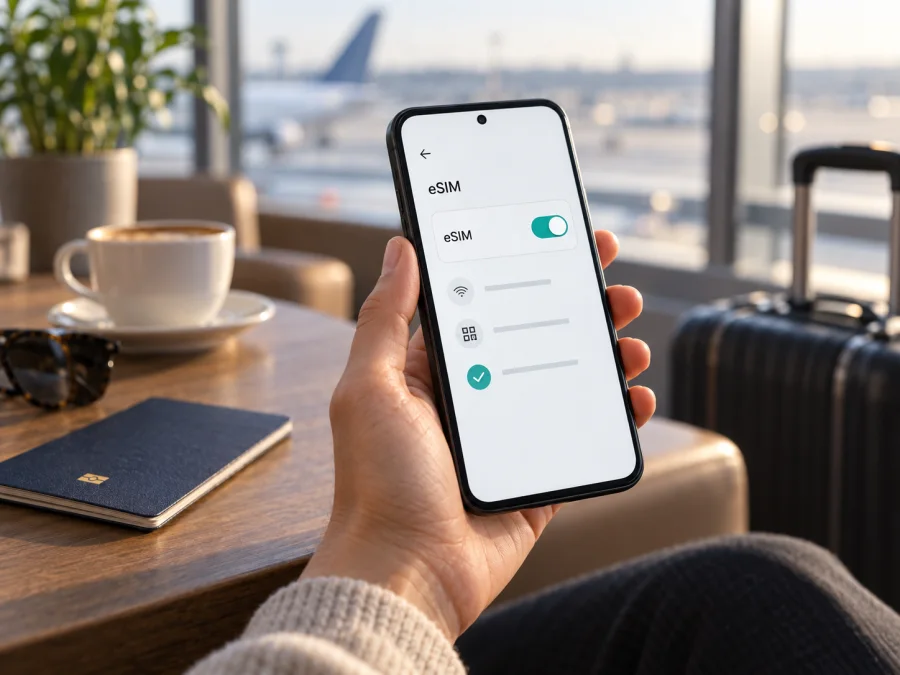
Apple iPhone 16e 256GB eSIM: compatibility and setup
The Apple iPhone 16e 256GB supports eSIM. The 256GB storage configuration does not change cellular compatibility: what matters is the model’s sales region, its carrier lock status, iOS settings and whether the eSIM provider supports activation on it. Apple lists iPhone 16e models bought outside the United States as supporting both nano-SIM and eSIM, while US-purchased models are eSIM-only. Apple also notes that not every carrier supports eSIM and that some carrier-sold iPhones may have eSIM use restricted.
There is an important regional limitation. Apple’s current guidance says that, in mainland China, only specifically listed newer iPhone models support eSIM; iPhone 16e is not on that list. Do not assume that a device bought for mainland China can install a travel eSIM. Check the model number and the available Settings options on the actual phone before purchasing a plan. A device’s name or storage capacity alone cannot establish its regional configuration.
Apple iPhone 16e 256GB at a glance
| Item | What to know |
|---|---|
| Exact device variant | Apple iPhone 16e 256GB |
| eSIM support | Yes on supported regional configurations; confirm on the device |
| US configuration | eSIM only; no physical SIM card |
| Many other markets | nano-SIM and eSIM; Apple lists dual eSIM support on its technical specifications |
| Storage | 256GB; storage does not determine eSIM availability |
| Travel data | A compatible travel eSIM can provide mobile data where its plan and partner network are available |
| Calls and SMS | A data-only travel plan does not include a regular phone number, calls or SMS unless its terms explicitly say otherwise |
| Before buying | Check EID, Add eSIM, carrier lock status, destination and plan conditions |
What “supports eSIM” means in practice
An eSIM is a digital SIM profile installed on the phone rather than a removable card. For a trip, it can let you add a separate mobile-data plan while keeping a home number available for calls or messages, if your specific regional model supports both SIM types and your home carrier allows it. Some versions can have more than one eSIM profile stored; the number that can be active at once and the provider’s transfer rules depend on the device and service. Apple lists dual eSIM support for iPhone 16e, but that feature does not guarantee that every carrier, country or tariff supports the same setup.
For the exact Apple iPhone 16e 256GB, eSIM works on supported regional configurations; the retail name alone is not enough to identify one. US models are eSIM-only, while many models sold elsewhere support nano-SIM and eSIM. Mainland China has separate model rules, and Apple’s current list for mainland eSIM service does not include iPhone 16e. If the phone is used or imported, check its model number and Settings menus. Storage capacity does not affect eSIM capability, and a software update cannot add support that the regional hardware or carrier configuration lacks.
Compatibility checklist
Use this check before choosing a travel plan:
- [ ] Open Settings → General → About and look for an EID. An EID is the identifier associated with the embedded SIM hardware.
- [ ] In Settings → Cellular (called Mobile Data in some regions), look for Add eSIM or Add Cellular Plan.
- [ ] Check Carrier Lock in the About screen. For use with another provider, the phone should show No SIM restrictions. If it shows a restriction, ask the carrier that sold or locked the phone about unlocking it.
- [ ] Identify the device’s model number and country or region of purchase. Tap the part number in About if you need to reveal the model number, and compare it with the original box or purchase record.
- [ ] Confirm that the plan supports iPhone eSIM activation and covers every country on your route.
- [ ] Read whether installation needs Wi-Fi, when the plan’s validity begins, whether data roaming must be enabled, and whether the profile can be reinstalled if deleted.
An EID and Add eSIM are useful checks, but compatibility also depends on region, carrier restrictions, iOS and the plan’s activation method. A SIM tray does not rule out eSIM, and “unlocked” alone does not prove eSIM support.
Why regional versions matter
SIM capability depends on market. US-purchased iPhone 16e devices are eSIM-only; many models sold elsewhere support nano-SIM and eSIM, with dual eSIM also listed by Apple. Mainland China has a separate supported-model list that excludes iPhone 16e for local eSIM activation. A model from another region may have different capabilities abroad, so verify the exact phone and local carrier rules. For imported or refurbished devices, use the model number, EID and Carrier Lock line in Settings rather than relying only on a sales listing.
For a quick way to confirm the device before checkout, check whether your device is compatible. If the EID appears but Add eSIM is missing, update iOS, restart the phone and check again. If the option is still absent, ask Apple or the current carrier to verify the region and restrictions before purchasing a plan.
Installing and activating a travel eSIM
Install the profile while you have a stable Wi-Fi connection. Follow the instructions supplied with the particular plan, because activation and the start of validity are not always the same event. Some plans become usable when installed; others start on first network connection or at another point defined in their terms. If the provider advises installing before departure, follow its timing instructions and leave the line off until the indicated moment if necessary.
- Prepare the iPhone. Update iOS if practical, connect to Wi-Fi, and confirm the phone is unlocked for another provider. Keep your usual number active until you know how the travel line is intended to work.
- Open the eSIM setup screen. Go to Settings → Cellular → Add eSIM (or Add Cellular Plan). Wording and menu placement may vary with iOS version and region.
- Choose the method supplied by the provider. If you received a QR code, select the QR option and scan it with the iPhone. If the QR is displayed on the same phone, use the provider’s manual entry or app-based method where offered; a screenshot may not be scannable from the camera view. Follow any confirmation prompts.
- Wait for the profile to download. Keep the iPhone connected to the internet and do not close the setup flow prematurely. When asked to label the lines, use a clear label such as “Travel” so you can distinguish it from your home line.
- Choose line settings. Select the home line for your usual calls and messages if you want to retain it, and choose the travel eSIM for cellular data when the trip begins. Avoid turning on data switching unless you understand which line could incur roaming charges.
- Activate according to the plan terms. Some plans require the eSIM line to be turned on at the destination; some require data roaming on for that travel line. Enable roaming only when the provider’s instructions require it. Keep data roaming off for your home SIM if you want to avoid unintended charges.
- Check connectivity. At the destination, turn off Airplane Mode, enable Cellular Data for the travel line, and wait for it to register on a supported network. Open a webpage or a map to confirm mobile data works.
For additional device-specific steps, use the iOS eSIM installation instructions or, if setting up another Android device for a travel companion, the Android eSIM installation instructions. Follow the activation conditions shown for your selected plan. Do not delete a downloaded profile just to troubleshoot unless the provider confirms that it can be installed again; some activation codes are single-use or tied to one device.
Plan for the trip, not just the installation
Before departure, decide which line should provide data and which number you need for calls or account verification. A data eSIM is useful for maps, messaging, bookings and browsing, but usually does not replace your home number. Check with your home carrier about roaming charges for ordinary calls or SMS; internet-based calling apps can use the travel connection.
For one-country or multi-country trips, check that every destination is covered and choose a data amount based on expected use. Review limits on hotspot, validity and speeds rather than assuming they are identical across plans. You can install over Wi-Fi before departure if the plan allows it, then switch on the line when instructed. Check when validity starts; it may begin at installation, first network connection or another event set out in the plan terms.
At the destination, select the travel eSIM for mobile data and keep the home line from using data unintentionally. Enable roaming on the travel line only if required. If there is signal but no data, check the selected line, roaming instructions and provider-supplied APN settings. Service depends on the plan, its local network partners and local conditions.
Kaspersky eSIM Store is an app and website where you can choose, arrange and activate an eSIM with a mobile-data plan for an overseas trip. Before selecting an option, confirm the destination, data amount, validity period and activation conditions, and make sure the Apple iPhone 16e 256GB passes the compatibility checks above. The app and site help you prepare a travel eSIM; they are not a mobile operator or the owner of the network used by a plan.
Troubleshooting common issues
There is no “Add eSIM” option. Check the EID, update iOS, restart and verify the sales region and carrier restrictions. If the option is still absent, ask Apple or the selling carrier before buying a plan; repeated QR scans will not fix a hardware or regional mismatch.
The QR code does not scan or setup fails. Use stable Wi-Fi, make the code bright and clear, and check it has not already been used. Try manual entry or the provider’s app if offered. The code may have expired or require provider assistance; ask before deleting a profile.
The eSIM appears installed but has no service. Turn on the travel line, select it for data, toggle Airplane Mode, then wait for registration. Check destination coverage, plan status and required roaming. If it remains offline, contact the provider with the error and model details.
Signal appears but data does not work. Check the selected data line, required roaming and plan limits. Test briefly with Wi-Fi off. Enter APN details only if the provider supplied them; do not guess.
Home calls or messages are affected. Check which line is selected for calls and messages. A data-only eSIM does not transfer your home number; ask your carrier about roaming charges and receiving verification SMS abroad.
You want to remove or move the profile. Ask the provider whether it can be reinstalled or transferred before deleting it. Some codes cannot be reused and some profiles are device-bound.
Frequently asked questions
Does Apple iPhone 16e 256GB support eSIM?
Yes, supported regional versions of Apple iPhone 16e 256GB do. Apple lists iPhone 16e models bought outside the United States as supporting eSIM alongside nano-SIM, and lists US models as eSIM-only. The 256GB storage does not change this capability. Confirm the exact handset’s EID, Add eSIM option, region and carrier status.
Can I use a physical SIM and eSIM together?
Many non-US versions support nano-SIM and eSIM; US models are eSIM-only. Simultaneous use depends on the device, iOS and carrier support.
Will every eSIM plan work with this phone?
No. The device must be unlocked as needed, and the plan must support iPhone eSIM installation and cover the destination. An EID does not guarantee acceptance by every provider.
Is an eSIM the same as a phone number?
No. A travel eSIM may be data-only. Check its terms for voice calls, SMS or a standard number; messaging apps can use mobile data.
Should I install the eSIM before travelling?
Installing over Wi-Fi in advance can be convenient, but follow the plan’s timing rules. Validity may start at installation or first use.
Final device check before choosing a trip eSIM
Before you pay, check Settings → General → About for the EID and carrier-lock status, then verify Settings → Cellular → Add eSIM. Confirm the iPhone’s region of purchase, especially for a used or imported phone, and remember that mainland China has a separate supported-model list that does not include iPhone 16e. Make sure the selected plan covers the destination and route, supports iPhone activation, and explains when validity starts and whether roaming is required.
If those checks pass, choose a data amount and validity that fit the trip, install the profile using the supplied steps, and keep the home and travel lines clearly labelled. With the exact Apple iPhone 16e 256GB regional configuration confirmed in advance, you can prepare the eSIM before departure and use it for mobile data abroad according to the plan’s terms.


