Travel connectivity guide
Apple iPhone 17 128GB 5G eSIM: проверка
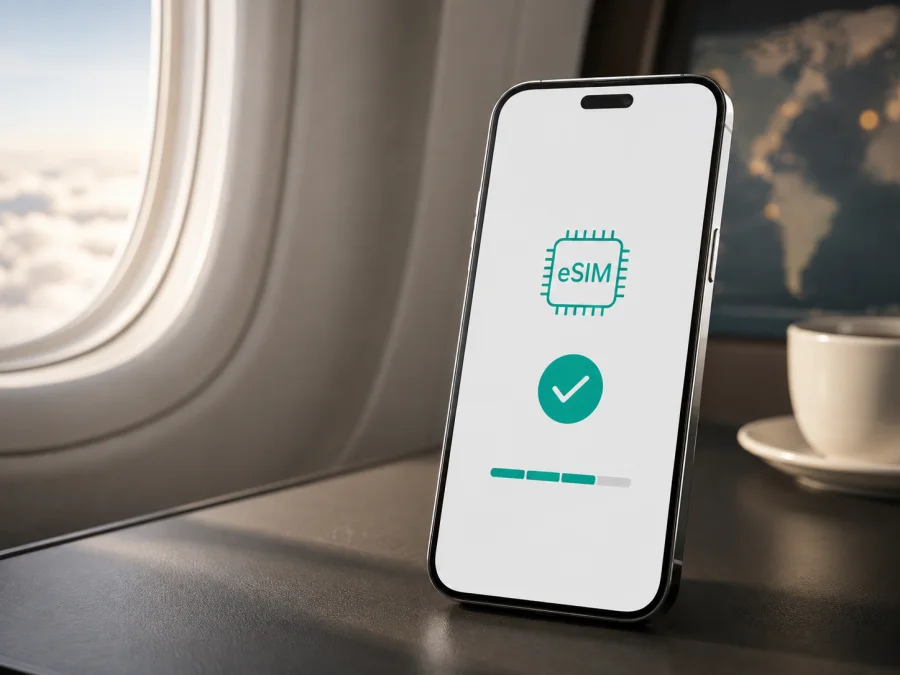
Apple iPhone 17 128GB 5G eSIM: compatibility and setup
If your listing says Apple iPhone 17 128GB 5G, the short answer is yes: the iPhone 17 family supports eSIM, but installing a particular profile depends on the sales region, model number, carrier, and any carrier lock. Apple’s U.S. specification describes iPhone 17 as eSIM-only and supports two active eSIMs. Apple pages for some other markets list nano-SIM and eSIM. Before buying a plan, check the actual phone rather than relying only on the product listing.
There is also a storage detail worth checking. Apple’s current technical pages for several markets list 256GB and 512GB rather than 128GB. Keep Apple iPhone 17 128GB 5G as the exact variant, but verify a seller’s 128GB label on the packaging. Storage does not determine eSIM support; the regional hardware version does.
Quick answer
eSIM is suitable for Apple iPhone 17 128GB 5G when the phone shows an EID and an option to add eSIM, and when the hardware version is intended to work with eSIM profiles. A U.S. iPhone 17 does not need a physical SIM card and does not support one. An international version with a SIM tray can often keep the home nano-SIM while adding a travel eSIM. For an iPhone 17 purchased in mainland China, Apple’s current regional guidance is stricter: iPhone 17 is not among the models that can install mainland-China carrier eSIM profiles.
Buying the phone in another country does not automatically make it incompatible with a travel eSIM. Check the model, the settings menu, and the plan requirements. The 5G label describes network capability; it does not replace an eSIM check.
What eSIM means on this model
An eSIM is a built-in digital SIM profile loaded through a QR code, an activation link, or another method supplied with the plan. For travel, it provides a separate data line without removing the home SIM. An iPhone can store several profiles, while the number of active lines and the available Dual SIM behavior depend on the model and region.
A travel eSIM plan is usually intended for mobile data. It does not add a regular phone number, voice calls, or SMS unless the plan terms say so. Messaging apps, maps, translation tools, email, and booking services work over data. You can keep the home line for important messages, but turn off data roaming on that line to avoid unintended charges.
Specifications and practical limits
| Item | What matters for Apple iPhone 17 128GB 5G |
|---|---|
| Device | Apple iPhone 17 128GB 5G — the exact supplied designation |
| Network | 5G is available on compatible networks and through carriers that support it; availability varies by destination and plan |
| eSIM | Supported by the iPhone 17 family, with activation behavior determined by region and carrier |
| SIM configuration | U.S. version: eSIM-only; some international versions: nano-SIM and eSIM; verify the exact model |
| Profiles | Apple lists several stored profiles and two active eSIMs for eSIM versions; the exact behavior is regional |
| Storage | The request says 128GB; verify the actual capacity on the packaging and in About |
| Travel use | A travel eSIM can be selected for mobile data while the home line remains available where supported |
| Main requirement | The carrier or service must support eSIM, the phone needs internet for setup, and it must be unlocked |
This table describes practical compatibility, not a promise that every plan will work. The plan must cover the destination, and the device must be unlocked and accepted by the relevant network.
Regional and carrier versions
The iPhone 17 does not have identical SIM behavior in every market. Apple’s U.S. technical specification lists two active eSIMs, several stored profiles, and no physical SIM card. Apple specifications for the U.K., Hong Kong, and other markets list nano-SIM and eSIM with Dual eSIM support. Similar-looking phones can therefore have different trays and activation rules.
Mainland China needs a separate check. Apple’s current support guidance says that iPhone 17e and iPhone Air support eSIM in mainland China, while other iPhone models cannot install eSIM profiles from mainland-China carriers. The presence of 5G does not remove that restriction. Outside mainland China, the rules can be different, but check the EID, the eSIM menu, and the plan conditions before travel.
Hong Kong and Macao also deserve model-level verification. Do not transfer one market’s specification to another or rely only on a product photograph. Use Settings → General → About to identify the hardware variant.
Carrier locking is a separate issue. A phone may contain the right eSIM hardware but reject a profile from another network if it is tied to a carrier. This is especially important for phones sold with a contract. Ask the seller or original carrier about the lock status. Kaspersky eSIM Store helps you choose, arrange, and activate an eSIM with a plan for mobile data during an overseas trip, but it does not unlock the phone or change Apple’s regional restrictions.
How to check compatibility before purchase
Check the phone itself even if a seller promises eSIM support. If the menu is missing or the model is unclear, confirm the sales region and model number before selecting a plan.
Compatibility checklist
- [ ] Open Settings → General → About.
- [ ] Find the EID. An EID is a strong sign that the phone has an embedded eSIM identifier, but the profile must still be supported by the carrier or service.
- [ ] Check Model Number and tap it if necessary to reveal the hardware model rather than only the sales part number.
- [ ] Open Settings → Cellular or Mobile Service.
- [ ] Look for Add eSIM, Add Cellular Plan, or a similar option. The wording varies with iOS language and version.
- [ ] Check whether the phone has a nano-SIM tray. A tray does not rule out eSIM, and its absence is expected on an eSIM-only version.
- [ ] Make sure the iPhone has Wi-Fi or another working internet connection for installation.
- [ ] Confirm that the device is not carrier-locked.
- [ ] Compare the plan’s destination, data allowance, validity period, and activation rules with your itinerary.
If EID is visible but Add eSIM is missing, restart the iPhone and update iOS. A QR-code error can mean that the profile was used already or is intended for another country. Check your device before ordering. Keep the model and EID for support; EID is not the activation QR code.
How to install eSIM on iPhone
Install the profile before departure over reliable Wi-Fi. Do not remove the home SIM until the new line is checked. Prepare the QR code or activation details from your Kaspersky eSIM Store profile.
Step-by-step installation
- Check compatibility. Confirm EID and Add eSIM, and make sure the phone is unlocked.
- Connect the iPhone to Wi-Fi or another working network.
- Open Settings → Cellular or Mobile Service.
- Tap Add eSIM and choose QR-code scanning.
- Display the QR code on a computer or second phone and scan it.
- Confirm the download and check the new line’s name.
- Name the line Travel or use the destination country.
- Keep the home number as the default voice line if needed.
- Select the new eSIM for Cellular Data.
- Turn off Allow Cellular Data Switching to protect the home line.
- Turn on data roaming for the travel eSIM only if required.
- Wait for registration, then test a page without Wi-Fi. Connection can take several minutes.
Menu names vary with the iOS language. Use the iOS eSIM installation instructions. For another phone, use the Android eSIM installation instructions. The plan conditions take priority.
Do not scan one QR code repeatedly: some profiles are single-use. If installation stops, first check whether the profile already appeared in the Cellular settings. Do not delete it until you know whether it can be reissued.
Activation and mobile data while traveling
Installing a profile and starting its validity are not always the same event. A plan may count from installation, first connection, or separate activation. Read the conditions and do not turn on the line early if validity should begin after arrival. A supported network and the correct data line are required.
Scenario 1: prepare at home
Check the phone, choose the destination or region in the Kaspersky eSIM Store app or website, match data to the itinerary, and arrange a suitable plan. Install over Wi-Fi, but leave the line off if validity starts immediately.
Scenario 2: turn it on after landing
Enable the eSIM, select it for data, and turn on roaming for that line if required. Keep the home line for necessary calls or messages and turn off automatic data switching. After a few minutes, disable Wi-Fi and open a website. If there is no service, keep the profile installed.
Scenario 3: several countries
If the plan covers your region, one eSIM may work in several countries within its conditions. Check destinations and usage. You can store multiple profiles, but data uses the selected one. Give profiles clear names.
Scenario 4: home SIM plus travel eSIM
On an international version with nano-SIM, keep the home number for messages and make the travel eSIM the data line. Turn off home-line roaming. On an eSIM-only version, confirm that the home number is available through a supported digital profile.
Reduce data usage
Turn off automatic downloads and background refresh for demanding apps. Prepare maps and translations in advance. Data volume and speed depend on the plan, partner network, local conditions, and load.
Common problems and checks
The QR code will not scan
Increase the screen brightness and remove glare. Confirm that it is the activation QR code, not an order barcode or EID. If offered, use manual entry. Do not share the code.
The profile will not add
Check Wi-Fi, iOS updates, the destination, and whether the code was used. Do not delete an older profile without checking the terms. For a persistent error, give support the message, country, and model number.
The profile is installed but there is no internet
Make sure the eSIM is enabled for data and Airplane Mode is off. Turn on roaming for the travel line if required. Disable Wi-Fi, restart the iPhone, and wait for registration. Change APN only when the plan instructions provide exact values.
The home SIM works instead of the eSIM
Open Cellular settings and check the data line. Turn off automatic switching and enable roaming only on the required profile. In Dual SIM mode, mobile data uses one selected line at a time.
The phone asks for an unlock or cannot find a network
The cause may be a carrier lock, unsupported network, or regional limitation. Check the lock status, model, and plan conditions. Do not delete a working home line yet.
FAQ
Does Apple iPhone 17 128GB 5G support eSIM?
Yes. Apple confirms eSIM support for iPhone 17, but configuration depends on the market: eSIM-only in the U.S., nano-SIM plus eSIM in some international markets. Mainland-China carrier profiles are not supported on iPhone 17 under Apple’s current regional guidance. Check EID, Add eSIM, and model number.
Does 128GB affect compatibility?
No. Storage does not switch eSIM on or off. Apple lists other options for iPhone 17 on several regional pages, so verify the 128GB label on the packaging and in About. Keep the exact search variant, but use the actual model for verification.
Can I keep a physical SIM?
Only if the version has a SIM tray. International versions can support nano-SIM and eSIM, while the U.S. iPhone 17 does not support a physical SIM. Check the phone, not just the store title.
Do I need a separate phone number?
Usually not. A mobile-data plan supports messaging apps over data; regular calls and SMS require explicit plan support or the home line.
Can I install the profile at the airport?
Yes, if you have internet and the plan allows activation there. Installing ahead is more reliable; turn on data after landing if validity begins on connection.
What if EID exists but the plan will not connect?
EID confirms an identifier, not compatibility with every carrier. Check region, lock, networks, destination, and plan rules. Contact support with the model and error without deleting the profile.
What is Kaspersky eSIM Store?
Kaspersky eSIM Store is an app and website where you can choose, arrange, and activate an eSIM plan for mobile data during an overseas trip. It is not a carrier, network owner, or mobile-internet provider. Terms depend on the plan and device compatibility.
Summary
Check Apple iPhone 17 128GB 5G as a specific handset. Apple confirms eSIM for iPhone 17, but SIM behavior varies by market: eSIM-only in the U.S., nano-SIM plus eSIM in some markets, and restrictions for mainland-China profiles. Verify 128GB against the packaging and model number.
Before purchase, find EID, open Add eSIM, check the carrier lock, and confirm the destination. Install over a stable connection, select the profile for data, enable roaming only for the travel eSIM when required, and test without Wi-Fi. If activation fails, check the QR code, region, network, and data settings before deleting anything.
Final device check and travel eSIM
Before payment, confirm three things: Apple iPhone 17 128GB 5G shows EID and Add eSIM; its hardware version matches the purchase region and is unlocked; and the selected eSIM plan covers every country on the itinerary with suitable data and validity. Then Kaspersky eSIM Store can help you choose a destination, arrange, and activate an eSIM plan for mobile data during the trip, with profile management through the app or website. This sequence keeps preparation clear before departure and makes it easier to choose the correct data line after arrival.


