Travel connectivity guide
Apple iPhone 17 256GB 5G eSIM compatibility
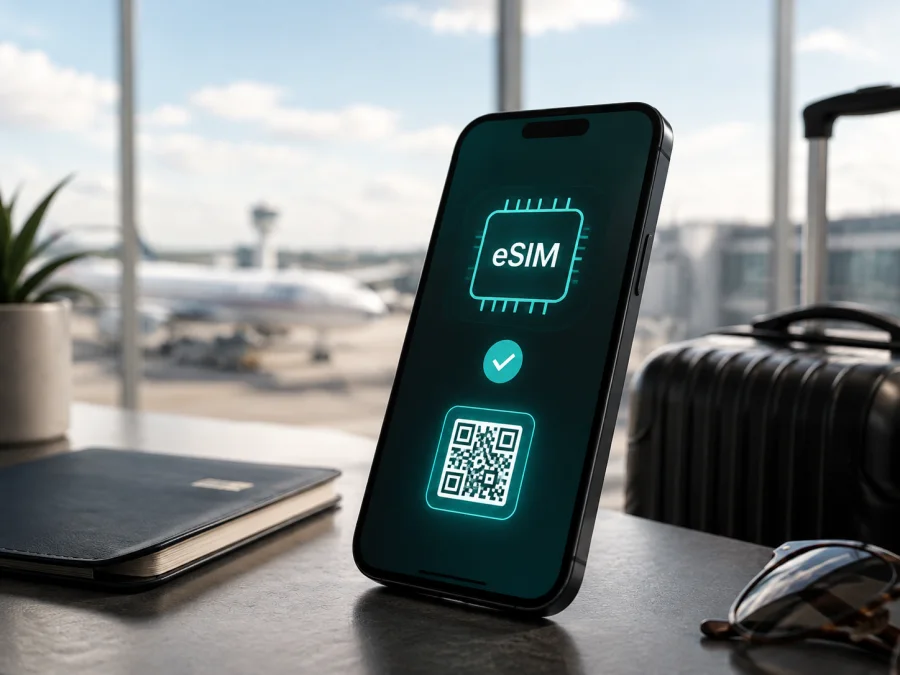
Apple iPhone 17 256GB 5G eSIM: compatibility and setup
If you are checking whether Apple iPhone 17 256GB 5G can use a travel eSIM, the short answer is yes for the eSIM-capable versions documented by Apple. The sales market matters: the iPhone 17 family can be eSIM-only, eSIM-plus-physical-SIM, or a regional version without eSIM. Storage and the 5G label do not decide this.
An eSIM is a digital SIM profile built into the phone, allowing a compatible mobile-data plan without a plastic card. Kaspersky eSIM Store is an app and website where you can choose, arrange, and activate an eSIM with a mobile-internet plan for an overseas trip. It is not a mobile operator, network owner, or provider of mobile internet.
Quick compatibility answer
Apple’s current technical information lists eSIM support for iPhone 17 models and describes dual eSIM capability on eSIM-capable versions. Apple also states that some iPhone 17 units use advanced eSIM technology and do not accept a physical SIM card. In other markets, Apple lists nano-SIM and eSIM together. Therefore, Apple iPhone 17 256GB 5G is compatible with eSIM when the individual unit has the eSIM hardware, is unlocked, and is used with a carrier or worldwide service provider that supports eSIM.
There is an important regional exception. Apple’s support guidance says that, in mainland China, only iPhone 17e and iPhone Air support eSIM. A mainland-China iPhone 17 is therefore not a safe candidate for a travel eSIM, even though the wider iPhone 17 family supports the technology. Apple also documents two nano-SIM configurations for certain iPhone models sold in Hong Kong and Macao. A listing that only says “Apple iPhone 17 256GB 5G” does not identify this detail.
The reliable decision is the phone in your hand, not the listing. Check About for EID and Cellular for an eSIM option, confirm it is unlocked, and use a plan that supports your destination.
Device details that matter for eSIM
The supplied long-tail name is retained exactly: Apple iPhone 17 256GB 5G. The 256GB figure describes storage; it is not a separate SIM edition. The 5G label describes cellular-network capability, but it does not guarantee that every carrier, band, or roaming partner will provide 5G at your destination. A data plan, local coverage, supported bands, and carrier settings still matter. No RAM or “Cellular” modifier was supplied in the device name, so this guide does not add one or substitute a shorter model name.
| Item | What it means for this check |
|---|---|
| Device name | Apple iPhone 17 256GB 5G |
| Storage | 256GB; storage does not determine eSIM availability |
| Network label | 5G-capable on supported networks; service depends on carrier and location |
| SIM format | Market-dependent: eSIM-only, or eSIM plus nano-SIM |
| Dual eSIM | Available on eSIM-capable versions; Apple describes two active eSIMs and storage for eight or more |
| Mainland China | Apple says only iPhone 17e and iPhone Air support eSIM there |
| Carrier lock | A locked phone can prevent use of a plan from another carrier or service provider |
| Travel use | Mobile data works when device, profile, destination, and plan are compatible |
Check the actual unit because an imported, refurbished, or carrier-supplied phone may differ from the seller’s description.
Regional and carrier differences
The name “iPhone 17” identifies a generation, but not always the SIM arrangement. Some markets use eSIM-only models; others use nano-SIM and eSIM. A tray does not prove eSIM support, and no tray does not prove an unlocked phone.
Mainland China needs separate attention. Apple’s current support information limits eSIM support there to iPhone 17e and iPhone Air. If an iPhone 17 bought for mainland China does not show EID or “Add eSIM,” a QR code cannot create missing hardware. Ask for the exact model and market before buying an imported phone.
Hong Kong and Macao can also differ. Apple documents regional iPhone models with two nano-SIM cards, so inspect the installed SIM options instead of assuming that the iPhone 17 name guarantees eSIM.
The provider and plan must support eSIM in the destination, and the phone must be unlocked for a different carrier or travel service. EID can be present on a locked phone, while an unlocked phone can still lack eSIM because of its region.
Check your device before buying a plan
Complete these checks before purchase:
- [ ] Open Settings > General > About and look for an EID field. EID is the identifier associated with the embedded SIM hardware.
- [ ] In Settings > Cellular or Settings > Mobile Data, look for Add eSIM, Add Cellular Plan, or similar wording. Menu names vary with language and iOS version.
- [ ] Check Carrier Lock in About. No SIM Restrictions indicates that the iPhone is unlocked; another message means you must ask the carrier about unlocking.
- [ ] Confirm the exact market and model number; “international,” “global,” “5G,” and “dual SIM” are not enough.
- [ ] For mainland-China iPhone 17, treat eSIM as unsupported under Apple’s current guidance.
- [ ] Update iOS, restart, and confirm Wi-Fi or hotspot access for setup.
- [ ] Read destination, networks, data, validity, activation, and roaming conditions.
- [ ] Keep the delivery email, app, or QR code available and do not delete existing profiles.
For a quick reference, Check your device. Do not pay for a travel plan until the EID or eSIM-menu check is positive and the carrier-lock status is clear.
Once those checks are complete, Kaspersky eSIM Store can help you review destinations and choose an eSIM tariff for the trip. Compare data and validity with expected use; coverage depends on the plan’s participating networks.
How to install and activate an eSIM on iPhone 17
Charge the phone, connect it to Wi-Fi or a hotspot, and keep activation details on another screen. If the QR code is on the same iPhone, use the provider’s app or manual entry.
Install with a QR code
- Open Settings.
- Tap Cellular or Mobile Data.
- Choose Add eSIM or Add Cellular Plan.
- Select the QR-code option and scan the code supplied after your plan is arranged.
- Review the plan name and destination shown by iOS; stop if the details are wrong.
- Confirm the addition and keep Wi-Fi connected while the profile downloads.
- Give the line a clear label, such as “Travel data,” and make sure Turn On This Line is enabled.
- Select the travel eSIM under Cellular Data. Enable Data Roaming for that line if required, and turn off automatic data switching if you want to prevent home-line data use.
- After arrival, turn off the home line’s data roaming unless your home plan includes it, then test a webpage with Wi-Fi disconnected.
Use a provider app or manual details
Some providers deliver installation inside an app, while others give manual details. Confirm the phone is online, follow the flow, and return to Settings > Cellular to check the new line. Copy manual details carefully; an extra space or expired code can prevent downloading.
Kaspersky eSIM Store may show the purchased eSIM in your profile or app after the order. Follow that plan’s activation information. Installation, the start of data use, and validity are separate; read whether installation starts the clock. Do not delete a working profile to repeat setup.
For platform-specific guidance, use the iOS installation instructions. The Android installation instructions are for someone preparing a different device; this phone uses iOS settings.
Activate the travel line and choose mobile data
Installation places the profile on the phone; activation makes the line ready to register. Open Settings > Cellular, turn on the travel line, select it under Cellular Data, and enable Data Roaming for that line when required.
Keep the home line active only if you understand the consequences: background data or calls may create charges. A data-only travel eSIM normally does not provide a phone number, voice calling, or SMS unless the specific plan says so. Messaging and calling apps can work over travel data.
On supported models, two eSIMs may be active, but only one cellular data network is used at a time. Check the selected line before navigation or uploads. At home, select the home line, turn off the travel line if no longer needed, and review roaming.
Using the eSIM on a trip
Before departure
Install early enough to solve a problem over Wi-Fi. Check route coverage, validity, and activation. If validity begins on first network connection, install before departure and keep the line off; if installation starts validity, install closer to departure. The rule belongs to the plan.
Record which line is home and which is travel data. Estimate use for navigation, backup, video calls, and hotspot. Low Data Mode can reduce background use.
On arrival
Turn on the travel line, select it under Cellular Data, and enable roaming for that line if required. Give the phone time to register, then test with Wi-Fi disconnected. If it remains offline, toggle Airplane Mode for about 30 seconds or restart the phone. LTE can provide mobile data even when 5G is unavailable.
Monitor usage under Settings > Cellular, but use the plan account or app for the authoritative balance. Do not change the access point name unless instructed.
Multi-country routes and hotspot use
For several countries, choose a plan that covers the entire route or arrange a regional plan. A country-only plan may stop at the border while the eSIM line remains visible.
If you plan to use Personal Hotspot, confirm that tethering is allowed. A hotspot can consume data quickly, and 5G hardware does not override plan restrictions.
Troubleshooting checklist
“Add eSIM” is missing
Return to Settings > General > About and look for EID. If neither EID nor an eSIM option appears, check the sales market: a mainland-China iPhone 17 is a known regional concern, and some Hong Kong or Macao configurations use two physical SIMs. Contact the seller before buying a plan; a reset cannot add missing eSIM hardware.
The QR code will not scan or the profile will not download
Increase screen brightness, remove glare, and confirm that the code is unused and current. If it is on the same iPhone, open it on another screen or use manual entry. Check Wi-Fi, restart, and retry from Settings > Cellular > Add eSIM. For an invalid or unsupported alert, give the provider the exact error, device market, and EID; avoid repeated deletion because codes can be single-use.
The profile is installed but shows No Service or SOS
Confirm that the line is on, the travel eSIM is selected under Cellular Data, and roaming is enabled for that line when required. Check destination coverage and plan status, toggle Airplane Mode, restart, and allow automatic network selection. A locked phone may reject another carrier’s plan.
Data does not work or the wrong line is charged
Disconnect Wi-Fi and inspect Settings > Cellular > Cellular Data. Turn off automatic switching, check app permissions, and turn off roaming on the home line unless it is included. If the plan has expired or has no data left, check its account rather than changing settings.
Calls and messages do not behave as expected
A data-only travel eSIM may not include a phone number, voice calls, or SMS. Use internet messaging and calling apps, or keep the home line available if its roaming terms are acceptable. Ask the carrier about voice, SMS, VoLTE, and Wi-Fi Calling.
FAQ
Does 256GB change eSIM compatibility?
No. Apple iPhone 17 256GB 5G identifies storage and a 5G-capable generation; eSIM availability follows regional hardware, provider support, and lock status.
Is every iPhone 17 eSIM-only?
No. Apple documents eSIM-only and nano-SIM-plus-eSIM versions, while mainland-China iPhone 17 models do not support eSIM under its current guidance. Check EID and settings.
Can I keep my home SIM and add travel data?
Usually, on a compatible unlocked version. Choose the travel eSIM under Cellular Data and monitor the home line’s roaming setting; active-line features depend on the model and carriers.
Can an eSIM be moved to another phone?
Do not assume so. Some profiles are tied to one installation or device; check the plan conditions before erasing or transferring.
Do I need 5G for a travel eSIM?
No. An eSIM provisions the plan, which can use LTE when available. The 5G label does not guarantee 5G access, speed, or coverage.
What if the seller cannot confirm the market?
Pause the purchase or request the model number and a photo of About with private identifiers covered. If EID and Add eSIM are absent, treat the phone as incompatible until verified.
Final device check before your trip
Before choosing a travel eSIM for Apple iPhone 17 256GB 5G, confirm EID, the Add eSIM menu, sales region, Carrier Lock, current iOS, and route coverage. Install over Wi-Fi, label the line, select it under Cellular Data, and enable roaming only where required.
When checks pass, Kaspersky eSIM Store can help you choose and arrange an eSIM tariff for mobile internet during your overseas trip through its app or website. Review data, validity, coverage, activation, and hotspot conditions; test with Wi-Fi disconnected.
The conclusion is specific: Apple iPhone 17 256GB 5G supports eSIM when it is an eSIM-capable regional, unlocked unit and the selected provider supports eSIM. A mainland-China iPhone 17, certain dual-physical-SIM configurations, a locked phone, or an unsupported plan can produce a different result. Check both before purchase.


