Travel connectivity guide
Apple iPhone 17 512GB 5G eSIM Guide
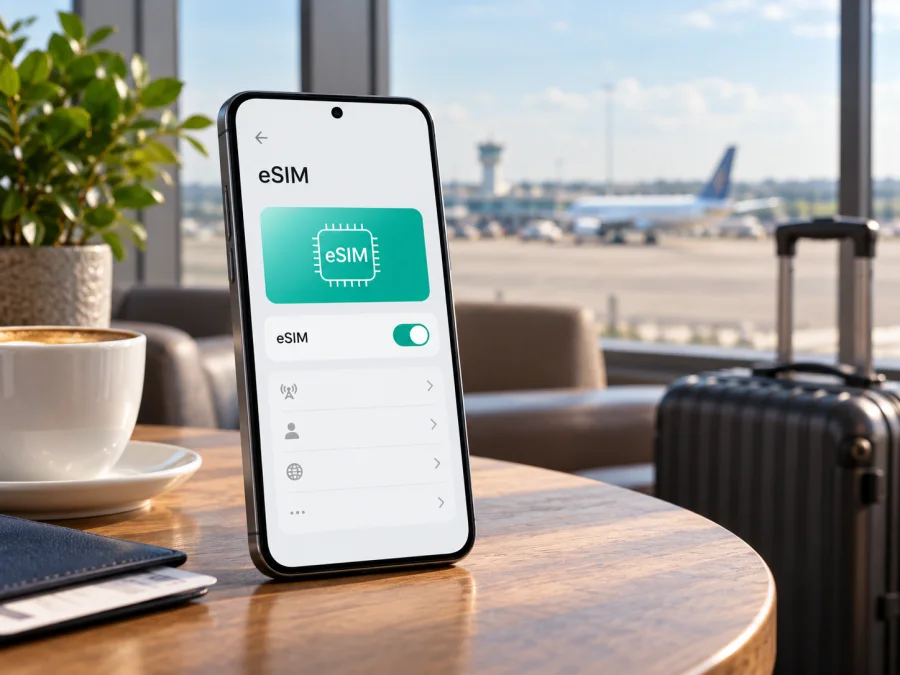
Apple iPhone 17 512GB 5G eSIM: compatibility and setup guide
Short answer: Yes, Apple lists eSIM support for iPhone 17, but the exact SIM arrangement depends on sales region. Apple's U.S. technical specifications list dual eSIM (two active, eight or more stored) and an eSIM-only design without a physical SIM. Apple also lists iPhone 17 among models with eSIM in Hong Kong and Macao. Ordinary iPhone 17 models cannot install eSIM profiles from mainland China carriers. The 512GB capacity and 5G label do not change these regional rules; check the model number and market before relying on eSIM.
Apple's iPhone 17 specifications and eSIM support pages, checked October 18, 2026, list 512GB, 5G and dual eSIM for the model described. Apple also documents market exceptions; phone capability alone does not guarantee a specific plan will activate.
| Item | What to know |
|---|---|
| Exact variant covered | Apple iPhone 17 512GB 5G |
| eSIM support | Yes in supported market versions; Apple’s U.S. specifications list two active eSIMs and eight or more stored. Mainland China carrier eSIM is a regional exception for ordinary iPhone 17 |
| Physical SIM | The U.S. configuration is eSIM-only; physical SIM arrangements differ by market |
| Storage and 5G | 512GB and 5G identify the requested configuration; neither guarantees carrier support or coverage |
| Regional check | Mainland China carrier eSIM is not supported on ordinary iPhone 17 models; hardware and SIM arrangements vary by sales region |
| Before choosing a travel plan | Confirm the exact model number, EID, carrier lock status, destination eligibility and plan conditions |
Does Apple iPhone 17 512GB 5G support eSIM?
Yes, with a market-specific qualification. Apple's current U.S. iPhone 17 specifications list dual eSIM, with two eSIMs active at the same time and eight or more profiles stored, and say that this configuration is not compatible with physical SIM cards. Apple's eSIM support guidance also lists iPhone 17 as eSIM-capable in Hong Kong and Macao. Those pages confirm eSIM support for the documented configurations, including the 512GB capacity, but do not mean every regional variant has identical SIM hardware.
The device name does not include a model number or sales region, which matters because SIM hardware and provisioning can differ by market. Apple's “Using eSIM with your iPhone in China mainland” and dual nano-SIM support pages, checked October 18, 2026, exclude ordinary mainland China iPhone 17 models from China carrier eSIM profiles and identify China-market iPhone 17 models with dual physical SIMs. For iPhone 17 purchased in Hong Kong or Macao, Apple directs some owners to its eSIM dual-SIM guidance; other models in those markets use two nano-SIMs. The name alone therefore does not identify which SIM arrangement or profiles apply.
Outside mainland China, a compatible iPhone 17 may use a travel eSIM if the provider supports that regional model and its activation location. This does not mean every plan works in every country. The operator market issuing the profile and the place where you install it are separate checks; ask the seller or provider to confirm both for a region-specific phone.
What can vary by region or operator?
An eSIM-capable phone still needs a supporting carrier or service provider. Operators determine which plans, identity checks and activation methods are available, so a plan may be unavailable even when the iPhone can store an eSIM profile.
The device may also be carrier-locked. Apple's dual-SIM guidance says that to use two different carriers, an iPhone must be unlocked; otherwise both plans need to come from the same carrier. For travel, check Settings → General → About → Carrier Lock. If the status does not say No SIM restrictions, contact the carrier that locked the phone before buying or attempting to install a different provider's plan. A compatible eSIM profile cannot remove a network lock.
Do not infer regional capability from the 512GB capacity, 5G mark, seller listing or EID alone. Record the phone's model and part numbers and compare them with Apple's regional guidance and the provider's requirements. If the sales region is unclear, treat compatibility as unconfirmed until the provider accepts the model.
Check compatibility before choosing a travel plan
Use this checklist before paying for an eSIM plan:
- Identify the exact phone. Open Settings → General → About. Tap the value next to Model Number to switch between the part number and the A-number model identifier. Compare it with the packaging or purchase record. Do not rely on “Apple iPhone 17 512GB 5G” alone to identify the region.
- Look for an EID. In Settings → General → About, scroll for EID. An EID is the identifier associated with the embedded SIM hardware. Its presence is a useful sign, but it is not by itself proof that a particular plan, operator or local market will work.
- Look for the eSIM setup control. Open Settings → Cellular (called Mobile Data in some regions or iOS language settings). Look for Add eSIM or Set Up Cellular. Menu wording may vary with iOS and region. If neither appears, restart and update iOS, then confirm the model's market-specific support with Apple or the seller before purchase.
- Check the carrier lock. Under Settings → General → About, find Carrier Lock. A device intended for a different provider should show No SIM restrictions. If it is locked, ask the original carrier about unlocking eligibility and timing.
- Check destination and plan rules. Confirm that the plan includes the country or region you will visit, that it is an eSIM data plan, how installation works, and when its validity begins. A plan that covers a country geographically may still have local restrictions on installation or activation.
- Confirm the operator market. Ask whether the plan is issued by a local operator, an international service provider, or another provider, and whether it supports your exact iPhone regional model. This is particularly important for phones purchased in mainland China, Hong Kong or Macao.
- Prepare a connection for setup. Keep Wi-Fi or another internet connection available while downloading a profile. Apple's setup guidance recommends Wi-Fi or a hotspot for a new iPhone; installation requirements can vary by activation method.
Resolve any uncertainty before payment. Check your device and confirm the exact model with the plan provider. Both device compatibility and plan availability are necessary.
An EID identifies the embedded SIM hardware; it is not an activation code. Its presence is useful, but does not prove that a specific provider or market supports your plan. If the EID appears but Add eSIM does not, update iOS, check the model number and sales region, and ask Apple or the seller to confirm compatibility. Keep the EID, QR code and activation details private; share them only through a provider's secure support channel when requested.
Read the plan instructions before starting. Check where it works, whether it is data-only, its validity period and when that period begins. Providers may limit reinstalling or transferring a profile, so do not assume a QR code can be reused. Keep Wi-Fi available while downloading the profile, and use the provider's instructions to avoid starting validity earlier than intended.
Have the unlocked iPhone, a reliable internet connection, and the provider's QR code or supported activation details ready. If the code is on the iPhone you are configuring, use another screen or ask whether manual entry or in-app setup is supported.
How to install and activate eSIM on Apple iPhone 17 512GB 5G
Apple supports several eSIM activation methods on iPhone, depending on the provider. The provider may offer a QR code, carrier activation, an app, manual details or a transfer from another device. For a travel data plan, follow the exact method shown in the account or confirmation. The steps below describe the common QR-code route; menu labels can vary slightly by iOS version and language.
1. Confirm the device and plan
Recheck that the phone shows an EID and an Add eSIM option, and that it is unlocked for the provider you plan to use. Confirm that the plan covers your destination and that the installation location is allowed. Keep the QR code private and available on a separate screen.
2. Open cellular settings
Go to Settings → Cellular or Settings → Mobile Data, then tap Add eSIM. If the provider supports direct activation, an assigned plan may appear automatically. Choose that option only if it matches the instructions you received.
3. Scan or enter the activation details
Choose the QR-code option and scan the provider's code. If the QR code is displayed on the iPhone you are configuring, use another screen if possible. If the provider supplies manual SM-DP+ address and activation details, select the manual entry option and enter only the information supplied for that specific plan. Do not invent or substitute these values.
4. Follow the on-screen prompts
Wait while the iPhone downloads and adds the cellular plan. Choose a clear label such as Travel so that you can distinguish it from your primary line. If prompted, select which line to use for calls, messages or mobile data. You can adjust these choices later in cellular settings. A profile can install successfully while the plan is not yet ready to use; follow the provider's separate activation instructions.
5. Set the travel eSIM as the data line when appropriate
When you are ready to use the plan, open Settings → Cellular → Cellular Data and select the travel eSIM. If the provider's instructions require data roaming for that eSIM, turn it on for that line only. Roaming settings depend on the plan's delivery method, so use the provider's direction rather than enabling roaming indiscriminately on your primary line.
6. Check for service
After the plan's activation conditions are met, wait for the phone to register. Check that the travel line is turned on and that the status bar shows a supported network. If you are still at home, the plan may not connect until you reach its coverage area. Avoid deleting a working profile to troubleshoot; first check the plan's instructions and contact its provider.
For illustrated setup steps, see the iOS eSIM installation instructions. If you are setting up a plan on another compatible Android device, see the Android eSIM installation instructions. Kaspersky eSIM Store is an app and website where you can choose, arrange and activate an eSIM with a plan for mobile internet on an international trip; the available destinations and plan conditions are shown when you browse.
Install the profile before departure only if the provider allows it, and check whether installation starts its validity. When you are ready to use the plan, turn on the travel line, select it for cellular data and enable data roaming for that line only if the provider instructs you to. Plan validity may start at installation, first connection, a set time or another event; check the plan conditions.
If you keep your primary line active, review its roaming terms and choose which line handles calls, messages and mobile data. iPhone uses one cellular data network at a time. A travel data eSIM does not automatically replace your number or include voice calls and SMS; those depend on the plan. Messaging and calling apps can use the data connection.
Estimate your data needs for maps, messaging, transport and bookings, then compare the plan's allowance and duration with your itinerary. For multi-country trips, confirm each destination rather than relying only on a broad regional label. Kaspersky eSIM Store is an app and website where travellers can browse, choose, arrange and activate an eSIM with a mobile-data plan for an international trip. The selected plan's provider, local operator availability, device compatibility and destination conditions determine service.
Install before departure: convenient when permitted, but first check when validity begins. Install after arrival: arrange Wi-Fi or another connection and confirm local installation rules. Keep a home number: use the travel eSIM for data if appropriate, and check home-carrier roaming charges. Cross borders: confirm every destination and transit stop. The iPhone's 5G capability does not guarantee 5G availability; the provider, roaming partner, local network, signal and plan conditions determine the connection. A supported network may use another technology where 5G is unavailable.
Common eSIM problems and checks
“Add eSIM” is missing
Restart the iPhone, update iOS over Wi-Fi, then check Settings → General → About for the EID and model number. Recheck the sales region. Apple says ordinary iPhone 17 models cannot install eSIM profiles from mainland China carriers. Ask Apple or the seller to verify an unclear regional model before buying.
The QR code will not scan or download
Make sure the entire code is visible, increase the other screen's brightness and use a stable internet connection. Confirm that the code belongs to this plan and has not already been used. Some codes allow one installation only; contact the provider before deleting a profile or retrying repeatedly.
The eSIM is installed, but there is no service
In Settings → Cellular, confirm the travel line is on, the destination is covered, the plan is active and the activation window has begun. Turn on data roaming for that line if instructed. Toggle Airplane Mode or restart, then allow time to register. If it still shows No Service, ask the provider to check profile status and local network availability.
The phone connects, but apps have no internet
Select the travel eSIM under Cellular Data, make sure mobile data is on, and check the plan's remaining data and validity. Change APN settings only when the provider supplies values. If needed, temporarily check whether a VPN, private relay or custom DNS is interfering.
Data uses the wrong line
Select the intended line under Settings → Cellular → Cellular Data. Turn off Allow Cellular Data Switching if you do not want automatic changes, and review roaming settings and charges with your primary carrier.
The plan works in one country but not another
Check the exact destination list, line status, activation rules and roaming instructions. A regional plan name does not guarantee every territory is included. Contact the provider to confirm the current location and regional iPhone model.
The eSIM was deleted or its code was used
Deleting a profile may not cancel a plan or make its QR code reusable. Check the provider's reinstall policy and contact support with the order details. Keep the confirmation and instructions during your trip.
FAQ
Does Apple iPhone 17 512GB 5G support two eSIMs?
Apple's current specifications list two active eSIMs and storage for eight or more profiles for iPhone 17. Confirm the exact regional model because SIM arrangements vary by market.
Can I use a physical SIM?
The U.S. configuration on Apple's specifications page is eSIM-only. Regional SIM arrangements can differ, so check the A-number and actual device rather than relying on the product title.
Does an EID guarantee that my travel eSIM will work?
No. Also check the exact model, carrier lock, plan provider, activation location and destination rules.
Can a mainland China iPhone 17 use a mainland China carrier eSIM?
Apple's current support page does not list ordinary iPhone 17 models among those that support mainland China carrier eSIM profiles. The mainland China SIM arrangement differs from the general eSIM-only iPhone 17 specification. Confirm the exact model with the carrier.
Does a travel eSIM include calls or SMS?
Not necessarily. Many travel plans are data-only; check the plan conditions. Internet calling and messaging apps can work over data.
Should I turn on data roaming?
Only if the plan's instructions require it, and only for the travel eSIM line. Check primary-line roaming terms to avoid unintended charges.
Can I install before travelling, and will 5G always work?
Often you can install before travel, but provider rules determine whether that is allowed and when validity begins. 5G depends on the plan, local network, roaming partner, coverage and signal; it is not guaranteed by the phone's 5G label.
Check your iPhone, then choose a plan for the trip
Before you arrange an eSIM, confirm the model number and EID, check for Add eSIM, make sure the phone is unlocked, and verify that the plan provider supports the specific regional iPhone and every destination on your route. Apple confirms eSIM support for iPhone 17 in its specifications and regional support guidance, but mainland China carrier compatibility and SIM arrangements differ by market. The 512GB capacity and 5G label do not remove those checks.
When the device and destination are confirmed, compare the available plan's data amount, validity period, activation timing and country coverage with your itinerary. Kaspersky eSIM Store is an app and website where you can browse, choose, arrange and activate an eSIM with a plan for mobile internet on an international trip. Browse current eSIM plans and review the destination and plan conditions before you travel.


