Travel connectivity guide
Apple iPhone 17 Air 128GB 5G eSIM Compatibility
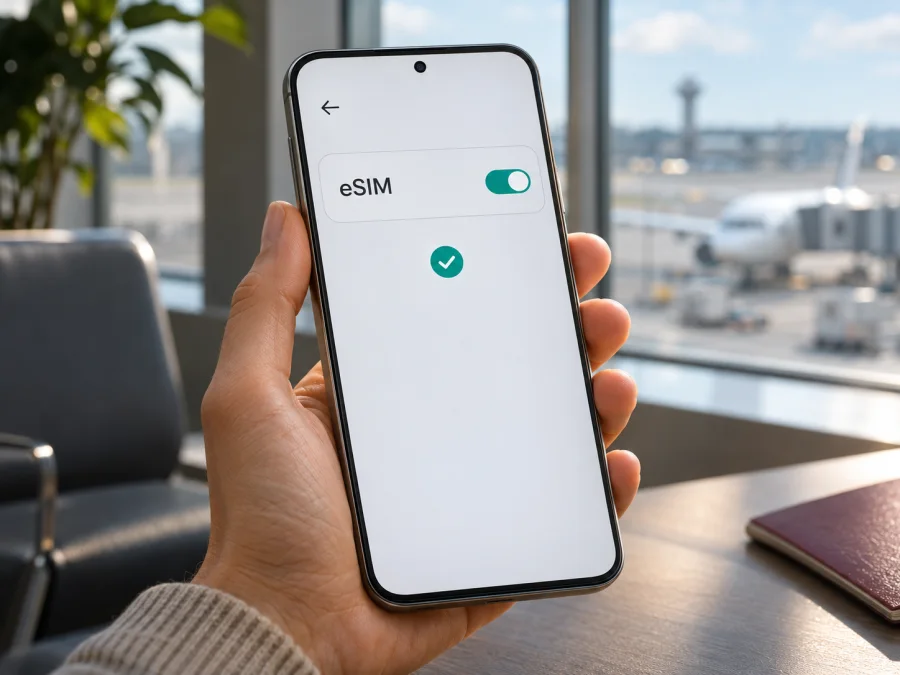
Apple iPhone 17 Air 128GB 5G eSIM: compatibility and setup
Short answer: Apple’s current product information identifies a device called iPhone Air, describes it as eSIM-only, and lists storage capacities of 256GB, 512GB and 1TB. It does not identify an official model called Apple iPhone 17 Air 128GB 5G or list a 128GB iPhone Air. That exact retail name and capacity therefore cannot be confirmed from Apple’s published specifications. If the phone you are considering is in fact an iPhone Air, it uses eSIM and has no physical SIM tray. Before buying a plan, verify the actual model and regional version on the phone or its original packaging; do not rely on the shop title alone.
The distinction matters because the phrase in a marketplace listing may combine a seller’s description with a model family, storage claim and network capability. “5G” describes cellular network support; it does not prove that a particular unit can install an eSIM in every country or connect to every provider. This guide keeps the exact name Apple iPhone 17 Air 128GB 5G as requested, while treating Apple’s verified product name, iPhone Air, as a separate reference point rather than silently correcting the listing.
Does Apple iPhone 17 Air 128GB 5G support eSIM?
There is no Apple-published specification for the exact name Apple iPhone 17 Air 128GB 5G, so its support cannot be certified from that wording alone. Apple’s official specifications for iPhone Air say that it uses eSIM and is not compatible with physical SIM cards. They also describe dual eSIM: two eSIMs can be active at once, with eight or more profiles stored on the device. This is a useful and strong indication if the phone is an authentic iPhone Air, but it does not validate the unconfirmed “17” or “128GB” parts of the seller listing.
| Detail | What can be confirmed | What to check on the unit |
|---|---|---|
| Exact requested retail name | Apple does not list “Apple iPhone 17 Air 128GB 5G” in its published iPhone Air specifications | Ask for the model number and a photo of Settings → General → About |
| Apple product name | Apple publishes specifications for “iPhone Air” | Confirm the product name shown by iOS and the model number |
| Listed storage | Apple currently lists 256GB, 512GB and 1TB for iPhone Air | Treat a “128GB” claim as unverified until Apple or the seller identifies the precise unit |
| eSIM on iPhone Air | Apple describes iPhone Air as eSIM-only, with no physical SIM compatibility | Check EID and the Add eSIM option on the actual phone |
| 5G | Apple lists 5G support for iPhone Air | Actual 5G access depends on model bands, local network, plan and coverage |
| Plan eligibility | eSIM capability does not guarantee that every provider or travel plan will work | Confirm that the device is unlocked and that the plan supports its regional model |
If you have already bought the phone, inspect it directly before purchasing a travel plan. If you have not bought it, ask the seller for the exact Apple model number (the “A” number), the original sales region, whether it is unlocked, and confirmation that Settings contains an EID and an option to add an eSIM. If the seller cannot provide these details, pause and get them in writing. A listing title or a 5G badge is not a substitute for model identification.
Regional versions and operator restrictions
The word “regional” can refer to several different things: the hardware model sold in a market, the market where the phone was originally activated, the mobile provider that locks it, or local rules for registering an eSIM. These are separate checks. A phone may contain eSIM hardware but still be unable to use a new profile because it is carrier-locked, because the provider does not support eSIM for that model, or because the phone is in a location where the relevant profile cannot be installed.
Apple’s regional support information is particularly important for mainland China. Apple states that only specified iPhone models support eSIM there and identifies iPhone Air model A3518 among them. For that mainland China market, Apple says activation must take place through a supported local carrier’s store and may require identity verification. Apple also says a mainland-China iPhone Air can use an eSIM from a provider outside mainland China while travelling abroad, but a non-mainland-China provider’s eSIM cannot be installed while the phone is physically in mainland China. This is a geographic installation restriction, not a statement that the device lacks eSIM hardware.
Do not infer that a unit sold in Hong Kong, Macao, mainland China, the United States, or another country has the same SIM configuration merely because the seller calls it “iPhone Air.” SIM arrangements can vary by exact model and market, and operator-lock status is specific to the unit. For the exact requested “Apple iPhone 17 Air 128GB 5G,” Apple’s public materials do not confirm a 128GB regional variant. Ask the seller or Apple to identify the physical device by model number before relying on any claim about storage, SIM tray, bands, or country eligibility.
An eSIM-enabled iPhone also needs a provider and plan that support eSIM. The iPhone’s 5G capability does not mean a travel eSIM will necessarily provide 5G: network generation and speed depend on the selected plan, local partner network, radio bands, coverage and network conditions. A data-only travel plan normally supplies mobile data rather than a regular phone number, voice service or SMS unless the plan terms explicitly say otherwise.
Check compatibility before buying a plan
Use the phone itself whenever possible. Menu labels can differ slightly by iOS release, but these checks are available on recent iPhones:
- Open Settings → General → About and look for EID. An EID is the identifier associated with the built-in eSIM component. Its presence is evidence that the phone has eSIM hardware; it does not by itself confirm that the phone is unlocked or accepted by a particular provider.
- In the same About screen, tap the value beside Model Number if necessary to reveal the hardware model number. Record it exactly, including the “A” and digits. Compare it with Apple’s support information for the actual purchase region, or ask Apple Support to identify it.
- Open Settings → Cellular (called Mobile Service in some regions). Look for Add eSIM or Add Cellular Plan. Seeing that control is a useful second check. If it is missing, first confirm the iOS version and actual model; do not assume that a factory reset will add missing hardware capability.
- If available, dial *#06# in the Phone app and check whether an EID is displayed. This shortcut may not be supported on every software version or configuration, so use the About screen as the primary check.
- In Settings → General → About, check Carrier Lock. No SIM restrictions generally indicates that the iPhone is not locked to a single carrier. If a different status appears or the field is absent, ask the original provider or seller to clarify before purchase.
- Confirm the seller’s stated storage in Settings → General → iPhone Storage and compare it with the original order or receipt. Storage is not an eSIM compatibility test, but it helps resolve the mismatch between the “128GB” listing and Apple’s published iPhone Air capacities.
Keep the exact model number and country of sale together. If you are checking a used phone, ask the seller to remove any old eSIM profiles only after confirming that the phone is theirs and the profiles are no longer needed. You do not need to see or copy another person’s EID or profile details. If the phone is still in its setup screen, request that the seller complete the setup and show the About page, or have an authorized service point confirm the model.
Compatibility checklist before checkout
- [ ] The exact device has been identified from Settings or its original packaging, rather than only from a store title.
- [ ] The device has an EID and an Add eSIM option, if eSIM installation is required.
- [ ] Apple’s documentation for the device’s regional model supports eSIM in the place where the profile will be installed.
- [ ] The iPhone is carrier-unlocked, or the locking carrier has confirmed that another eSIM is permitted.
- [ ] The eSIM provider confirms support for this device and the destination. Check any country-specific installation or registration limits.
- [ ] The trip plan’s destinations, data allowance, validity period, activation rules and hotspot conditions suit your route.
Check your device before selecting a travel package. This check is especially important when the product name, storage or regional version on a receipt does not match an official Apple specification.
How to install and activate an eSIM on iPhone Air
These steps apply if the phone is a compatible, unlocked iPhone Air and the provider supports the device and destination. Use Wi-Fi for setup unless the plan says otherwise. Keep the QR code on another screen or printed page, since you usually cannot scan a code displayed on the same iPhone.
- Check timing and terms. Confirm supported destinations, data allowance, expiry, activation trigger and when to install. Validity may start at purchase, installation, activation or first network connection; use the plan’s own instructions.
- Open the activation details. After choosing and arranging a plan through the provider’s app or website, retrieve its QR code, activation link or manual SM-DP+ details. Keep one-time codes private.
- Add the plan. Go to Settings → Cellular → Add eSIM (some regions use Mobile Service). Choose Use QR Code and scan it, or use manual entry only if the provider supplied the required details. Follow the prompts.
- Label and assign lines. Name it “Travel data” or another clear label. If asked, keep your usual number for calls and messages if needed, and select the travel eSIM for mobile data when the trip begins. A data plan may not include calls or SMS.
- Complete activation. Follow any provider confirmation or location requirement. An installed profile may not yet be active or able to connect where you are.
- Enable the line and test. In Settings → Cellular, turn on the travel line and choose it under Cellular Data. Enable Data Roaming for this profile only if its instructions require it. Turn Wi-Fi off briefly and test a webpage on a supported network.
For more detail, see the iOS eSIM installation instructions. For another device platform, see the Android eSIM installation instructions. Kaspersky eSIM Store is an app and website where travellers can choose, arrange and activate an eSIM data plan for a trip abroad; it is not a mobile operator or network owner.
Using a travel eSIM on a trip
A travel profile can often be installed before departure over Wi-Fi, then switched on when needed. Some plans require installation or activation at a particular time or place, so follow the provider’s terms. Before leaving, label the profile and note when its validity starts. On arrival, choose it under Cellular Data and enable roaming for that line only if instructed.
Check the plan’s destination list for every stop on a multi-country route. Keep your home line available for calls or verification only if you understand any roaming charges. iPhone Air can have two active eSIMs, but uses one cellular data network at a time. Many travel packages are data-only; they do not provide a regular number, voice calls or SMS unless their terms say so. Internet messaging and calling apps can use the data connection.
Save maps and travel documents offline before leaving Wi-Fi. Streaming, cloud backups and automatic updates can use data quickly, so review usage settings and plan balance. Hotspot availability depends on the plan and settings. 5G requires compatible device bands, plan, local network and coverage; the phone may use LTE where 5G is unavailable or weak.
Kaspersky eSIM Store’s app and website let travellers review destination options and plan conditions, then choose, arrange and activate an eSIM for mobile data abroad. Browse current destinations and plan options for your route; this is the store homepage, not a country-specific tariff. Availability varies by plan and destination. Check the current terms before checkout; do not assume that one package covers every stop or includes calls and SMS.
Common problems and what to check
“Add eSIM” is missing
Check Settings → General → About for EID and the exact model number, then confirm that regional model supports eSIM. Update iOS if appropriate and check whether device-management restrictions block cellular changes. If an iPhone Air has no EID or Add eSIM control, ask Apple or the seller to identify it; the product title is not proof of hardware.
The QR code will not scan or download
Use a stable internet connection, increase brightness on the other screen, and check that the code is complete and unused. If it is displayed on the iPhone itself, open it elsewhere or use the provider’s manual setup. Do not repeatedly try a one-time code; ask the provider about a replacement if needed.
The profile installs but there is no service
Make sure the line is on, the plan is valid for your location and its activation step is complete. Check carrier lock, supported destinations, network selection and any roaming instructions. Toggle Airplane Mode, then restart if needed. Apple says a non-mainland-China provider eSIM cannot be installed on a mainland-China iPhone Air while it is physically in mainland China; account for this location restriction when planning installation.
There is a signal but no data, or 5G is slow
Select the travel line under Cellular Data and enable roaming on that eSIM if the provider requires it. Check data balance, validity and any APN instructions. For slow service, check reception, plan and regional-band compatibility; congestion and indoor coverage also affect speed. LTE may be more stable in some locations. Avoid deleting a profile as a first step because its QR code may not be reusable.
Calls or messages do not work as expected
Confirm which line is selected for voice and messaging. A data-only travel plan does not replace your usual number or necessarily include calls and SMS. Keep the home line on only if you accept possible roaming charges; use internet messaging where appropriate.
What should I do after the trip?
Turn off the travel line or change the preferred data line. Keep the profile if its provider allows reuse and you may travel to a covered destination again. Check reinstallation rules before deleting it; deleting a profile does not necessarily cancel the plan or restore a one-time code.
FAQ
Is Apple iPhone 17 Air 128GB 5G an official Apple model?
Apple publishes specifications for iPhone Air, not the exact name Apple iPhone 17 Air 128GB 5G. Its listed capacities are 256GB, 512GB and 1TB, so the 128GB claim is unverified. Ask for the model number and check the phone’s About screen.
Does iPhone Air support a physical SIM or two eSIMs?
Apple describes iPhone Air as eSIM-only, with no physical SIM compatibility. It supports two active eSIMs and stores eight or more profiles. Only one cellular data network is used at a time.
Will any travel eSIM work because the phone has 5G?
No. The phone must be unlocked, the provider must support the device and destination, and installation must be allowed where you are. 5G also depends on the regional model, plan and local network.
Can I install before departure, and will the eSIM include a phone number?
Often a plan can be installed over Wi-Fi before travel, but timing and activation rules vary. Many travel eSIM plans are data-only and do not include a regular number, calls or SMS. Check the specific plan terms.
What if EID appears but Add eSIM does not?
Check the iOS version, regional model, carrier lock and restrictions on cellular settings. Ask Apple or the original carrier to identify the device. EID alone does not prove a provider can activate service on it.
Final check before your trip
For the exact Apple iPhone 17 Air 128GB 5G listing, eSIM compatibility is not confirmed by that product name because Apple does not publish that exact model or a 128GB iPhone Air specification. The official iPhone Air is eSIM-only, but you should apply that fact only after checking that the device in your hand is the corresponding Apple model and regional version. Verify EID, Add eSIM, model number and carrier-lock status; then confirm that your chosen plan supports the phone and every destination on your route.
Once compatibility is confirmed, use Kaspersky eSIM Store’s app or website to review the current destination options and choose, arrange and activate a suitable eSIM data plan for your trip abroad. Read its allowance, validity, activation and network conditions before checkout. A few minutes spent checking the device and plan can prevent a locked, regionally restricted or incorrectly described phone from disrupting your travel setup.


