Travel connectivity guide
Apple iPhone 17 Air 256GB 5G eSIM
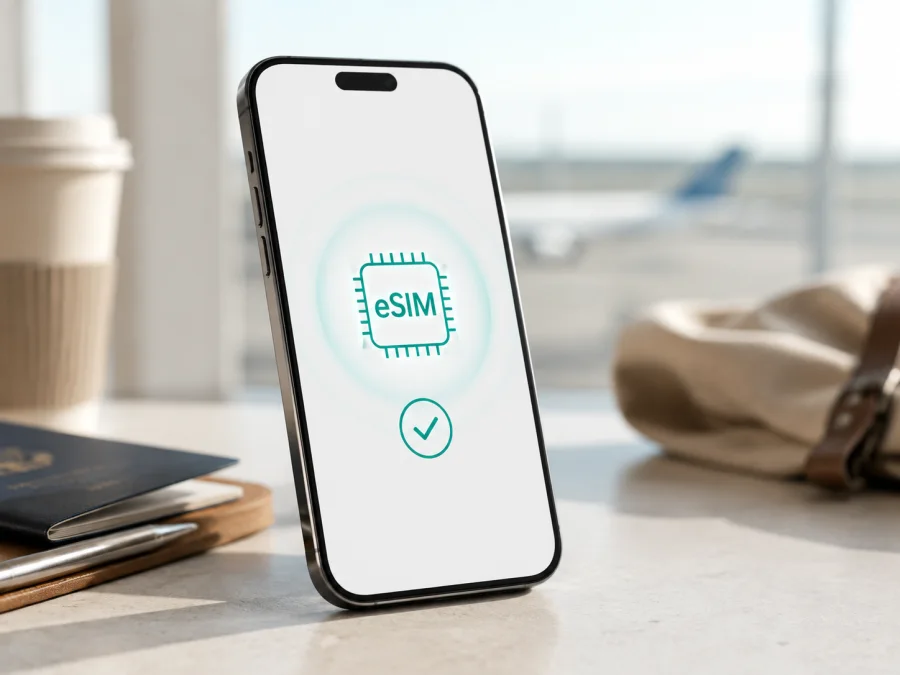
Apple iPhone 17 Air 256GB 5G eSIM: compatibility and setup for travel
If you are planning a trip and want mobile internet without replacing your everyday SIM, first check whether your exact phone variant can use an eSIM. For Apple iPhone 17 Air 256GB 5G, the short answer is yes: Apple's current official technical specifications list advanced eSIM support, including two active eSIMs and storage for eight or more eSIM profiles. In the eSIM-only configuration, the same specification says that the device is not compatible with physical SIM cards.
That answer concerns the named 256GB 5G variant, but check the individual handset too. Apple documents different SIM configurations by sales market, and the operator or travel-plan provider must support eSIM. Before paying, check the EID and Add eSIM option in your phone; this is more reliable than a shop listing or box label.
Quick answer: does Apple iPhone 17 Air 256GB 5G support eSIM?
Yes. Current manufacturer information lists dual eSIM for the relevant Air model: two eSIMs can be active at the same time, while eight or more profiles can be stored. This makes Apple iPhone 17 Air 256GB 5G suitable for a travel eSIM intended for mobile data when the handset is an eligible regional version, is not carrier-locked, and the selected plan covers the destination.
An eSIM is a digital SIM profile built into the phone. It does not use a removable card slot and does not automatically create a second ordinary phone number. In the Kaspersky eSIM Store travel context, the relevant use is a prepaid eSIM tariff for mobile internet abroad. Voice calls and SMS are not included unless the selected tariff explicitly says otherwise; messaging and calls can use internet-based apps.
Regional and operator differences
The market where the handset was sold matters. Apple's current SIM-type guide lists Apple iPhone 17 Air 256GB 5G within the iPhone Air generation and distinguishes eSIM-only from eSIM-plus-nano-SIM configurations. For models purchased in the United States, United States Virgin Islands, Canada, Mexico, Japan, Guam, United Arab Emirates, Saudi Arabia, Bahrain, Kuwait, Qatar, and Oman, Apple describes the relevant models as eSIM-only. For models purchased outside those listed markets, Apple documents eSIM and nano-SIM configurations for the relevant models.
There is also a carrier-lock question. An eSIM profile may install but fail to register if the phone is locked to another operator or the operator does not allow the service. Apple defines device capability; the carrier or eSIM service supplies the network profile. Coverage, roaming rules, activation windows, and plan conditions also matter.
Treat the manufacturer statement as a capability check, not a promise that every tariff works on every handset. If Settings shows no EID or no option to add an eSIM, pause before purchase and ask Apple or the seller to confirm the exact model and market. An update cannot add eSIM hardware to a phone that does not have it.
Key characteristics for eSIM use
| Item | What applies to Apple iPhone 17 Air 256GB 5G | What you should verify |
|---|---|---|
| Exact variant | Apple iPhone 17 Air 256GB 5G | Match the full name, storage, generation, and 5G marking |
| Storage | 256GB | Storage does not prove eSIM availability |
| Cellular | 5G; actual bands and service depend on location | Check destination and plan conditions |
| eSIM | Dual eSIM is listed by Apple's current specifications | Look for EID and Add eSIM on your phone |
| Physical SIM | eSIM-only in some markets; eSIM plus nano-SIM in others | Identify the sales region |
| Profiles | Two active; eight or more stored | Select the correct data line; keep old profiles only if needed |
| Carrier status | An operator lock may prevent use | Check Carrier Lock in About |
Storage and 5G are characteristics of the requested variant, but neither substitutes for an EID check. The plan must also be valid for the country, region, or route of the trip.
Check compatibility before buying a tariff
<a id="kesim-device-compatibility"></a>
Use this checklist before ordering a travel eSIM for Apple iPhone 17 Air 256GB 5G:
- [ ] The phone, invoice, or About screen matches Apple iPhone 17 Air 256GB 5G, including 256GB and 5G.
- [ ] Settings shows an EID.
- [ ] Settings offers Add eSIM, Add Cellular Plan, or an equivalent action.
- [ ] The phone has a current enough iOS version and a stable Wi-Fi or mobile-data connection for setup.
- [ ] Carrier Lock says No SIM restrictions, or the carrier confirms that another service can be used.
- [ ] The tariff covers the destination and its validity period fits the itinerary.
- [ ] You know whether the tariff is data-only and whether data roaming must be enabled.
- [ ] You understand when validity starts, how traffic is counted, and whether the profile can be transferred or reinstalled.
Check your device before choosing a plan. This is the key check for a particular handset, especially one purchased in another region.
Find the EID on iPhone
- Open Settings.
- Tap General.
- Tap About.
- Scroll to EID and confirm that a long identifier is present.
The EID identifies the embedded SIM component; it is not the IMEI, serial number, phone number, or Wi-Fi address. Do not publish it; share it only through a trusted support channel when needed.
You can also open Settings > Cellular or Settings > Mobile Data. Depending on iOS language and version, an eSIM-capable iPhone normally offers Add eSIM, Set Up Cellular, or a comparable action. If it is missing, check for an existing line, restart, update iOS, and review About again. If EID remains absent, verify the model identifier and purchase market with Apple or the seller. If EID is present but installation fails, check carrier lock, QR-code status, internet, and plan conditions.
Prepare the phone and travel plan
Install an eSIM over reliable Wi-Fi because the phone needs to download a cellular profile. Keep the QR code or activation details on another screen; a code shown on the same iPhone cannot always be scanned by that iPhone. Use a supported link, manual method, or in-app flow when offered.
Decide how the lines should behave before departure. You may keep your home line for calls and messages while choosing the travel eSIM for mobile data. To avoid unexpected roaming charges, turn off data roaming on the home line or disable it. Do not delete your primary line just to make space; remove an old profile only when you are sure it is no longer needed.
Kaspersky eSIM Store is an app and website that helps you choose, order, and activate an eSIM with a suitable tariff for mobile internet on an international trip. Review the destination, displayed traffic, validity, and conditions for the chosen plan at the time of ordering, since they can change.
How to install and activate eSIM on Apple iPhone 17 Air 256GB 5G
Button names can vary by iOS version and language. Begin after compatibility is confirmed and the phone is online.
1. Check the requirements
Confirm eSIM support, EID, an unlocked device, internet access, and a valid QR code or activation profile. Check when the plan's validity begins.
2. Open cellular settings
Open Settings and select Cellular or Mobile Data. Tap Add eSIM or Set Up Cellular. If two lines are already active, manage or label them as prompted.
3. Scan or enter the profile
Choose the QR-code option and scan the code supplied for the selected tariff. Follow the prompts. If manual activation or an approved in-app flow is provided, use it exactly as instructed. Do not reuse a one-time code after failure without checking the order conditions.
4. Label the line
Name the new plan clearly, for example Travel data. Keep personal and travel lines distinguishable. A label does not change the tariff or destination.
5. Choose the default data line
When iOS asks which line should use mobile data, select the travel eSIM. Leave mobile-data switching off if you do not want the phone to use your primary line when the travel profile has weak service.
6. Configure roaming for the travel line
Open the travel eSIM settings and enable Data Roaming only if the tariff instructions require it. Some travel eSIMs use partner networks and need roaming enabled; others specify a different setup.
7. Activate at the right time
Turn on the travel line before departure or after arrival according to the tariff rules. Some profiles begin validity on installation, while others begin on the first eligible connection. Activation can take a few minutes.
For platform-specific background, see the Android eSIM installation instructions and the iOS eSIM installation instructions. The iOS page is the relevant companion for this device.
Use eSIM for mobile internet while travelling
After activation, confirm the following in Settings > Cellular:
- Cellular Data is set to the travel eSIM.
- The travel line is turned on.
- Data Roaming matches the tariff instructions.
- Your primary line's data roaming is off if you do not want it to incur roaming charges.
- The network indicator changes after you move to an area with coverage.
Scenario 1: activate before takeoff
With Wi-Fi at home, verify EID and carrier status, choose a destination plan, and install the profile. After landing, turn on the travel line, enable required roaming, and test a webpage or internet message.
Scenario 2: activate after arrival
If you want validity to begin later, use airport or hotel Wi-Fi to install after landing. If the QR code is on the same iPhone, use another screen or the supported manual method. A short registration delay can be normal.
Scenario 3: keep your home line
You can often keep the primary line for calls or messages and use the travel eSIM for data. Check the line selected for outgoing calls, iMessage, and FaceTime, and turn off automatic data switching when cost control matters.
For a multi-country itinerary, verify every country or choose an appropriate regional option. Do not infer coverage from 5G: the plan, partner network, local rules, or bands may differ. At a border, allow time to register, then check data selection and roaming. The travel eSIM is for mobile internet and can reduce dependence on public Wi-Fi; keep iOS updated.
Common problems and practical checks
The QR code does not scan
Increase screen brightness, hold the camera steady, and confirm the code belongs to the order and has not been used. Try a supported manual or in-app method, or another screen. Do not rewrite activation values.
Add eSIM is missing
Check Settings > General > About for EID, restart, and install any available iOS update. Confirm that you are in Cellular or Mobile Data. If EID is absent, verify the purchase market and model identifier with Apple or the seller. Storage and 5G markings cannot replace this check.
The profile installs but there is no service
Turn the travel line off and on once, confirm data selection, and wait. Verify destination coverage, data roaming, carrier lock, and local network availability. Toggle Airplane Mode briefly; do not delete the profile before support confirms it is safe.
Data uses the wrong line
Open Settings > Cellular > Cellular Data and select the travel eSIM. Review mobile-data switching and disable it when you need strict control. Make sure the label belongs to the current trip, not an older profile.
The connection is slow or stays on LTE
5G on the phone does not guarantee 5G everywhere. Network type and speed depend on coverage, bands, congestion, and plan conditions. Move to a place with better reception and test again. LTE can be normal and does not by itself indicate eSIM incompatibility.
Traffic is not being consumed
Check activation time, data line, validity, and connection. Some plans start on installation and others on first eligible connection. Review status in the Kaspersky eSIM Store app or website and contact support if unclear. Keep order information and EID private.
FAQ
Is Apple iPhone 17 Air 256GB 5G compatible with a travel eSIM?
Yes. Apple's current official specification lists dual eSIM for the relevant model, including two active eSIMs and storage for eight or more profiles. Confirm EID, Add eSIM, carrier status, and destination coverage on your particular handset.
Do 256GB and 5G affect eSIM compatibility?
No. 256GB is storage capacity and 5G is cellular capability. They identify the requested variant, while actual eSIM use and network type depend on hardware, software, region, carrier, coverage, bands, congestion, and tariff conditions. LTE may be normal abroad.
What if activation still fails?
Confirm EID, carrier status, internet access, data-line selection, roaming, destination coverage, and activation timing. Then contact support with order and device details. Avoid repeated deletion and reinstallation until you know whether the code is reusable.
Conclusion
Apple iPhone 17 Air 256GB 5G is eSIM-capable according to Apple's current official specifications, with dual eSIM support. Regional configurations and carrier restrictions still matter. Check EID and Add eSIM, confirm carrier status, choose a destination plan, install over reliable internet, select the travel line for data, and follow its roaming rules.
Final device and travel eSIM check
Before leaving, verify the exact device name and market, EID, carrier-lock status, iOS settings, destination, tariff validity, traffic, activation timing, and data-roaming requirement. Then use the Kaspersky eSIM Store app or website to review travel options, complete the order, and activate the selected eSIM for your route.


