Travel connectivity guide
Apple iPhone 17 Air 5G eSIM: Compatibility & Setup
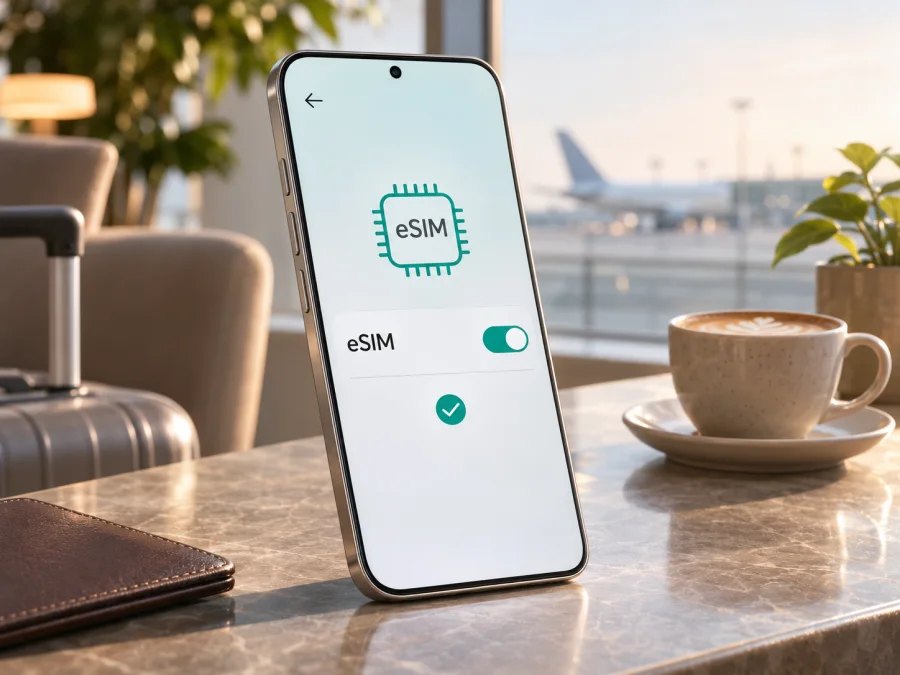
Apple iPhone 17 Air 5G eSIM: compatibility and setup guide
If you are searching for Apple iPhone 17 Air 5G, the first thing to know is that Apple’s official product name is iPhone Air. Apple does not list “iPhone 17 Air” as the model name on its product pages. The good news for eSIM users is clear: Apple’s current iPhone Air technical specifications describe an eSIM-only phone. It supports two active eSIMs and can store eight or more eSIM profiles; it is not compatible with a physical SIM card. “5G” in the search phrase describes the phone’s cellular capability, but 5G access still depends on the local operator, network bands, plan and location.
Does Apple iPhone 17 Air 5G support eSIM?
Yes, if by Apple iPhone 17 Air 5G you mean the Apple iPhone Air described in Apple’s current specifications. Apple lists dual eSIM, two active eSIMs, storage for eight or more profiles, and no physical SIM compatibility. You can therefore use a supported eSIM plan without inserting a card. The device can also keep a home plan and a travel eSIM available at the same time, although only one cellular data line is used at a time.
There is one important naming limitation: Apple’s official pages call the product “iPhone Air,” not “iPhone 17 Air.” The exact wording in a retailer listing may be shorthand, an import listing, or a seller’s own description. Before you buy, ask the seller for the model number and the country or region for which it was made. Confirm that the handset is an iPhone Air, that it is unlocked, and that the eSIM setup screen is available. Do not rely on the “17 Air 5G” phrase alone to identify a regional model.
| What to check | What Apple’s current iPhone Air information says | Why it matters |
|---|---|---|
| Name used by Apple | iPhone Air | “Apple iPhone 17 Air” is not the official product name shown on Apple’s pages. |
| SIM type | eSIM only; not compatible with physical SIM cards | Plan for digital activation; a nano-SIM cannot be used as a fallback. |
| Active profiles | Two eSIMs can be active at once; eight or more can be stored | You can retain multiple profiles, but available slots and the plan’s rules still matter. |
| Regional examples | A3260 appears on Apple’s US specifications; A3518 on mainland China specifications | Confirm the model number and local operator rules, especially for mainland China. |
| 5G | Supported on listed bands | Availability depends on the carrier, plan, bands, coverage and local conditions. |
Regional versions, carrier locks and travel restrictions
For example, Apple identifies A3260 in its US iPhone Air specifications and A3518 in its mainland China specifications. Apple’s current mainland China support guidance names A3518 as the iPhone Air model supported for domestic eSIM activation; models bought elsewhere cannot install eSIM profiles from mainland Chinese operators. Mainland activation follows the local operators’ in-person process. Apple says that outside mainland China, a supported China-market iPhone Air can activate a local eSIM when Location Services is enabled. Check the destination operator’s current requirements for any other regional model.
Second, an operator lock can prevent a handset from accepting an eSIM from another provider. In Settings, open General → About and look for Carrier Lock or Network Provider Lock. If the status says No SIM restrictions, the phone is unlocked. If it names a restriction or the field is unclear, contact the seller or original carrier before buying a travel plan. A device can support eSIM technically and still refuse a profile because it is locked or because the carrier does not support eSIM activation for that model.
Check your iPhone before buying a plan
To find the EID, open Settings → General → About and scroll through the identifier list; Apple notes that it can appear below the serial number. The EID is different from the IMEI, which identifies the cellular device, and neither one is a phone number. If a provider asks for the EID to check compatibility, copy it from Settings and share it only through that provider’s private support or activation flow. You can also find the identifier on the original packaging or in your Apple account, but the live Settings screen is the most useful check when the phone is in your hands.
On the same About screen, locate Model Number. The value may first appear as a part number; tap it to show the A-number, such as A3260 or A3518, then compare that number with Apple’s specifications for the market where the phone was sold. Next open Settings → Cellular and look for Add eSIM or Add Cellular Plan. If the option is missing, restart the phone and check again after setup and any available iOS update. The wording can vary by software version, and the menu alone does not confirm that a particular travel plan or local operator accepts the phone.
Use this checklist before checkout:
- [ ] The seller confirms the official model is iPhone Air and provides the model number, not only “Apple iPhone 17 Air 5G.”
- [ ] Settings → General → About shows an EID.
- [ ] Settings → Cellular offers Add eSIM or equivalent.
- [ ] The carrier-lock status says No SIM restrictions, or the original carrier confirms it will unlock the phone.
- [ ] The eSIM plan supports your exact destination and device, and its validity, data amount, activation conditions and any top-up rules suit the trip.
- [ ] You have reliable Wi‑Fi or another internet connection for setup, and you know whether to install before departure or after arrival.
- [ ] For a mainland China model or a trip involving mainland China, you have checked Apple’s country-specific activation rules and the local operator’s current process.
Check your device compatibility before choosing a plan. Compatibility is a combination of device support, model region, carrier lock, operator support and destination coverage; passing one check does not replace the others.
How to install and activate an eSIM on Apple iPhone 17 Air 5G
Before installation
- Confirm compatibility. Check the EID, the Add eSIM menu and the carrier-lock status as described above.
- Connect to Wi‑Fi. Downloading a profile requires internet access. If you plan to install before travelling, do it while you have a stable connection.
- Read the plan instructions. Confirm the supported country or region, whether the plan starts on installation or on first network connection, and whether data roaming must be enabled for that eSIM.
- Keep the activation details ready. Open the QR code on another screen or print it if you need to scan it with this iPhone. If the provider supports an in-app or direct setup flow, follow that flow instead.
Install with a QR code
- Open Settings on the iPhone.
- Tap Cellular or Mobile Data.
- Tap Add eSIM or Add Cellular Plan.
- Choose Use QR Code and scan the code supplied with the plan.
- Follow the on-screen prompts. If asked for a confirmation code, enter the code provided with your activation details.
- Give the new line a clear label, such as Travel, so you can distinguish it from your personal line.
- When prompted, choose which line should handle mobile data. You can leave the travel eSIM switched off until you are ready to use it, if the plan instructions allow this.
- After arrival, turn on the travel line and select it for mobile data. Enable data roaming for that line only if the plan instructions require it.
For visual walkthroughs, see the iOS eSIM installation instructions and the Android eSIM installation instructions.
Choose the line for mobile data
After installation, go to Settings → Cellular and open Cellular Data. Select the travel eSIM when you want the trip plan to carry internet traffic. If you keep your home line active for calls or messages, review Allow Cellular Data Switching: switching may use the other line depending on your settings and conditions. Apple notes that iPhone uses one cellular data network at a time. To avoid unexpected home-carrier roaming charges, check your home plan’s roaming terms and turn off data roaming for that line if appropriate.
A travel data eSIM may provide mobile data without a separate phone number, voice calling or SMS. That depends on the exact plan. If it is data-only, use internet-based messaging and calling apps for communication, and keep your regular number available only if your home carrier’s terms and settings permit it. Do not assume that installing a data eSIM automatically transfers your phone number or replaces your normal line.
When those checks are clear, you can browse current eSIM plans for your trip on the Kaspersky eSIM Store website or in its app. The site and app let you choose and activate an eSIM plan for mobile internet during an international trip. Check the destination, data allowance, validity period, activation instructions and price shown for the plan you select; those details vary by offer and can change.
Using eSIM for mobile internet on a trip
After arrival, turn on the travel line and select it for cellular data. Some plans require data roaming on that eSIM; check the selected line first because roaming on your home line may create charges. Wait for network registration before testing data.
Common problems and what to check
The phone does not show EID or Add eSIM
Restart the iPhone and check Settings → General → About again. Scroll through the full page because EID may be farther down. Check Settings → Cellular for the add-plan option. Confirm that you are checking the actual iPhone Air and not another device with a similar retailer description. If the EID and menu are still absent, ask Apple or the seller to verify the model number and hardware before purchasing a plan.
The QR code will not scan
Increase screen brightness on the device displaying the code, clean the iPhone camera lens and hold the phone steady. Make sure the code is complete and not cropped, blurred or already used. If it is shown on the same phone, use the touch-and-hold option if available, or open the provider’s app or manual setup method. Do not repeatedly share or publish an activation QR code: it can contain private activation information.
The profile cannot be added
Check internet access, restart the iPhone and review the carrier lock and model eligibility. Some plans allow only one installation. If the code is invalid or already used, contact the plan provider before deleting any profile.
The eSIM is installed but there is no service
Check that the travel line is switched on and selected under Cellular Data. Turn Airplane Mode on briefly and then off, and restart the device if needed. Confirm that the destination is included, the plan is active and any required data-roaming setting is enabled for the travel line. If the phone shows a network but data fails, check any supplied APN instructions and test with Wi‑Fi off. If there is no network, try manual network selection, then return it to automatic.
Data is using the wrong line
Open Settings → Cellular → Cellular Data and verify that the travel eSIM is selected. Review Allow Cellular Data Switching and the roaming settings on both lines. If you want to reduce the chance of using the home line for data, switch off data roaming for the home line and check your carrier’s terms. The labels in Control Center can be brief, so confirm the line names in Settings rather than relying on the signal bars alone.
5G does not appear
The “5G” part of the search phrase does not guarantee a 5G icon everywhere. Confirm that the plan supports 5G, the local operator offers it at your location, the regional model supports the required bands and the iPhone’s voice and data setting permits 5G. Indoor coverage, congestion and local network conditions may also affect the connection. If the plan supports data but 5G is unavailable, LTE may still provide mobile internet.
If the issue continues, contact the eSIM plan provider about activation or Apple/the seller about the device. Keep your EID and activation QR code private.
Frequently asked questions
Is “Apple iPhone 17 Air 5G” an official Apple model name?
No. Apple calls it iPhone Air; confirm the model number on any retailer listing.
How many eSIMs can I use?
Apple lists two active eSIMs and eight or more stored profiles. Mainland China’s A3518 limit is two.
Does eSIM support guarantee that a travel plan will work?
No. Confirm the phone is unlocked and that the plan supports the model, destination and activation method.
Should I install the eSIM before I leave?
Install before departure if allowed, and check whether validity starts at installation or first connection.
Can I keep my normal number while using travel data?
Often you can keep another supported line available. Check home-carrier roaming terms; a data-only plan does not provide a phone number or SMS unless its terms say so.
Final check before your trip
For the requested Apple iPhone 17 Air 5G search, the useful compatibility answer is that Apple’s official iPhone Air is eSIM-only and supports dual eSIM. Verify the model number, EID, Add eSIM setting, carrier-lock status and destination rules on your actual phone. Regional network bands and local operator procedures can affect service even when the device supports eSIM.
Once confirmed, label the travel profile, select it for mobile data and follow its roaming and activation instructions. Review the destination and terms of a plan in the Kaspersky eSIM Store website or app before you choose.


